Table of contents
With the N-SIDE Production App, you can create and compare:
-
multiple scenarios from the same project
-
multiple scenarios from the same milestone
-
multiple versions of a scenario.
Comparing scenarios
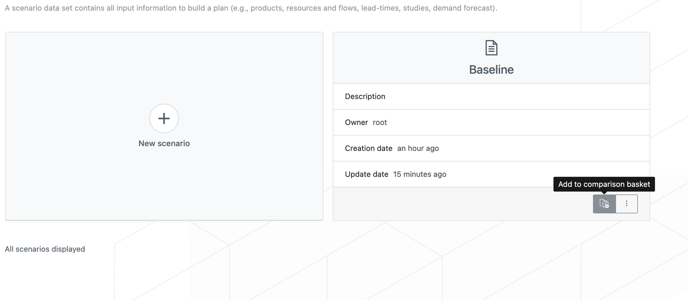
From the scenario selection menu, you can add scenarios to the comparison basket by clicking the Add to comparison basket button in the bottom right of a scenario card. Once a scenario is selected the Add to comparison basket button is highlighted in dark grey so that you can differentiate selected scenarios from others.
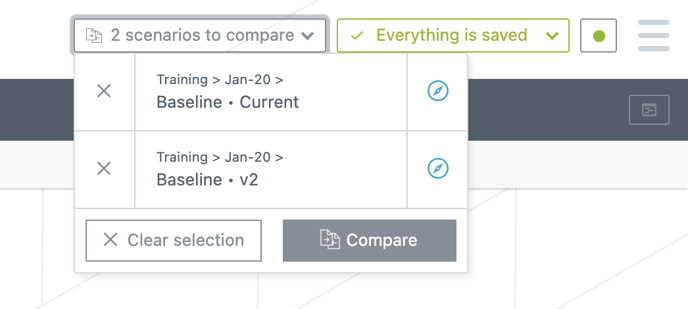
A menu will appear, next to the header at the top right of the interface, listing the numbers of scenarios to compare. Note that this comparison basket is not shared to other users and is emptied when you refresh the page or log out.

Comparing versions of a scenario
It is also possible to directly compare versions of a scenario, e.g., comparing a version with the previous or the latest one.
This is possible from the scenario history accessible from the main Production App sidebar:
-
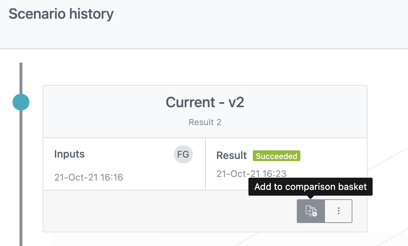
Add versions by clicking the Add to comparison basket button
-
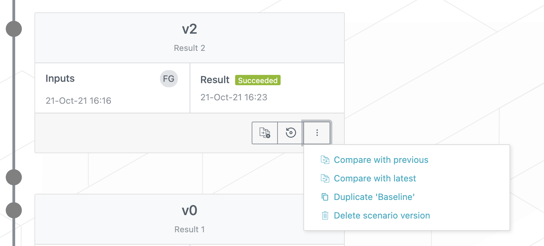
You can also use the contextual menu (icon with three dots) to use the Compare with previous and Compare with latest actions. The Compare with latest action always compare the selected version with the current version.
Once you selected scenarios (or versions of a scenario) you want to compare, click on menu next to the header and then click . You can also clear the selection, remove a scenario or access a scenario view (via the “compass” icon)
Comparison view
By clicking , the comparison view opens up.
In the sidebar, each scenario appears with its name and its version number (or “current”), a coloured dot, a left icon to remove the scenario from the comparison view and a contextual menu (icon with three dots). Note that clicking on the scenario name redirects you to the scenario view.
|
Tip You can access the scenario creation/selection page through the contextual menu by clicking the milestone name. This is particularly useful if you want to add more scenarios to your comparison basket. |
You can compare result KPIs, lot productions and inputs.
When comparing lot productions, the produced quantity appears per scenario, for each combination of [Manufacturing start date - Release date - Product - Lot type].
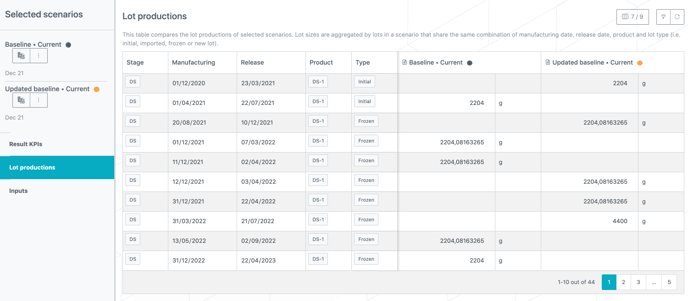
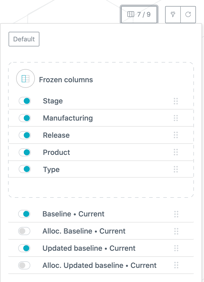
The Allocation ratio for each scenario is hidden by default but can be added to the table via the Show/Hide columns button.
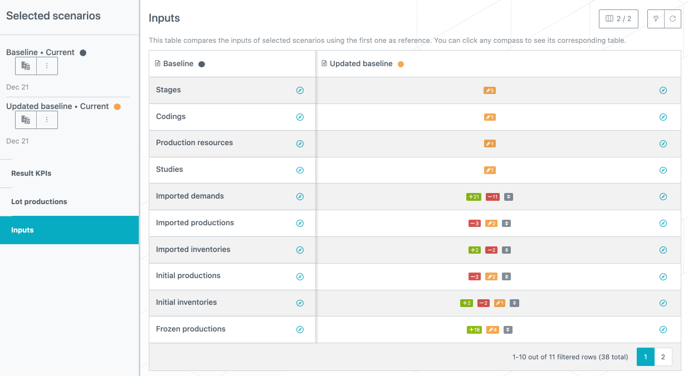
In the Inputs comparing view, you can visualize differences (with colored badges) between datasets of scenarios, the first selected scenario being the reference one. The colored badges give the following information:
-
Red: the dataset misses some rows from the reference scenario.
-
Orange: the dataset contains modified rows compared to the reference scenario.
-
Green: the dataset contains some additional rows compared to the reference scenario.
-
Grey:
-
Equal sign: the dataset contains the same rows, in the same order.
-
Up/down arrows: the dataset contains the same rows, in a different order.
-
The compass appearing in each cell redirects to the scenario dataset.
Useful links: