![logo.svg]](https://knowledge.n-side.com/hubfs/content-lifeSciences/Logos/logo.svg)
Table of contents
1. Enhance result accuracy by modeling site closure
2. Visualize and understand what is driving the CO2e emissions of the trial
1. Enhance result accuracy by modeling site closure
Previously, the Supply App did not allow to model closed sites which lead to the use of error prone and time consuming workarounds.
With Supply.2023.8, you are now able to define sites as "closed" in the new "Sites status (for simulations)" column (in the "Sites" tab of the Initial state, see image below). This allows the system to ignore these closed sites in the simulations (see "Impacts of site closure on simulations" further below), e.g. if the recruitment is stopped at this site. 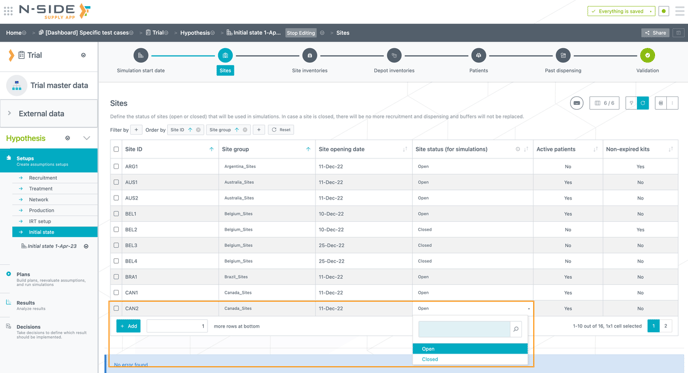 .
.
⚠️ Important information
- The "open/closed" status will be used during the simulations and it is not coming from the IRT data extract. It needs to be defined manually.
- By default, all sites are set as "Open" in the "Site status (for simulations)" column.
To easily identify potential sites to close, you can use the “Active patients” column (see image below). A site can be closed only if there are no active patients in it. For example, if a site is not recruiting anymore, but there are active patients still receiving treatment there, that site cannot be closed.
The “Non-expired kits” column (see image below) gives you information on the potential loss of kits if a site is closed.
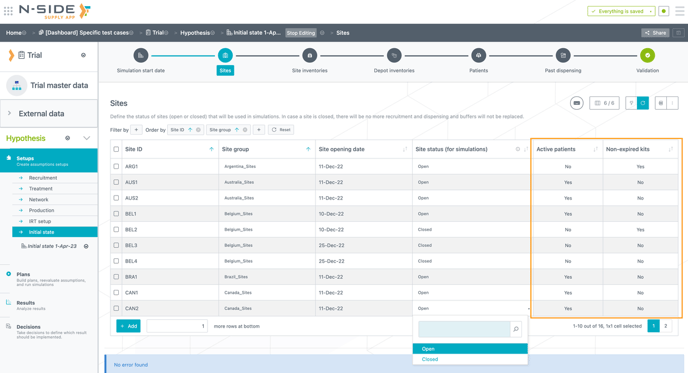
You can filter the table and display only sites without active patients, and then use the edit bulk to close all of them.
Impacts of site closure on simulations
In the simulations, the following information is considered:
- New patients, dispensing and buffer replacements are not predicted at closed sites anymore.
-
The information about how many sites have been opened and closed is kept and the system prevents to open new sites when the expected number of sites has been reached. For example, 5 sites are expected to be activated in Belgium. If 2 open sites and 1 closed site are defined in the initial state, the system is going to take all of that information into account, and therefore, it is going to open only 2 extra sites.
-
Patients linked to a closed site are still counted as part of the recruitment assumptions and recruitment constraints.
-
Patients and inventories which are in the initial state and linked to closed sites, can be kept without triggering any error message.
-
Complete site group history (open and closed sites) is used in the reevaluation of patient attributes, dropouts and titrations.
1.1. Directly set patient statuses in the Initial state
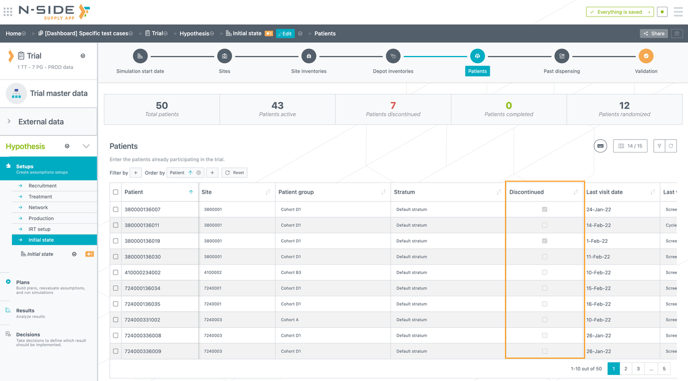
In the "Initial state", users are now able to give a specific status (active, discontinued or completed) to a patient. This status is directly displayed in the new “Status” column (“Patients” tab), in place of the former “Discontinued” column (see images below).
📝 Note
This change is only visual and does not change how these patients are considered in the simulations.
Before Supply.2023.8:
Now:
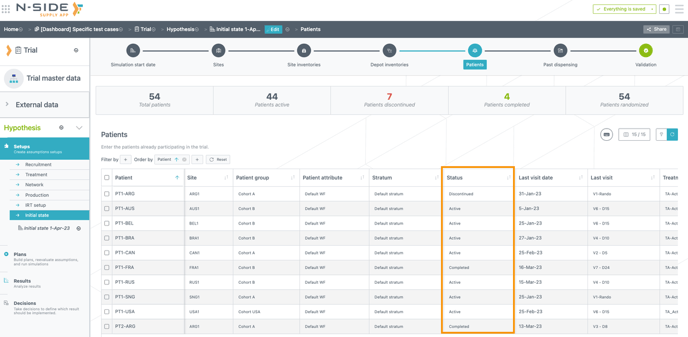
Furthermore, when pasting information from this table to an excel file, the status of the patient is now displayed, instead of a "True/False" value for discontinued patients.
An error is displayed when a patient with a completed status does not have a completion date and/or when an active patient has a completion date (see image below).

2. Visualize and understand what is driving the CO2e emissions of the trial
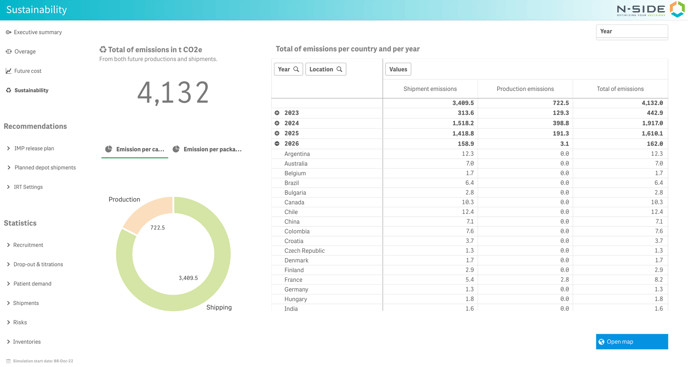
Since Supply.2023.6, you can input CO2e emissions in the Supply App to get the forecasted shipment and productions emissions in results of your trials.
In addition, you can now visualize and analyze the CO2e emissions in the Results dashboard.
The new "Sustainability" sheet displays the emission information per country and per year (see image below).
You can also display the emissions per country on a map in a second view (see image below).
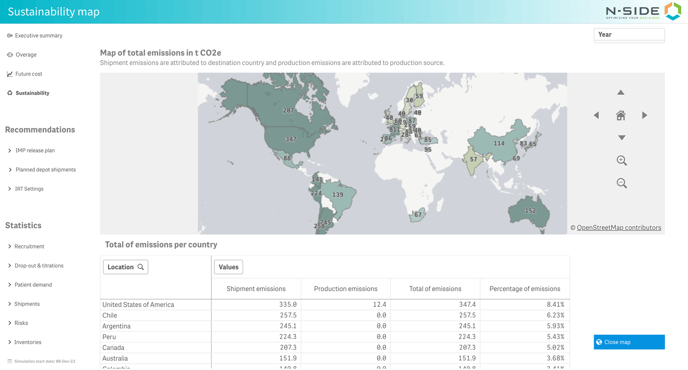
Through the two views, sustainability managers can answer many questions on the subject:
-
What are the CO2e emissions for my trial?
-
Are the emissions driven by production or shipments?
-
Where are those emissions coming from? (country and year granularity)
-
What are the emissions per package type?
-
Which country is driving the emissions?
📝 Notes
- The "Sustainability" sheet will only appear if CO2e emissions are computed for your result.
- For results with CO2e emissions generated before Supply.2023.8, the "Sustainability" sheet will not be displayed by default. You will need to regenerate the result.
3. Other updates
3.1. Team manager role upgrade
Previously, as a Team manager, you could add/remove users from teams only if you were admin of the team as well.
Now, Team managers can add/remove users from any team defined in the system.
To summarize the differences between Team manager and Team admin:
A Team manager (User role - App level) is able to
-
create a new team,
-
delete/rename any team,
-
add/remove users from any team,
-
provide admin right to any user part of a defined team.
A Team admin (team level) is able to:
-
delete/rename the team
-
add/remove users to/from the team,
-
provide admin right to any user part of the team
3.2. Get a better visibility of unmatched visits at the initial state creation
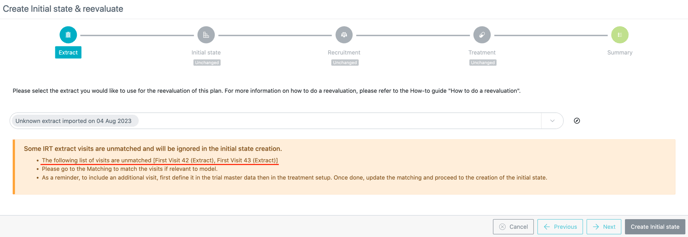
The visibility of unmatched visits at the initial state creation has been improved. A message is shown with explicit information related to unmatched visit that will be ignored in the initial state creation (see image below). As an impact,
-
Patients that have unmatched visits as their last observed visits are recorded with their latest matched visit instead.
❗This can lead to inconsistencies between the actual patient projections in the treatment and the simulated ones.
- In case the unmatched visits are dispensing visits, the number of kits dispensed is not considered in the past dispensing information.
3.3. Define "before" and "after" visit windows
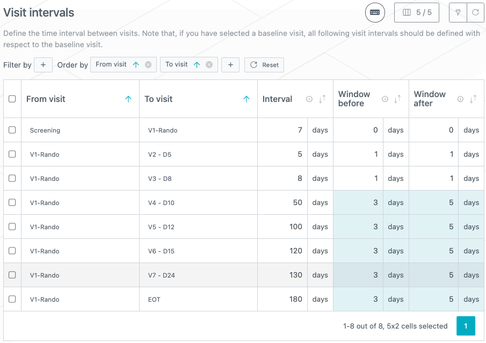
In the "Visit intervals" table ("Treatment visits" tab), you can now accurately model a treatment schedule with asymmetric visit windows, i.e., "before" and "after" visit windows (see image below).
3.4. Filter on empty values
You can now include empty values in your filtering selection (see image below).
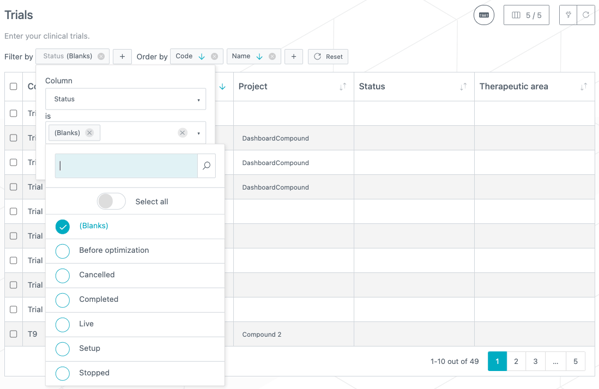
3.5. New “External data” drop down menu
"Lot management", "Importable data", "Matching", "IRT Connection" and "IRT data extracts" data sets are now regrouped under a new "External data" collapsible section (see video below). This offers a better visibility on setups, plans and results and avoids having to scroll down to access them.
3.6. Monitoring dashboard retro-compatibility update
Starting from the next Supply.2024.1 version, results generated before Supply.2023.2 will not display the previous version of the Monitoring dashboard anymore.
To continue accessing the Monitoring dashboard, you will then have to re-launch simulations for your result (if it was generated before Supply.2023.2).
An information banner is displayed in all the impacted results to warn you of these upcoming changes.
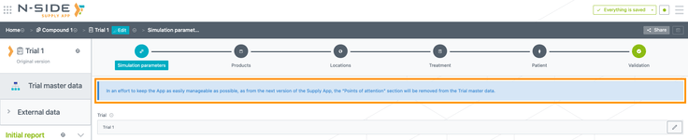
3.7. Upcoming removal of "Points of attention"
Starting from the next Supply.2024.1 version, the "Points of attention" will be removed from Trial master data. The reasons for this are double: 1) it was used in the previous version of the Monitoring dashboard which will be deprecated (see 3.6. above) and 2) the usage was almost inexistent.
An information banner is added in this version (Supply.2023.8) to warn you of these upcoming changes (see image below).
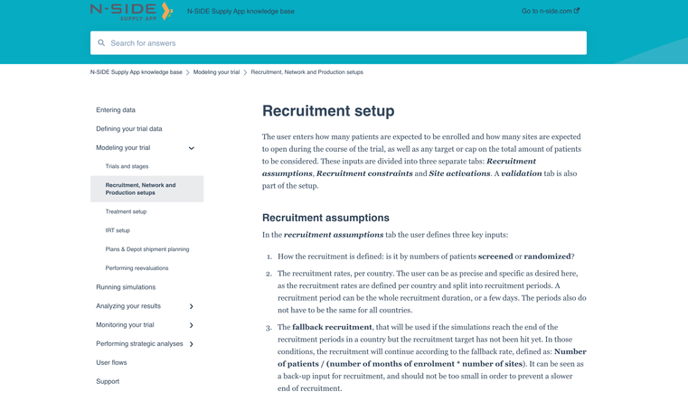
3.8. A more user-friendly User documentation
The software used to display and search the User documentation of the Supply App is now aligned with the one used to display release notes. You can now navigate and search the user documentation more easily (see image below).
📝 Note
The way to access the User documentation has not changed. You can still use the "View documentation" in the side menu of the App or directly use the search bar (appearing when opening the side menu).
4. Bug fixes
The following issues are now fixed:-
Portfolio contributors could not open the strategic dashboard.
-
Unselecting all rows while a filter is applied was not working.
5. User documentation
The following articles are added (or have been modified) to enrich the documentation and help you in your usage of the N-SIDE Supply App: