![logo.svg]](https://knowledge.n-side.com/hubfs/content-lifeSciences/Logos/logo.svg)
Table of contents
2. Get a better user experience with tables
3. Benefit from an improved shipment statistics reporting
1. Easily model kit switches
You can now easily model kit switches by defining dispensing periods.
1.1. Create dispensing periods
You are able to access the new "Period" section below the "Dispensing" table ("Dispensing" tab of the Treatment setup, see image below).
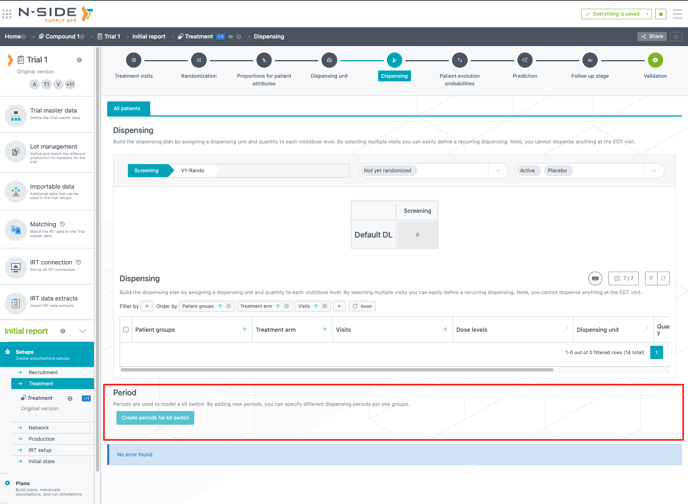
Clicking on "Create periods for kit switch" automatically creates two periods by default: "before kit switch" and "after kit switch". However, these default periods can be renamed if needed and you can create as many additional periods as your trial needs.
1.2. Define period switches
Once periods are created. You can define switches between periods.
Each period switch (see image below) is defined by a start date that can be applied to one or several site groups. By default, the "before kit switch" period is set for all site groups and its start date is left empty, as this is the initial period starting at the beginning of the trial. However, start dates can differ between site groups. e.g., you can have a start date for Canada and Chile, and a different one for China (see image below).
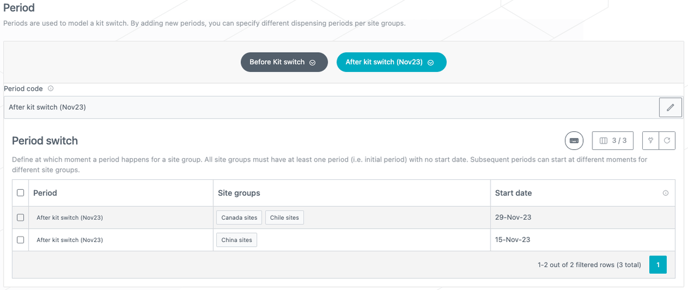
⚠️ The start date is an input of the simulations and the system is not optimizing this date per site group.
1.3. Define a different dispensing per period
A new "Period" column (see image below) is added in the "Dispensing" table in order for you to model a dispensing (e.g., different package type, different quantity) per period. This column is always visible and set to “All (including future values)” by default.
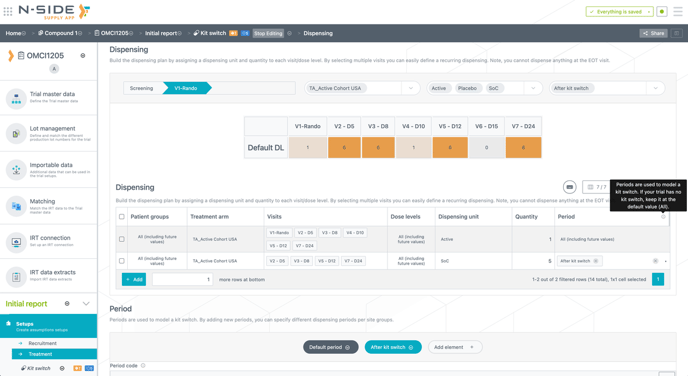
If dispensing periods are used, an additional filter is also added above the dispensing graph in order for you to filter the data per period.
📝 Note
You can also model a kit switch in the "Follow-up dispensing" table by using the same periods created in the "Dispensing" tab.
2. Get a better user experience with tables
2.1. Gain efficiency in data management
You can now perform any action on tables with up to 10.000 rows in a few seconds.
⚠️ If you need to update the whole table, it is still recommended to export the table and then use the "Paste from Excel" action.
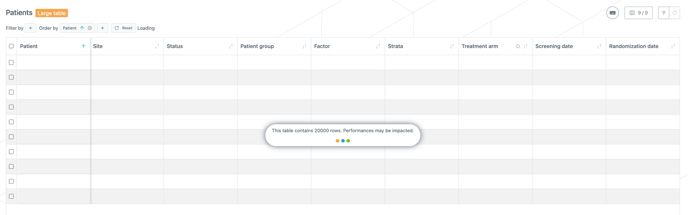
A "Large data" label (see image below) has been added to tables with more than 10,000 rows. This label notifies you that performance may be affected when working with tables of this size. Additionally, a loading indicator (see image below) will appear when the table takes longer to load.
2.2. Experience a smoother editing
You can now edit a cell by double-clicking on it.
You can select all rows of a table in one click (see visual below).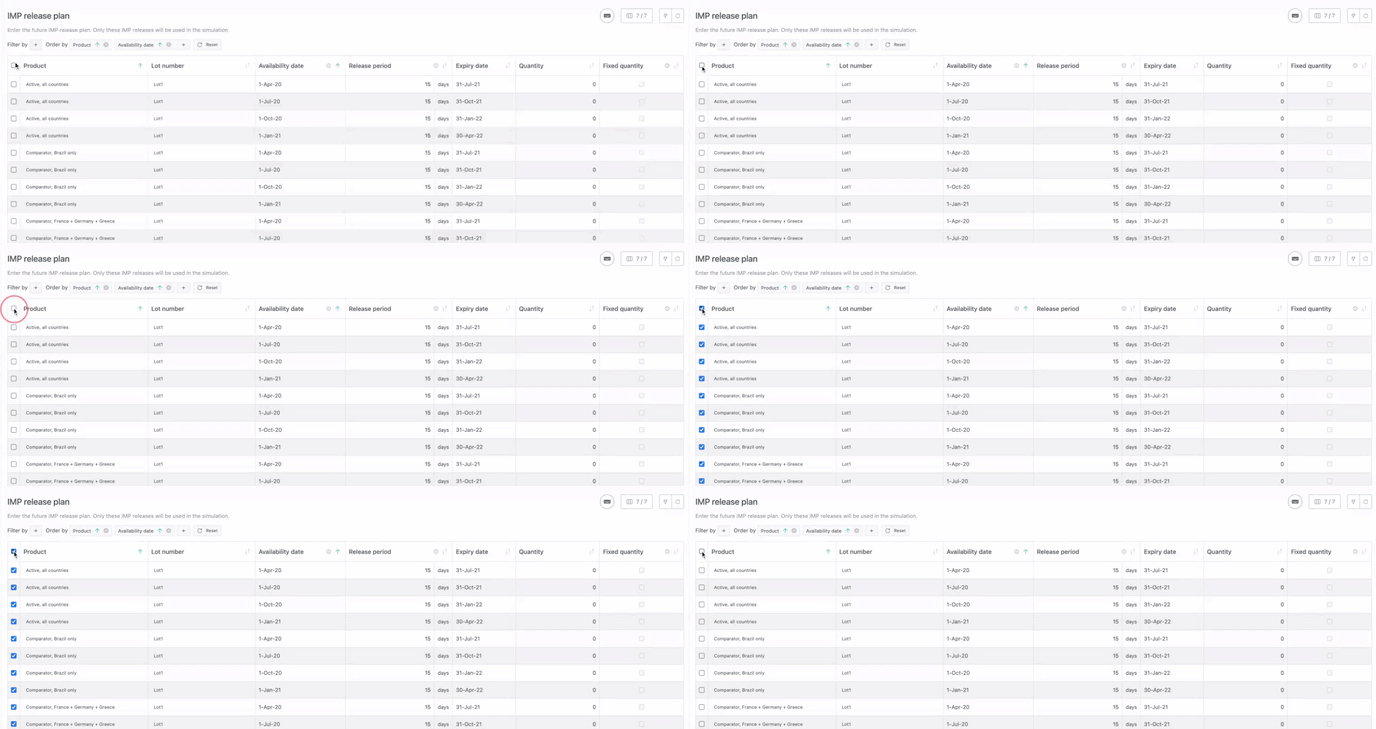
You can select all rows of the visible page using Shift + Cmd (or Shift + Ctrl on Windows).
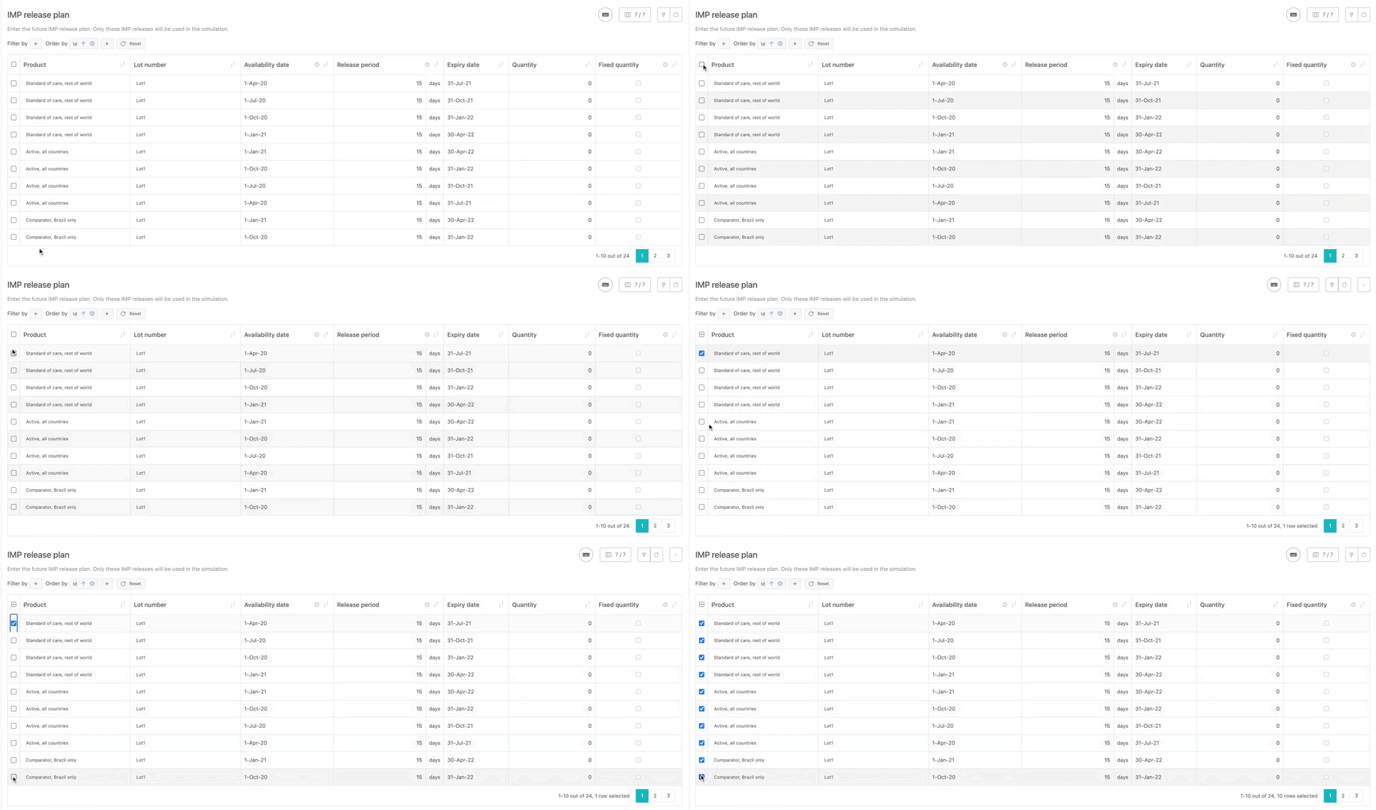
When only some rows are selected, clicking on the top left box:
-
selects all lines if less than half the lines are selected
-
unselects all lines if more than half the lines are selected
When you are in editing mode, you can access copy/paste actions by right-clicking on any cell (see visual below).
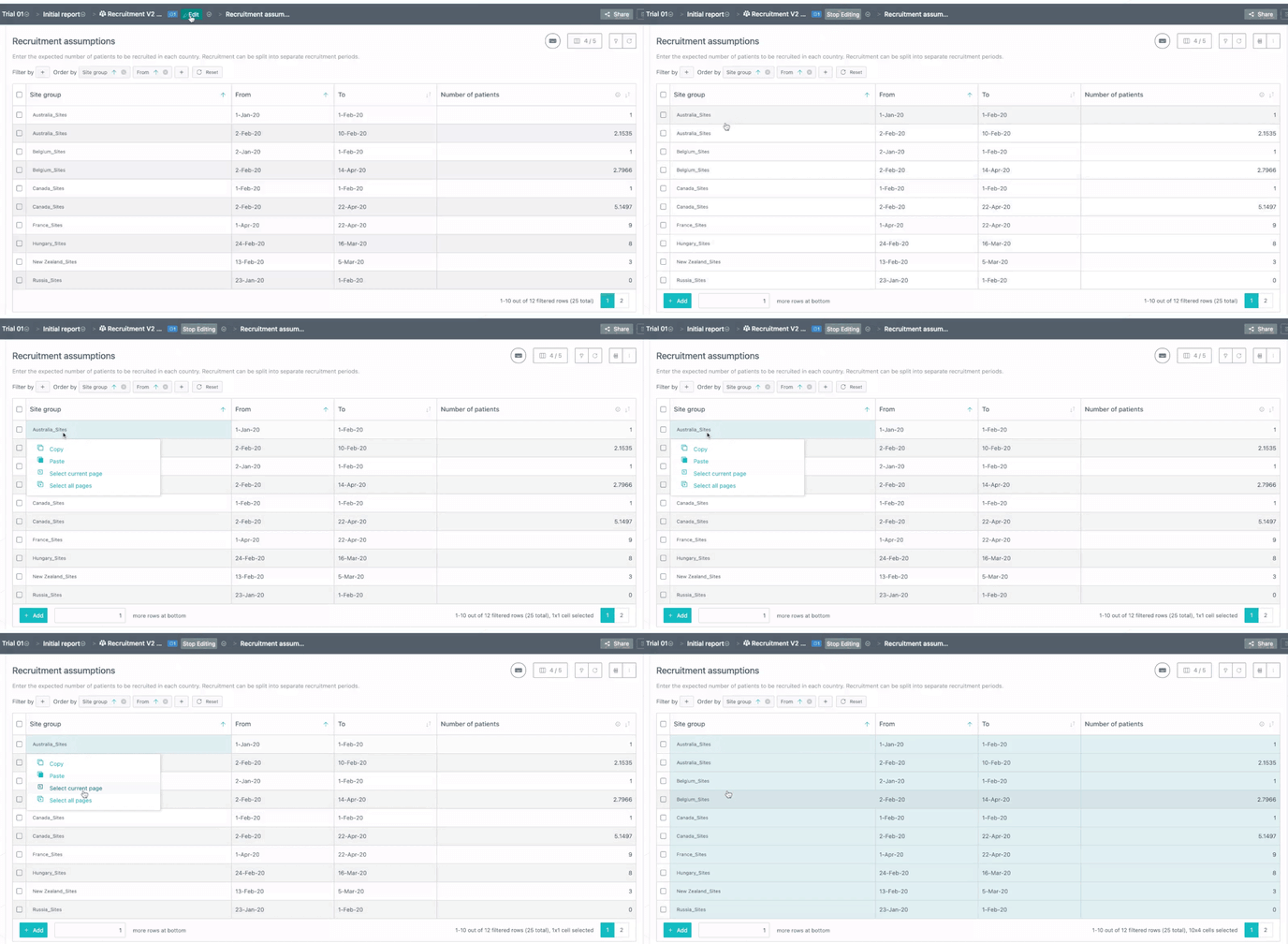
2.3. Order and filter the tables faster
You can now order in one click again.
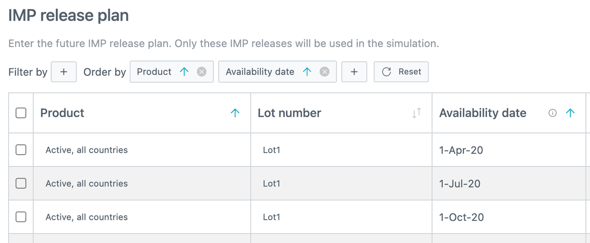
Clicking on the arrow in the column title (see image below) either:
- places the corresponding ordering criteria in first position,
-
changes the already applied order in the opposite direction.
In addition, the "Reorder rows" button now remains visible even when some rows are selected.
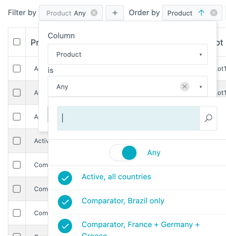
Filtering now directly displays the list of available items (see image on the right).
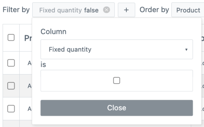
Easily filter the elements that are set with a boolean. For example, in the IMP release plan, it is now easy to filter on all the future products with fixed quantities.
In addition:
-
The filters and orders are now visible by default,
-
Filters can now be applied to all columns.
2.4. Benefit from a more intuitive ordering
The default ordering has been reviewed for most tables in order to better match the reality.
For example:
- The routes (Network setup) are now ordered using "From depot" > "To location".
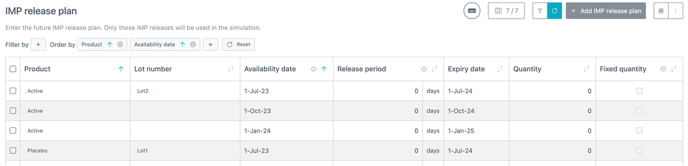
- The IMP release plan (Production setup) is now ordered using “Product” > “Availability date”.
3. Benefit from an improved shipment statistics reporting
3.1. Improved navigation and visuals
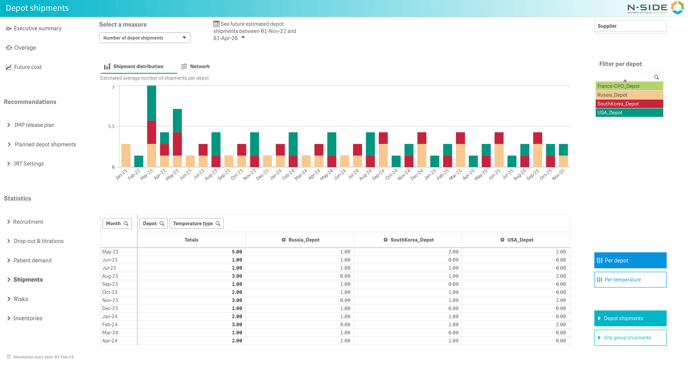
Navigation and visuals of the Results and Strategic dashboards are now aligned with the Monitoring dashboard's latest design change. A new navigation bar on the left side includes two main sections: Recommendations and Statistics.
Result dashboard
Strategic Dashboard
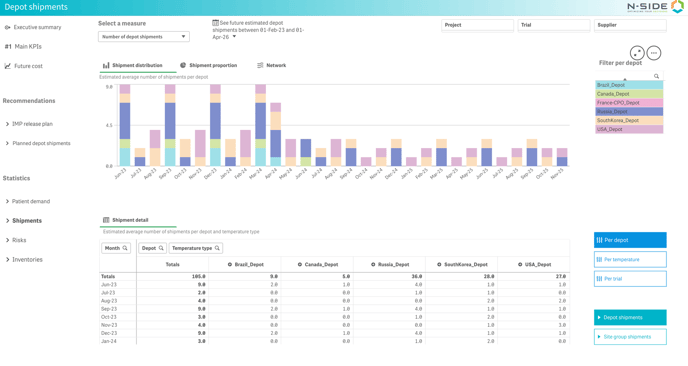
3.2. Visualize your shipments in one single place (Results and Strategic dashboards)
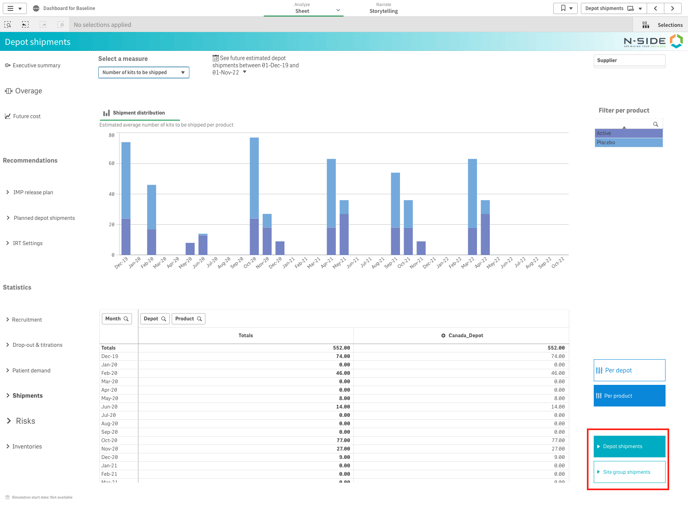
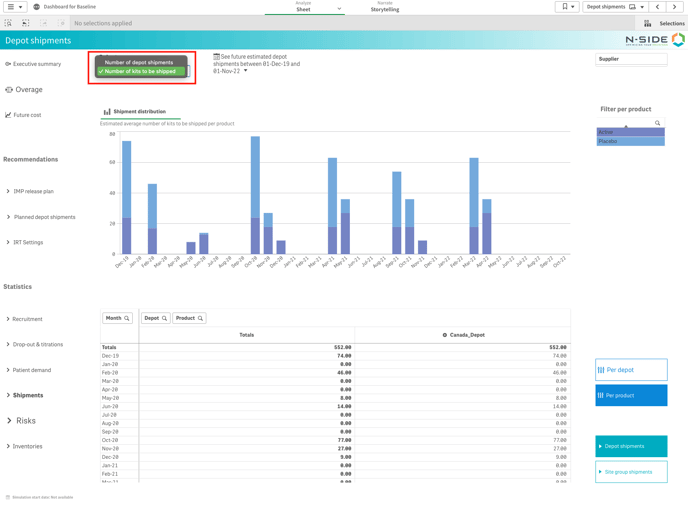
3.3. Results dashboard improvements
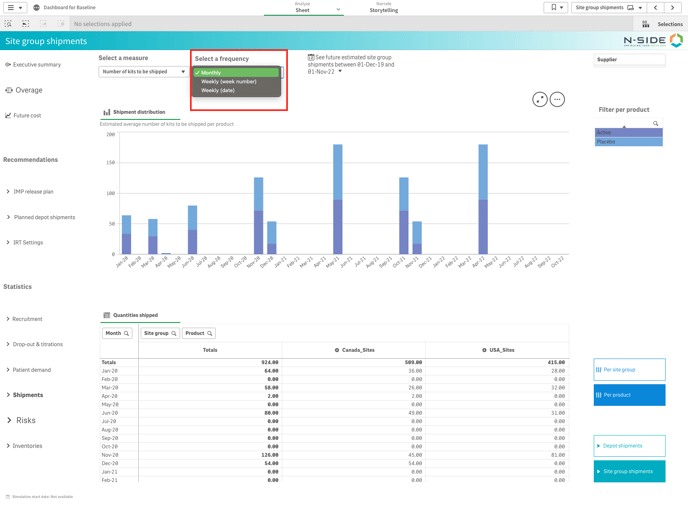
3.3.1. Access a weekly granularity for site shipments at trial level
You can choose between monthly and weekly granularity for your site shipments with the frequency selection drop-down menu next to the measure selection above the graph (see image below). The weekly frequency can either be displayed (as the week number in the calendar or the date of the corresponding Monday.
⚠️ Compatibility with outdated results
This new reporting granularity is not available for results generated before Supply.2023.1. To benefit from this feature, you need to re-run the plan associated to the result. In this case, a banner appears in the detailed view of the result to suggest this action.
3.3.2. Get a better understanding of your planned depot shipments information
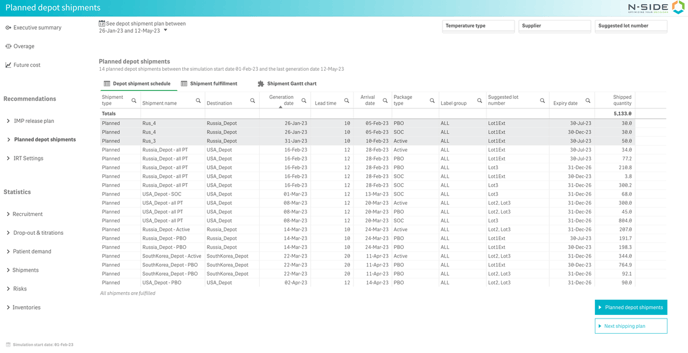
A "Depot shipments schedule" table (previously named "Detailed planned shipments") is displayed as soon as you select the "Planned depot shipments" sheet. This new table includes the following changes:
-
Planned depot shipments departing before the simulation start date are highlighted in grey.
-
The "Requested quantity" column has been removed (see improvements detailed in 3.3.3.) and a message is displayed at the bottom of the table, informing you if shipments are fulfilled or not.
The Gantt chart is still accessible from the sheet but is not directly displayed anymore.
3.3.3. Easily spot planned depot shipments that are not fulfilled
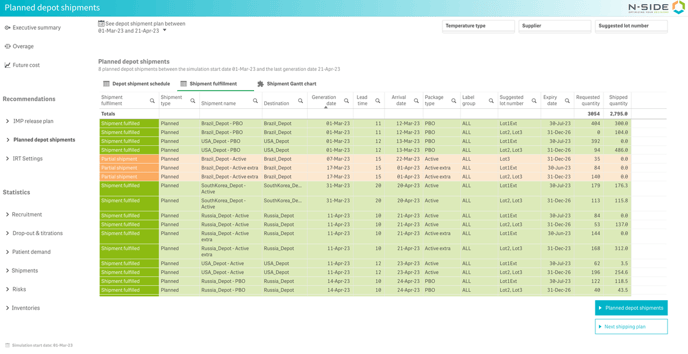
From now on, you can directly see the fulfilment (fulfilled or partial shipment) of planned depot shipments in the "Shipment fulfillment" table of the "Planned depot shipments" sheet. Partial and fulfilled shipments are highlighted in different colors.
3.3.4. Enjoy a better readability of your next shipping plan
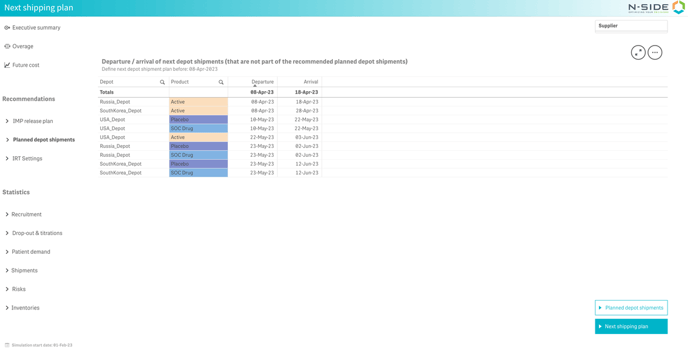
The "Next shipping plan" is relocated to the "Planned depot shipments" sheet. The departure and arrival dates are part of the same table which gives you better readability of the depot shipments that are not part of the recommended planned shipments.
3.4. Strategic dashboard improvements
3.4.1. Get an overview of shipments statistics across multiple trials
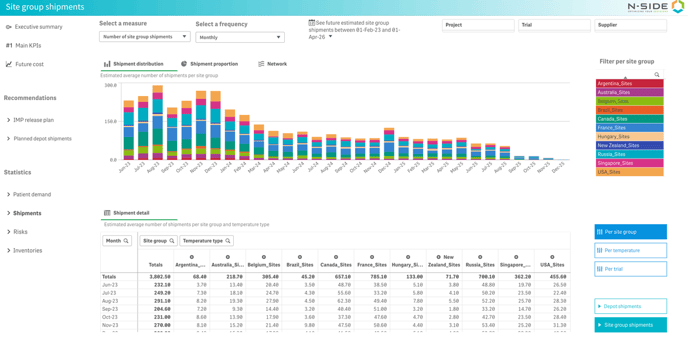
You can now also access weekly granularity (with the same display options) for site shipments in the Strategic dashboard. You also have access to an overview of the depot shipments statistics, with the specific distribution of the number of depot shipments or kits to be shipped.
⚠️ Compatibility with outdated results
The new views for weekly shipment statistics require extra actions to take in the following cases:
|
Result generated |
Result published |
Actions to take |
|---|---|---|
|
Before Supply.2023.1 |
Before Supply.2023.5 |
|
|
After Supply.2023.1 |
Before Supply.2023.5 |
|

4. Other updates
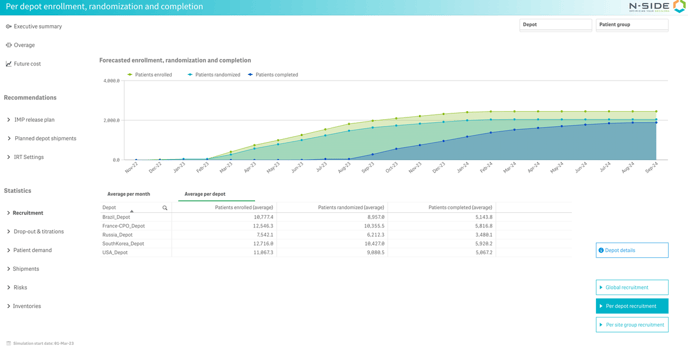
4.1. "Recruitment" sheet updates (Results dashboard)
-
A new "Average per depot/site" table is available with an overview of the recruitment type per depot/site.
-
The name of the button to go to the details view for depot or site groups is more explicit: "Depot details" or "Site details".
4.2. Get a list of all patients considered as "out of window"
We now give visibility to the list of patients reported as active in the initial state that are meeting the out-of-window days defined in the treatment setup (default value is 365 days).
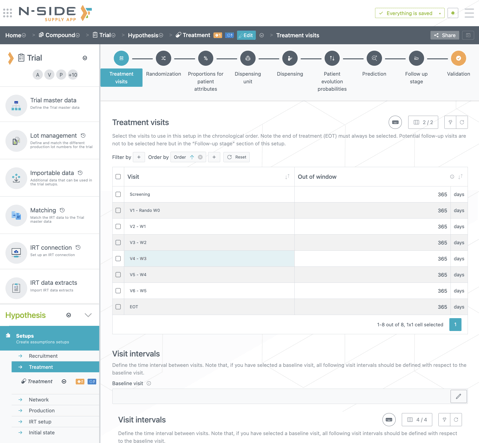
A warning message is now be displayed in the detailed view of the result.

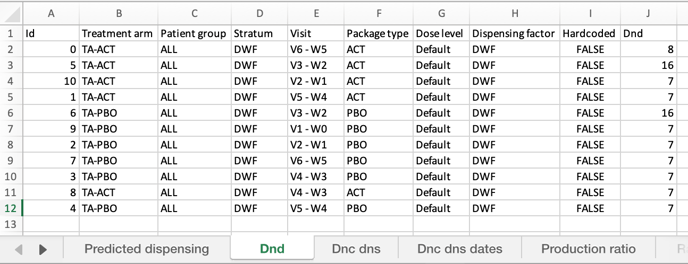
4.3. Access DND values more easily
A new and more readable "Dnd" tab is added in the detailed report where you can visualize DND values for all relevant combinations of Treatment arm, Patient group, Stratum, Visit, Package type, Dose level, and Dispensing factor.
5. Bug fix
The following issue is now fixed:
The system soft failed when an expiry extension was modeled with a network that has multiple central depots on the same temperature type.
6. User documentation
The following articles are added (or have been modified) to enrich the documentation and help you in your usage of the N-SIDE Supply App: