![NSIDE_SupplyAPP_FullColorGray_Logo.png]](https://knowledge.n-side.com/hs-fs/hubfs/content-lifeSciences/Logos-LS/NSIDE_SupplyAPP_FullColorGray_Logo.png?height=40&name=NSIDE_SupplyAPP_FullColorGray_Logo.png)
Table of contents
User profiles
Users will all have a specific profile in the N-SIDE Suite, allowing them to access features that bring them value.
There are three profiles that are defined by the usage:
-
Visual User: this profile focuses on trial monitoring or high-level results.
-
Advanced User: this profile focuses on reevaluations of trials.
-
Power User: this profiles creates the initial modeling of trials and focuses on optimizing advanced plans and trial characteristics.
Access and editing rights
Visual User
Visual Users have view-only access to information in the Suite that have been shared with them. Visual users are not able to create, modify or update data or run simulations to generate results.
Advanced User
Advanced Users have the ability to create or modify setups listed below:
-
Recruitment
-
Treatment
-
Production
-
IRT setup: all tabs except “IRT configuration”
-
Network
-
Initial State
Advanced Users can also run simulations to generate results.
However, they cannot create trials - trials have to be created first by a Power User and it has to be shared with the Advanced User, along with the IRT extract and matching.
Restricted data sets
Some data sets should typically be edited by a Power User and will display a lock (see below) in editing mode:
-
Trial Master Data: “Simulation parameters”, “Treatment” and “Patient” tabs.
-
IRT data extract
-
Treatment setup: all tabs except “Proportions for patient attributes” and “Patient evolution probabilities steps” which are not restricted.
To prevent accidental updates, Advanced Users need to unlock these data sets to make modifications and should therefore only be unlocked if it is an absolute necessity.
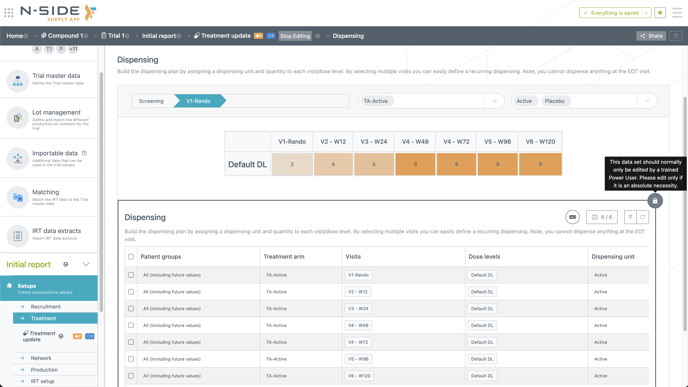
As an Advanced User, if you absolutely need to unlock the data set to edit it, you can do it by clicking on the lock.
Power User
Power Users have the ability to create or modify new and existing projects, trials, setups, and plans. Power Users can also run simulations to generate results.
Updating data sets
Advanced and Power Users can update references of any data sets they are shared as contributor (see here).
How to update an outdated data set:
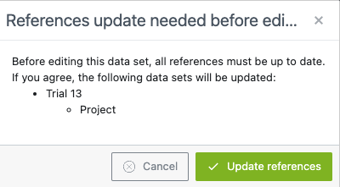
If you are contributor of an outdated data set (i.e., there is a clock icon next to the data set name), you can update it as follows:
-
Open the data set you are contributor of.
-
Click the edit button in the grey horizontal bar.
-
Click “Update references” and save the updates.
→ As a result, the clock icon will disappear.
💡 Tips
After a Trial master or Master data update, updating a plan will automatically update the other data sets needed to run simulations (setups, importable data, lot management, trial master data and compound).
As all contributors can update their own trials and compounds, there is no need to proactively update all the references after a Master data update.
User roles
Besides these profiles, there are roles that involve different additional responsibilities :
-
IRT connection manager: setting up the IRT data connection with SFTP server.
-
IRT reviewer: reviewing the IRT setup.
-
Trial reviewer: reviewing the setups and plans.
-
Corporate user: defining, maintaining and updating (or managing) the Master Data used across studies. Creating projects and providing users access to the projects.
-
User manager: managing the user access to the N-SIDE Supply App by setting up user profiles and roles as well as removing/disabling existing users. This is by definition the most privileged user since it can change the roles of everyone.
-
Team manager: creating, modifying or deleting teams of users.
❌ These profiles and roles can be combined. However, users will only have one profile (whereas they can have several roles). For example, a Power User could have the role of IRT connection manager as also of Corporate user.
In addition to the User profiles and roles, different access rights can be allocated to users or teams.
Note
When users duplicate a setup, they will automatically become the owner of the duplicated setup and therefore, retrieve the access rights related to their user profile.
The following table summarizes all user profiles and access rights combinations and their respective actions on setups:
|
|
Power User or Advanced User |
Visual User |
|---|---|---|
|
Owner |
Create all setups ✅ Duplicate all setups ✅ Delete all setups ✅ |
Create setup ❌ Duplicate setup ❌ Delete setup ❌ |
|
Contributor |
Create all setups ✅ Duplicate all setups ✅ Delete all setups ❌ |
Create setup ❌ Duplicate setup ❌ Delete setup ❌ |
|
Viewer |
Create all setups ✅ Duplicate all setups ✅ Delete all setups ❌ |
Create setup ❌ Duplicate setup ❌ Delete setup ❌ |
Sharing specificities
The N-SIDE Supply App includes some particularities for the Share action.
Sharing a data set
When you share a data set, such as a trial or a plan, you automatically share its dependencies, i.e. all the data sets needed for the correct usage of what you are sharing. A data set with its dependencies is called a sharing unit.
You can also share an entire sharing unit with individuals or teams, via the Share all data sets and Share with trial participants (see “Trial participants” section further below) buttons.
By sharing the main data set, you also upgrade the relation of the dependencies, i.e., making it at least as permissive as before (e.g., when upgrading to viewer, the collaborator will stay contributor if they were before, and viewer otherwise).
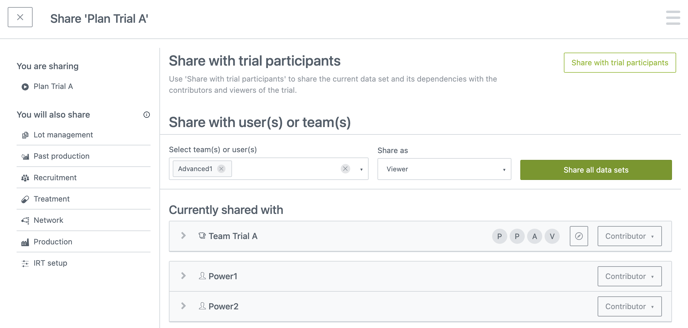
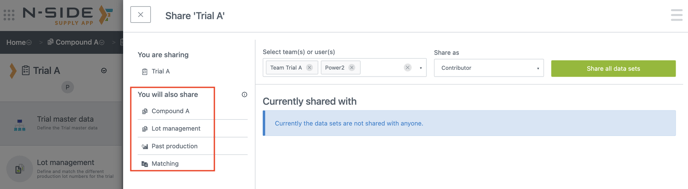
When sharing a data set, you can visualize the dependencies that will be automatically shared with it (see red frame on the screenshot below).
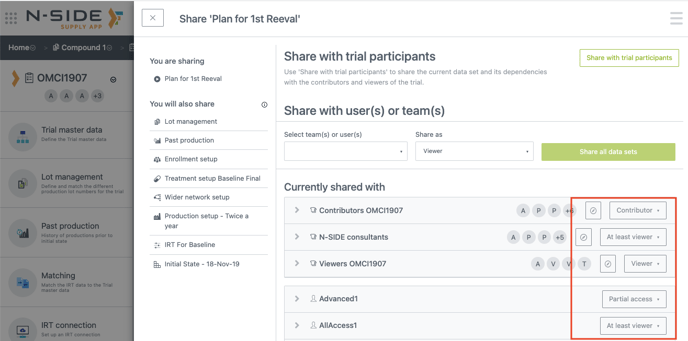
You can check the summarised relation of a team or a user with the sharing unit (see red frame on the screenshot below):
-
Contributor: Contributor for all data sets in the sharing unit.
-
At least Viewer: Viewer of some data sets and Contributor of the others.
-
Viewer: Viewer for all data sets in the sharing unit.
-
Partial Access: Missing accesses to some of the data sets.
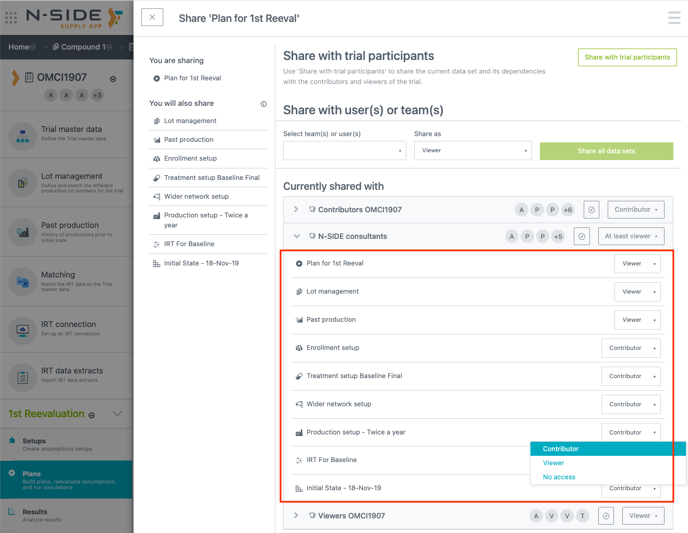
More than seeing the current relation with the sharing unit, you can also access the relations of an individual user or team with the dependencies of a sharing unit (see red frame on the screen shot below). This way, you can have an inventory of the relations and update each of them for a team or a user without needing to go through each dependency and update the relation separately.
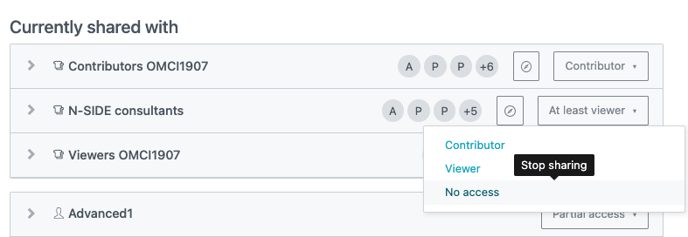
❗The No access action at the global view is only removing the access to the main data set (e.g. removing access to a plan will not impact access to associated setups). If you want to remove the complete access to all dependencies and the main data set, first use No access on all dependencies in the drop-down and then on the main data set.
Datasets dependencies
Sharing some datasets of the Supply App will automatically share upstream related datasets as well:
|
By sharing |
You will also share |
|---|---|
|
Trial (= the TMD) |
Compound, lot management, matching, past productions |
|
Past production |
Lot management |
|
Extract |
Lot management and matching |
|
Production setup |
Lot management |
|
Initial state |
Lot management |
|
Plan
|
Lot management, past production, setups from the plan |
|
Result |
Lot management, past production, plan, setups from the plan and associated detailed results. |
|
Detailed results |
Lot management, past production, plan, setups from the plan and associated result. |
Alternatively, if it is preferred, you can choose to only share some datasets on their own.
Common examples of sharing
-
If you would like to give access to a dataset to the trial participants, you need to share this specific dataset.
-
If you would like to give access to a dataset to a user or a team that is not part of the trial participants, you need to share this specific dataset and the following datasets (at least):
-
Project
-
Trial
-
-
If you would like to give access to a result to a user or a team that is not part of the trial participants, you need to share:
-
Project
-
Trial
-
Extract (optional). It is strongly recommended to share the daily extract in case there is an IRT connection.
-
Result
-
Trial participants
Trial participants are composed of:
-
The owner of the trial.
-
Other users or teams with whom the trial master data is shared.
As a trial owner and/or contributor, you can add user(s)/team(s) to the trial participants by sharing the trial master data with the user(s)/team(s). This way the new user(s)/team(s) have direct access to all datasets shared with the trial participants.
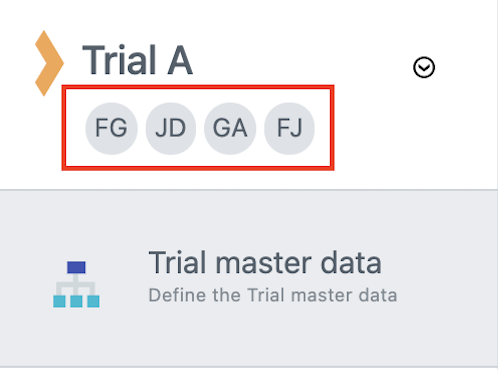
The trial participants are always displayed below the trial name (red frame on screenshot on the right).
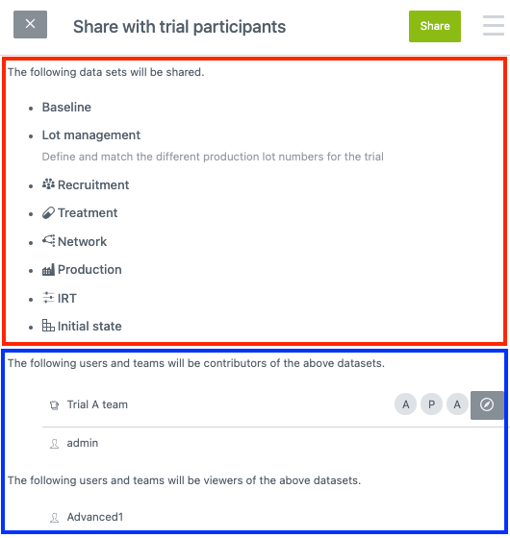
As a user, you can share your datasets with the trial participants with the Share with trial participants button (red frame on screenshot below) accessible via the Share button (see N-SIDE Suite - Teams, access rights & sharing).
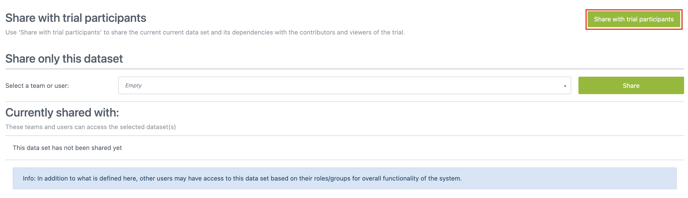
When sharing with trial participants, you can clearly see what is shared (red frame on screenshot below) and with which users (with their access rights) (blue frame on screenshot below).