![NSIDE_SupplyAPP_FullColorGray_Logo.png]](https://knowledge.n-side.com/hs-fs/hubfs/content-lifeSciences/Logos-LS/NSIDE_SupplyAPP_FullColorGray_Logo.png?height=40&name=NSIDE_SupplyAPP_FullColorGray_Logo.png)
Table of contents
When accessing the main page of the N-SIDE Supply App, you have access to two different areas: the latest decision per trial and the trials.
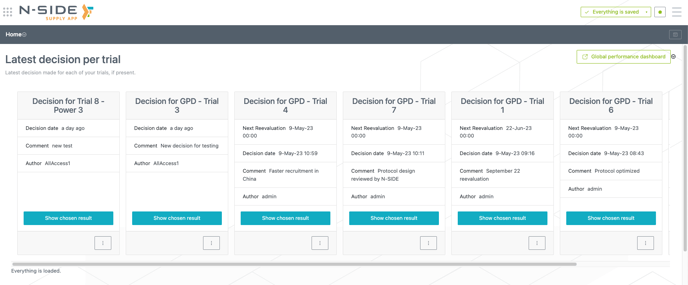
The latest decisions per trial are displayed through decision cards from which you can quickly access the chosen result and its associated dashboards.
Trials
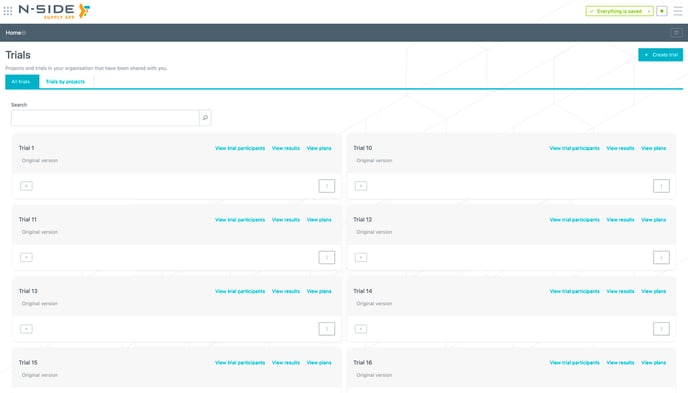
You can access all trials from the main view (see image below).
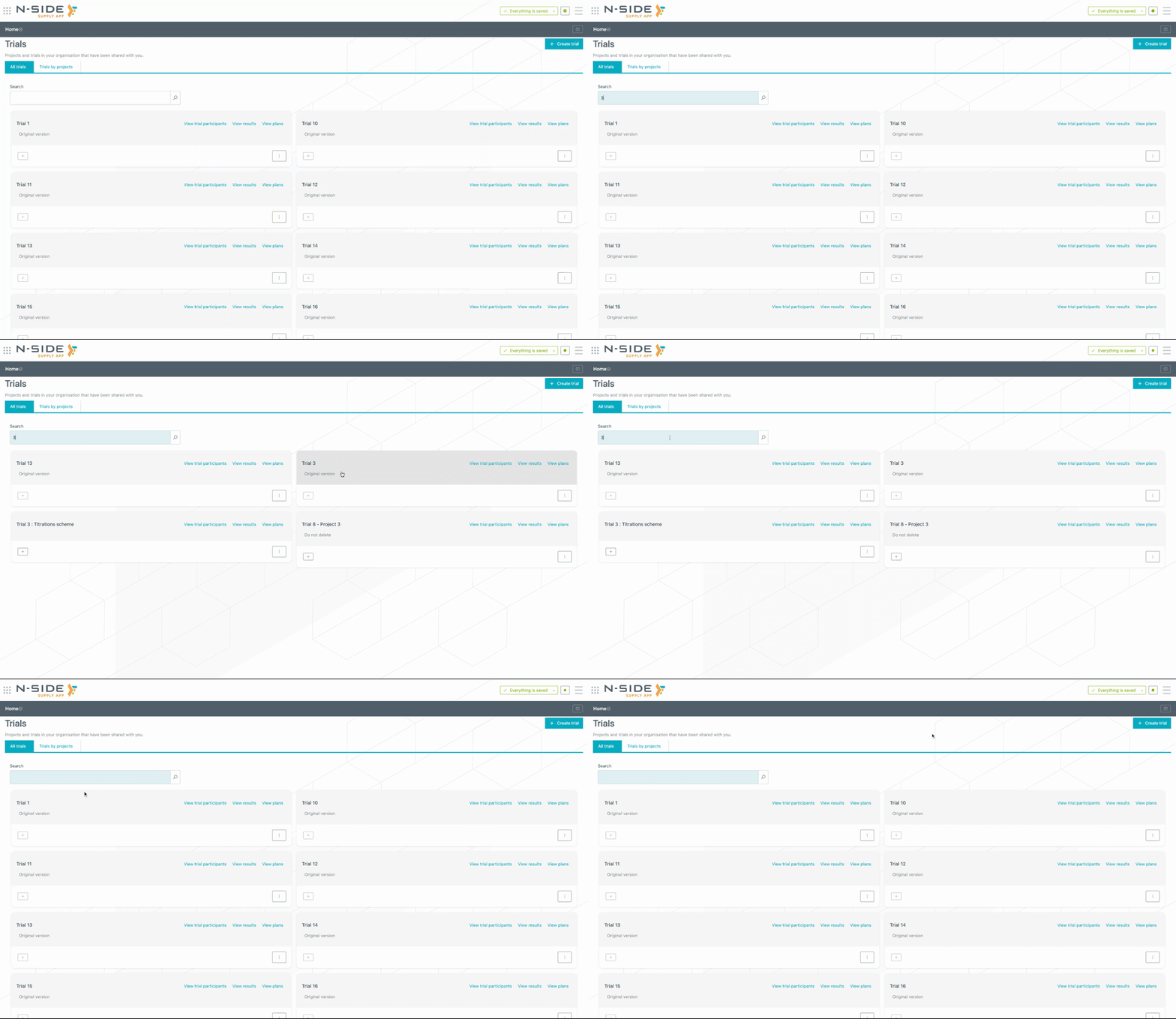
You can search for trials with the added search bar (see animation below). The corresponding trials names are displayed as soon as you start typing.
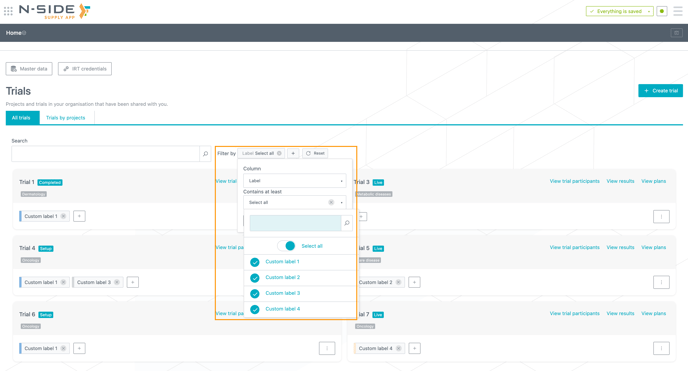
You can filter trials by status, therapeutic area and labels (see image below).
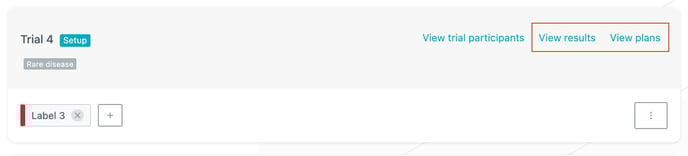
From the trial card, you have a direct access to the trial participants but also to the results and plans of the trial (see red frame in the image below).
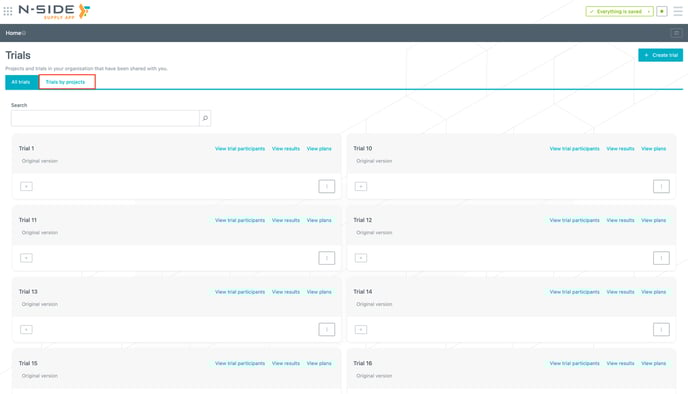
If needed, you can also access the view where trials are organized by projects by clicking on "Trials by project" (see red frame in the image below).
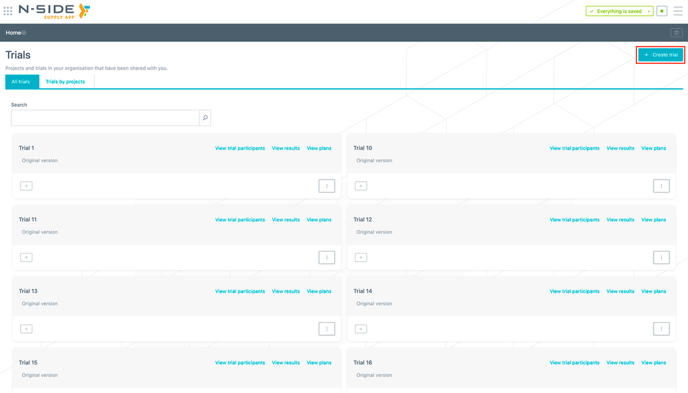
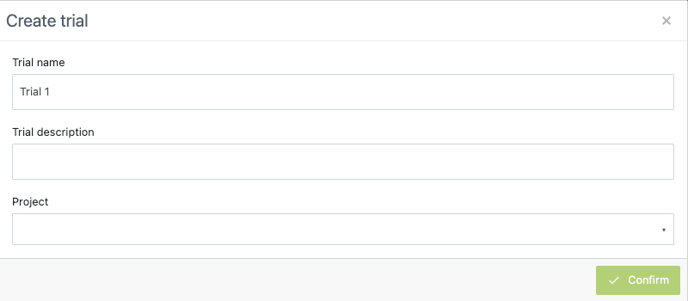
A trial can be added by clicking on Create trial (see red frame on the image below).
You have to (at least) give a name and choose the project related to the trial and then click Confirm.
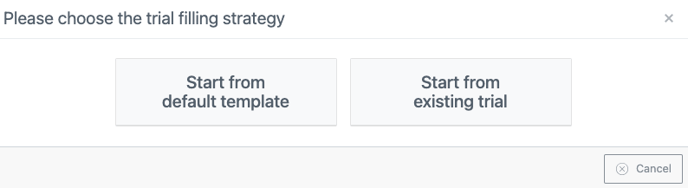
There are then two ways to create a new trial:
-
Start from default template: a new empty trial will be created with empty/default values.
-
Start from existing trial: the trial creation will be based on a plan from another trial, both chosen by you. The new trial's master data and matching will be filled, and a plan with corresponding setups will be created.
Status, therapeutic area and custom labels
Status and therapeutic area
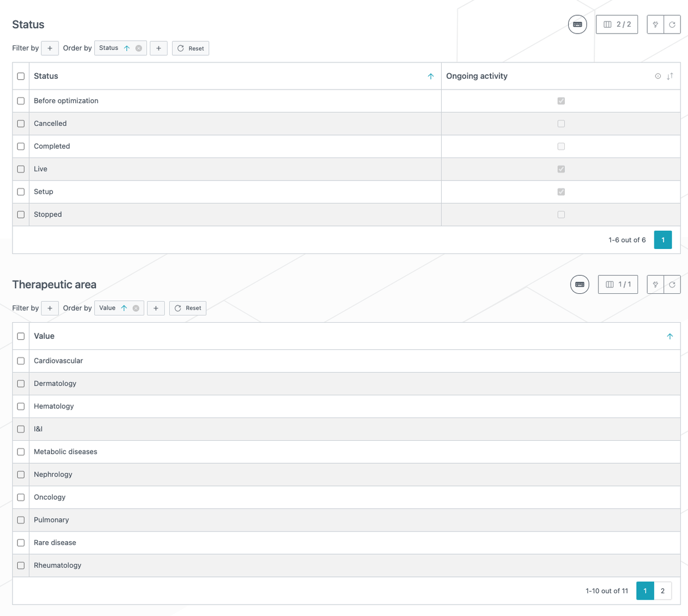
You can define a "status" and a "therapeutic area" per trial in order to categorize trials and identify them in the Trials view.
Statuses and therapeutic areas are defined in the Projects tab of the Master data where generic values have been automatically generated (see image below).
Status and therapeutic area are assigned to trials in the "Trials" table in the Master data (see red frame on the image below).
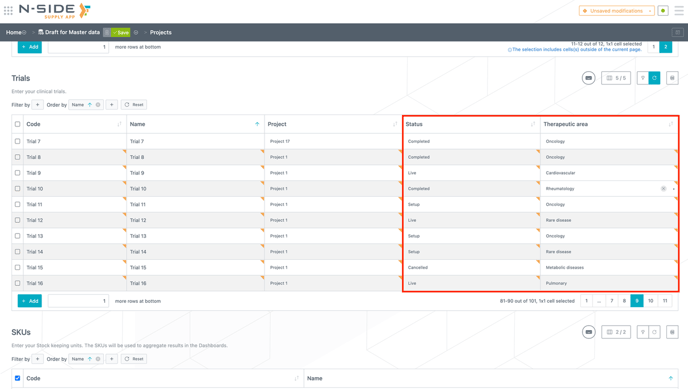
No status or therapeutic area is assigned to a trial by default. Only Corporate users can create, edit and delete a status and/or therapeutic area.
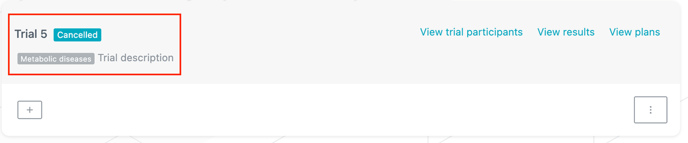
In the "Trials" view, status and therapeutic area are displayed with a colored background in the upper section of a trial card. The status is displayed next to the trial name and therapeutic area is displayed below (see red frame on the image below).
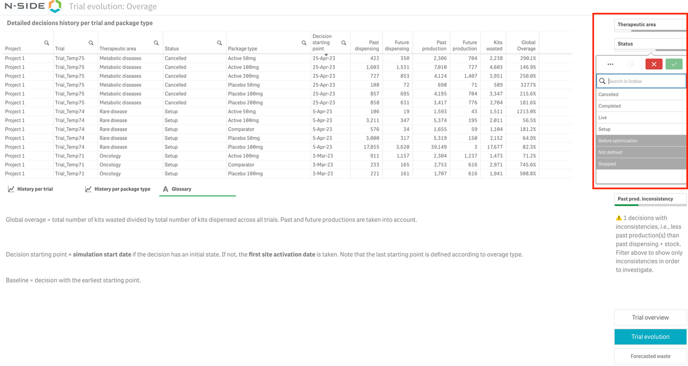
You can also visualize and filter trials using the status or the therapeutic area in the Global performance dashboard (see image below).
Custom labels
Beside statuses and therapeutic areas, you can create and assign custom labels to any trial to further categorize your trials.
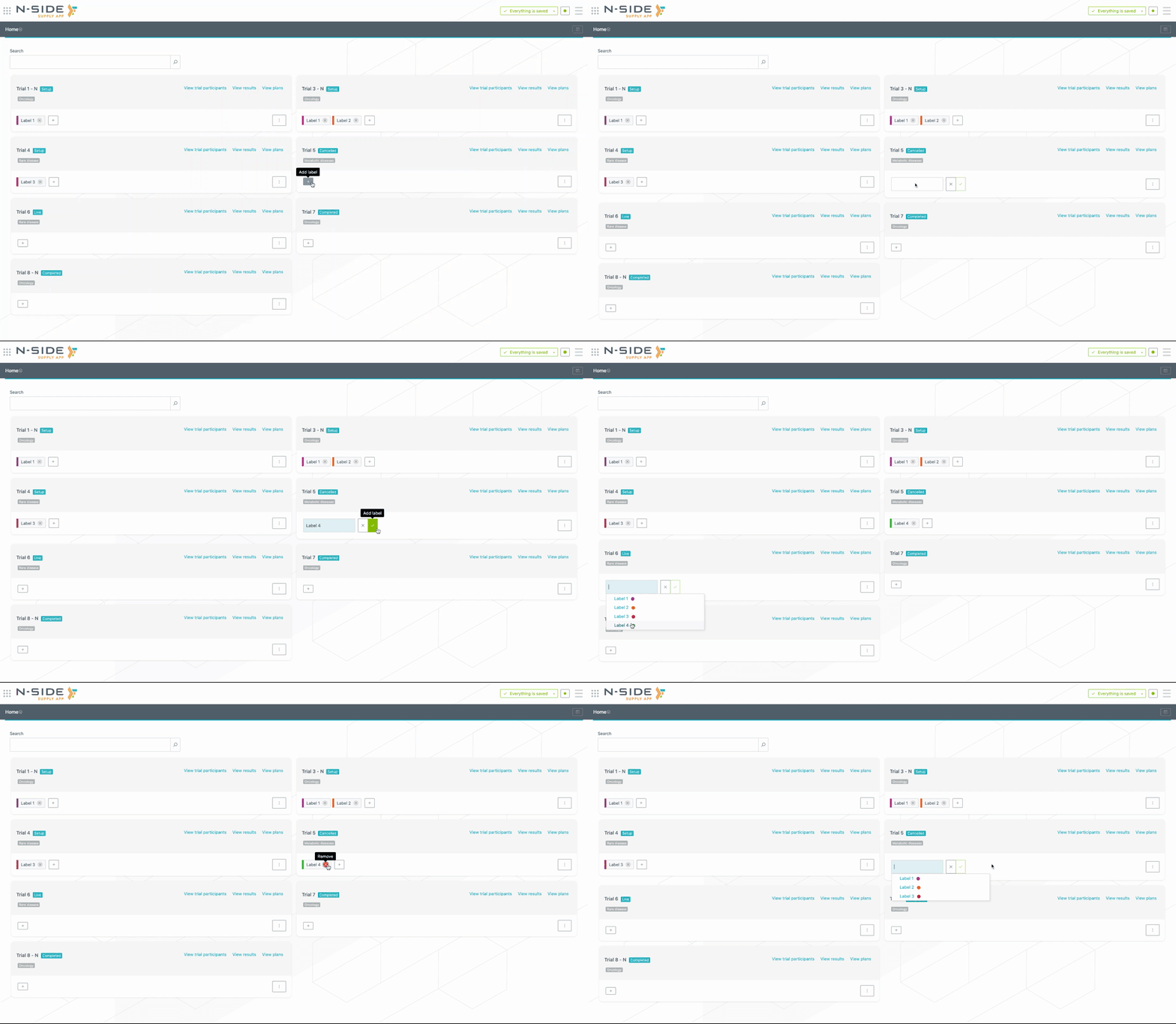
Custom labels can be created (or removed) directly from the trial card. To add a custom label to a trial, click on the + button and select the label from the drop-down menu. If the label is new, type in the name of the label and the system will create it (see visual below).