![NSIDE_SupplyAPP_FullColorGray_Logo.png]](https://knowledge.n-side.com/hs-fs/hubfs/content-lifeSciences/Logos-LS/NSIDE_SupplyAPP_FullColorGray_Logo.png?height=40&name=NSIDE_SupplyAPP_FullColorGray_Logo.png)
Table of contents
Teams
The team concept offers the possibility to organize and gather users in teams and share datasets dynamically.
Teams are accessible through the sidebar menu (red frames on images below).

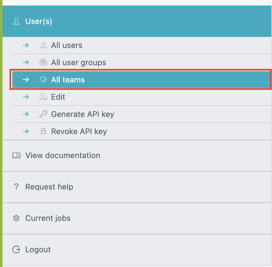
All users are able to visualise the existing teams and their members but teams can only be created by a user with the Team manager role.
The Team manager can group users who usually work on the same data, e.g., users working on the same project or trial, therefore organizing users in teams with meaningful names (see examples on the image below).
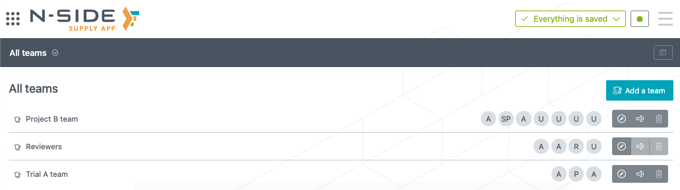
To add a user to a team:
-
Click on the compass icon of the team (see red frame on the image below).

-
Search and select the user(s) to add in the empty field then click Add to team.

When users are added to a team, they directly get access to all the datasets shared with the team.
Inside a team, you can define users as Admins.
Admin users are the only ones who can:
-
Add/remove users to the team
-
Set other users as Admin of the team
-
Delete/rename the team
📝 Notes
-
A user with team manager role is by default admin of the team created.
-
A user can be admin of a team without the team manager role.
Access rights
Different access rights can be allocated to users or teams:
-
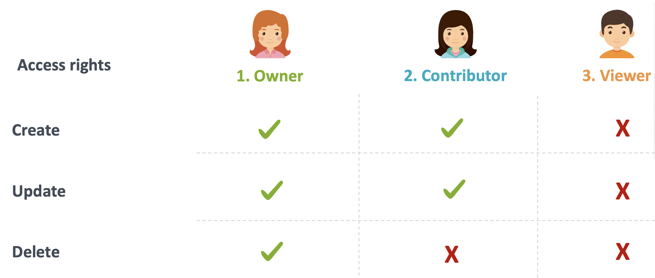
Owner : Users own datasets they have created. Therefore, they are entitled to create, edit and delete any N-SIDE Suite datasets (with regards to the limitation of their potential user profiles) that belong to them as an owner. Exceptions are with regards to the limitation of their profile. As an owner, you can also give the ownership of the data to another user.
-
Contributor : Users are entitled to contribute to datasets even though they do not own them. As a contributor they can edit any N-SIDE Suite dataset that has been shared with them but are not allowed to delete anything. The deletion right is exclusively reserved to the owner.
-
Viewer : Users receive a read-only access to the N-SIDE Suite datasets that have been shared with them.
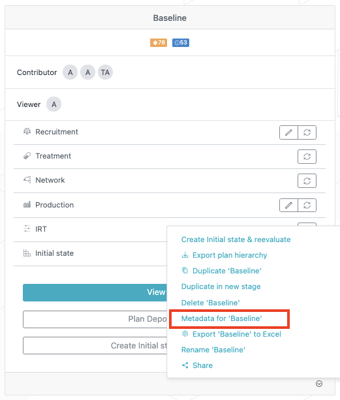
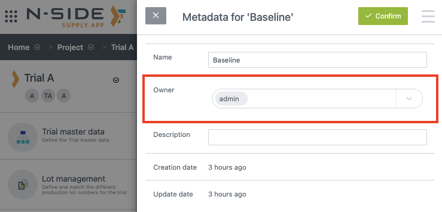
The ownership of a dataset can be found in the metadata (red frames on images below). Contributors and viewers can be found via the Share action (see “Sharing” below).
Sharing
You can share datasets with other users or teams via the Share button.
This action is available either:
-
From the main interface:

-
In contextual menus:
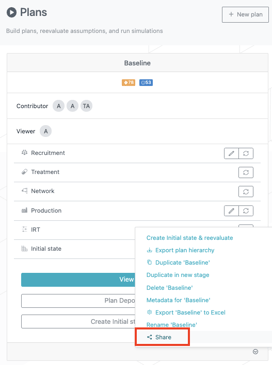
After clicking the Share button, you access a side panel, where you can select teams and users with whom you want to share the dataset, and then click Share (red arrow on image below). Once users or and teams have been added, they appear in the Currently shared with section (red frame on the image below) of the panel where you have to set access rights (viewer or contributor) for each of them.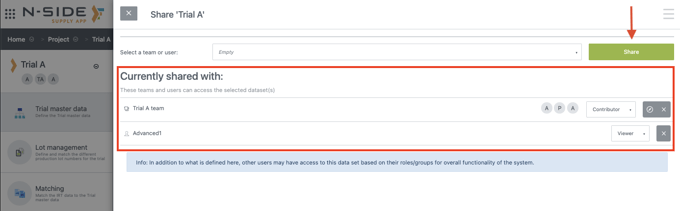
📝 Note
All users in a team are granted the same access rights.