![NSIDE_SupplyAPP_FullColorGray_Logo.png]](https://knowledge.n-side.com/hs-fs/hubfs/content-lifeSciences/Logos-LS/NSIDE_SupplyAPP_FullColorGray_Logo.png?height=40&name=NSIDE_SupplyAPP_FullColorGray_Logo.png)
Table of contents
The Production setup can be edited by advanced users and power users. It contains the information relative to products costs, release dates, expiry dates, production constraints and geographical restrictions.
Package costs
The Package costs tab contains the information about the costs of products. Costs are separated into two categories:
-
Package costs represent the costs associated with the sourcing or manufacturing of package types. They are defined per package types and can be dependent on the number of units to produce (cost per unit) or a fixed cost (per batch) (runs with quantities of 0 will not be counted).
-
Packaging and labelling costs represent the costs associated with the packaging and labelling of kits. They are defined per package type and per label group, as different labels may be associated with different costs.
Production group
In this tab, you can define production groups, that are constraints on the production quantities applied to several package types. These constraints are fairly similar to the shipping groups, with the difference that they apply to produced quantities and not shipped quantities. The constraint will be defined as a ratio that will be applied on the supply plan. For example, defining a production group on package types A and B with ratio 2:1 will enforce that, at every release, there is twice as many package types A than package types B.
A new production group should be defined for every new constraint.
⚠️ You should be aware that, as the N-SIDE Suite will ensure that the demand for both package types is met, it could lead to an over-production of a package type due to this constraint.
-
For example, if the production group is 2:1 and the demand is 50 kits for package type A and 40 kits for package type B, the N-SIDE Suite will produce a ratio of 80-40.
Production schedule
In the Production schedule tab, you define all future package types releases. A release is defined by:
-
A product type, being the combination of a package type and a label group as defined in the Trial Master Data.
-
A lot number, identifying each released lot and associated to a label group. A specific lot number can also be used to assess where the kits can be shipped if there are some specific constraints on top of the label group. Lot numbers will be selected from the list that is also defined in the Trial Master Data.
-
An availability date, that is the date at which the batch is available to be shipped from the central depot. It is the result of the release date plus the release period (see below).
-
A release period, that is the number of days between the release date (when a batch is available at central depot) and the availability date (when the batch can be shipped). The release period can be of 0 days, if the packaging depot is the central depot, for example.
-
An expiry date, which is the latest date possible when medication can be consumed by the patients.
-
A quantity, that can be defined if the release has already been ordered or left empty if you wish to let the algorithm optimize the quantity.
-
A Fixed quantity box to be checked if the quantity is already fixed (ordered) and left unchecked if you wish to let the algorithm optimize the quantity.
❗If you specify a quantity but let the Fixed quantity box unchecked, the algorithm will still optimize the quantity.
Lot allocation
The Lot allocation tab contains optional information. However, the definition of a lot allocation becomes mandatory for lots that are currently in inventory (if you are using an initial state setup). If lots are part of future productions, they will be sent to all countries defined in their label group(s) by default but you can still override the countries to which each lot can be sent, if needed.
⚠️ Excluding countries from the label group in the lot allocation can generate risk.
Read this article for more information : Risks related to label group/lot allocation configuration
Expiry extension
With this table, you can define expiry extensions for products that require it during your trial management.
You can enter the quantity of a product you want to relabel with the location(s) and the period during which those kits are relabelled. During this relabelling period, the kits are removed from the stocks, i.e., begin date and then are made available again at the same location with a new expiry, i.e., end date.
Quantities that you want to relabel correspond to the quantities in stock at the relabelling begin date, meaning unused initial stocks and potential future releases that would have been made available between the simulation start date and the begin date.
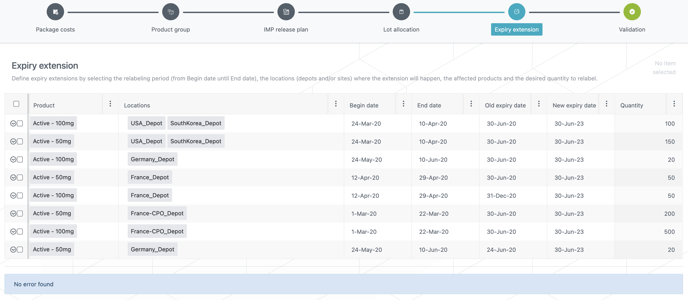
During the simulations, the Supply App will try to extend kits up to the requested quantity. Meaning, if there are fewer kits in stock than requested, all kits in stock will be extended.
📝 Note
This step is optional in a production modelling.
💡 Tips
-
After simulations, you can go to the Risks sheet of the results dashboard to drive a risk analysis and analyse if the expiry extension is risk-free or if it created some additional risk spikes.
-
You can analyze the feasibility of your expiry extension campaigns in the IMP release plan sheet of the Results dashboard and then adapt again this expiry extension table if needed.