![NSIDE_SupplyAPP_FullColorGray_Logo.png]](https://knowledge.n-side.com/hs-fs/hubfs/content-lifeSciences/Logos-LS/NSIDE_SupplyAPP_FullColorGray_Logo.png?height=40&name=NSIDE_SupplyAPP_FullColorGray_Logo.png)
Table of contents
The network setup is editable by power users only. It uses a lot of information coming from the Master Data and defines the trial supply chain.
Package types
In the Package types tab, you define for each package type the corresponding temperature type and usability period. The usability period is defined as the time span during which medication should still be valid (not expired) after dispensing. The four available options are, in ascending order of constraint:
-
One day: the medication can be dispensed as late as the expiry date. It is typically used for medication dispensed as injections.
-
Next visit: the medication is given to the patient who takes it home and consumes a small part of it during several days, until getting new medication during the next visit on site.
-
Next dispensing of any package type: the medication is given to the patient who takes it home, but the next visit might be non-dispensing. This option will enforce that kits are valid for the longest period that can follow dispensing before getting any new medication.
-
Next dispensing of that package type: the medication is given to the patient who takes it home, but the patient can receive a different medication during the next visit on site and still consume the first medication afterwards. This option will enforce that kits are valid for the longest period that can follow dispensing before getting the same medication.
💡 Tip
In case package types have a different usability period than “one day” or “next visit”, we strongly recommend to use the Custom DND table.
Label groups
In a second table, you define the label groups applicable to the trial, if there are any. If not, one worldwide label group should be defined.
To avoid any confusion, a label group is defined as a group of countries that share the same supplies. Label groups will be applied during the whole trial duration. This means that a "single label" used only for the first production campaign because of time constraints does not constitute a label group.
The label groups can be defined per package type, as they might be applicable to part of the medication only.
💡 Tip
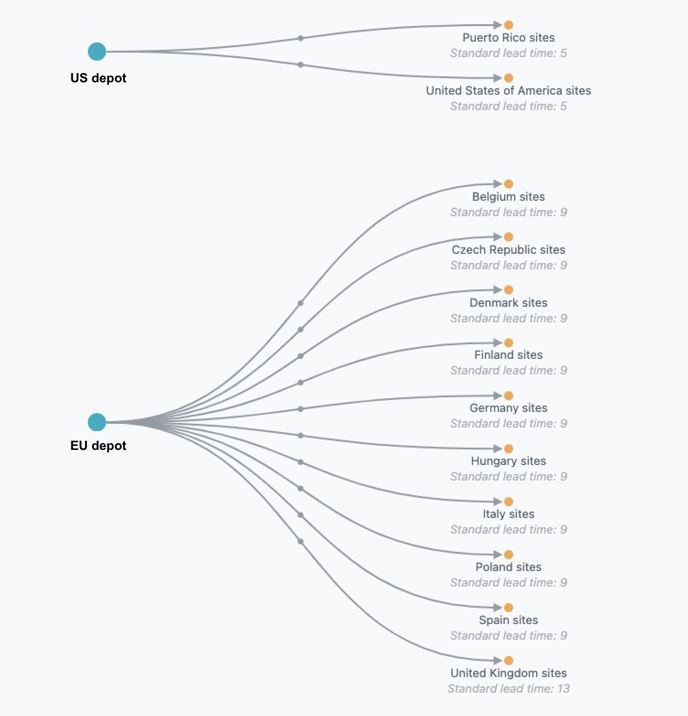
You can use label groups to configure your network in case you have only one temperature type and two central depots that are supplying different sites, e.g., EU central depot supplying European sites and US depot supplying American sites (see image below).
Local sourcing
In this table, you can enter the site groups that are locally sourcing package types. In the image below, you can see an example where Australia and Belgium are locally sourcing the comparator.
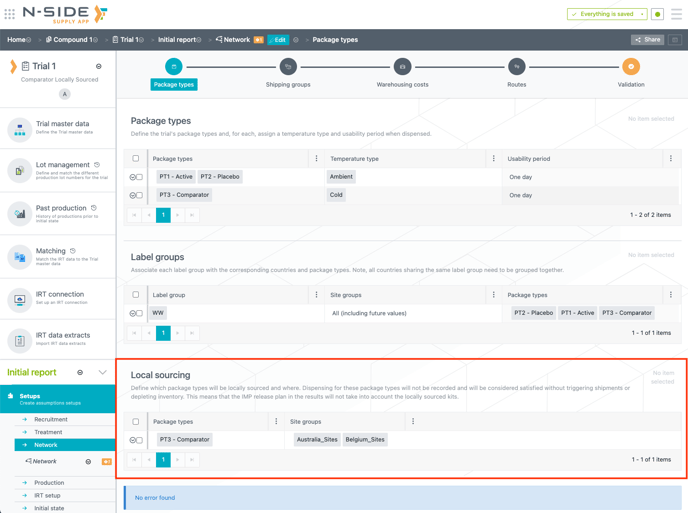
The simulations do not consider the demand for the entries in the Local sourcing table.
📝 Note
This table is optional and should be only used for trials dealing with local sourcing.
Shipping groups are constraints on shipments that enforce a ratio on the number of package types to ship for every shipment. For example, package types A and B could be forced to be shipped with a 1:1 ratio, meaning that they will always be sent in the same quantities.
A different shipping group should be defined for each constraint. Shipping groups can be defined for depots or for sites (see drop down on the top right) but all depots and/or sites will be impacted.
Shipping constraints will be enforced at shipment triggering. The quantities ordered for shipment will respect these constraints, but the quantities actually shipped will not respect them if one of the package types is in shortage.
Warehousing costs
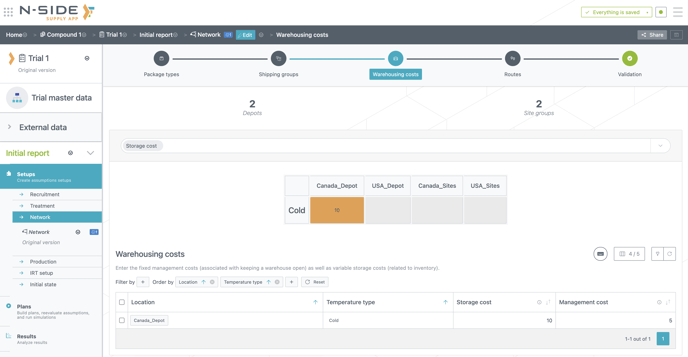
In the Warehousing costs tab, user defines the inventory and management costs, per depot and temperature type. These are not mandatory but will allow the Supply App to better estimate the trial budget. The nature of these costs is a bit different:
-
The storage cost is a monthly cost per kit stored on depot;
-
The management cost is a fixed cost per month, independent on the quantity of kits stored, that has to be paid because the depot is open.
Above the warehousing costs table is a visual (see image below) that helps you double check if the costs entered are correct. A drop-down on top of the graph allows to select which cost type to show.
At the bottom of the tab, you can also enter the commercial value of the package types, per country. These values will be used to compute the custom fees (VAT) when suited (the tax % is defined in the next Routes tab).
Routes
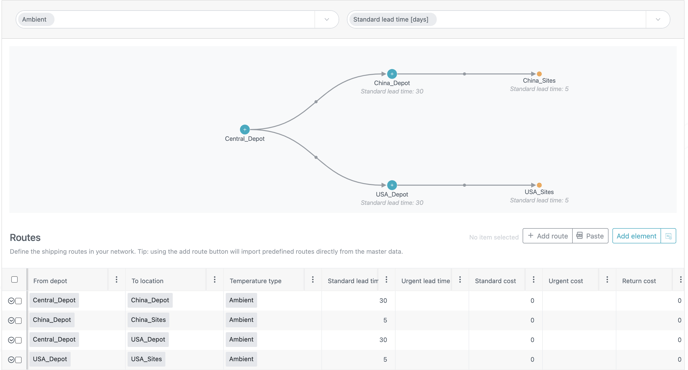
In the Routes tab, you define the distribution network by filling up the Routes table that contains:
-
The routes between depots and sites
-
The lead times (standard and urgent)
-
The costs (standard, urgent and return; monthly return costs are calculated as the number of kits expired multiplied by the return cost value, at every expiry event)
-
The tax percentage applied on each route (this percentage will be applied on the package type commercial value, defined in the previous tab)
-
The loss percentage (that is, the percentage of kits that are expected to be lost during shipment).
On top of the table a graph will sum up the distribution network. You can select the temperature type and the value to show in the graph (costs, lead times, tax percentages or loss percentages).
This data can be directly entered in the table but it can also be imported from the Master Data via the Import shipping routes button (see image below).
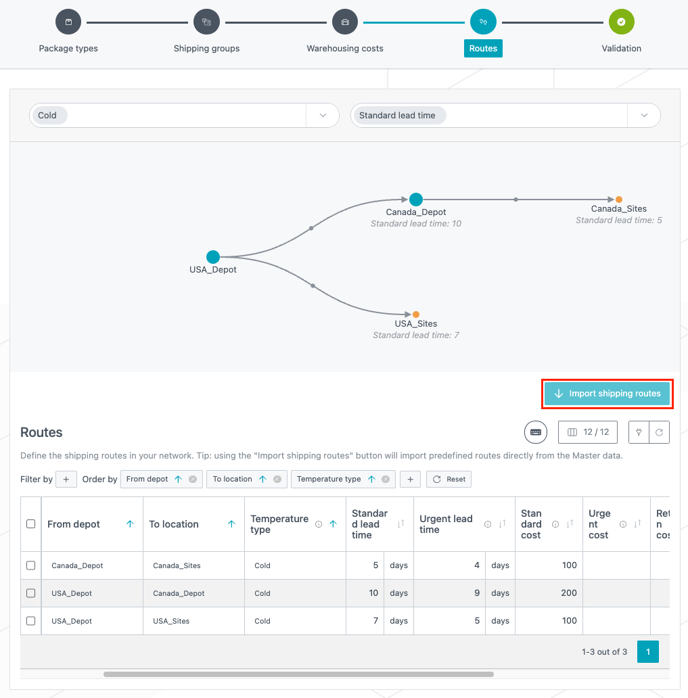
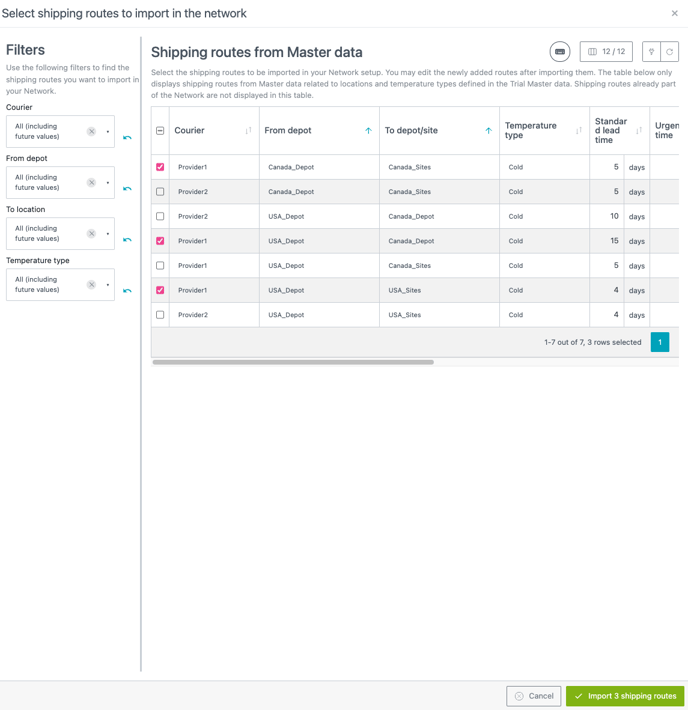
Clicking the button opens a new window where you can choose which routes to import from the Master data (see image below). You can use the filters on the left to find the routes you want to import.
📝 Note
The table only displays shipping routes from the Master data related to locations and temperature types defined in the Trial master data.
💡Tips
Multiple route configurations
-
You can define different routes configurations between temperature types, i.e. you can have different central and intermediate depots from one temperature to the other. However, if you do so, pay attention that if a site is supplied in one configuration, it must be supplied in the other configuration(s).
-
Example: a trial has 2 package types, one ambient and one cold. If a site is supplied by a depot in the ambient network, it must also be the case in the cold network. If not, the system will display an error preventing simulations to run. However, if a site is not used in both networks, the system displays a warning, letting you know that a site is not used.
-
-
Specific case: If you have only one temperature type and two central depots that are supplying the same sites you can still configure different routes per temperature type by creating a “fake” temperature type.
You can align the routes in the Network setup with the values in the Master data in only one click. An Align with Master data button is now available on top of the Routes table (see image below).
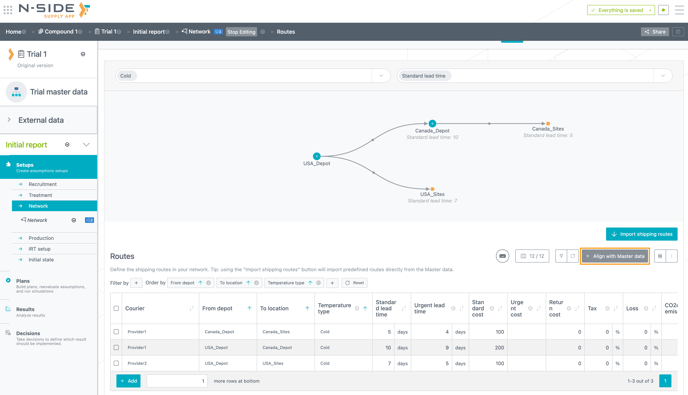
When clicking on the Align with Master data button, a window is displayed with the information of the outdated values in the setup and the corresponding values in the Master data. By default, all rows are selected. After confirming the selection, the values in the routes table are automatically updated to the ones defined in the Master data.
You can choose to update only some of the rows by unselecting the rows that you do not want to update (see video below).
📝 Notes
The Align with Master data button is only accessible in editing mode. Furthermore, the Supply App displays the full rows of outdated information and not only the values outdated. To have full visibility on the outdated values, you can still refer to the info messages displayed at the bottom of the view (see image below). In that message, the misalignment with the values coming from the Master data are explained in details.
