![NSIDE_SupplyAPP_FullColorGray_Logo.png]](https://knowledge.n-side.com/hs-fs/hubfs/content-lifeSciences/Logos-LS/NSIDE_SupplyAPP_FullColorGray_Logo.png?height=40&name=NSIDE_SupplyAPP_FullColorGray_Logo.png)
Table of contents
With this view, you can compare the actual dispensing data of your trial with the dispensing data that was forecasted on the last simulation start date at different levels: global, per depots and per site groups.
On the chart, you can visualize the dispensing curves: minimum, average and maximum estimated (i.e. cone of confidence) in addition to the actuals. In the table below, you can see the value of each line at the date of the extract as well as the forecasted accuracy.
ℹ️ The forecasted accuracy represents the deviation between forecast and actuals at the date of the extract where:
-
100%: perfect match between actual value and averaged forecast value.
-
< 100%: actual value < average forecasted value (e.g. under recruitment)
-
> 100%: actual value > average forecasted value (e.g. over recruitment)
Monitor at global level
The chart and the table display the global level by default when arriving on the view and if no filter is applied.
The table displays the actual dispensing trend over all depots, meaning that, even if it is within bounds of the forecasted recruitment, some depots could be over or under trend regardless.
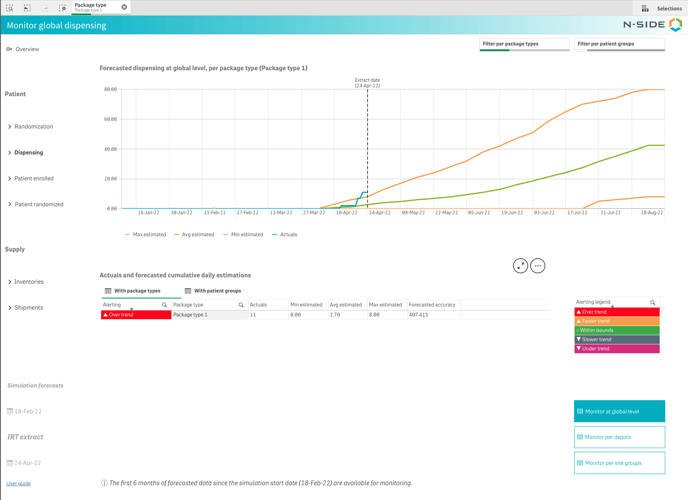
By clicking With package types at the top of the table, you can access a package type granularity and visualize the trend per package type.
You can click on a package type and confirm your selection with ✅ to filter on it and change the graph accordingly to visualize the dispensing curves for this package type (see image below).
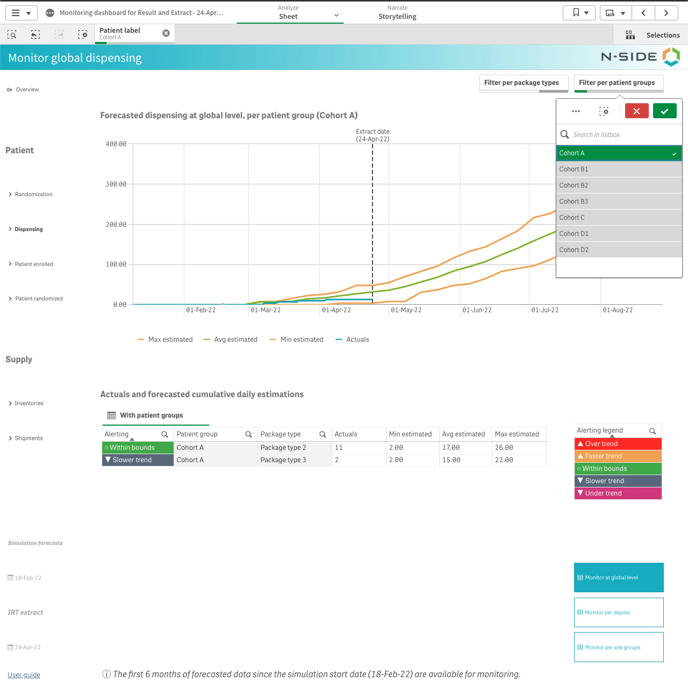
Clicking on a package type in the table makes the patient group granularity appear as well. Besides, you can also use the package types and patient groups filters at the top right of the page to directly filter on a package type or a patient group (see image below).
Monitor per depots
In this view, the table displays the actuals and the forecasted daily estimations per depot. Thanks to the alerting levels, you can quickly see if a depot is within bound or over/under trend.
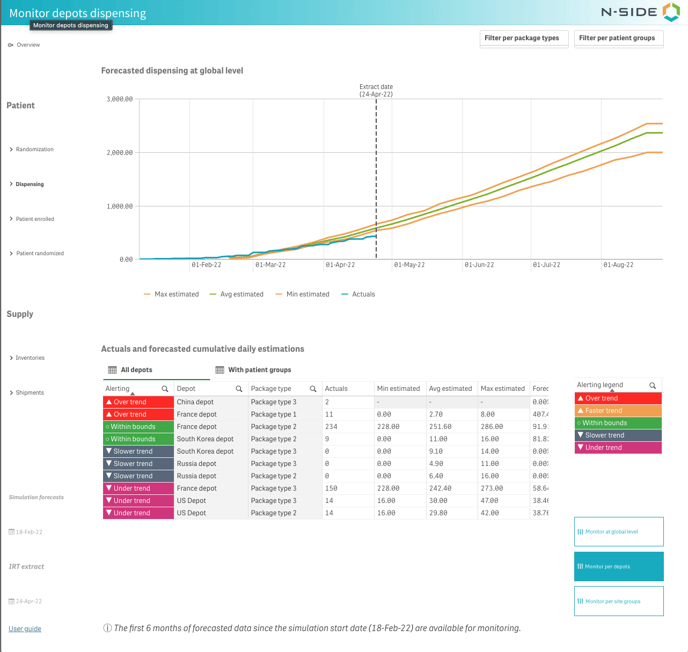
You can filter on a trend or a depot by clicking on it and confirming the selection with ✅.
Clicking on a depot updates the chart so that you can visualize the curves for that specific depot (see image below).
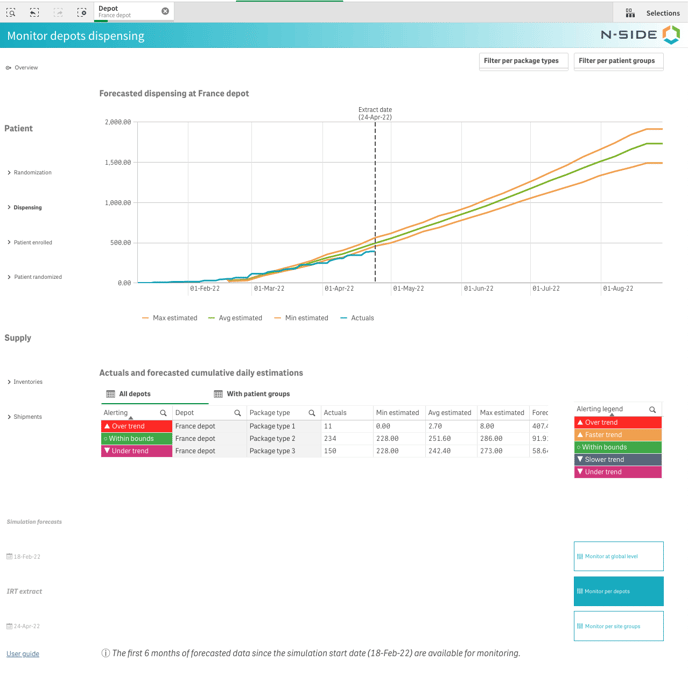
You can do the same with a package type or a patient group to analyze further the dispensing at this depot.
Monitor per site groups
This view can be used in the same way as the one with depots. You can visualize actuals and forecasted cumulative daily estimations with a site group, patient group or package type granularity and the chart is updated when you select of one of these.
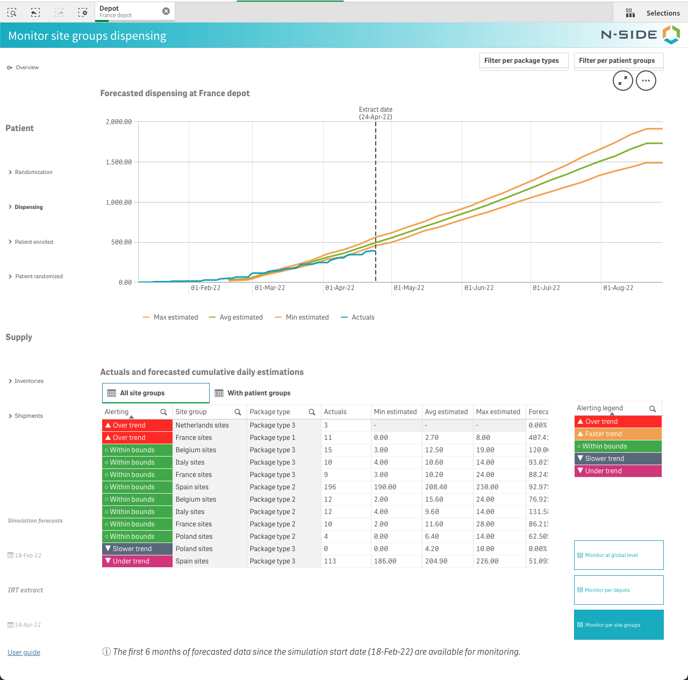
You can also use the package types and patient groups filter at the top right.
|
Multiple routes configurations - Important information
|
|
Only the first 6 months of forecasted data since the previous simulation start date are available for monitoring. Indeed, if forecasts have not been generated in the past 6 months, you should consider running new simulations with the latest IRT data extract available. A picture of the trial for a larger time horizon is available in the Results dashboard. |