![NSIDE_SupplyAPP_FullColorGray_Logo.png]](https://knowledge.n-side.com/hs-fs/hubfs/content-lifeSciences/Logos-LS/NSIDE_SupplyAPP_FullColorGray_Logo.png?height=40&name=NSIDE_SupplyAPP_FullColorGray_Logo.png)
Preliminary checks
Before submitting an incident please make sure to check the different messages and warnings given by the N-SIDE Suite.
Check the validation messages
-
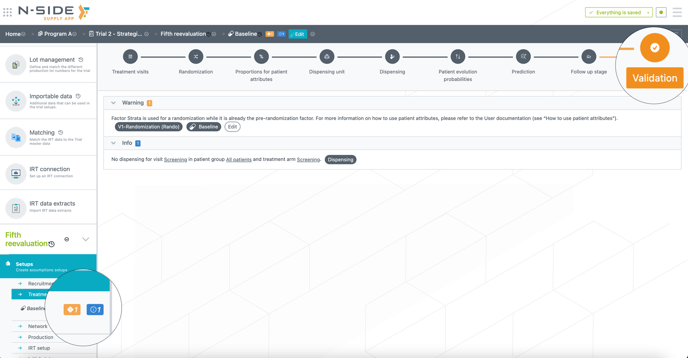
For every setup; you can see if there are ERRORS or FATAL errors. A simulation containing a setup that has at least one ERROR or one FATAL error will not launch
-
In the validation tab, you will find the list of validation messages. By clicking on the button at the end of the description, the suite will take you to the setup that is faulty.
-
In every setup, in the validation tab, the suite checks if there are errors or irregularities in the data. They will be divided with
-
INFO : an info message can be raised to indicate to the user that some information may have not been taken into account when filling in the data
-
WARNING : a warning message will inform the user that there is something in the dataset that looks unusual or that could impact the quality of the results
-
ERROR : an error message will be raised when the dataset is missing key elements or has inconsistencies that cannot be worked with. It is impossible to launch a job (simulations or optimization) on a dataset that has errors in the validation screen
-
FATAL the structure of the data is compromised - one crucial data set is missing, for instance one setup is non-existant. It is impossible to launch a job (simulations or optimization) on a dataset that has fatal in the validation screen
-
Check that the references are up to date
When creating new setups and/or data sets, you might see the small clock symbol appearing.
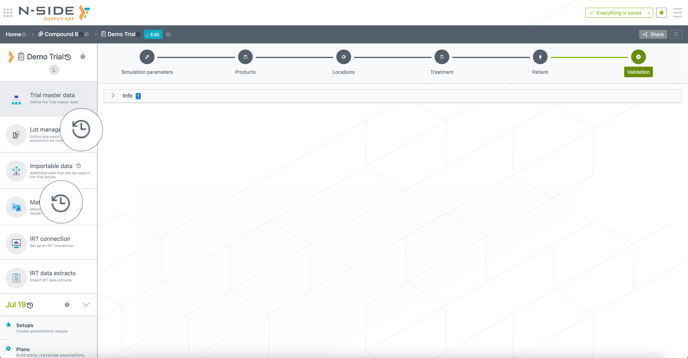
This means that the references between data sets is not defined - they are not linked together anymore. In order to overcome this problem, you have to edit the data set and click “Update references” (see screenshot below).
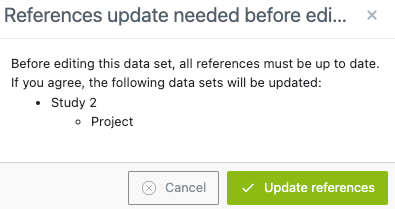
In general, when you have an issue concerning “References not set” or “Data Set not set”, the good practice is to go through all the setups and click “Edit” and “Save”. That way, you make sure that all references are updated.
Once done, try to re-run the simulation.
If the error persists or the improvement is still required
Please open the incident as soon as possible. Our team will always put everything in place to fix the solution, give you a workaround and let you know that you have run into an actual bug and make sure that follow-up internally to solve it as soon as possible.
How to report an incident/feedback
-
Plan
-
If you encounter an unexpected behaviour with a specific result/plan, please DO NOT MODIFY THE SETUP OR THE PLAN. Duplicate the plan and add a name to it like “INCIDENT/FEEDBACK - Name of the plan”. You can continue working on the duplicated plan but, in order to facilitate the investigation, our team needs to be able to reproduce the behaviour, and hence download the faulty plan with the original setup.
-
-
Ticket
-
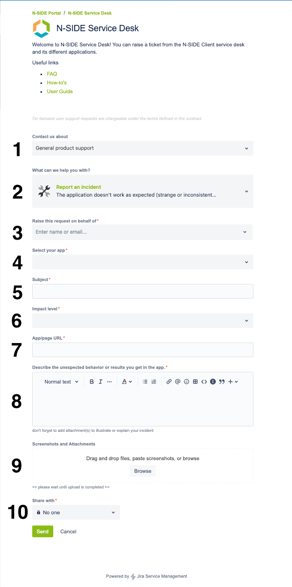
This is the Service Desk section that you are in.
-
This is the Service Desk sub-section as described.
-
This field indicates who the reporter of the ticket will be - you may decide to raise a ticket on behalf of someone else and simply raise the ticket as yourself
-
The app impacted. Select either the Supply or Production app.
-
The title of your request. It is good practice to be specific and concise.
-
The impact level is a measure of how impactful the incident is and not how urgent. Most of the time impact correlates with urgency but it is not always the case. You can mention the urgency in the ticket but the incident team will always favour the impact over the urgency. Bear in mind that no matter the priority level, your incident will be looked at as fast as possible.
-
It is crucial to add the URL to the specific plan that is faulty. A link to a trial or the app will not help the teams investigate a feedback or an incident.
-
Description - this is where you explain your incident. Keep in mind that the person who will take your ticket has no context other than the information you give on the ticket.
-
WHO Specify which user encountered the issue. As different roles have different permissions in the App, it will allow us to faster identify issues related to these types of problems. If there are multiple users, please mention all of the users that you know are affected. The good practice is to ask around you if others have encountered this issue, it is not necessary for you to conduct a full scale investigation on who is experiencing the issue. What is important to us is: one or many?
-
WHAT Explain in detail what the problem is.
-
If you can, describe the steps to reproduce the behaviour. To understand what happens, we will be trying to reproduce it first.
-
Specify what you expect and what you are actually observing. This is very important to us as we need to understand in detail and the behaviour might be expected behaviour in some cases.
-
Are you observing this behaviour at a specific place in the app or at multiple places?
-
If you have encountered a similar issue in the past or if the incident management team already had a look at your problem, please mention it in the description
-
-
WHEN It is important to add the timing of the issue encountered and whether it is happening at the moment you open the ticket or if there has been a delay between you encountering the issue and opening the ticket. This will help the service desk investigate logs and reports. In general, keep in mind that the good practice is to open an incident as soon as you encounter the issue.
-
-
Attach screenshots or screencasts reproducing the issue you are facing. Take a screenshot of the entire screen preferably. Don’t hesitate to highlight elements in the screenshot if you think it is not visible enough or specify in the description what we need to pay attention to. This information is valuable as in some cases, we can extract information about the issue and about its context.
-
The sharing feature allows you to share the ticket however it is preferable to share it with no one and add participants once the ticket is created.