![NSIDE_SupplyAPP_FullColorGray_Logo.png]](https://knowledge.n-side.com/hs-fs/hubfs/content-lifeSciences/Logos-LS/NSIDE_SupplyAPP_FullColorGray_Logo.png?height=40&name=NSIDE_SupplyAPP_FullColorGray_Logo.png)
Table of contents
❗Important information
-
Only All access users or users with a Corporate manager role can edit the Draft Master Data.
-
In order to avoid any unwanted changes that could potentially lead to some references issues, the Master Data section should not be directly updated.
Main process
The main steps are the following:
-
Update the Draft Master Data
-
Review the changes
-
Publish the changes to the Master Data
1. Update the Draft Master Data
To perform a Master Data update, the first step is to update the Draft Master Data.
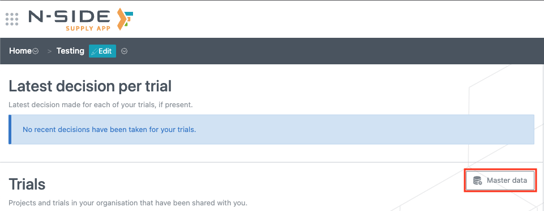
→ From the trials selection page click on Master data (see red frame on the image below).
→Click on (see red frame on the image below).
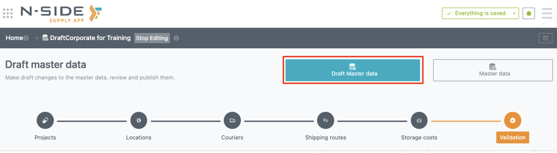
→ Click Edit then perform your changes.
→ For example, let’s perform the following changes:
-
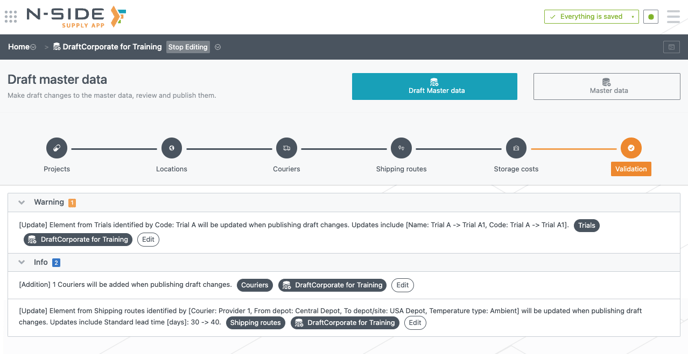
Projects tab: Trial A becomes Trial A1 → a warning message appears at the bottom of the page.

-
Couriers tab: A new provider is added (“Provider 2”) → an info message appears at the bottom of the page.

-
Shipping routes tab: The lead time from central depot to US depot goes from 30 to 40 days → an info message appears at the bottom of the page.

|
ℹ️ Information on validation messages
|
2. Review the changes
→ Go to the Validation tab to review the changes. You find the same messages grouped together.
💡 Tip
You can still update your change by clicking Edit in a message.
3. Publish the changes to the Master Data
→ Once you reviewed the changes and you considered their impacts on the Master Data, you can click Publish draft changes (see red frame on the image below). In case you do not want to publish them, you can click Reset draft changes.
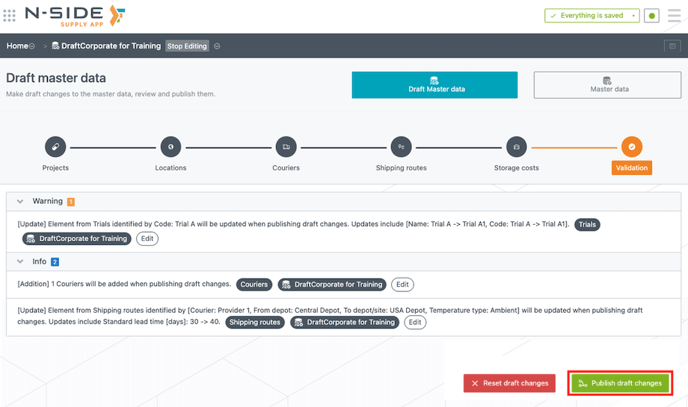
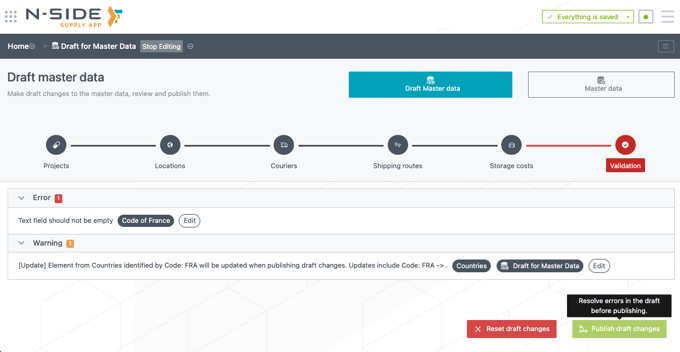
→ In case you did any unauthorized change (e.g. field left empty), an error messages appears and Publish draft changes is disabled (see image below). You are therefore prevented from publishing until you resolve the issue.
→ Once the changes have been published to the Master Data, references will have to be updated (projects then trials). This action can be done by any All access or Power User or any user with a Corporate manager role.
Excel export/import
If you have a significant amount of changes to perform, you can also use the excel export/import functionalities:
-
Go to the Draft Master Data
-
Export the Draft Master Data in Excel (see How to export data to Excel )
-
Perform the modifications in Excel
-
Reimport the file in the Supply App (see How to use the "paste from Excel" action )
-
Review the changes
-
Publish the changes
API integration
In case your system is connected to the Supply App through an API, you can fill in the Draft Master Data in an automated way. Working with an API will limit manual actions to maintain and update the Master Data.
However, reviewing the changes and publishing them to the Master Data still have to be done manually.
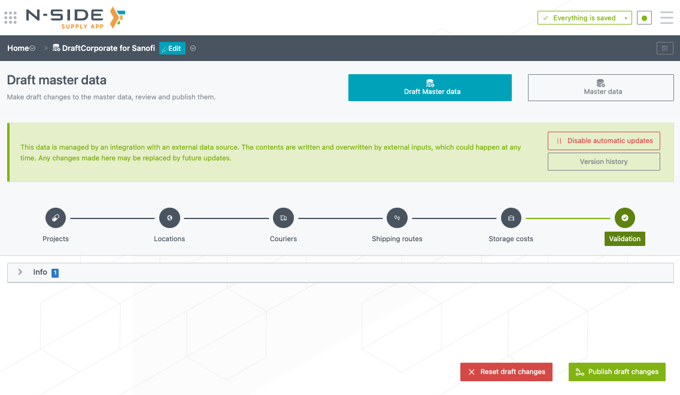
If needed, Corporate managers (and All Access users) can also disable the integration to perform a manual update (see image below).
To know more on how to enable this integration capability and configure your systems to connect to the N-SIDE Supply App, please reach out to your N-SIDE main point of contact or to the N-SIDE Support team.