![NSIDE_SupplyAPP_FullColorGray_Logo.png]](https://knowledge.n-side.com/hs-fs/hubfs/content-lifeSciences/Logos-LS/NSIDE_SupplyAPP_FullColorGray_Logo.png?height=40&name=NSIDE_SupplyAPP_FullColorGray_Logo.png)
This module aims at helping you plan depot shipments quickly and efficiently in order to create an implementable operational schedule whilst assessing any potentially linked risk.
Access
The depot shipments planning is available through the Plan:
-
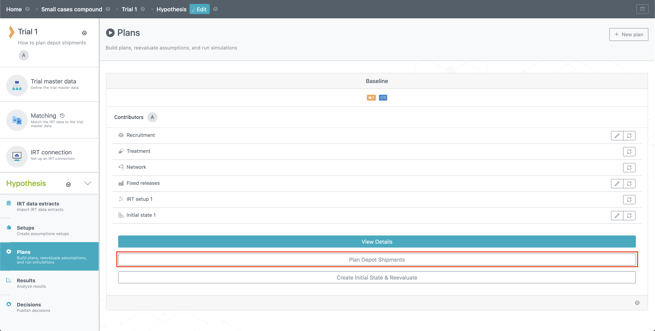
Directly on the Plan card
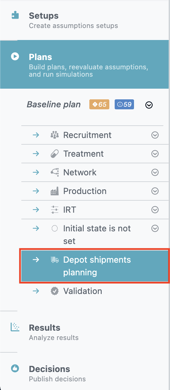
Or via the sidebar, after clicking on View details on the Plan card
In this module, you can perform several actions :
-
Optimize shipments that are not yet fixed.
-
Plan shipments that have been optimized or that are fixed.
-
Define a frozen period (i.e. period during which the system will only consider planned shipments).
-
Receive quantity recommendations for shipments that you want to optimize.
-
Convert these recommendations into planned shipments after analyzing results.
Filters and result selection menu
At the top of the module, you can find destination and package type filters that will help you set up your shipment schedule. Next to these filters, you can find a result selection menu. This menu is particularly useful to switch between results for which you want to optimize shipments and results for which you want to convert suggested shipments. You can also visualize the details of the selected result by clicking View result details or validate your plan and launch simulations with the button below.

Reserved shipments
In this table, you are able to define reserved shipments, i.e. shipments that will be automatically satisfied using only kits available at the supplier depot in the initial state.
The system will take into account that those kits are reserved for that type of shipment. The reserved shipments will always be satisfied and the reserved kits will not be used for other shipments in the meantime; contrary to planned shipment which can be partial if there are not enough kits to ship at its departure date
|
Attention points
|
To help you define those shipments, you can directly display and then import depot inventories with the Display inventories button. This opens a new window (see screenshot below) where you can select which inventory to import from the initial state.
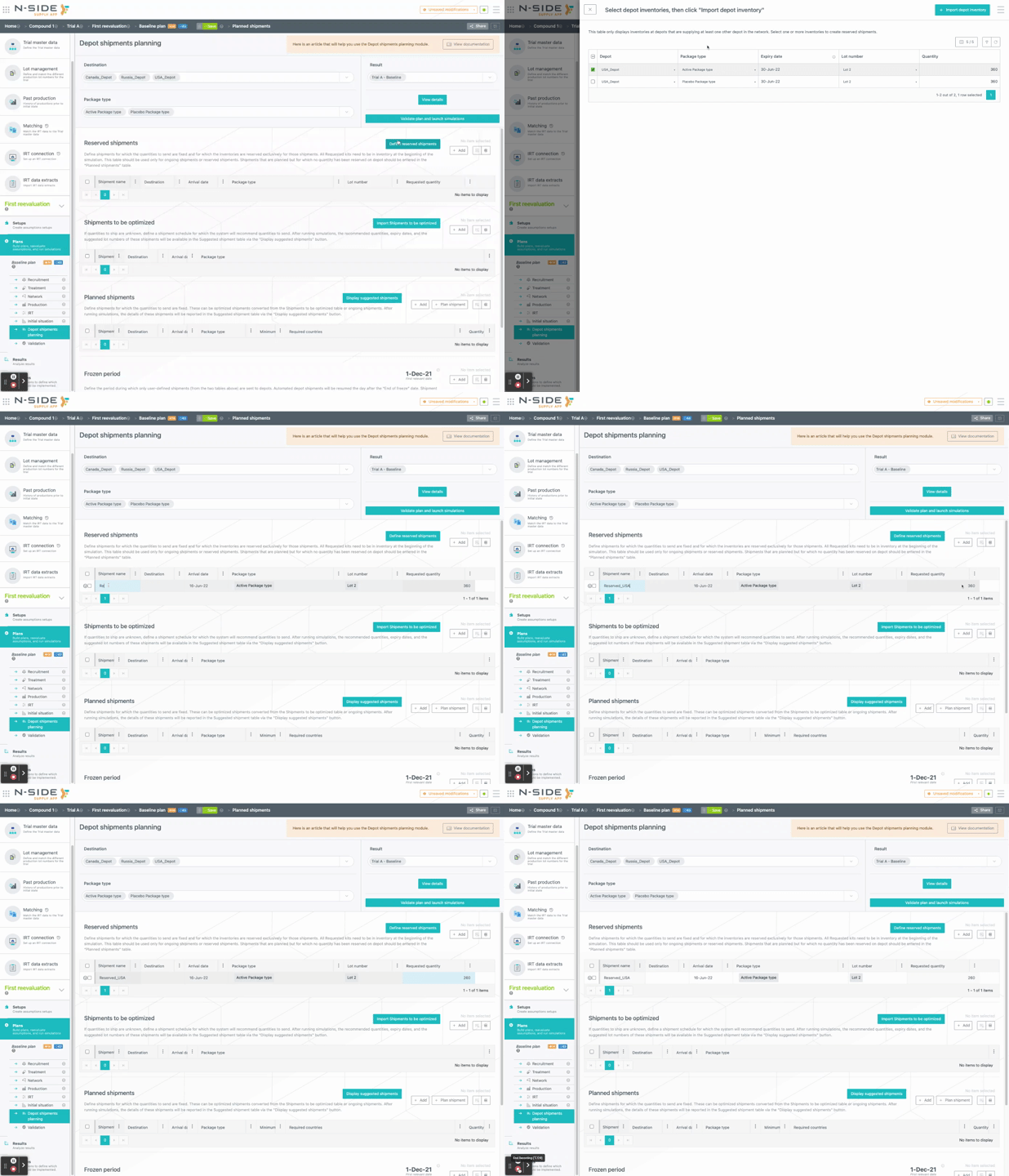
Once the inventory has been imported into the Reserved shipments table, you can change the quantity of kits you want to reserve, if needed.
Shipments to be optimized
This table allows you to define shipments for which quantities to ship are unknown and for which the system will provide recommendations.
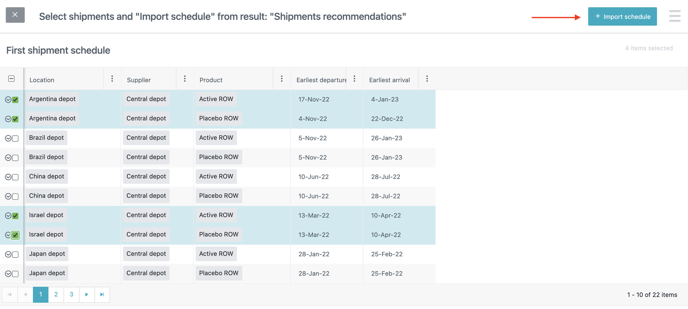
You can fill in the table manually or you can import shipment information (name, destination, arrival date and package type) automatically with the Import shipments to be optimized button (red arrow on the screenshot below).

You can choose the result from which you want to import shipment information with the result selection menu at the top right of the module.
Once you clicked on the Import shipments to be optimized button and accessed the side panel, you can choose the shipments you want to import and then click Import schedule (red arrow on the screenshot below).
Frozen period
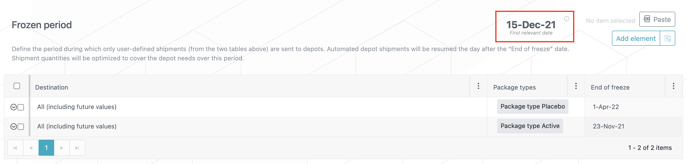
In this table, you can define, for each depot and for each package type, a date as of which depot shipments can be again automatically generated by the system. Meaning that, before that date, only manually entered shipments (planned shipments) will be considered. For example, if you want to cover 4 months with planned shipments, the End of freeze date should be the last day of the 4 months coverage period.
|
Tip You can use the “First relevant date” (red frame on the screenshot below) to assist you in defining your frozen period(s). This date corresponds to:
|
|
Notice If you did not set a frozen period, the demand at the supplied depot(s) and sites can lower your stock before your planned shipment is supposed to be sent. For example, a shipment could be triggered by the system, before your planned shipment, and reduce the number of kits available in the lot you want to use. Moreover, if supplier depots (except central depots) have a frozen period set, make sure that downstream supplied depots have also a frozen period set. In fact, if there is no frozen period set at the supplied depot, it could request kits that the supplier depot would not be able to meet due to its frozen period. |
After having defined shipments to be optimized and a frozen period and having ran simulations, the recommended quantities (associated with expiry dates and suggested lot numbers) will be displayed in the Suggested shipments table available through the Convert suggested shipments button (red arrow on the screenshot below).

Suggested shipments
This part of the module is accessible through the Convert suggested shipments button and allows you to visualize recommendations for shipments that were optimized (see Shipments to be optimized above). These recommendations are displayed for a specific result that you can change with the result selection menu (see further above).
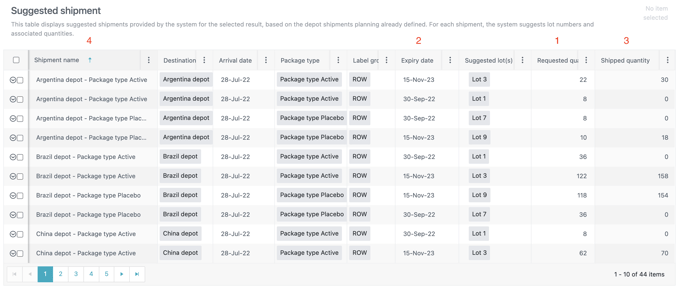
The table displays suggested shipments provided by the system after simulations were run with the selected result. For each shipment, the system suggests :
-
Expiry date (corresponding to a specific lot)
-
Lot(s)
-
Requested quantity
-
Shipped quantity
|
The requested quantity can be seen as the quantity satisfying the depot supply needs and the shipped quantity is the quantity that is actually sent to the depot. |
For each shipment the system will compute requested quantities based on the demand. These quantities will be displayed in the Requested quantity (1 on the screenshot below) column with the associated expiry dates (2 on the screenshot below).
If during simulations those quantities could not be satisfied, the system will look for kits with at least the same expiry date (or better) to satisfy the quantity. Those quantities will be displayed in the Shipped quantity column (3 on the screenshot below).
This means that the details of a single shipment can be displayed in several lines. The shipment name (4 on the screenshot below) allows you to differentiate them.
Conversion criteria and converting recommendations
Once recommendations have been analyzed, you can select suggested shipments and convert them into planned shipments but first you have to choose between two conversion criteria (red frame on the screenshot below):
-
Convert shipped quantity : Select this option when, for a specific shipment, shipped and requested quantities are the same.
-
Convert requested quantity : Select this option when partial shipments (see warning message below) need to be converted.
|
Warning In some cases, the shipped quantity can be lower than the requested quantity. This is called a partial shipment. This means that the depot supply needs cannot be satisfied, therefore leading to potential patient risk. Therefore, we actually strongly recommend you not to convert them or convert them but simply to keep the information of how much kits are requested to satisfy the demand. Therefore, in case of partial shipments, we strongly recommend you to first take complementary actions (e.g. review release schedule) in order to allow the shipped quantity to match the requested one. To learn more about partial shipments and how to manage them, please read this article : How to plan depot shipments . |
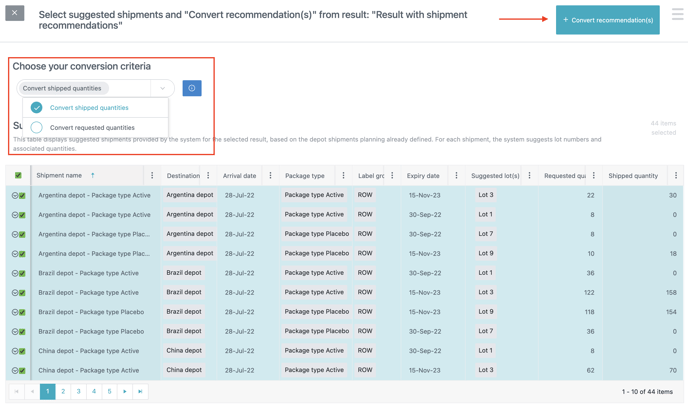
Once you have chosen the shipment recommendations you want to convert, you can click Convert recommendations (red arrow on the screenshot above).
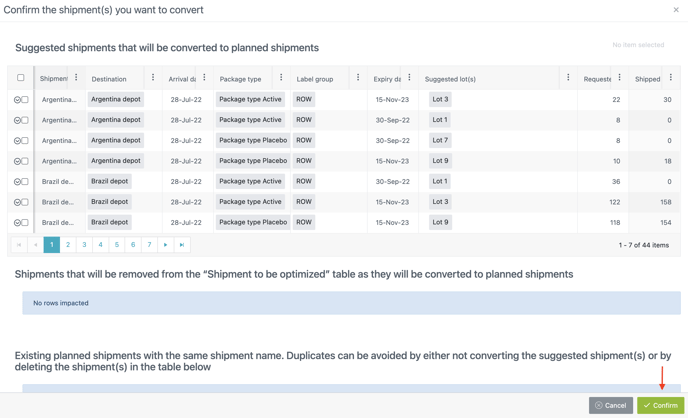
A new window will open where you can see the same shipment recommendations in a larger table. After all recommended shipments have been checked, you can click on Confirm (red arrow on the screenshot below). The recommended shipments will then be converted into “planned shipments” and the “shipments to be optimized” used to retrieve recommendations will be deleted.
Planned shipments
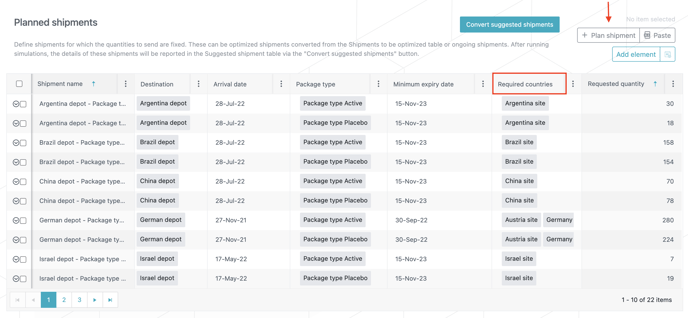
This table allows you to define shipments for which quantities are known. These shipments can be ongoing shipments or shipments converted from the Suggested shipments table.
The Planned shipments table introduces the concept of required countries (red frame on the screenshot below). This concept represents a constraint on the lots that can be used for a shipment and is linked to the lot allocation: to satisfy a shipment, the required countries must be part of the lot allocation.
Note
To learn more about required countries and the difference with lot allocation and label group, please read this article: What is the difference between label group, lot allocation and required countries?
“Plan shipment” helper
The table also includes a helper called Plan shipment (red arrow on the screenshot above). With this helper you can create planned shipments whilst visualizing lots information and check if available lots for shipping fit the shipment requirements.
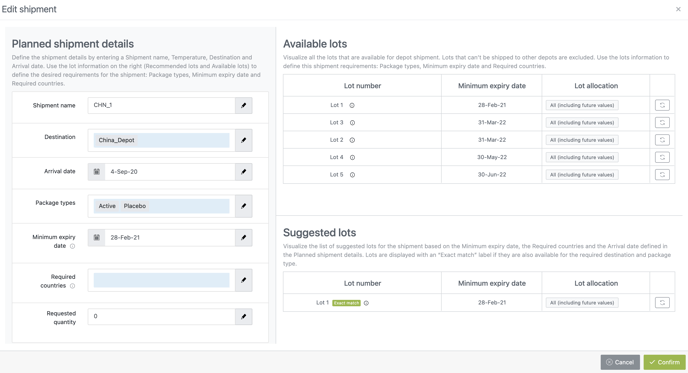
Clicking on this helper will open a new window comprising 3 parts :
-
Planned shipment details : this part displays the shipment requirements and can be filled completely manually. However, you also have the choice to let the fields be filled in automatically by using information from the “suggested lots” or “available lots” parts.
-
Available lots : this part displays all lots that are available for depot shipments. By clicking on the “double arrows” icon in the far right column, you can automatically fill in the “package type”, “expiry date” and “required countries” requirements of the “planned shipment details” part.
-
Suggested lots : this part displays lots that are matching the “expiry date”, “required countries” and “arrival date” of the “planned shipment details”. If a lot is labeled "exact match", it means that it is also matching the “destination” and the “package type” requirements.
|
The good practice to use this helper is the following :
To have more information and examples on how to use this helper, please read this article : How to plan depot shipments . |
Once a “suggested lot” is an exact match, you can add the quantity in the last field of the “planned shipment details” and click on Done to create the planned shipment.