![NSIDE_SupplyAPP_FullColorGray_Logo.png]](https://knowledge.n-side.com/hs-fs/hubfs/content-lifeSciences/Logos-LS/NSIDE_SupplyAPP_FullColorGray_Logo.png?height=40&name=NSIDE_SupplyAPP_FullColorGray_Logo.png)
Table of contents
- Edit and select cells
- Select & copy a table
- Select & paste to a table
- Freeze & reorder columns
- Filter & order the table
- Create new rows and visualize updates
- Reorder rows
Edit and select cells
You can edit a cell by double-clicking on it.
You can select all rows of a table in one click (see visual below).
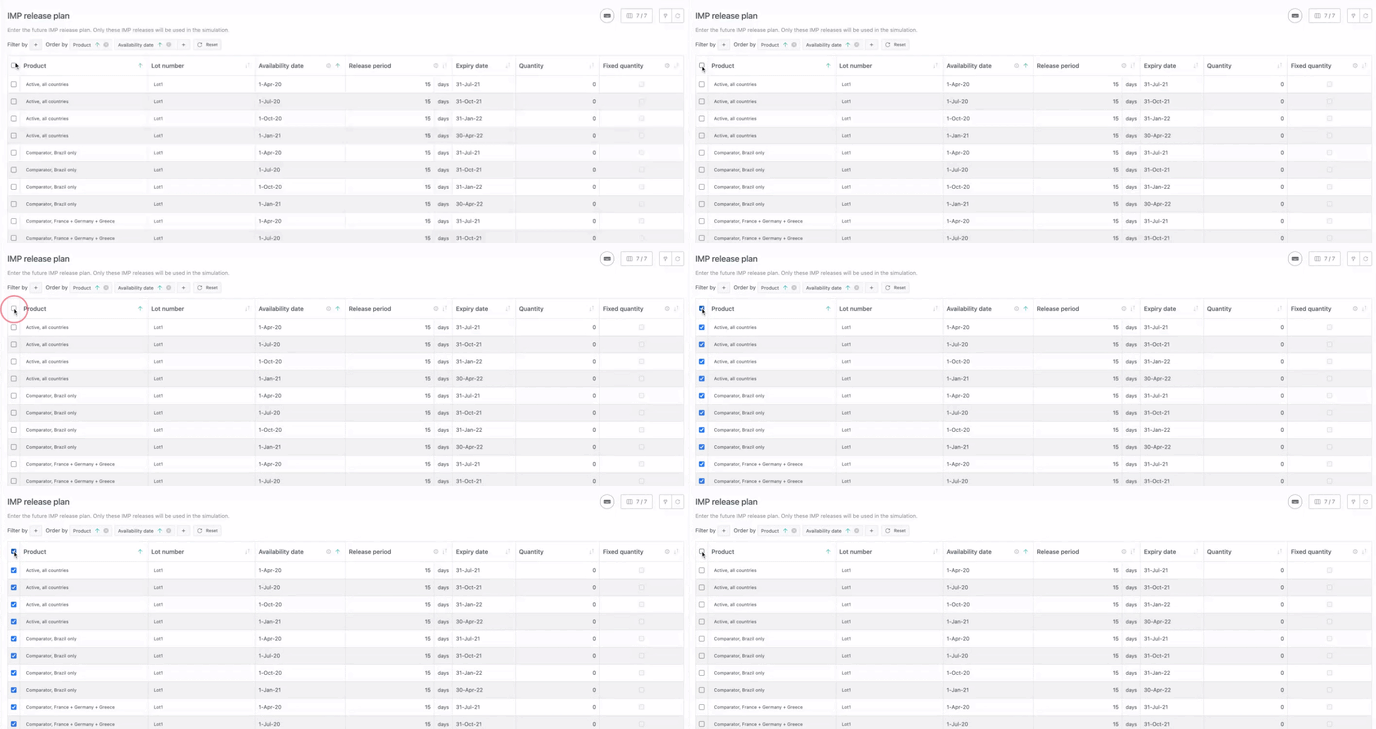
You can select all rows of the visible page using Shift + Cmd (or Shift + Ctrl on Windows).
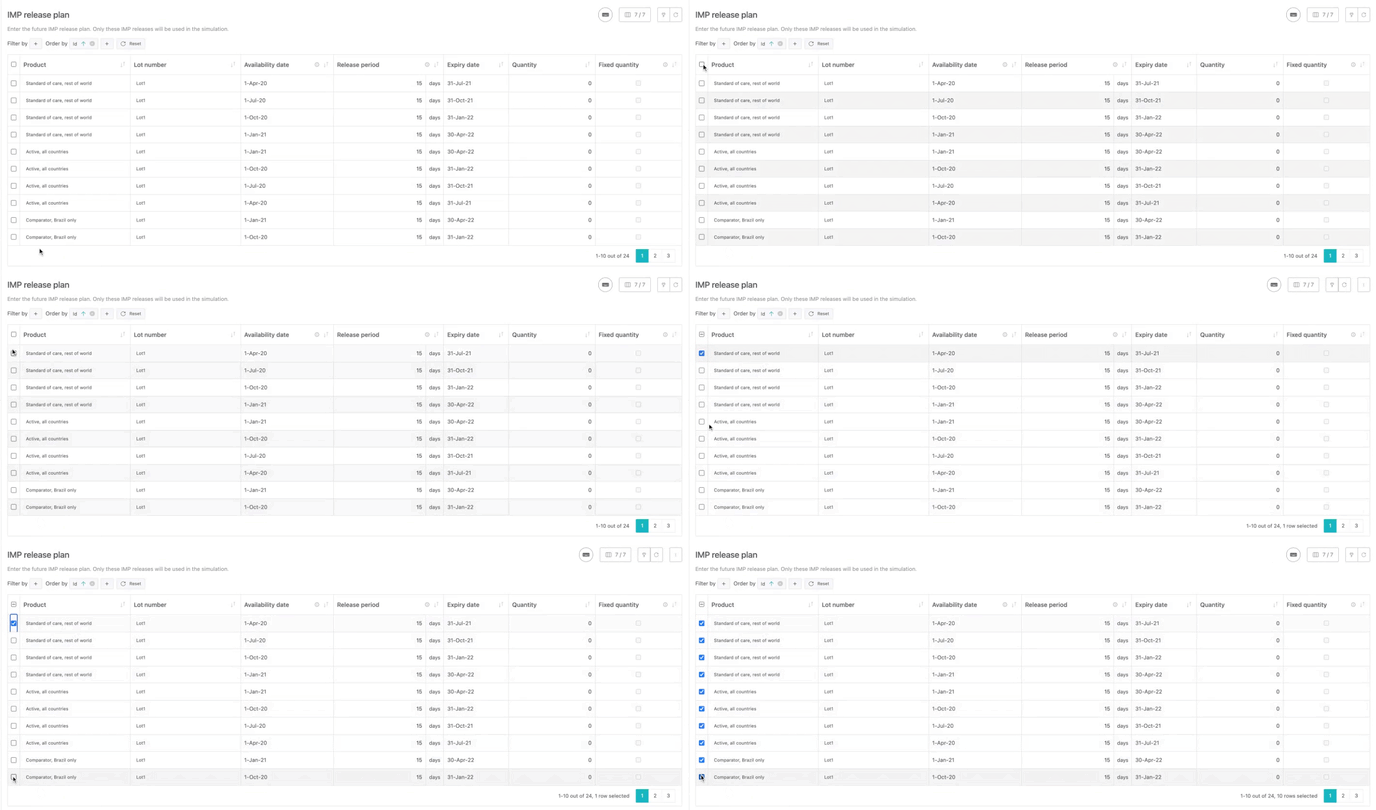
When only some rows are selected, clicking on the top left box:
-
selects all lines if less than half the lines are selected
-
unselects all lines if more than half the lines are selected
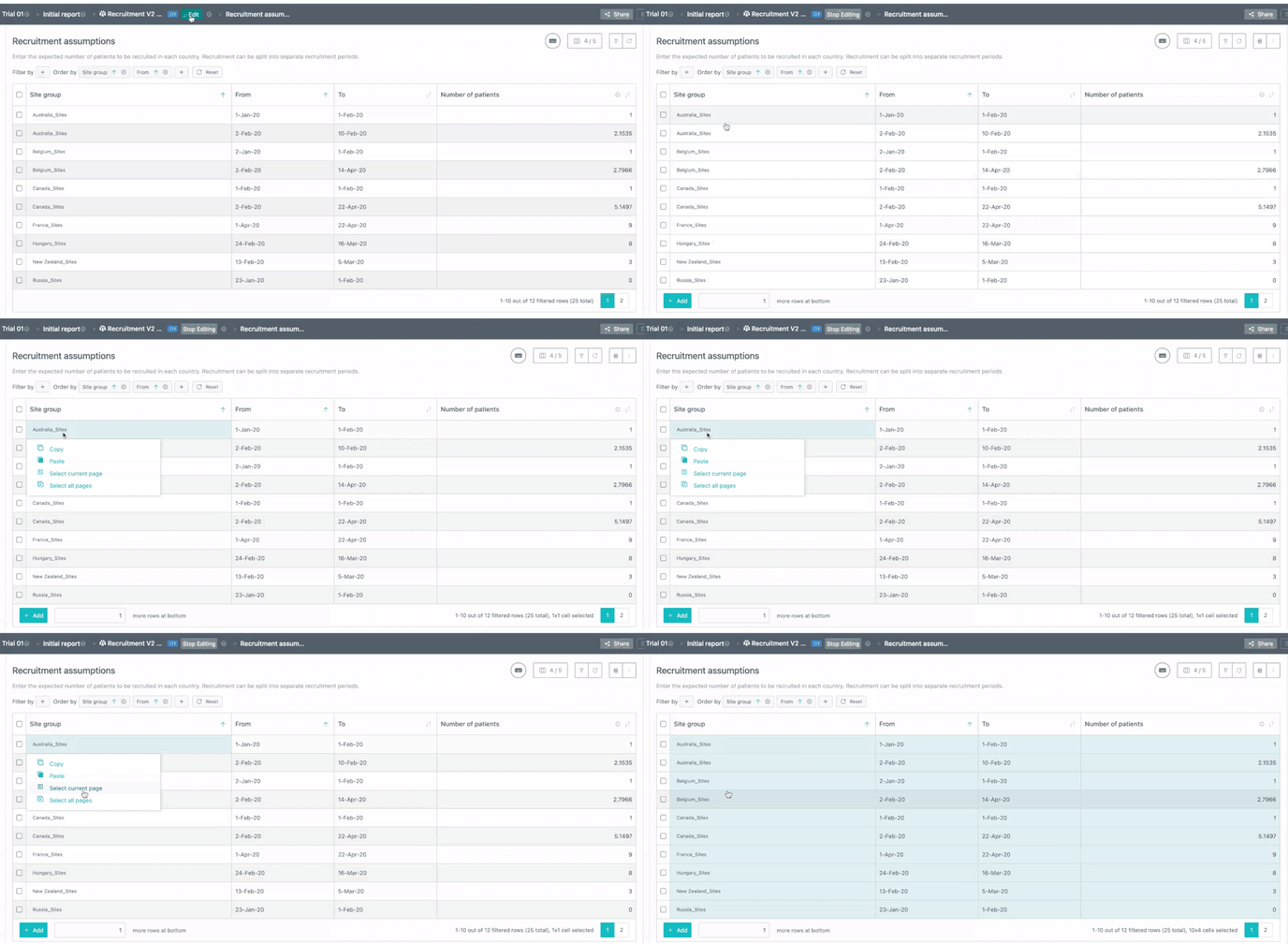
When you are in editing mode, you can also access copy/paste actions by right-clicking on any cell (see visual below).
Select & copy a table
Select and copy (cmd + C for macOS, ctrl + C for Windows) a table content in order to paste it somewhere else (e.g. in Excel or in other cells).
The selection can be done in both editing mode and non editing modes, by clicking first on a cell and extending the selection via drag and drop to the last cell which should be selected.
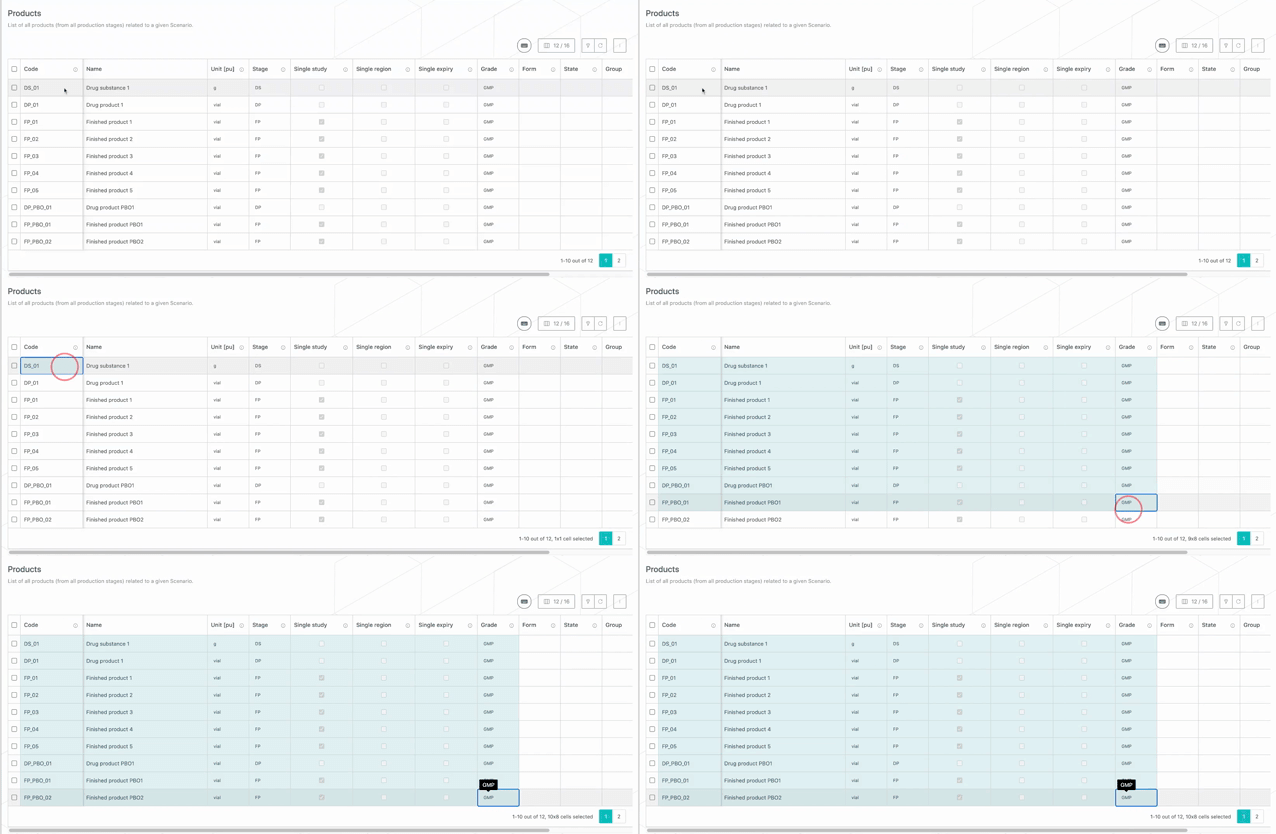
Shortcuts can be used to faster select several cells at once. The existing ones can be found via the “keyboard” icon in the Suite (see red circle in the image below).

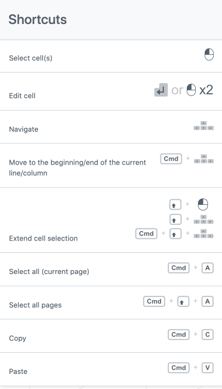
📝 Notes
-
In case you use Windows as operating system, Command is replaced by Control in those shortcuts.
-
Your computer settings must consider a full stop (.) as a decimal separator for the content to be properly pasted to an external tool (e.g., Excel):
-
Mac OS: System preferences > Language and region > Advanced > Number separators should be a full stop ( . ).
-
Windows: Start > Control Panel > Region > Additional Settings > Decimal Symbol should be a full stop ( . ).
-
Select & paste to a table
You can paste the content copied to the clipboard in a table. Information can be copied either from the table itself or from external sources such as an Excel file.
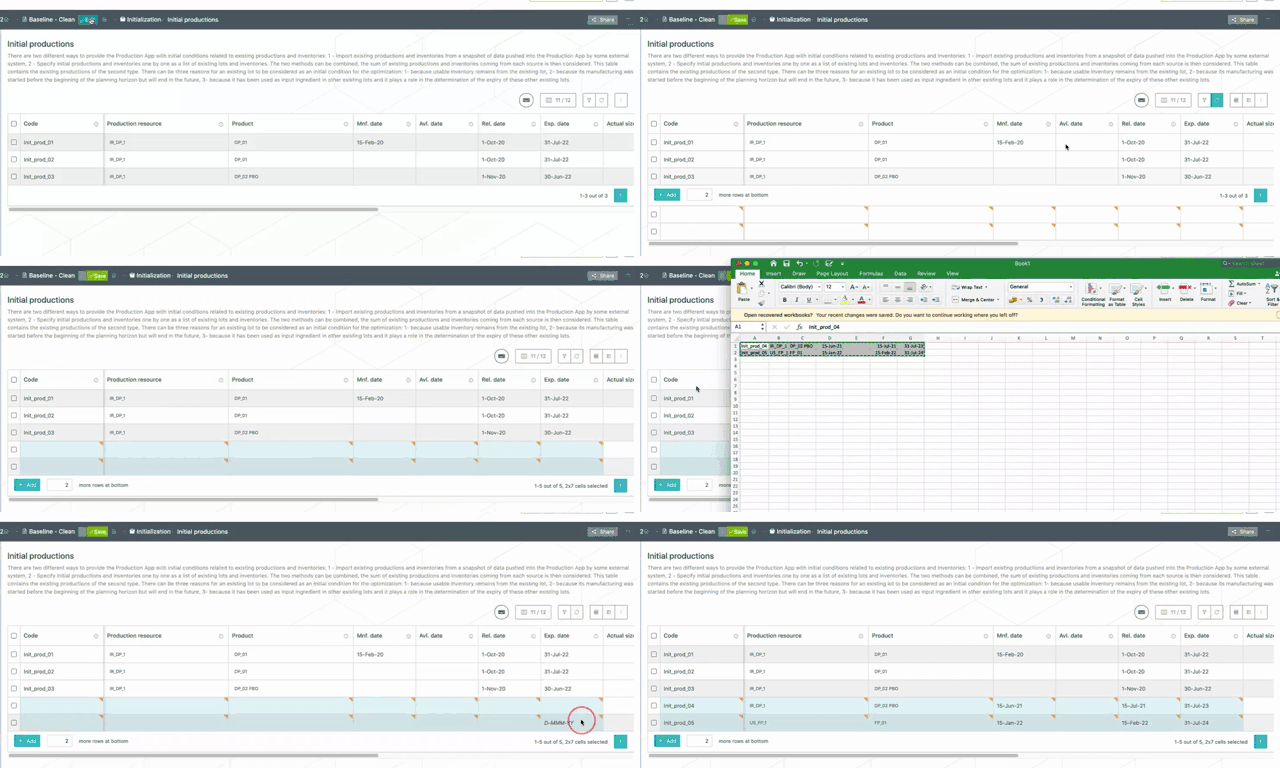
Guidelines to paste properly
-
The page needs to be in editing mode.
-
The same number of cells as the copied ones must be selected before pasting (see GIF above).
-
The format of the copied cells should match the one of the cells where the content is pasted. If this isn’t the case, an error is raised and nothing is pasted.
-
For example, if a text format is pasted in an integer field, the paste does not work.
-
-
The targeted cells must be part of the main table and not part of new lines (see GIF above).
Clipboard read access
At first pasting, the system needs an authorization to be able to access the clipboard.
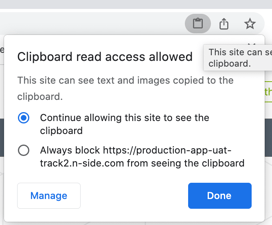
In case the clipboard read access has not been given to the system at first, the permission can still be updated via the clipboard icon on the right of the URL (see image on the right).
Freeze & reorder columns
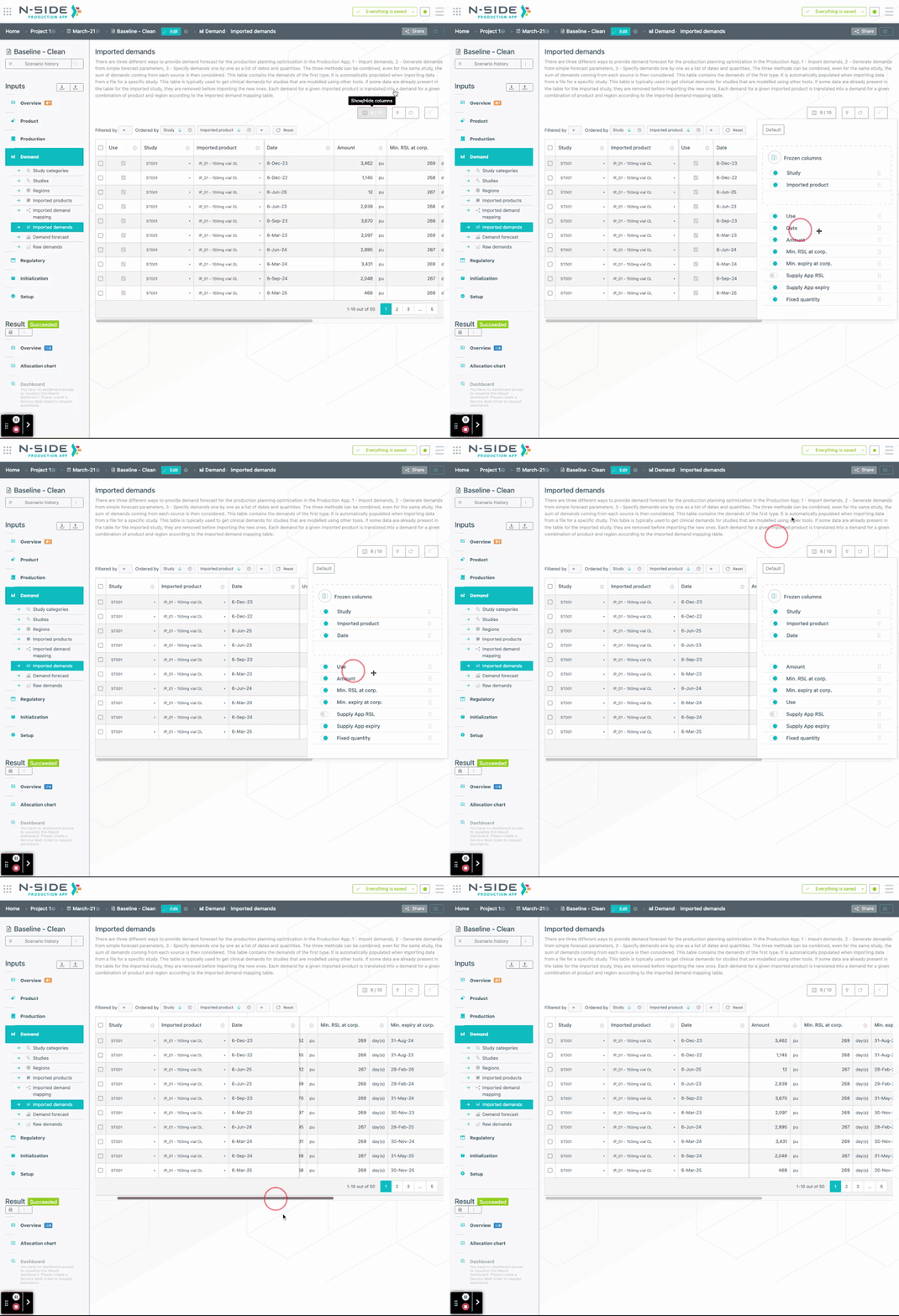
Decide which columns to see, in which order, as well as which ones should be frozen when scrolling the table via the Show/Hide columns button. The “Basic” and “Advanced” views (Production App) are selectable from the top of this menu.
Filter & order the table
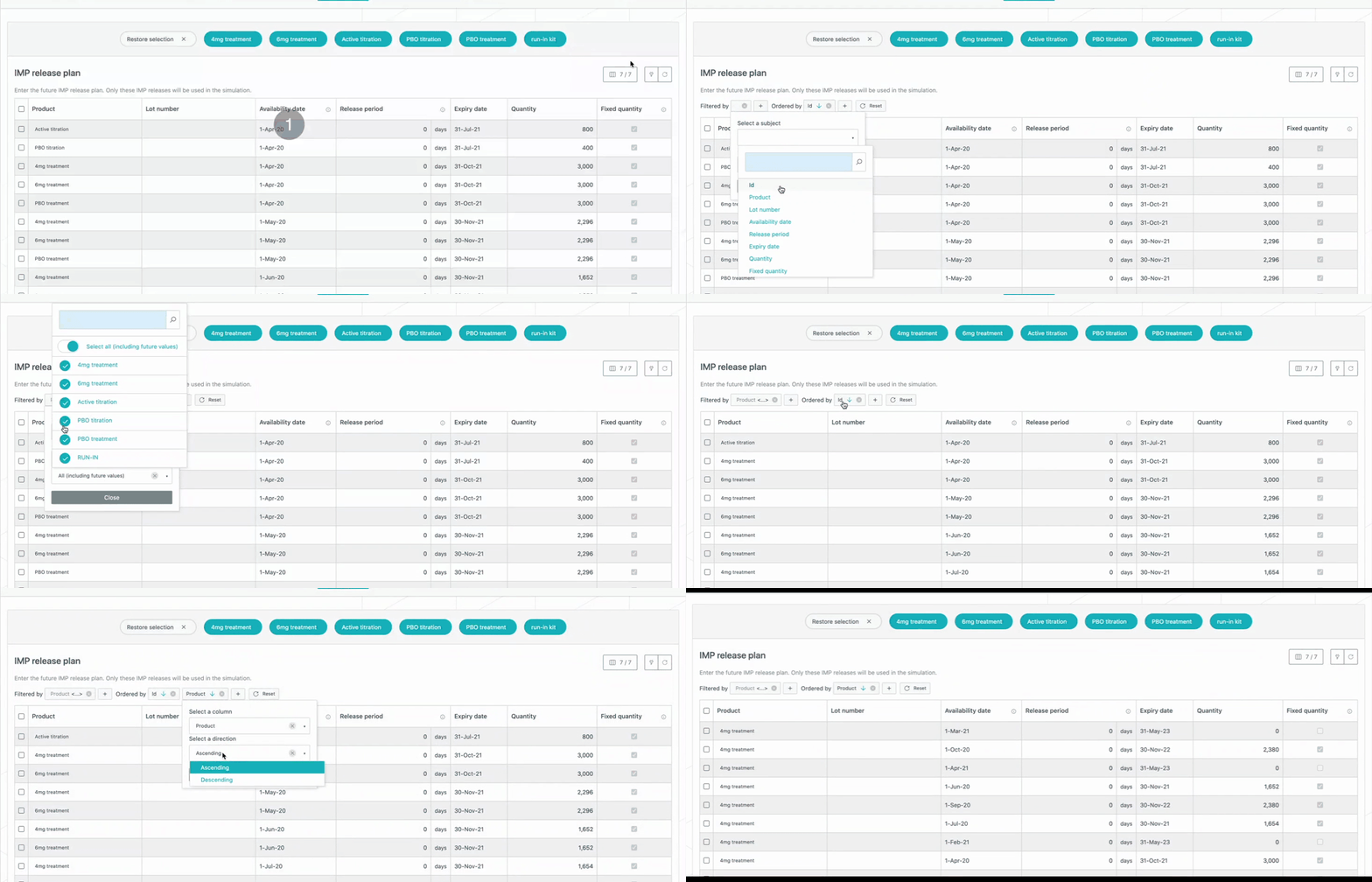
Decide to only show rows containing a certain value and/or reorder the displayed rows using the Filter & sort your data button.
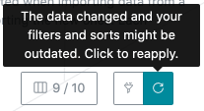
In case some data has been added or modified in the table, the filters need to be reapplied via the Reapply filters/orderings button.
Create new rows and visualize updates
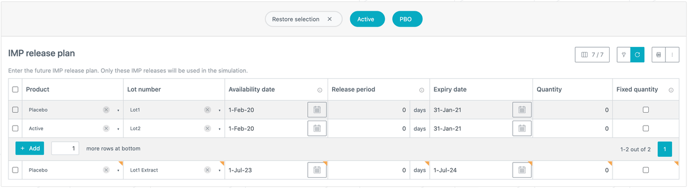
When adding rows to a table, they will appear in a temporary table below the main one and will be highlighted with yellow corners. Once those rows are all complete, they can be inserted in the main table via the Reapply filters/orderings button.
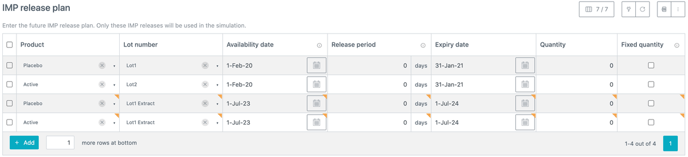
Just as for new rows, you can easily spot which rows have been updated since the last save thanks to the display of yellow corners.
Reorder rows
Change the order of the rows via the new “Reorder rows” button.
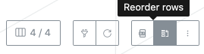
This button opens a side panel where you can drag and drop rows to re-organize them. Clicking on the “Reapply filters/orderings” button updates the rows order afterwards.

📝 Note
You must edit the dataset for this button to appear and its availability depends on the table.