![logo.svg]](https://knowledge.n-side.com/hubfs/content-lifeSciences/Logos/logo.svg)
Highlights
Select & copy information from a table of the Production App to paste it somewhere else.
Easily paste the content of your clipboard to a table of the Production App.
Tag a result as a decision to be implemented in the scope of a project and visualize the decisions history of a project.
Table of contents
- Select and copy a table
- Select and paste to a table
- Choose and tag a result as a decision
- Quickly access the latest project decision
- Visualize the project decisions history
- Other updates
- User documentation
1. Select and copy a table
You can now select and copy a table content in order to paste it somewhere else (e.g. in Excel or in other cells).
The selection can be done in both edition and non edition modes, by clicking first on a cell and extending the selection via drag and drop to the last cell which should be selected.
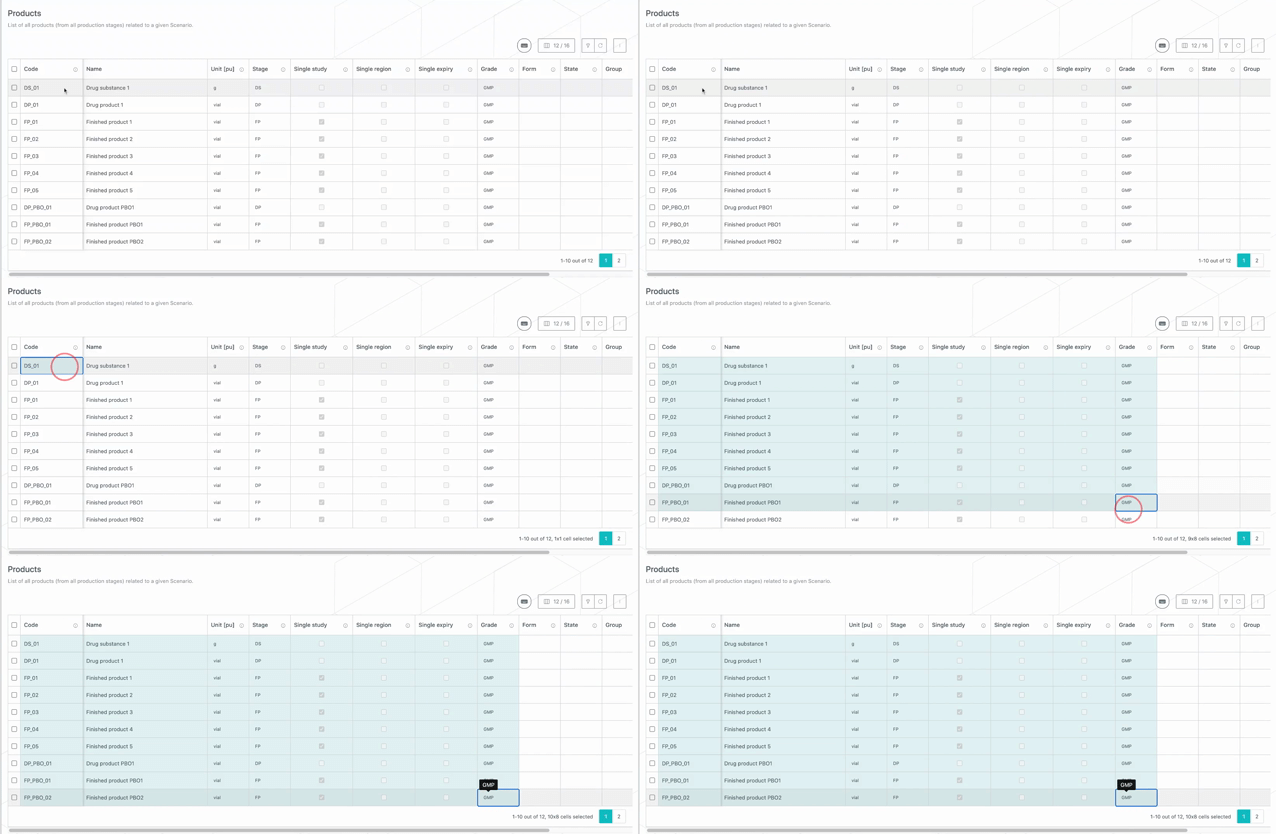
You can also use shortcuts to faster select several cells at once. The existing ones can be found via the “keyboard” icon in the Suite.

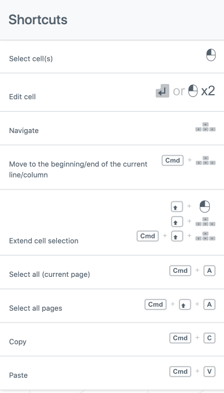
The way to edit a cell has been updated in order to allow copying cells also in edition mode.
To edit a cell, you need to be in edition and either:
-
Click two times on a cell (selection then edition).
-
Select a cell and then press “Enter”.
- In case you use Windows as operating system, Command is replaced by Control in those shortcuts.
-
Your computer settings must consider “.” as a decimal separator for the content to be properly pasted to an external tool (e.g., Excel).
2. Select and paste to a table
You can paste the content copied to the clipboard in a Production app table. Information can be copied either from the table itself or from external sources such as an Excel file.
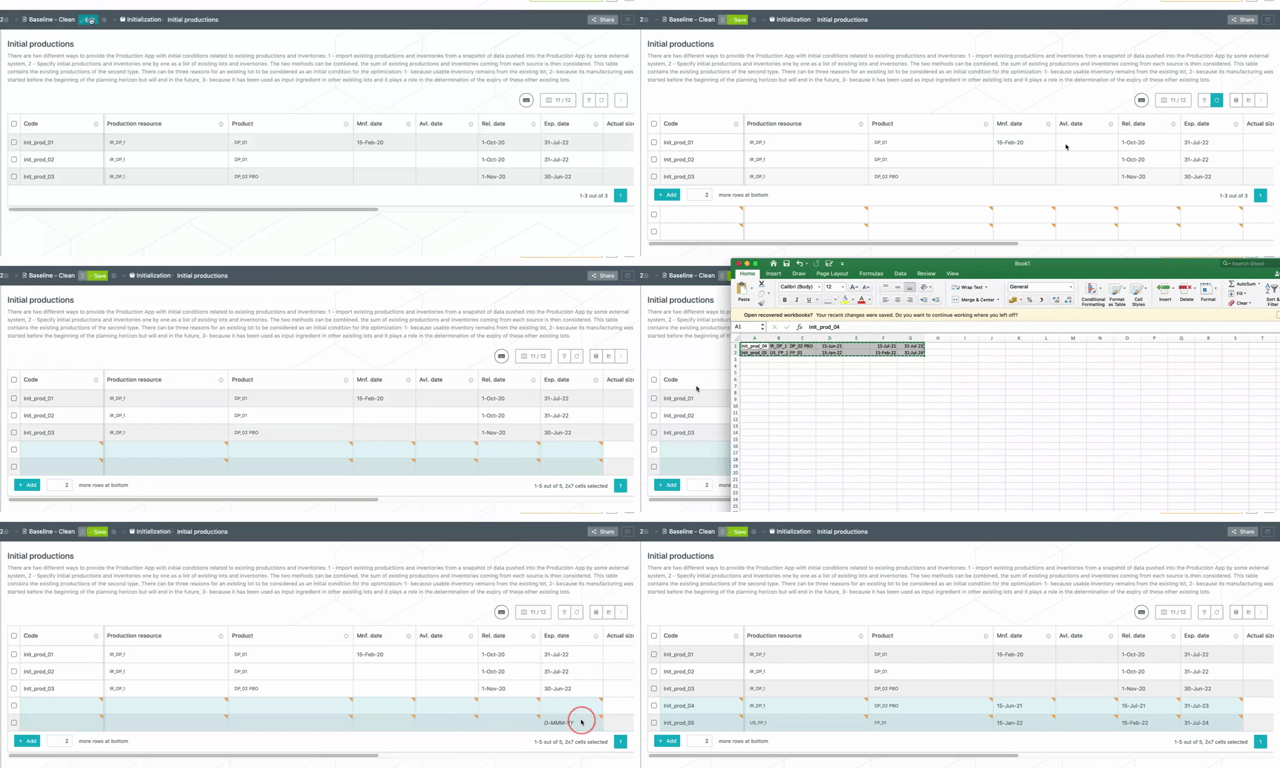
Guidelines to paste properly:
- The page needs to be in edition.
- The same number of cells as the copied ones must be selected before pasting (see GIF above).
- The format of the copied cells should match the one of the cells where the content is pasted. If this isn't the case, an error is raised and nothing is pasted.
- For example, if a text format is pasted in an integer field, the paste does not work.
- The targeted cells must be part of the main table and not part of new lines (see GIF above).
⚠️ At first pasting, the system needs an authorization to be able to access the clipboard.
3. Choose and tag a result as a decision
You can now tag a result as a latest decision to indicate which result has been selected to be operationally implemented for a project.
As soon as a result exists for a specific scenario version, you can tag it as latest decision of the project from the “Scenario overview” or from the “Result overview”.
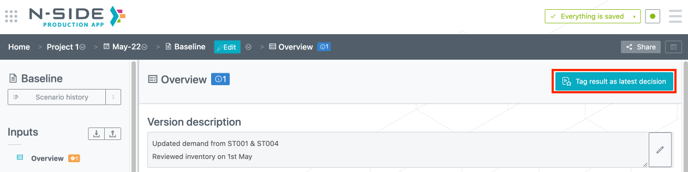
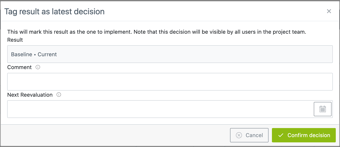
The action opens a modal where you have the opportunity to comment the taken decision as well as specify a “next reevaluation” date.
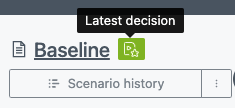
A green badge appears next to the scenario name once the tag is set.
The Tag result as latest decision button is available for project owner and contributors only.
4. Quickly access the latest project decision
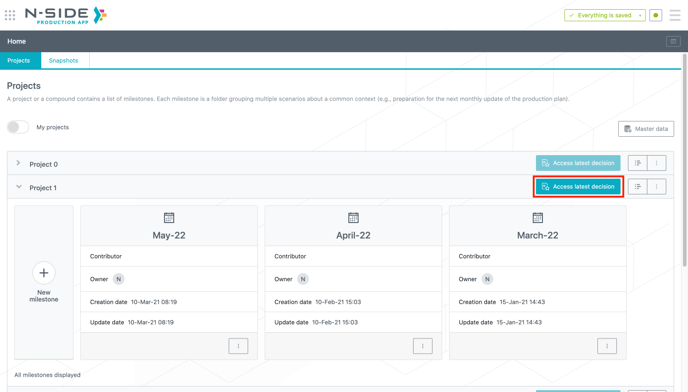
You can access the latest project decision, from the main Production app page, through the “Access latest decision” button which leads to the result overview page of the tagged scenario version.
5. Visualize the project decisions history
You can reach the “Decision history” from:
-
The main Production app page
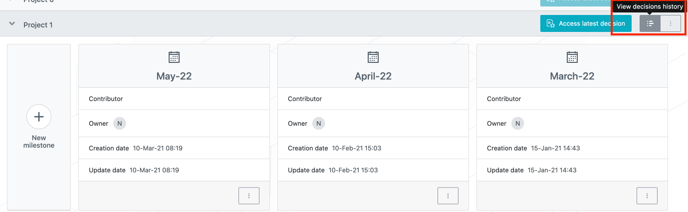
-
The project contextual menu
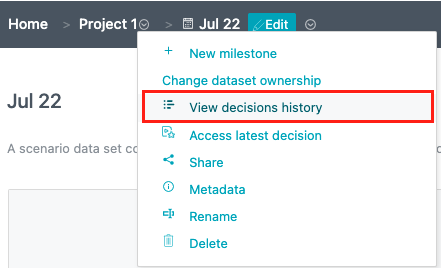
This view gathers all decisions taken for a specific project, who took them and when, as well as the next reevaluation date.
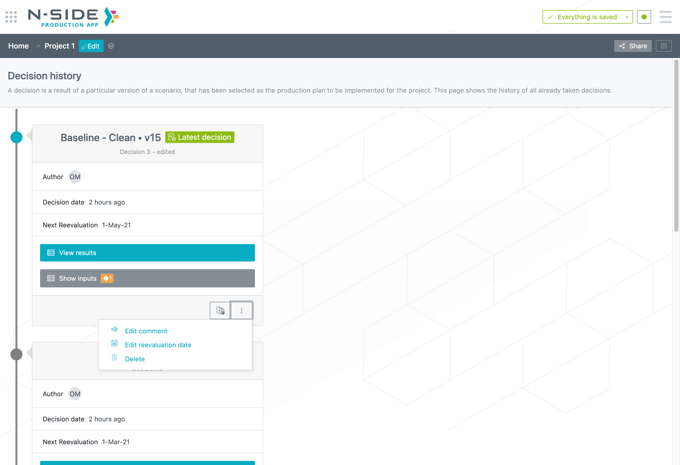
You can perform several actions from this view:
-
Add scenario versions to the comparison basket.
-
Edit a decision comment .
-
Edit the next reevaluation date. Note that this edition leads to the creation of a new decision, similar to the previous one but with an updated reevaluation date.
-
Delete a decision.
6. Other updates
6.1. Use latest scenario version with result in Comparison view
A badge shows if the scenario version used in the Comparison is the current one or an outdated one.
In case the version used in the Comparison is not the latest one with a result, an Update button appears which retrieves the latest version with result for this scenario instead.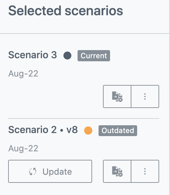
6.2. Benefit from more usability in the Result dashboard
-
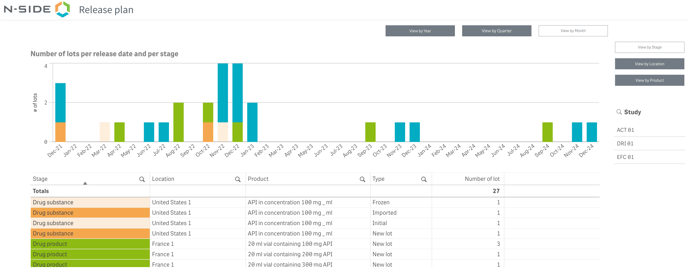
Visualize “initial lots” in faded colors as well as all months in the graphs in the “Release plan” and “Cost” sheets
-
Filter your data by study in the following sheets: “Release plan”, “Cost”, “Margin”, “Allocation”.
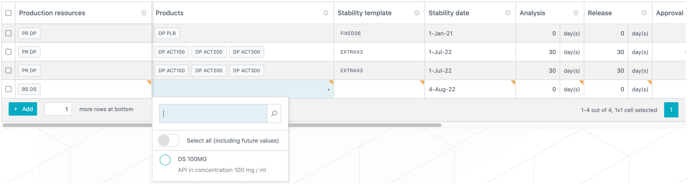
6.3. Select the right products in “Stability plans”
In the “Stability plans”, once one or several “Production resources” have been selected, the “Products” field will only show products for which a [Production resource - Product] combination exists in “Production configurations”.
6.4. See teams in scenario contributors

Teams which are contributors of a scenario now appear on the scenario card.
7. User documentation
The following articles are added (or have been modified) to enrich the documentation and help you in your usage of the N-SIDE Production App: