
Table of contents
In order to investigate different configurations and outcomes of a production plan, multiple scenarios can be created inside a milestone. In addition, these scenarios can also be compared.
Label scenarios
In order to organize your work and quickly find the data of interest among scenarios, you can create and add labels to each scenario:
-
From the scenario card, in the scenario selection view (milestone).
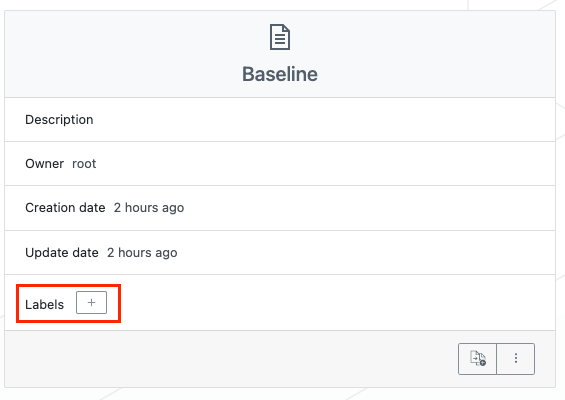
-
From the scenario view.
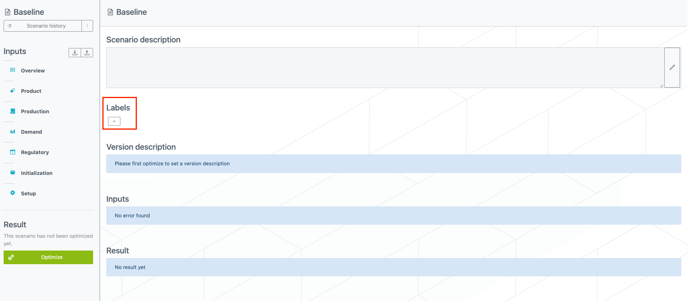
Labels are visible by all users but only scenario owners and contributors can edit them. A color is automatically assigned to new labels so that you can easily differentiate them.
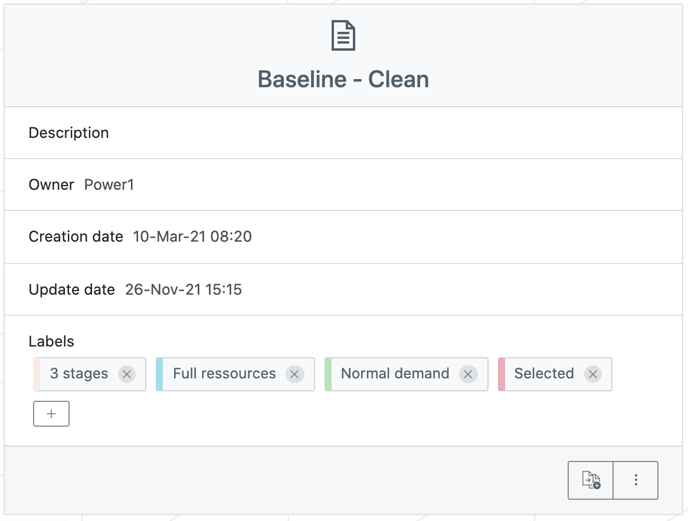
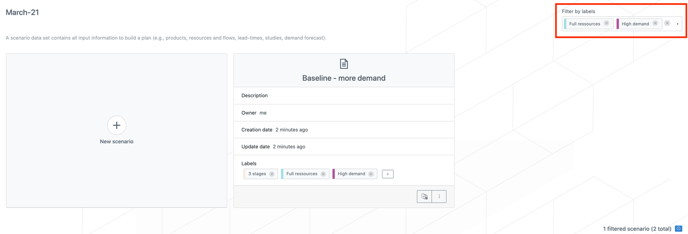
Reusing existing labels on several scenarios allows to retrieve scenarios with similar characteristics with the filtering option available in the milestone (see red frame on the screenshot below). The scenarios which do not contain all the labels selected in the filter are filtered out.
Scenario view
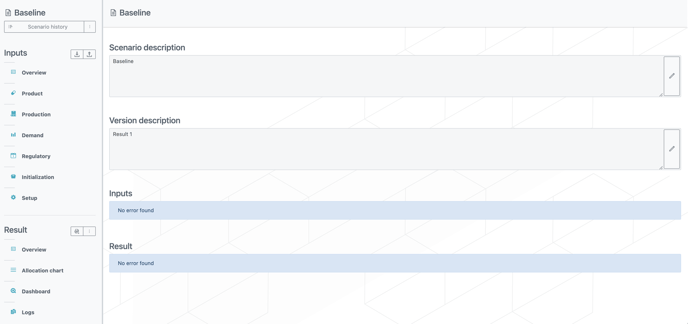
By clicking on a scenario, you arrive to the scenario view which contains:
-
The description of the scenario which can be edited.
-
The input validation messages.
-
The result description as well as the result validation messages (in case there is a result).
Scenario history
Tips
This scenario history is particularly useful to:
-
Compare versions of a scenario.
-
Restore a previous version if necessary.
-
Keep track of all changes that were made for a scenario.
By clicking on SCENARIO HISTORY, another view appears.
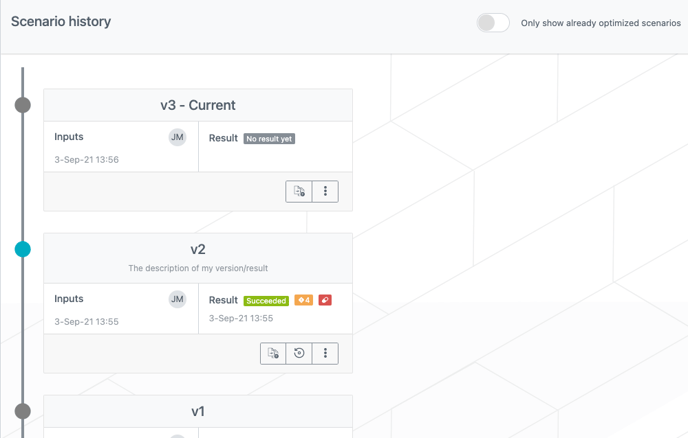
The scenario history displays the timeline of the different versions of your scenario since its creation.
Each time an input is changed and the change is saved, the system creates a new version of the scenario.
By default, only optimized scenarios (with result) are shown. This can be disabled by clicking the Only show optimized scenarios toggle button on the top right corner.
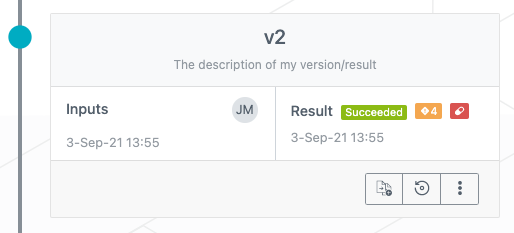
Each version of a scenario is displayed in the timeline by a card containing:
-
The version number and the description of the version (which was given when launching an optimization). “Current” will be added to the version number if it is the current version. Clicking on the version number opens the scenario view.
-
The inputs information (“Inputs” label, input badge, creator and creation date). Clicking on this part opens the Inputs overview.
-
The result information (“Result” label, status badge (succeeded, failed, …), validation badge and the job date). Clicking on this part opens the Result overview.
-
Different actions (from left to right): “add/remove to comparison basket”, “restore” and a contextual menu which provides additional actions: compare, delete, duplicate and rename. You can restore any “non-current” versions and restoring a previous version creates a new version of a scenario. However, you cannot restore a version that is in edition.
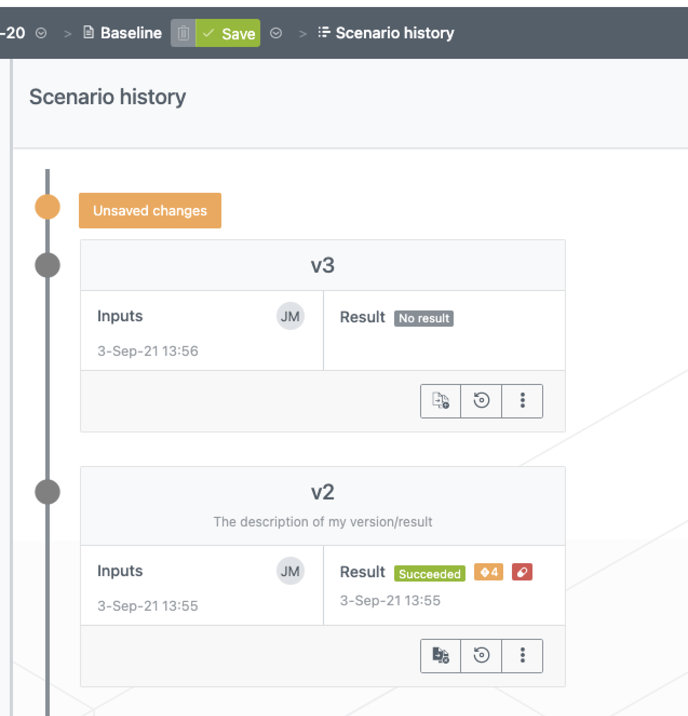
Note that, in cases there are unsaved changes, a special card appears in the history view :
Attention point
Versions with no result, that are older than 14 days, are automatically deleted.
Scenario export/import
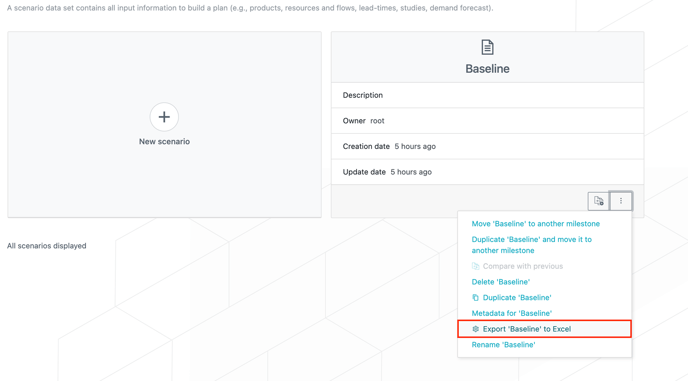
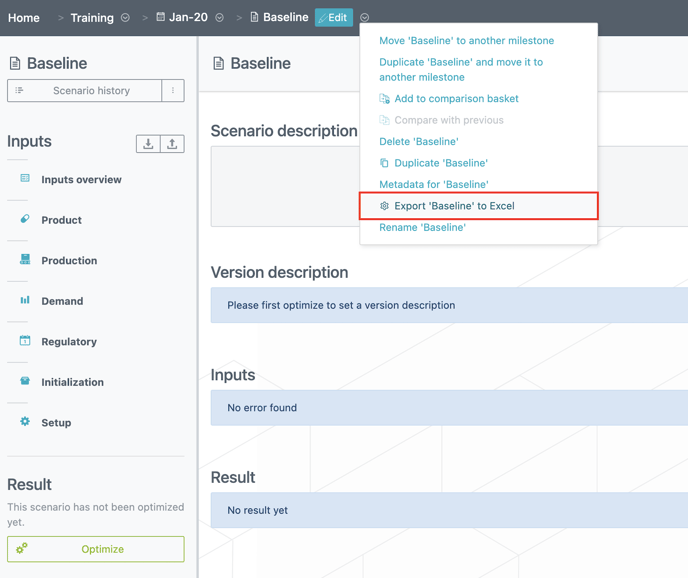
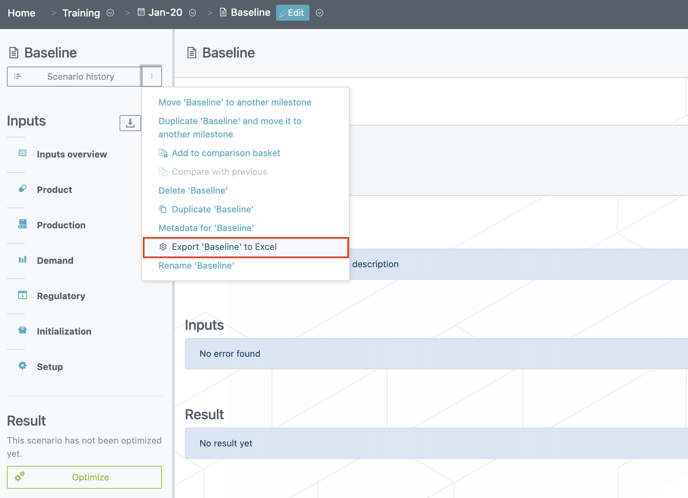
You have three different ways to export your scenario to Excel:
-
Through the contextual menu of your scenario card (from the milestone menu)
-
Through the scrolling menu (downward arrow) next to the scenario name in the top of the interface.
-
Through the contextual menu next to the scenario history.
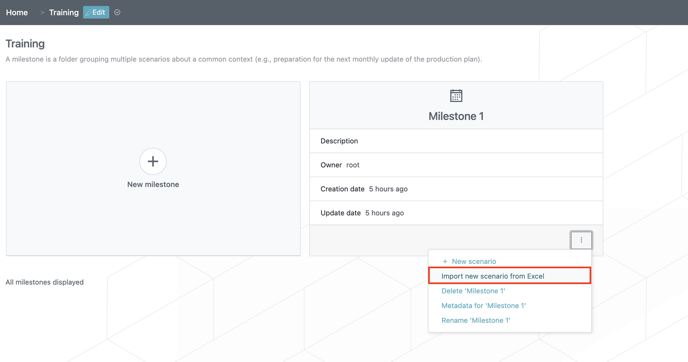
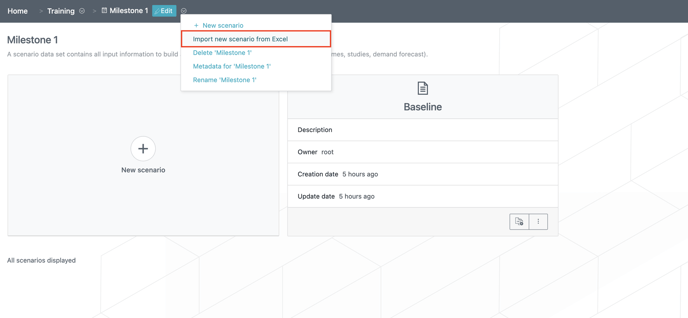
You have two different ways to import a new scenario from Excel:
-
Through the contextual menu of your milestone card.
-
Through the scrolling menu (downward arrow) next to the milestone name in the top of the interface.
Attention point
When exporting a scenario, a “range” is defined for each table in the Excel file and only the lines within the “range” will be imported. That means that, if you add lines at the end of a table, they will not be imported unless you change the range.