
Table of contents
Tip
-
Studies, regions, imported demands, demand forecasts and raw demands can be excluded from the optimization without having to delete all related data by using the Use checkbox
.
A demand is a quantity of product that we are aiming to satisfy through the manufacturing plan. These demands could be clinical (coming from clinical trials), but also technical (e.g for stability) or commercial. For all demands, are associated a given date, region and a minimum remaining shelf-life. Demands can be defined for any product along the production chain and are supplied using production resources, i.e., entities that can produce the product and allocate it to the study and region of the demand.
The clinical demand that is considered by the Production App is the IMP release plan as seen at the central warehouse, i.e. the supply demand. It should not be confused with demand as seen at the investigational site, i.e. the patient demand.
There are three possible ways to define demands and these can be combined for the same study (if desired) :
-
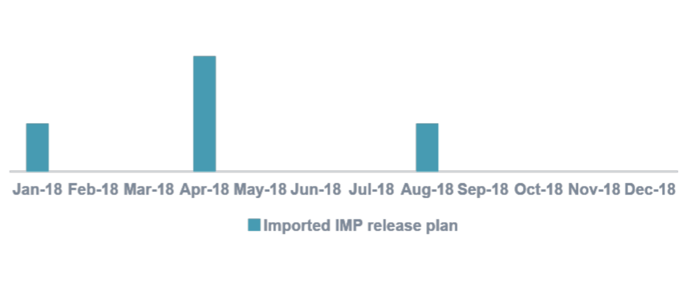
Imported demands
IMP release plans imported from the N-SIDE Supply App, or other demand forecasting tools, are transformed into IMP demands in the Production App.
These IMP demands, when entered in the Production App, are combined with the manufacturing constraints to form an optimal plan. This means that the IMP releases from the Supply App could be shifted in time or grouped with another release by
the Production App, in order to be more optimal.
-
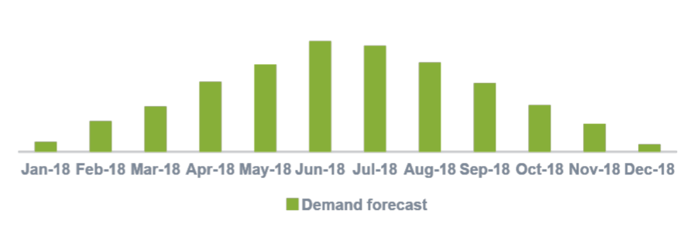
Demand forecast
IMP monthly demands are computed using a deterministic
forecast model based upon simple study parameters.
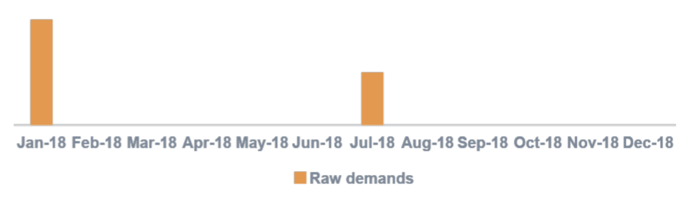
IMP or other product demands are specified one by one
as input parameters. They correspond to a defined quantity for a defined product at a defined date.
Read this FAQ in order to know which demand defining method should be used depending on the demand characteristics: Which method should I use to define a demand? (Production App)
Study categories
Study categories can be defined for the purpose of reporting. They will be used in combination with study status, study sponsor and study indication (all defined in the Master Data) in order to filter and distribute results, e.g., manufacturing cost and produced quantities, along those dimensions. Depending on the reporting needs, different types of categories can de defined.
-
For example, study categories could be defined to discriminate results according to the drug development phases.
Studies
This tab allows to define all clinical (and non-clinical) studies with their parameters (type, status, sponsor, indication, category, grade).
Demands of products are defined per study and the number of demands directly impacts model complexity and solving time. To avoid dealing with too many demands, granularity can be adjusted with time according to the study specific aggregation parameters (see Demand forecast below).
Regions
Regions are used to define the reach of a study and demands are attached to a region. Regions are defined when demands must be discriminated per geographical zones for one (or several) of the following reasons :
-
Patient kits are different (e.g. different labelling) per zone.
-
Minimum required remaining shelf-life differs per zone (difference in the supply lead-times).
-
Stability extension approval lead-times differ per zone.
-
Demands must be discriminated to match with imported demand data (e.g. label groups).
-
For example, China could be discriminated from “Rest of the world” in the context of a specific study because both the stability extension approval lead-time and the supply lead-time
(hence the minimum remaining shelf-life) could be longer in China. For all other studies, “Worldwide” region could be used.
-
Imported demand mapping
When importing demands from Supply App or Excel, new imported products and studies are added to this table. The remaining data (product, region and rate) have to be completed during the import process. The mapping is applied only when demands are imported.
To apply modifications made directly in the table mapping, you can click RE-APPLY MAPPING (see red frame on the screenshot below) and all demands with an imported product will be updated accordingly.
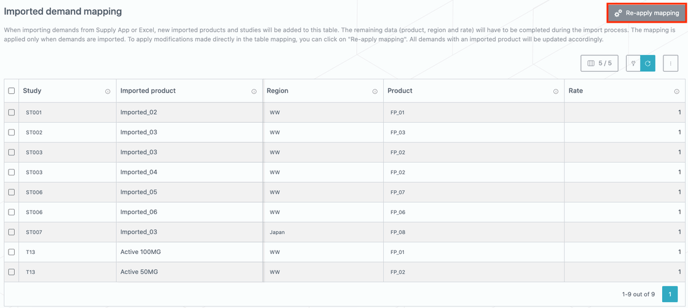
The rate can be used in complex mapping if, for some reason, one imported product corresponds to more (or less) than exactly one unit of product in the Production App. In the most common case, the default value of 1 is appropriate. One can also set the rate to 0 to exclude the corresponding imported demands from the calculation.
Demand forecast
This table allows to define some simple demand forecast parameters that are used to generate demands. One row in the table is typically used to predict demands for one treatment arm or one product of one study over one given region supplied by one given production site. With a few simple parameters, the system predicts an average monthly demand (that is then aggregated depending on the aggregation parameters defined for the study). This table is typically used to predict clinical demands for studies for which only little information is currently available and more complex demand forecast (using other tool) would not be possible or meaningful.
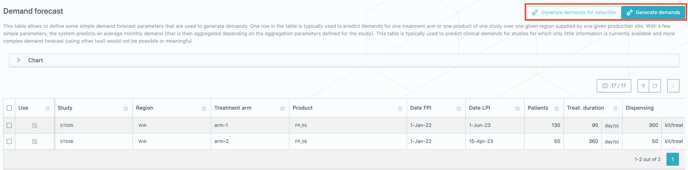
Right after entering the usual lines in the Demand forecast table, you can generate the corresponding demands. This action can either be performed for the whole table or for specific lines (see red frame on the screenshot above).
Note
When generating demands from demand forecast lines which already generated some demands, the existing demands referring to those lines are deleted before being regenerated.
For each row, a certain number of patients is considered to be enrolled between the FPI and LPI dates. Optionally, a trial stopping date can be specified. For each enrolled patient, the total dispensing and treatment duration allow determining the patient demand profile, i.e., how many kits are required on site on average per month. The patient demand profile is then augmented by the overage to take into account uncertainties and shifted backwards in time by the supply lead-time to represent the supply demand as seen at the production site.
Overage is used to account for required excesses of product supply to cover distribution and treatment uncertainties (safety stocks, loss due to expiries, dropouts, etc …). Quantity to supply (Qs) is then computed as the average patient demand (Qd) multiplied by 1 plus the overage :
Qs = Qd (1 + ovg)
The minimum remaining shelf-life on site is augmented by the supply lead-time to represent the minimum remaining shelf-life at the corporate depot.
For calculation performance reasons, it is recommended to aggregate monthly demands by buckets of several months when possible.
The demands and the effects of the aggregation parameters can be visualized in the collapsable chart above the table.
Demands
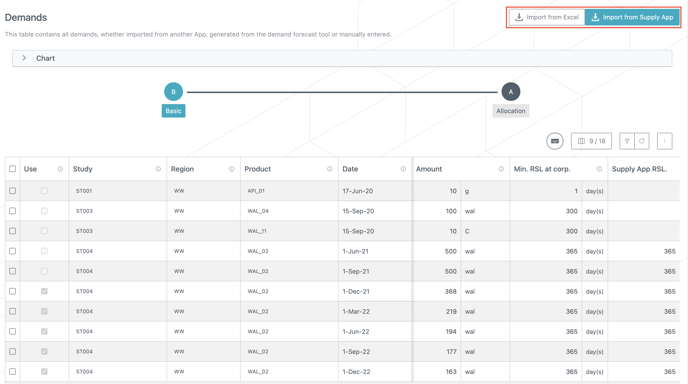
The Demands table gathers demands coming from all sources. It can be populated using different methods:
-
Generate demands from the Demand forecast (see above).
-
Import demand from Supply App/Excel (see red frame on the image below).
-
Create a demand manually by adding a line in the table.
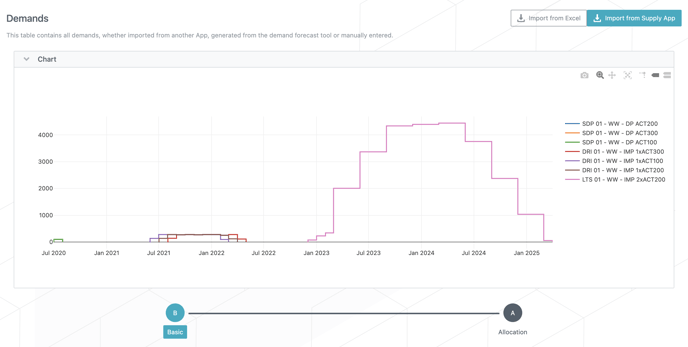
Above the table, a chart can be unfolded in order to visualize the demand evolution over time for each study - region - product combination.
The content of the table is partly different between the two views (i.e., Basic and Allocation).
Basic view
In addition to information that is common between views (use, study, region, product, date), the Basic view includes information about the remaining shelf life, i.e., the required minimum remaining shelf life at the date of the demand (Min RST at corp. column) and the remaining shelf life used in the Supply App (Supply App RSL column). The Source column gathers information about how the demand line has been generated.
Read this article to learn how to directly import a demand (IMP release plan) from the Supply App: How to import demands from the Supply App to the Production App
Allocation view
This view makes it possible to specify lot allocations that will meet specific and short term demands
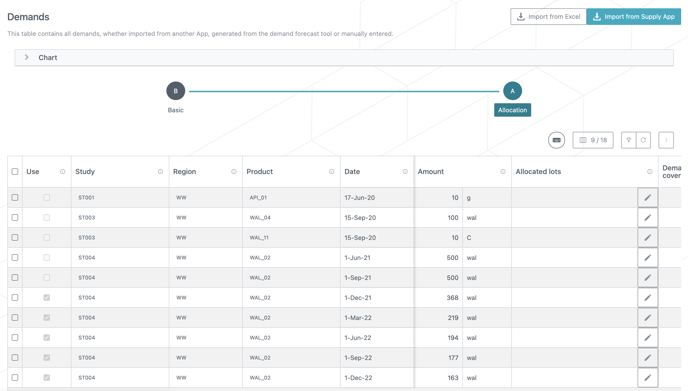
By clicking the “pen” button of a demand in the Allocated lots column (see image above), you access a side panel (see image below) where you can specify which lots should be used to meet specific demands.
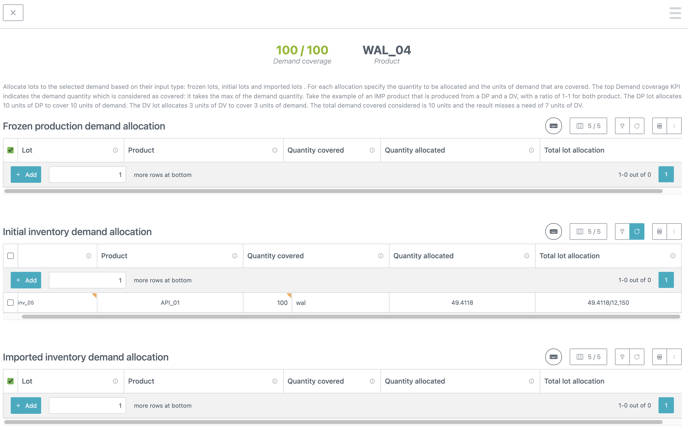
Please read How to enter fixed lot allocations to demands (Production App) for more information on this feature.
Troubleshooting missed demand
Optimizations can be automatically stopped after encountering an unexpected missed demand, allowing to troubleshoot it based on a partial result.
By default, the optimization stops at each missed demand as indicated in the Demands table via the Continue if missed column (visible by displaying the Advanced preset) (see red frame on the screenshot below).

When a missed demand is encountered, the demand which could not be answered is available in the Missed demand summary table (see red frame on the screenshot below) of the Result overview.
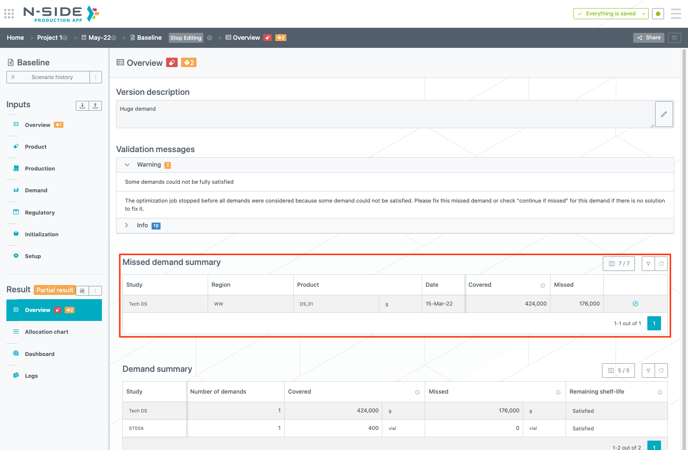
The result is clearly identified as a partial result via a badge.
In case the missed demand is real and cannot be solved, the Continue if missed checkbox of the demand should be checked in order to still move forward in the optimization and complete it.