- 1. Define a process dependent shelf-life [Project scenario]
- 2. Include the input loss in package designs [Trial scenario]
- 3. Visualize scenarios under more readable views [Project & Trial scenarios]
- 4. See trial and project demand per layer
- 5. Various improvements
- 5.1 Study categories can be used/unused [Project scenario]
- 5.2 Enabled archive action for Project &Trial managers regardless of ownership on scenarios [Project & Trial scenarios]
- 5.3 Display only month dates for expiries in the cockpit [Project & Trial scenarios]
- 5.4 Ease the creation of table header elements [Project & Trial scenarios]
- 5.5 Labels in assumption extract reports [Project & Trial scenarios]
- 5.6 Bug fixes
1. Define a process dependent shelf-life [Project scenario]
In this new version, we have introduced the capability to define stability plans based on the manufacturing process. See below an example of a process dependent shelf-life.
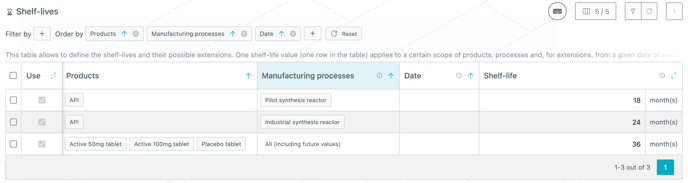
Specifically, the Shelf-lives table now includes a new column: Manufacturing processes. This allows you to define different stability plans for a given product depending on which process is used. This is typically useful to model a reset to a new stability plan when process is changed (e.g. scale-up). In the example above, a longer shelf-life is defined for API when moving from pilot to industrial scale.
When the stability plan does not depend on the process, or if only one (or no) process is defined, “All (including future values)” should be used, as in the example above for tablets.
The example below now illustrates a case where tablets have
-
a single shelf-life of 36 months when produced using a laboratory-scale process (very small batch size),
-
and then transition to a stability plan that includes one extension from 18 months to 24 months when produced on a pilot-scale process.
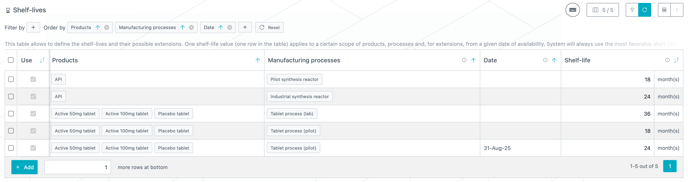
When multiple stability plans are available for a product, the system will select the one corresponding to the process assigned to the lot—either as determined by the guidelines (for new lots) or as directly defined on the frozen lot. As a result, the transition from one stability plan to another is not defined in the Shelf-lives table, but instead depends on the process transition, which may be driven by the guidelines and/or frozen lot definitions.
2. Include the input loss in package designs [Trial scenario]
In both internal and external trial scenarios, you can now specify what proportion of the input product is lost using a new Input loss field, available per constituent product in the Package designs table.
The quantity of input product required to produce one kit is equal to
Quantity needed = (Product(s) per kit) / (1 - Input loss)
For example, with an Input loss of 10%, and quantity needed for one kit = 7, then total input product required for a packaging campaign of 1,000 kits is:
Quantity needed = 1,000 * 7 / (1 - 10%) = 7000 / 90% = 7,778 units
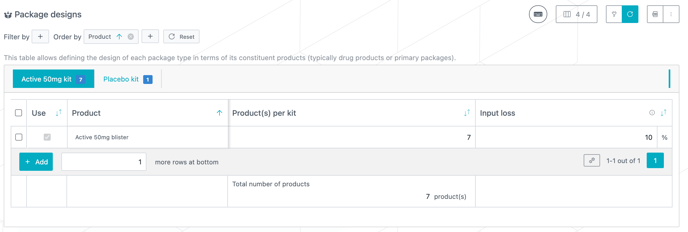
This parameter affects the quantity of input product required. While its impact is not directly visible in the trial scenario cockpit, it is reflected in the Monthly product needs sheet within the Excel report and will, of course, impact upstream product demand when imported into a project scenario.
3. Visualize scenarios under more readable views [Project & Trial scenarios]
3.1 Condensed card views
The card views have been redesigned to optimize screen space, allowing more cards to be displayed by default.
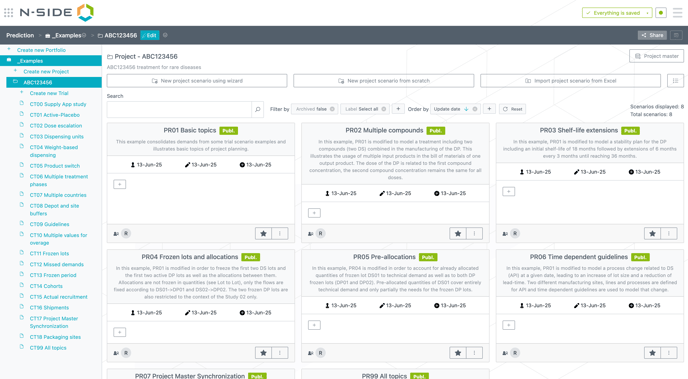
Here is what changed compared to the previous design:
- Publish date, update date and creation date are now displayed through icons, below the description, in the mentioned order.
- The list of contributors and owner appears at the bottom left of the card. You can hover the initials to see the full names.
3.2 New table view
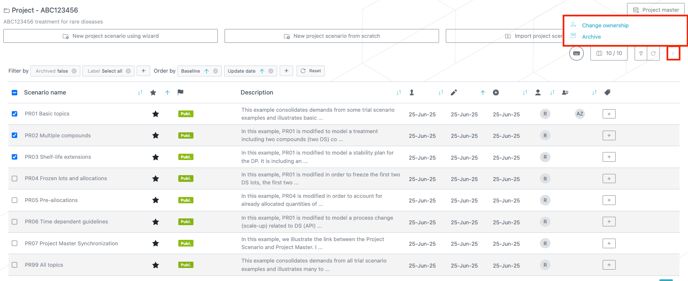
The scenarios can now be visualized under a table view in addition to the pre-existing card view.
This new view brings some additional functionalities:
-
The metadata can be edited through a modal when clicking on the description
-
The owner can be edited
-
Via a side panel that opens when clicking on it
-
Via a new bulk action available when selecting several scenarios in the table
-
-
Multiple scenarios can be archived/restored at once
4. See trial and project demand per layer
4.1 Demand layers in Cockpit [Project & Trial scenarios]
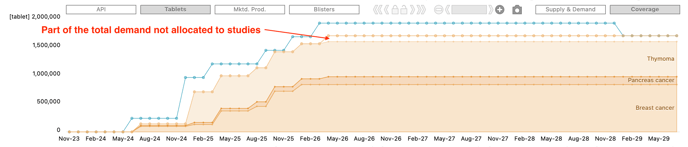
The Coverage view in Supply & Demand Cockpit has been extended to allow the presentation of cumulative demand per layer type, in the form of a stacked area chart. In the example below, cumulative demand is layered per study status. Available layers at project level are the studies and the study categories, if defined (indications, owners, sponsors, statuses). At trial level, only site group layers are currently available.

-
For a project, this feature is available at all stages, not only at the last (IP) stage where demands are ultimately assigned to a study. This means the end-to-end allocation to study calculation is leveraged in this per layer representation to determine the distribution of demands per layer.
-
Cumulative and non cumulative values of a data point for a given layer are viewable when hovering your mouse over a data dot.
-
Note that part of the demand for a given product may not be fully allocated to a specific study (and thus to a specific study category), especially at higher stages. This relates to parts of the demand that is allocated to sampling or not allocated at all. Therefore, the superposition of demand layers (that are related to allocations to studies) will often not add up to the total demand. As a result, an empty area may appear between the top of the stacked area chart and the total cumulative demand, as illustrated below:
-
Users can deselect the 3 elements (coverage, safety, supply) from the bottom chart to hide it, giving more space to top chart. This is useful when many layers are displayed.
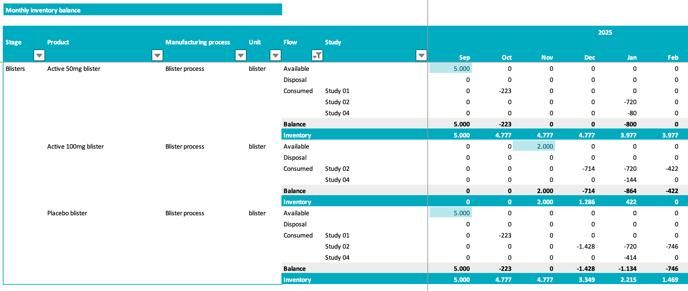
4.2. Extended monthly inventory [Project scenarios]
Monthly Inventory table in the project excel report has been extended to show consumed quantities per study.
5. Various improvements
5.1 Study categories can be used/unused [Project scenario]
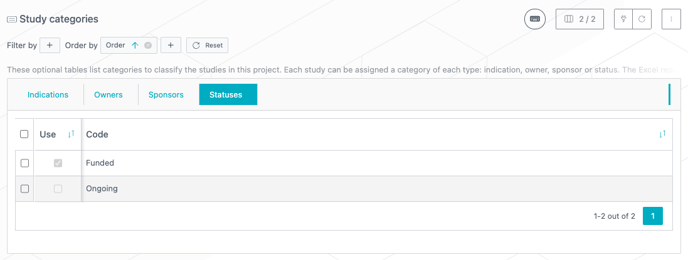
You can now disable an entire category of studies thanks to a “Use” checkbox in the Study categories tables of a project scenario. When a category is not used, it means all studies belonging to this category (and so all demands of those studies) are completely ignored even if they are still themselves set as “Use”. As a consequence, they will not be considered in the Cockpit nor in the Excel report. In the below example, all "Ongoing" studies are disabled.
5.2 Enabled archive action for Project &Trial managers regardless of ownership on scenarios [Project & Trial scenarios]
To further ease the use of the archive action, project and trial managers can now archive scenarios even when they are not owners of the scenario, such that:
-
Trial managers can archive any trial scenario
-
Project managers can archive any project scenario, and any trial scenario
5.3 Display only month dates for expiries in the cockpit [Project & Trial scenarios]
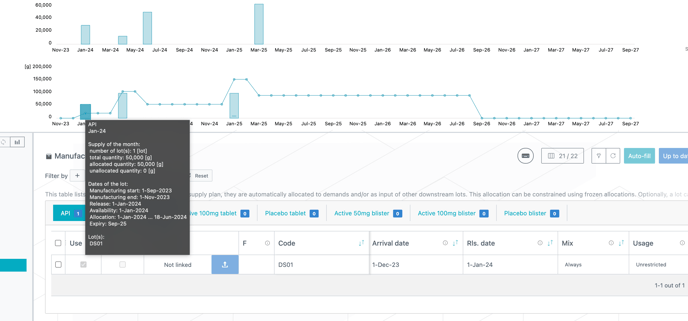
The cockpit now displays the expiry date at the month level only, and not on the first day of the month anymore. The granularity used in the computations nevertheless remains the expiry date displayed in the tables.
5.4 Ease the creation of table header elements [Project & Trial scenarios]
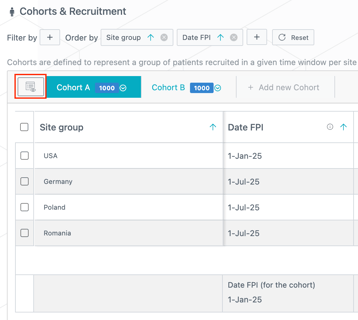
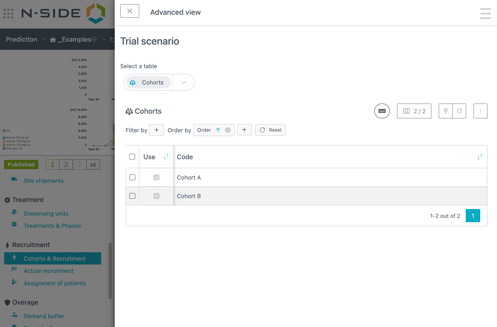
Since some data only appears as navigation elements of a table, it is not possible to create multiple elements at once by copying and pasting them for instance. With the introduction of the advanced view button on tables containing a navigation header (see first screenshot), it is now possible to access a panel that presents those elements as a table, giving access to the usual table operations such as copy pasting (see second screenshot).
5.5 Labels in assumption extract reports [Project & Trial scenarios]
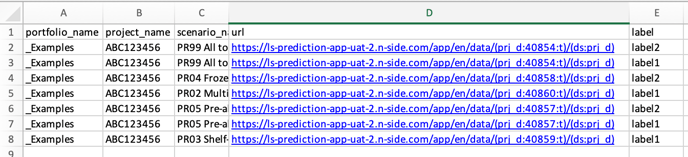
You can now access label information for scenarios in the assumptions extract report as part of a new labels column in the list of existing scenarios.

A new sheet was also added which contains one line per (scenario, label) combination which is useful to find all the scenarios containing a specific label.
5.6 Bug fixes
-
Fixed the timeline view not displaying the owner of a version change correctly
-
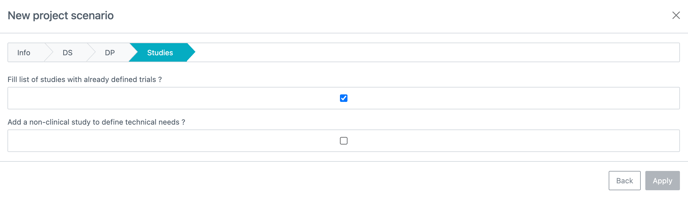
When creating a project scenario using wizard, the “Add a non-clinical study to define technical needs” option is now properly working when unchecked.