
Table of contents
1. Distribution forecast in trial scenario
2. Manufacturing properties in project scenario
3. New layout of navigation panel in trial and project scenarios
1. Distribution forecast in trial scenario
You can now access an estimation of shipments to depots and sites statistics in the trial scenario. A new example, “CT16 Shipments”, has been included to the examples database to illustrate this topic.
1.1. New input data
You can use the new Handling conditions table (see image below) to define all handling conditions (e.g. temperature types) to be considered for planning shipments. Shipments will group kits from package types with the same handling condition. Different shipment properties (lead time, capacity, frequency, cost, etc.) can be defined for each handling condition and destination (see later).

You can also find the Handling condition column (see image below) in the Package types list. Only one handling condition can be assigned to a package type.

Depot shipments and Site shipments tables (see images below) were added so that you can define properties related to the shipments to depots and sites. Shipment properties can be defined per destination (depot or site group) and per handling condition. One row can define shipment properties for multiple destinations and/or handling conditions if they share the same values. See below for details about each parameter.


1.2. Shipment parameters
-
Lead time : Average number of day(s) required to deliver material to the depot or the site. This parameter was previously defined in the Depots / Site groups tables but it has been moved to Depot shipments / Site shipments tables to allow a different value per handling condition.
-
Frequency : Number of days between two shipments (see "Shipment planning principle" below).
-
Capacity : Maximum number of kits per shipment (see "Shipment planning principle" below).
-
DNS : “Do-Not-Ship” is the minimum remaining shelf-life in days that the kit must still have when shipped to the destinations. This parameter is typically used on Depot shipments table to model the “China constraint” that imposes at least 1 year (365 days) of remaining shelf-life for material shipped to China depot. This constraint does not replace the required remaining shelf-life related to the dispensing to the patient of the kits part of the shipment, but it is in addition to it. If not specified, only the required minimum remaining shelf-life related to the dispensing covered by this shipment is considered.
-
Cost : Cost per shipment, 0 is used if empty
-
CO2 : CO2 emissions in kg per shipment, 0 is used if empty. If specified, the total CO2 footprint of the shipments will be available in the Excel report for the trial.
-
Last shipment date : Date of the last shipment. This parameter is relevant for ongoing trials only. If not specified, a first shipment will be planned such that kits arrive on site just in time (at the date of the first demand). If specified, first shipment will be planned such that the last shipment date is part of the sequence of shipments generated based on the shipment frequency (see "Shipment planning principle" below).
-
Trim : This parameter is relevant for ongoing trials only and used in combination with the last shipment date. If checked, possible demands covered by all shipments up to the last shipment date will be considered as already fulfilled and will therefore not be considered in the planning.
1.3. Shipment planning principle
1.3.1. Objective
The shipment planning does not intend to compute an accurate list of actual shipments to be performed but instead to estimate the quantity of shipments expected on a monthly basis, typically for budgeting and supplier contracting purposes.
1.3.2. Sequence of shipments
The shipment planning relies on a given frequency of shipments fixed by the user for a given set of destinations and handling conditions (Frequency parameter).
For a given destination and a given handling condition, a sequence of shipment dates is generated by the system according to the shipment frequency.
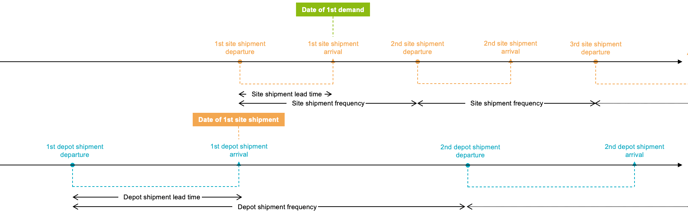
If Last shipment date is not defined, the sequence of shipment dates is positioned in the timeline such that the first shipment arrives just in time to cover the first demand (site demand for depot shipment or site shipment for depot shipment) for the considered destination and handling condition. The situation is depicted in the figure below.
If Last shipment date is defined, then the sequence is rather positioned in the timeline such that one of the dates of the sequence corresponds to that last shipment date. The rest of the sequence, before and after the last shipment date, is still generated according to the frequency. In this case, the first shipment may arrive before the date of the first demand. The situation is depicted in the figure below for the case of a last shipment date defined for the site shipments and that would correspond to the 2nd site shipment.
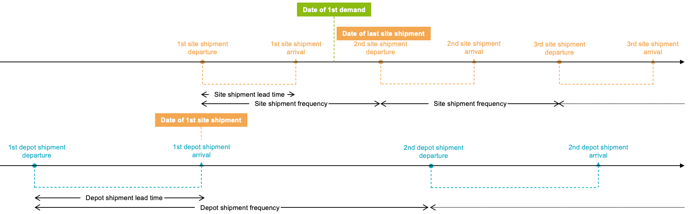
In both cases, a sequence of shipments with a fixed frequency is used, the difference between using last shipment date or not is only related to how the sequence is aligned along the timeline.
At each site shipment date, the quantity of kits to be shipped (shipment size) is determined to cover the demand (site demand including demand buffers and site buffers) up to the arrival date of the next site shipment.
At each depot shipment date, the quantity of kits to be shipped (shipment size) is determined to cover the demand (site shipments and depot buffers) up to the arrival date of the next depot shipment. In the example of the figures above, first depot shipment would be sized to cover the demand related to the depot buffer and the first three site shipments.
If the Trim flag is checked and the last shipment date is defined, all demands (for site shipments) or site shipments (for depot shipments) covered by the shipments up to and including that last shipment will be ignored. This can be used in ongoing studies to plan only future supplies.
If Frequency parameter is not defined, the system assumes a possible shipment every day and detailed shipment information will not be included in the results. If defined, monthly shipment details to the destinations will be available in the Excel report.
1.4. Number of shipments
At each shipment date, the number of actual shipments is determined based on:
-
-
the number of actual destinations (1 for depot, the number of sites for site group)
-
the quantity to be shipped to each actual destination
-
the capacity of one shipment (if defined)
-
For example, for a total quantity of 100 kits to be shipped at a given date to a site group with 4 sites and assuming a capacity of 10 kits per shipment, the number of shipments is determined as follow:
-
-
shipped size per site : 100 / 4 = 25 kits/site
-
shipments per site : 25/10 = 2.5 => 3 shipments/site
-
total shipments to the site group : 4 * 3 = 12 shipments
-
1.5. Cockpit
The demand chart (top) in the Supply & Demand view of the Cockpit now reflects depot shipments (if defined) or site shipments (if no depot). For a given month, the bar height represents the quantity shipped (positioned at the shipment departure) during that month for the corresponding package type.
Allocations of monthly supplies to demands (dotted lines) is therefore now also related to the allocations of supplies to depot shipments (if defined) or to site shipments (if no depot).

1.6. Excel report
📝 Note
As mentioned above, shipment statistics are available in Excel report only for destinations for which a shipment frequency has been defined.
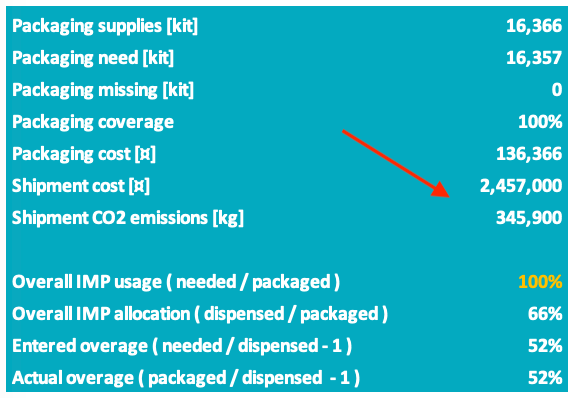
The estimated total shipment cost and CO2 emissions are now included in the Summary sheet of the trial scenario Excel report (see image below).
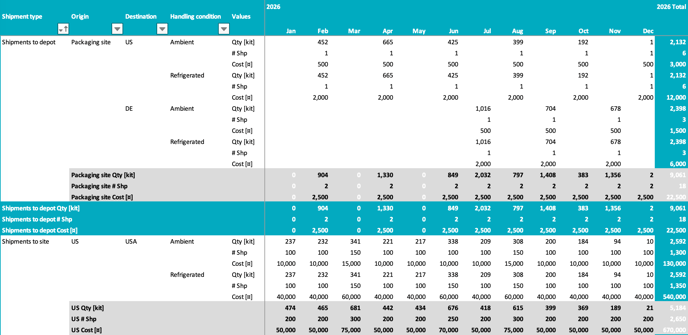
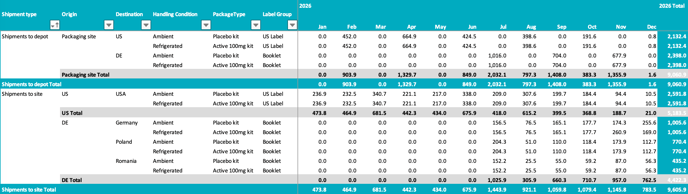
The Monthly shipments sheet (see image below) presents the estimated quantities shipped, the number of shipments and the shipment cost per month for each destination (depot and site group) and handling condition. It also shows totals for these three measures per origin (packaging site or depot) and the overall totals for each shipment type (depot and site shipments).
The Shipment details sheet splits these quantities per package type and label group in a similar table structure (see image below).
1.7. Data migration and wizard
Since all new concepts related to the distribution forecast are optional, migration of existing data will leave these new inputs empty, except for shipment lead time, which was previously defined in Depots and Site groups tables and that will be moved to Depot shipments and Site shipments tables.
The Shipment frequency parameter will remain empty for all migrated scenarios, ensuring replication of the same behaviour as before.
You must explicitly define a value for the shipment frequency parameter to enable shipment planning results in the Excel report. Similarly, when creating a new scenario using the wizard, all new shipment properties are left empty (except lead time) and you must enter values for some of them after using the wizard to enable shipment planning results in Excel report.
2. Manufacturing properties in project scenario
Notions of handling conditions, manufacturing sites, lines and processes have been added to the project scenario to make these properties available for reporting. Example “PR06 Time dependent guidelines” has been updated in the examples database to illustrate this topic.
2.1. New input data
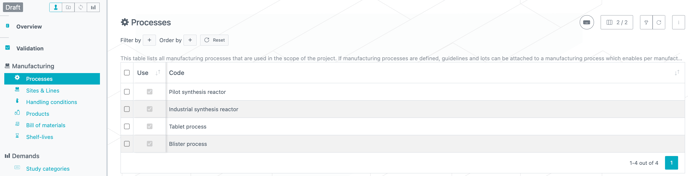
You can now use the new Processes table (see image below) to define all processes involved in the scope of the project. A manufacturing process refers to the set of procedures, protocols, and registered technologies used to produce a specific product. One manufacturing process can be assigned to a lot generated from a guideline (new lot) or defined in the Lots table (frozen lot).
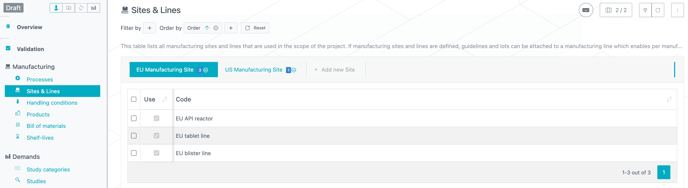
You can also use the new Sites & lines table (see image below) to define all resources involved in the scope of the project. A manufacturing line refers to the physical arrangement of machinery, equipment, and workers configured to perform the manufacturing process. It is the tangible series of stations where the actual production occurs. A manufacturing line is tied to a particular manufacturing site. One manufacturing line can be assigned to a lot generated from a guideline (new lot) or defined in the Lots table (frozen lot).
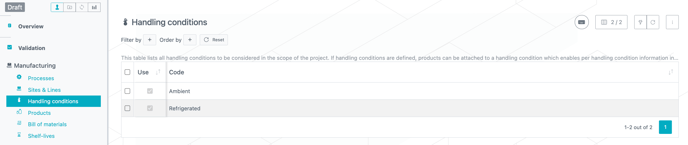
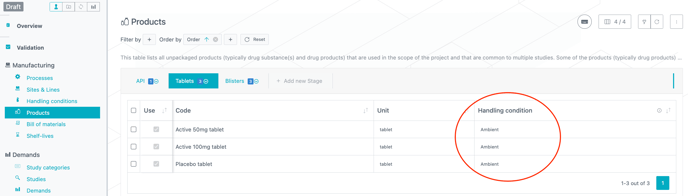
In addition, you can now use the Handling conditions table (see image below) to define all handling conditions (e.g. temperature types) involved in the scope of the project. One handling condition can be assigned to a product.
You can also find Handling condition column in the Products list (see image below). Only one handling condition can be assigned to a product.
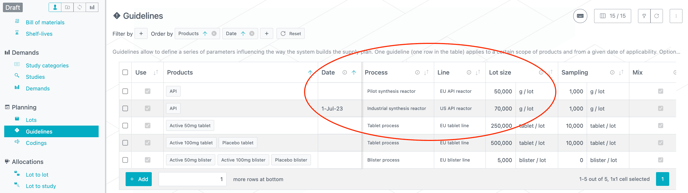
Process and Line columns were added in the Guidelines list (see image below). Only one manufacturing process and one manufacturing line can be assigned to a guideline. Using time-dependent guidelines, one can model a change of manufacturing processes and/or lines over time, as illustrated in the example below for API changing from pilot to industrial reactor. All new lots generated by the guideline will be assigned to the corresponding process and line.
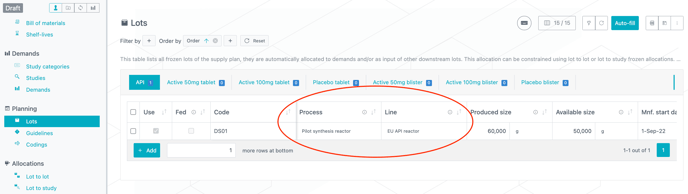
Process and Line columns were also added in the Lots list (see image below). Only one manufacturing process and one manufacturing line can be assigned to a lot.
2.2. Excel export
Information on the manufacturing process, the manufacturing line and the handling condition is added to the Lots sheet in project scenario Excel report (see image below).

Information on the manufacturing process is also included in the Monthly productions, Monthly supplies and Monthly inventories sheets. This is illustrated below for the Monthly productions sheet.

2.3. Data migration and wizard
Since all new manufacturing properties (site, line, process, handling condition) are optional, migration of existing data will leave these new inputs empty.
You must define meaningful values for these new properties in order to see them in the Excel report. Similarly, when creating a new scenario using the wizard, all new manufacturing properties are left empty and you must enter values after using the wizard to see these properties in the Excel report.
3. New layout of navigation panel in trial and project scenarios
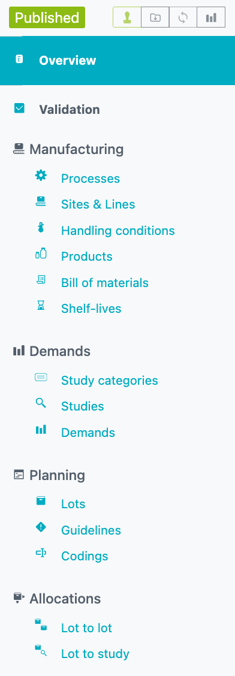
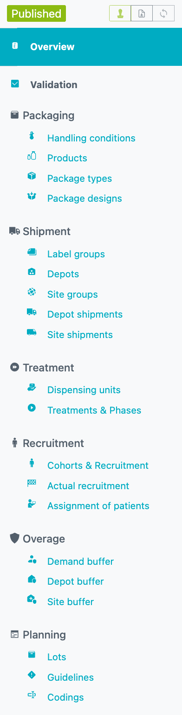
With the introduction of new shipment parameters in trial scenario and manufacturing properties in project scenario, the navigation panels of both scenarios have been redesigned as follows, with the intent to bring more consistency in the navigation flows in the two cases.
| Project scenario | Trial scenario |
 |
 |
4. Other updates
4.1. Termination date per country
In the Guidelines table of the trial scenario, Date stop parameter can already be used to cut all demands occurring after a certain date. This is typically used to model a strict termination date for the trial (independent of possible ongoing patients) or, in combination with Date start parameter defined on another guideline, to model a product switch. Since the scope of a guideline is a subset of package types and label groups, it is not possible to define a different strict termination date per country in this table.
A similar Date stop parameter has now been made available in the Site groups table to make it possible to define a strict termination per country (see image below). Its effect is exactly the same as the one from the guideline but its scope of application is one site group instead of a subset of package types and label groups.
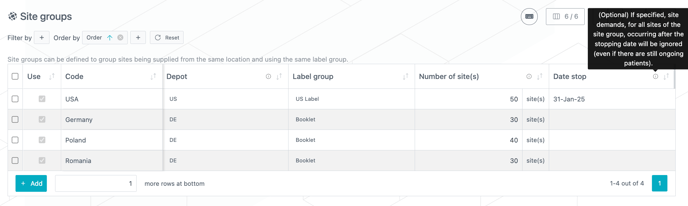
The two concepts of Date stop (per guideline and per site group) can be used simultaneously, the most restrictive will apply.
4.2. Performance enhancement
Computation time of the project scenario is now reduced by half, enabling improved reactivity between table edition and Cockpit update in complex cases
4.3. Inventory coverage safety margin
In previous release, a modification in the way to compute the inventory coverage safety margin curve was introduced at project level. The same modification is now available at trial level. See Prediction App Release notes 2024.3 for more details.
5. Bug fixes
-
The following issues are now fixed:
-
Unexpected missed demand in project scenario when a frozen lot was marked as “not mixable” while the guideline allowed mixable new lots.
-
Misformatted error message when user tried to connect without access rights
-
List of Stages in Lots table of project scenario not always appearing in the expected order
-