Table of contents
1. Project scenario reporting updates
The project scenario result Excel report has been revamped with the following changes:
-
Three additional sheets: "Productions per study", "Needs per study" and "Productions per category".
-
More information on the "Summary" sheet
-
A new "Charts per category" sheet containing all the charts for each study category (instead of four sheets previously).
1.1. Summary sheet
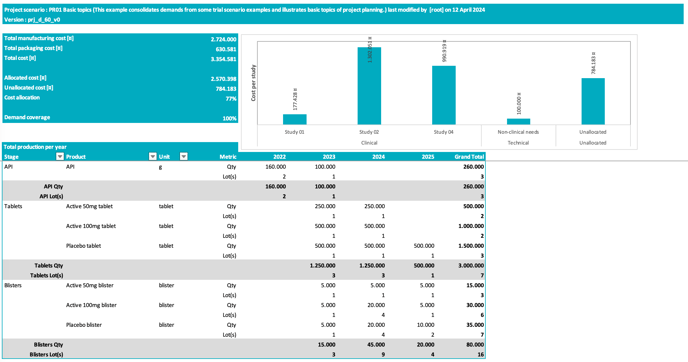
Total productions per year are now also expressed in terms of number of batches (lots) (see image below). The "Metric" column indicates whether the value is the quantity produced or the number of produced batches. The production per year is still counted based on the start of manufacturing date.
1.2. Productions per study
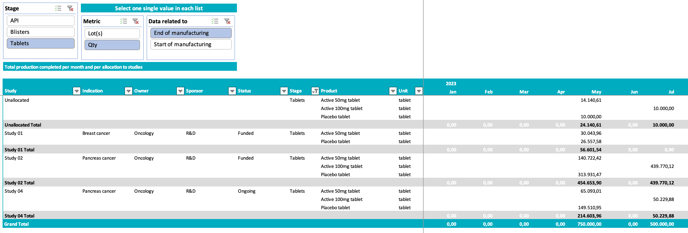
You can now access a new sheet called "Productions per study" which is available after the "Allocation list" sheet. It shows the quantity (Qty), or the number of batches (Lot(s)) per month, product, stage and study.
You can filter data with the three slicers above the table (from left to right, see image below):
- Select one or multiple stages.
- Choose between the quantity or number of batches metric.
- Choose how these informations should be located in the timeline, either considering the start date of manufacturing (i.e. when the production is started) or the end date of manufacturing (i.e. when the production is completed). The values of the different categories (indication, sponsor, owner and status) are displayed in different columns.
1.3. Needs per study
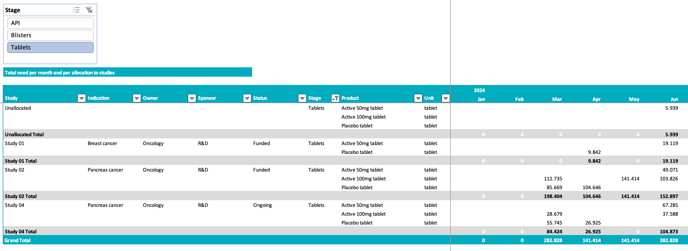
Similarly to the "Productions per study" sheet, the "Needs per study" sheet shows the needs per month, product, stage and study (see image below). The need is defined as the sum of the direct demands for the product (as entered as input data in the "Demands" table in the Prediction App) and the indirect demands coming from the downstream lots consuming the product. A slicer is available to select one or multiple stages to be displayed.
1.4. Productions per category
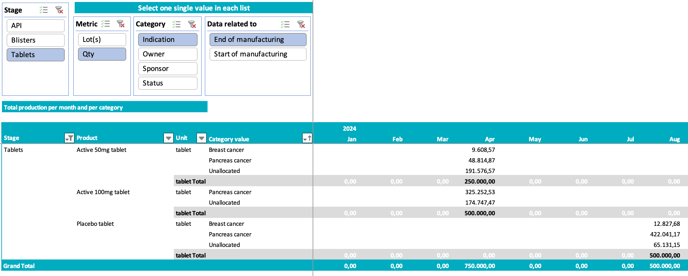
The new "Productions per category" sheet displays the quantities produced or the number of batches produced. This information can be located in the timeline either considering the start date of manufacturing (i.e. when the production is started) or the end date of manufacturing (i.e. when the production is completed).
Information is displayed per month, per stage of production, per product and per category value. Four slicers are available above the table to allow selecting (from left to right, see image below): one or multiple stages, one single item for the metric (quantity or number of batches), the category and the way to locate data in the timeline.
1.5. Charts per category
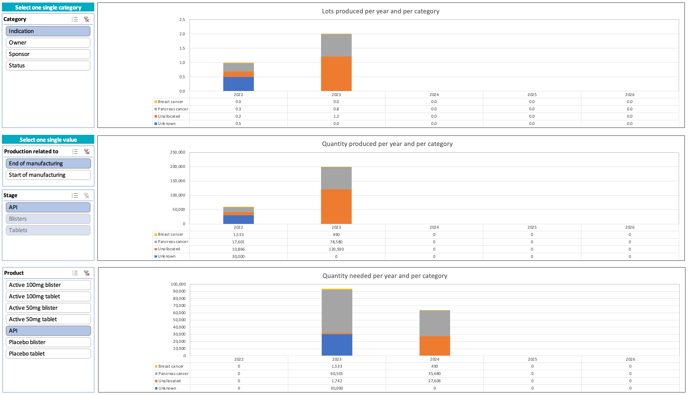
The four previous sheets "Charts per indication", "Charts per owner", "Charts per status" and "Charts per sponsor" are now merged into a single sheet named "Charts per category" containing all the charts from the previous sheets. A slicer allows to select one of the four categories so that all the information previously stored in four sheets are now available in a single sheet. Moreover, a slicer allows to display the lot produced and quantity produced in terms of start of manufacturing date or end of manufacturing date.
2. Inventory coverage safety margin
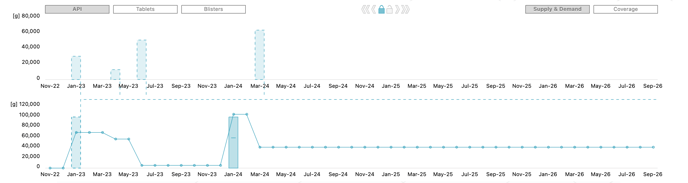
In the "Coverage" view of the Cockpit (see image below), the bottom chart shows the inventory coverage duration (green curve) compared to the minimal value expected for this duration (pink curve) which depends on the value of the Safety buffer set by the user as input data in the Guidelines.
The pink curve was previously showing a static value corresponding directly to this safety buffer. It is now representing the actual underlying dynamic constraint (see definition below) that the coverage duration is expected to fulfill. This new representation enables better visual interpretation of the fulfilment of the safety buffer. Indeed, the constraint is respected as long as the green curve remains above or equal to the pink curve.
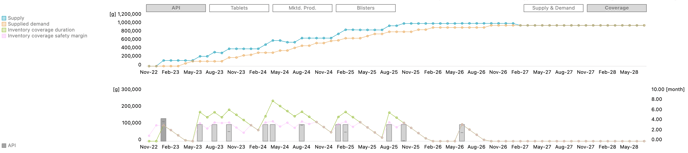 In the example above, a safety buffer of 120 days (4 months) was defined for the supply of API. The first API frozen lot is planned a bit too close to the first need in API, i.e. less than 120 days before. This translates into the actual coverage duration curve (green) being under the coverage safety margin curve (pink) before first API frozen lot is released in Jan-23. For the rest of the planning horizon, the safety buffer is fulfilled, the green curve no longer drops below the pink curve.
Coverage safety margin definition:
For a safety buffer value (e.g. 120 days), the value of the coverage safety margin at any date of the planning horizon, is defined as the number of days from that date until the date of the last demand in the horizon of the safety buffer (i.e., in the next 120 days). In other words, the value of the coverage safety margin answers the question “how many days my inventory should hold in order for all demands occurring in the horizon of the safety buffer to be covered?”. This value can be smaller than safety buffervalue, if the last demand in the safety buffer horizon is before the end of that horizon, hence the oscillations in the pink curve.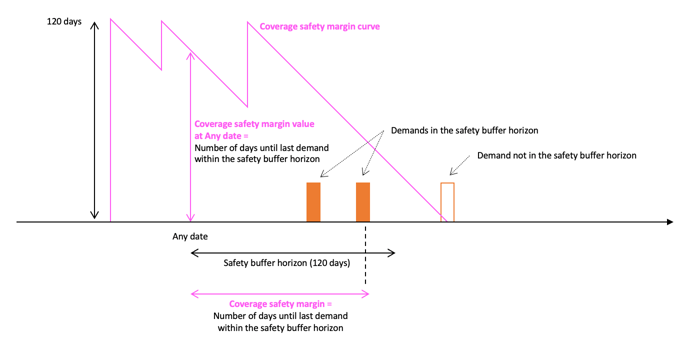
📝 Note
Even if the values of the coverage duration and the coverage safety margin are defined as a number of days and computed for every day, they are expressed on the chart (and in the Excel file) as a number of months (actually number of days / 30) and displayed only for the last day of each month.
3. Other updates
3.1. Input lots with an available size of 0
Lots with an available size equal to 0 are now allowed as input (i.e. there’s no more validation error), and reported in the overview, the Excel report and the cockpit. If the available size of a lot is 0, its usage in the Excel reports is equal to 100%.

3.2. Baseline related actions
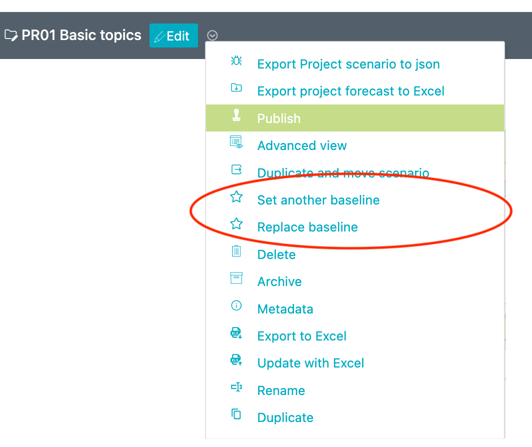
The flow of actions related to baselines (Set a baseline, Set another baseline, Replace baseline, Unset baseline, …) is improved and the right actions now appear at the right place and with the right naming.
For example, the action Set (replace) baseline is now split between two actions: Set baseline and Replace baseline that are shown correctly depending on whether there is a baseline already defined or not (see image below). Moreover, there are no more duplicated actions (e.g., Set (replace) baseline and Set another baseline are replaced by Set baseline, when there is no baseline defined yet, or Replace baseline and Set another baseline when there is already a baseline defined in the folder).
4. Bug fixes
4.1. Clinical / technical allocations
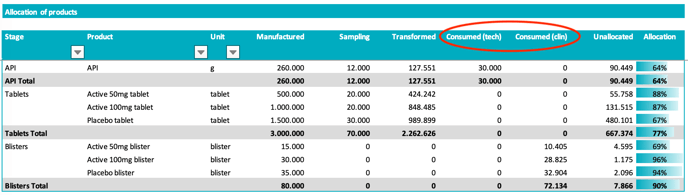
In the “Product allocation" table, the consumed quantities are now correctly assigned to the "Consumed (tech)" and "Consumed (clin)" columns (see image below).
4.2. Display of lot with no expiry
The cockpit is now displaying a horizontal dashed line that does not stop for lots with no associated expiry. In the example below, the dashed line representing the expiry of the first API lot is going all the way to the right of the cockpit, showing that it does not expire.