Table of contents
1. Define supply plan only trial scenarios
2. Import supply plans from the Supply app
1. Define supply plan only trial scenarios
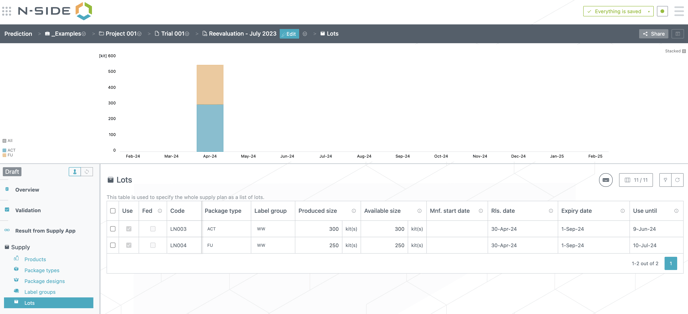
In specific cases, the supply plan is fixed and no prediction is needed. This can now be defined using specific supply plan trial scenarios, which are created in the main “trial view”. Supply plans can be distinguished from trial scenarios thanks to their External label and different icon.
.png?width=688&height=233&name=Screenshot%202023-07-17%20at%2009.56.55%20(1).png)
.png?width=219&height=368&name=Screenshot%202023-07-17%20at%2010.21.05%20(1).png)
Supply plan trial scenarios contain less sections (Supply section only) than the usual trial scenarios as shown in the side comparison. You can find the upstream needs to your supply plan by entering it to the Prediction App. By inputting the Products, Package types, Package designs and importing the supply plan at project level, you will be able to identify the manufacturing needs (such as DP needed) of your supply chain.
2. Import supply plans from the Supply app
ℹ️ The following flow is only available for customers having both Prediction app & Supply app.
Step 1: Identify the result in Supply app
Performing this import requires identifying the proper result from the Supply App and using the new Copy result id action available in the results menu to transfer the result to the Prediction app.
.png?width=688&height=347&name=Screenshot%202023-07-18%20at%2010.59.35%20(1).png)
Step 2: Import the result in Prediction app
Seamlessly transfer IMP release plans from the Supply App to your Prediction App “supply plan only” scenario by using the Import result from Supply app action.
.png?width=688&height=287&name=Screenshot%202023-07-17%20at%2010.26.45%20(1).png)
Upon pasting the result id in the Import window, you can retrieve information about the result, which enables you to verify that you are importing the correct result.
ℹ️ You can only visualize and import a Supply app result IMP release plan if you are at least viewer of the corresponding result in the Supply app.
You can find the last imported result in the Result from Supply app section.
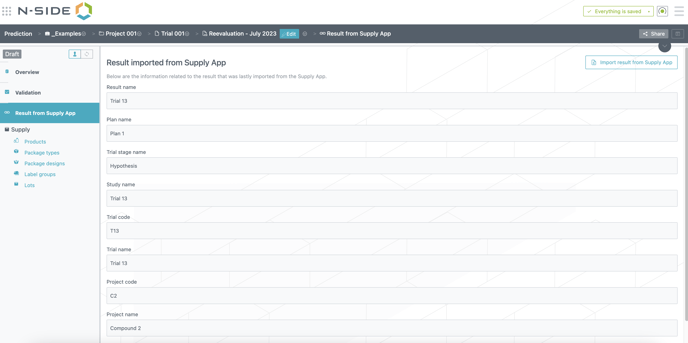
Step 3: Visualize the imported info and manually complete the supply plan trial scenario
When importing the supply plan from the Supply app the Lots table automatically populates using the IMP release plan data, instead of being predicted. Once transferred, the Package Type and Label Group tables are automatically populated too. However, certain information needs to be manually entered such as: Products, Package Types (lead times) and Package Design.