
Table of contents
- 1. Easily create and maintain models with lot pooled trials
- 2. Model different visit schedules per trial
- 3. Other updates
- 3.1. User experience updates
- 3.1.1. Give more meaningful descriptions to the datasets
- 3.1.2. Comment your results
- 3.1.3. Initial state: improved usability
- 3.1.4. Home view: filter on custom label
- 3.1.5. Network setup: one click to align route info with Master Data standards
- 3.1.6. A clearer interface for the Depot shipment module
- 3.1.7. Easily find the name of the result when accessing the dashboard
- 3.1.8. Clearer user messages
- 3.2. Global performance dashboard updates
- 3.3. Results report updates
- 3.1. User experience updates
- 4. Bug fixes
1. Easily create and maintain models with lot pooled trials
1.1. Create lot pooled trials
When defining site groups and depots in the Location tab of the Trial master data, you now have the possibility to create lot pooled trials through the new Create lot pooled trials action.
The Create lot pooled trials action will display a new Lot pooled trials table along with the creation of two new columns in the Site groups and Depots tables (see video below). If all rows in the Lot pooled trials table are deleted, the additional columns in the Site groups and Depots table will be removed.
Once created, the lot pooled trials can be associated with site groups/depots in the corresponding table.
📝 Note
Lot pooled trials are optional and are used to distinguish site groups/depots. To define locations for trials that are not lot pooled, simply fill in the table leaving the lot pooled trial column empty.
1.2 Define lot pooled trial specific locations
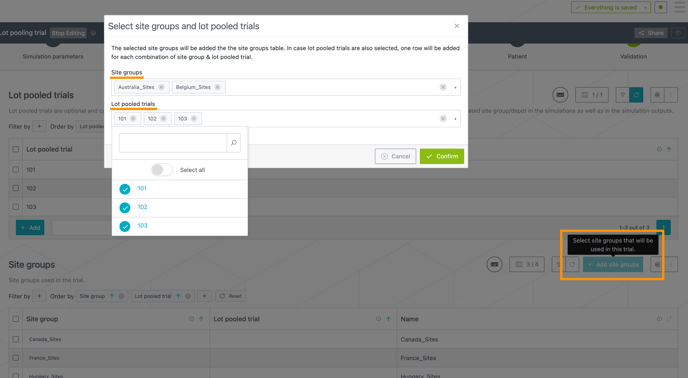
Adding site groups/depots is done through the dedicated actions next to the Site groups and Depots tables (see image below).

Clicking on any of those buttons opens a new window where you can select site groups/depots you want to associate with a lot pooled trial. The selected site groups will be added to the site groups table. In case lot pooled trials are also selected, one row will be added for each combination of site group & lot pooled trial, e.g., in the image below, 6 new rows will be created.
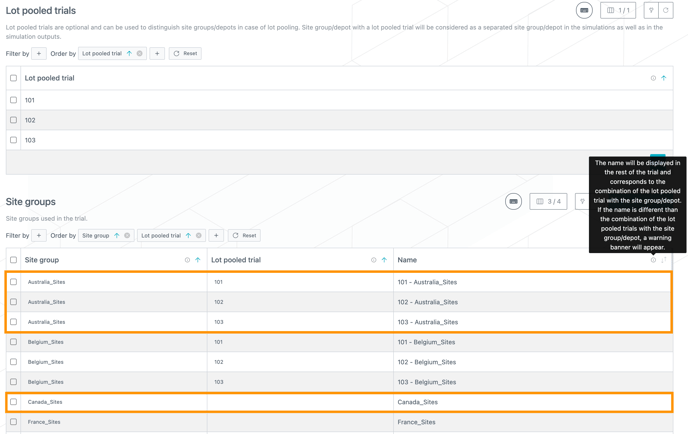
The combination of a site group/depot with a lot pooled trial will be considered as a separated site group/depot in the trial as well as in the simulation outputs. Site groups/depots will be displayed with their names defined in the Name column (see image below).
❗To avoid any confusion, it is important to distinguish the site groups/depots of lot pooled trials from the others:
-
By default, the name will be the combination of the lot pooled trial (if any) and the site group/depot.
-
Names can be manually updated to reflect the site group/depot name in reality.
-
If the name is not aligned with the default rule, a warning banner will appear and users can apply the default rule through the Align names and codes action (see video below).
1.3. Leverage the use of lot pooled trial specific locations in your trial
⚠️ The lot pooled trials feature can only be used with an IRT integration that is able to manage lot pooled trials and cannot be used as a tweak for other purposes (see following examples).
|
With an IRT integration for lot pooled trials
|
Without an IRT integration for lot pooled trials
|
You can now use lot pooled trials specific locations to model:
-
different recruitment assumptions (number of patients, site opening, targets) as displayed in the video below),
-
different resupply management (windows, buffers),
-
lot allocation per specific site group of one trial.
Table filters can facilitates the information input per lot pooled trials or per country (see video below).
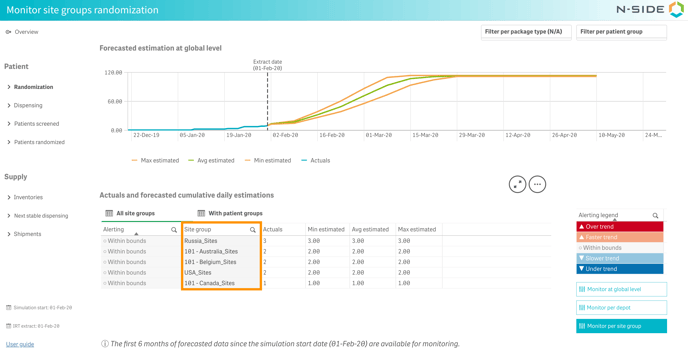
As a consequence, you can now monitor and analyze the result of lot pooled trials in the Monitoring and Results dashboards, respectively. As in the trial, the locations will be displayed by their names (see image below).
📝 Note
As the Strategic dashboard is based on the master data inputs, the lot pooled trial specific locations cannot be displayed in it.
2. Model different visit schedules per trial
2.1. Define a visit schedule per patient group
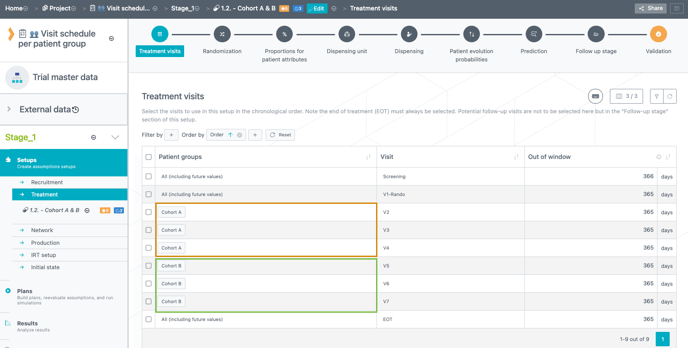
You can now assign specific visits to patient groups (in the Treatment visits table) thanks to the new Patient groups column. For example, this can be used to model a visit schedule per cohort (see image below) as the same visit can be assigned to multiple patient groups.
Moreover, you can now define a visit schedule per patient group in combination with a baseline visit and therefore without using skipped visits.
⚠️
-
If skipped visits are used for other dimensions (ex: treatment arm, dose level etc.) the baseline visit cannot be used.
-
The baseline visit must be the same for all patient groups.
E.g.: If the randomization is defined as the baseline visit, it will apply to all patient groups.
2.2. Define a visit interval per patient group
You can now define a visit interval per patient group (in the Visits intervals table) thanks to the new Patient groups column (see image below).
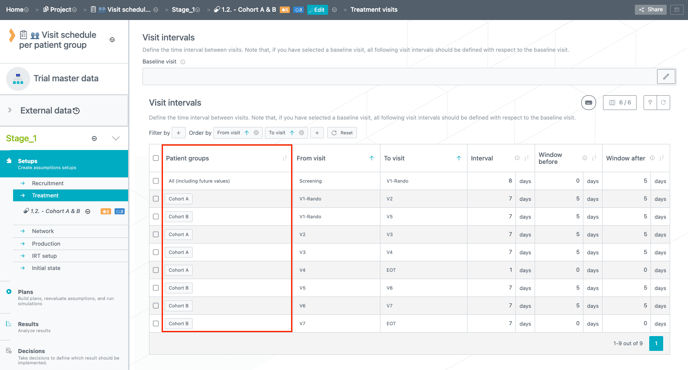
The same visit interval can be defined for multiple patient groups.
⚠️ You must define all possible visit intervals relevant to each patient group. If you define an impossible transition for a given patient group, the system will display an error.
2.3. Better understand the dispensing specific to patient groups
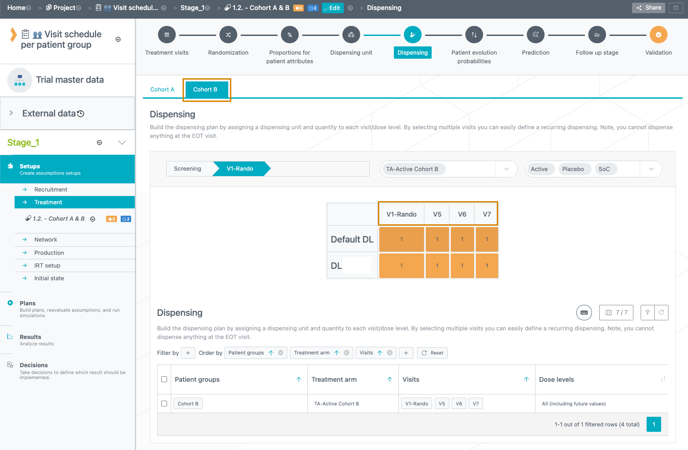
In previous versions, the dispensing visualization in the Dispensing tab was showing all visits for all patient groups making it difficult to understand for complex trials.
You can now better visualize the dispensing of each patient group as only the visits assigned to the selected patient group will be shown in the table (see image below).
3. Other updates
3.1. User experience updates
3.1.1. Give more meaningful descriptions to the datasets
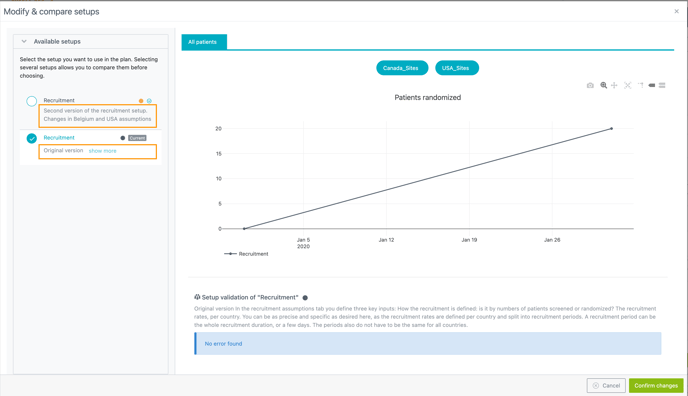
You now have the ability to provide more detailed information about various data sets in the Supply App using the enhanced description feature. This enhancement transforms the description into a dedicated area where you can thoroughly document the specificities of each setup, trial, or plan. To edit a description, you can click on the Rename button (see video below).
If a description is lengthy or spans multiple lines, only a portion of it will be visible on the trial, setup, and plan card. To view the complete content of the description, you can simply click on the Show more button (see video below).
The description now also supports a multiline format. This means that if one user describes a dataset in one paragraph and another user adds information in a separate paragraph, the formatting will remain consistent.
Furthermore, the description of a setup is also displayed when creating a plan or updating the setup of an existing plan, facilitating the selection of the correct setup (see image below).
3.1.2. Comment your results
You can now write a comment for a result in the Results table (see image below).
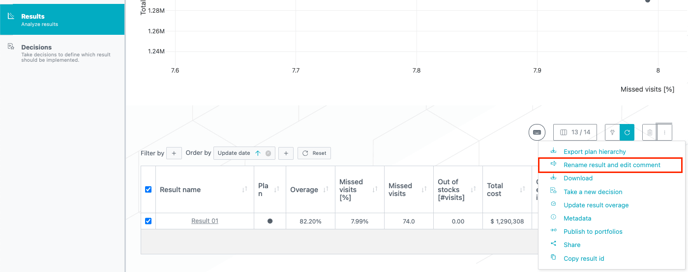
Then, when taking a decision for that result, the comment is automatically transferred to the decision and therefore will be pushed to the Global performance dashboard. The decision maker can still delete or edit the comment if need be.
❗If you are editing the result comment of a result for which a decision was already taken, you need to update the decision comment instead.
3.1.3. Initial state: improved usability
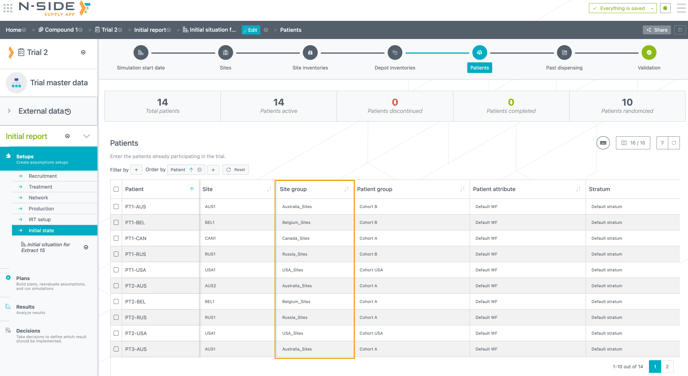
Site groups are now displayed within the Patients tab in the initial state (see image below). Thanks to this, you now have a clearer insight into the current status of patients per site group. It also helps to identify any potential risks or unusual patterns while reviewing the initial state.
📝 Notes
- The site group is only displayed for initial states created as of this version of the Supply App. Already existing initial states have a blank cell in the site group column.
- The Supply App does not use the site group information when running the simulations. Therefore a blank space or the wrong site group will not have any effect on the results.
3.1.4. Home view: filter on custom label
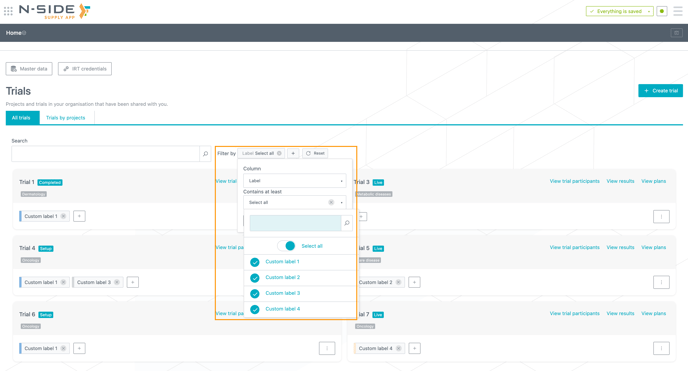
Looking for a specific trial or group of trials is now easier thanks to the newly introduced filtering capabilities in the All trials view. You can filter trials by status, therapeutic area and labels (see image below).
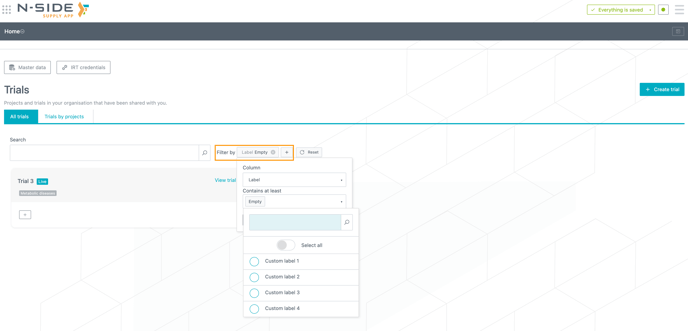
Clearing the selection of a filter will result in an “Empty” filter, meaning that the system displays all the trials without that particular parameter (see image below).
3.1.5. Network setup: one click to align route info with Master Data standards
You can now align the routes in the Network setup with the values in the Master data in only one click. An Align with Master data button is now available on top of the Routes table (see image below).
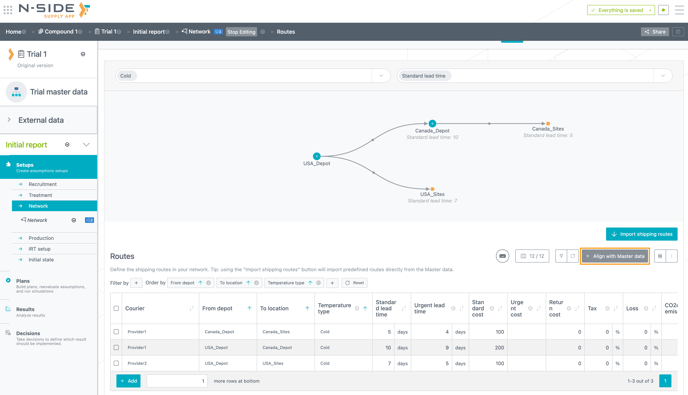
When clicking on the Align with Master data button, a window is displayed with the information of the outdated values in the setup and the corresponding values in the Master data. By default, all rows are selected. After confirming the selection, the values in the routes table are automatically updated to the ones defined in the Master data.
You can choose to update only some of the rows by unselecting the rows that you do not want to update (see video below).
📝 Notes
The Align with Master data button is only accessible in editing mode. Furthermore, the Supply App displays the full rows of outdated information and not only the values outdated. To have full visibility on the outdated values, you can still refer to the info messages displayed at the bottom of the view (see image below). In that message, the misalignment with the values coming from the Master data are explained in details.

3.1.6. A clearer interface for the Depot shipment module
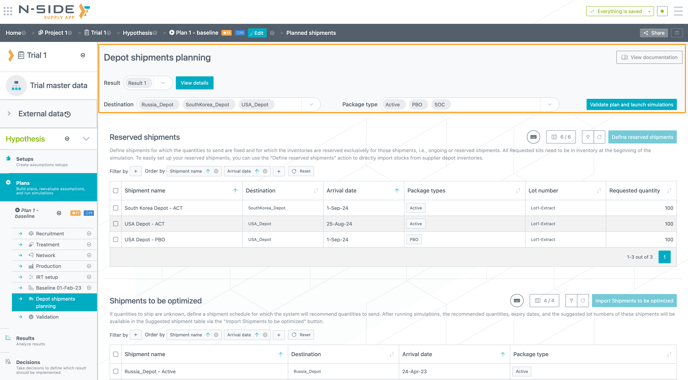
You now have access to additional space in the Depot shipments planning module (see image below). The layout has been optimized to use the available space more effectively while retaining all existing functionalities.
3.1.7. Easily find the name of the result when accessing the dashboard
The dashboard's name is now visible on the tab, allowing you to directly click on the desired dashboard without navigating through all open tabs.
Moreover, hovering over a tab now displays the name of the associated result (see image below).

3.1.8. Clearer user messages
A banner has been added to the Products tab of the Trial master data, to inform you about potential issues when trying to delete package type, label group and product (see image below).
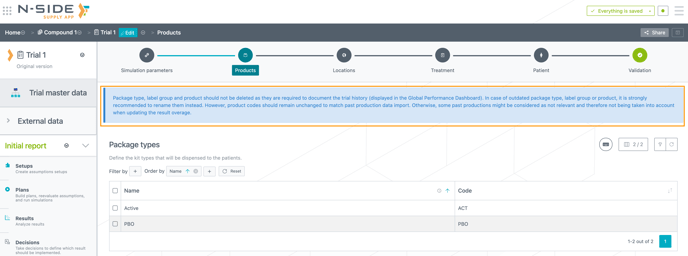
⚠️ These values should not be deleted as they are required to document the trial history (displayed in the Global performance dashboard). In case of outdated package type, label group or product, it is strongly recommended to rename them instead.
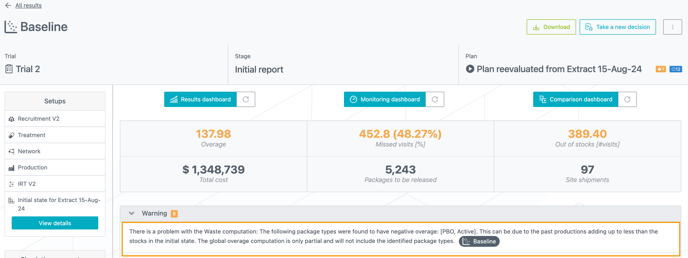
Repetitive warning messages displayed when the relevant past productions value in a result was 0 are now removed. You were not able to edit this value in the result even though an “Edit“ button was displayed in the message. Now, only a warning message is displayed that informs you about potential issues during the computation of the waste (see image below).
3.2. Global performance dashboard updates
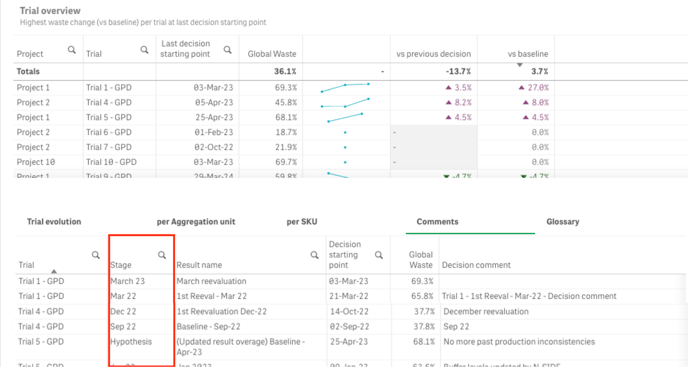
3.2.1. Stage column added in the Comments table
The Stage column is now available in the Comments table of the Waste and Material cost views (see image below). This column can proivde context to organise and better understand the decision.
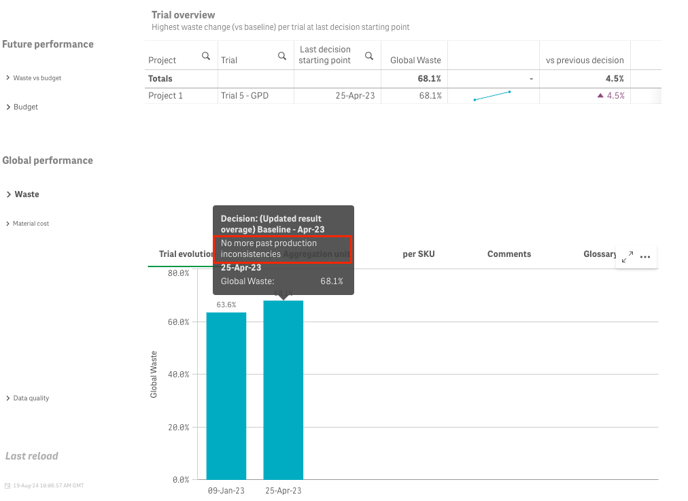
3.2.2. Decision comment accessible in the waste graph
When hovering the mouse over the graph, you can now see the decision comment (see image below).
3.2.3. Risk information added in the data quality
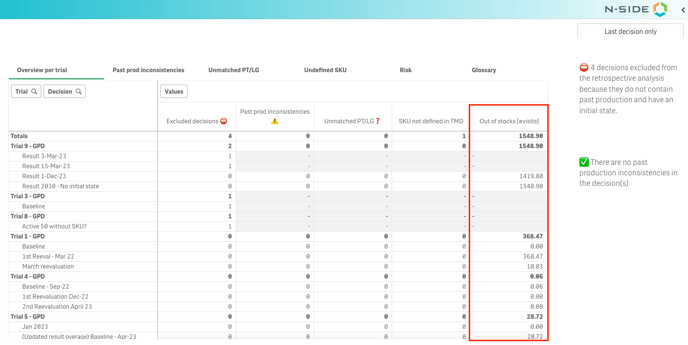
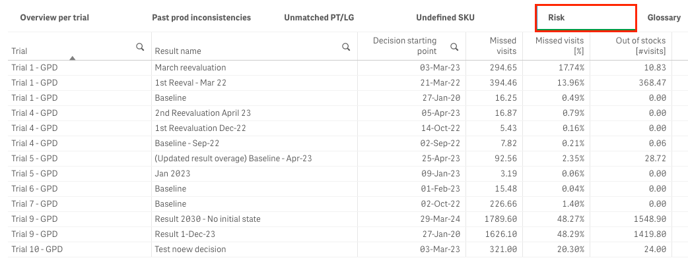
You can now visualize risk information in the Global performance dashboard at two locations:
- A new Out of stocks [#visit] column is now available in the Overview per trial table of the Data quality sheet (see image below).
- A new Risk table is now available in the Data quality sheet, displaying the risk of missed visits and out of stock for each decision (see image below).
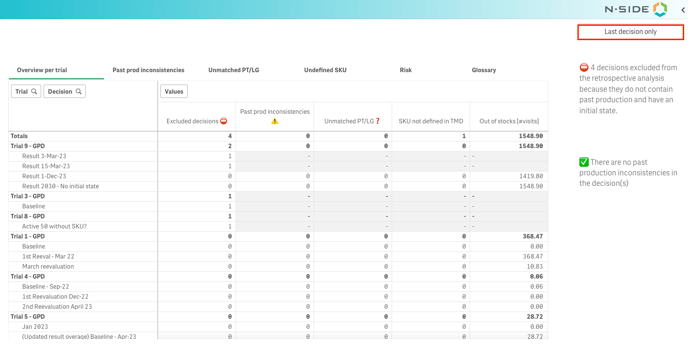
3.2.4. Data quality can be filtered by “Last decision only”
To ease the recurring analysis of data quality, you can now filter the data quality views by “Last decision only” (see image below).
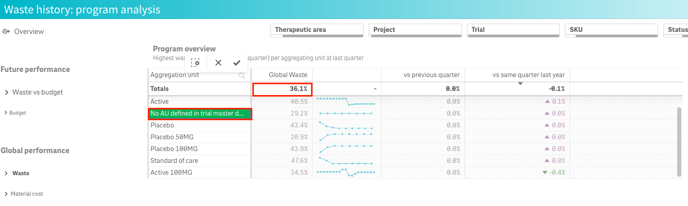
3.2.5. Unmatched SKUs are now considered in the dashboard
All SKUs that are not matched now appear in the aggregation unit called “No AU defined in the trial master data” (see image below) and will be counted in the “Global Waste” metric at the top of the table.
3.2.6. More intuitive wording for fixed productions
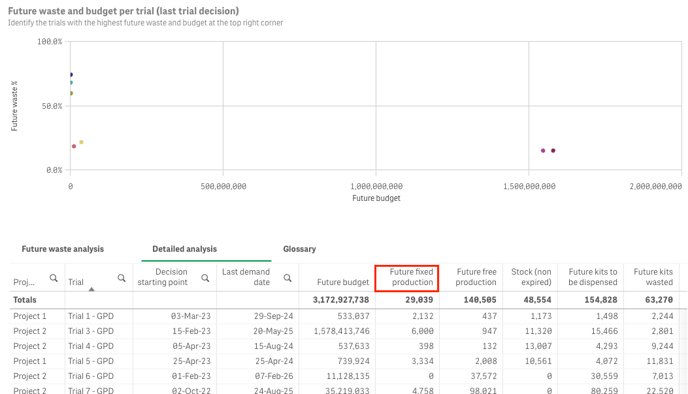
In the Forecasted waste sheet, the Future frozen production is now named Future fixed production (see image below) to avoid the confusion with the “frozen production” concept from the Production App.
3.3. Results report updates
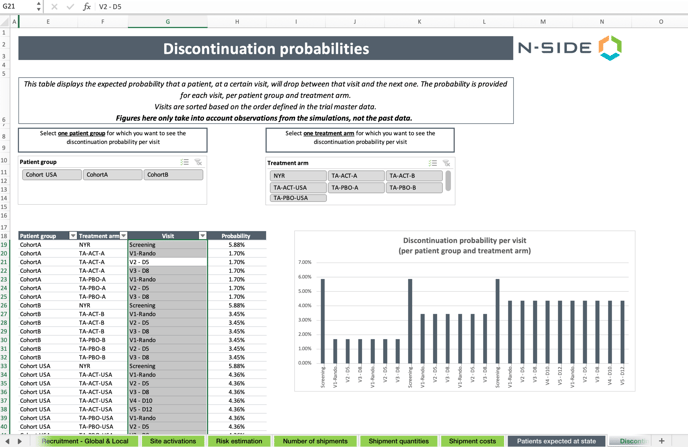
3.3.1. Discontinuation probabilities
Values are now displayed per patient group and per treatment arm in the table and are not summed up anymore. Thanks to the slicers, it’s also easier to filter the table and the graph (see image below).
3.3.2. Improved performances
The number of formulas has been reduced to improve the Excel performances. As a trade-off and, in case of very long tables, formulas need to be expanded.
4. Bug fixes
The following issues are now fixed:
- The past dispensing of kits not present in any past or future productions was not considered correctly for the computation of the overage in the Global performance dashboard.
- ✅ Now, the system reports (negative) overage for the kits that are involved in past dispensing but are not present in any production.
-
Jobs related to the scheduled import of IRT extracts were failing because trials did not have IRT credentials configured in their IRT connection view.
-
✅ The system now limits the possibility of scheduling an import if the IRT credentials are not set.
-
-
After closing some sites, the Supply App could still consider closed sites as open during the simulation, leading to an under-recruitment for some of the site groups.
-
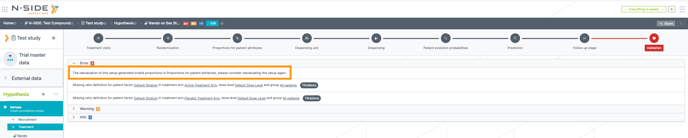
A error screen could appear after reevaluating a plan where the Treatment setup had invalid values, caused by the system taking into account non-numeric values for computations.
-
✅ An error is now displayed, informing you about this situation, so you can edit the fields that are causing invalid proportions (see image below).
-
-
When a decision was recalled and retaken for a result, the past productions were counted twice in the Global performance dashboard. This was affecting the waste metrics of the decision.