
Table of contents
- 1. Get more visibility on the inventory status
- 2. Get insights into stock coverage per site
- 3. Benefit from an improved user experience with the titration graphs
- 4.Visualize clearer and harmonized overage related KPIs
- 5. Other updates
- 6. Bug fixes
- 7. User documentation
1. Get more visibility on the inventory status
The Supply App is now capturing two additional inventory statuses from the XML files: "On hold" and "Unused". Relevant inventory statuses are then reported in the IRT data extract, Monitoring dashboard and Initial state.
1.1. Get more visibility on the inventory status in the IRT data extract
So far only the "Available" and "Awaiting" statuses were captured by the Supply App and displayed in the IRT data extracts, preventing you from properly monitoring stock on sites.
With this version, inventories with "On hold" and "Unused" statuses are now also captured when importing XML files and displayed in the IRT data extracts (see image below), providing users with more visibility on the inventory status.
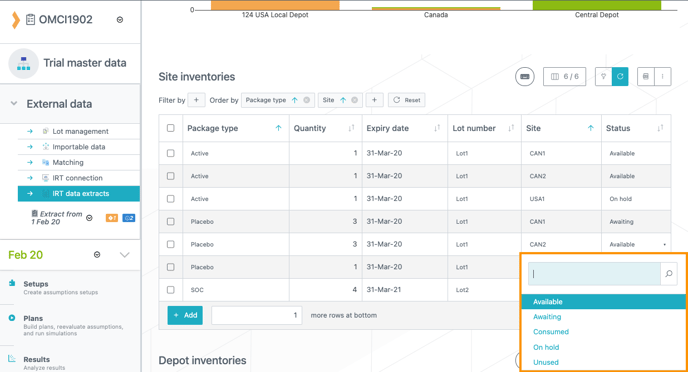
When an XML file is imported into the Supply App, the following inventory statuses are also imported into the IRT data extract:
-
Available = kits are available on site/depot and ready to be dispensed/shipped.
-
Awaiting = kits are still in transit to the location.
-
On hold = kits are either quarantined, suspended or temporarily unavailable.
-
Unused = kits will never be dispensed (damaged, lost, etc.).
❗"On hold" and "Unused" kits are not used in the simulations.
1.2. Get more visibility on the inventory status in the Monitoring dashboard
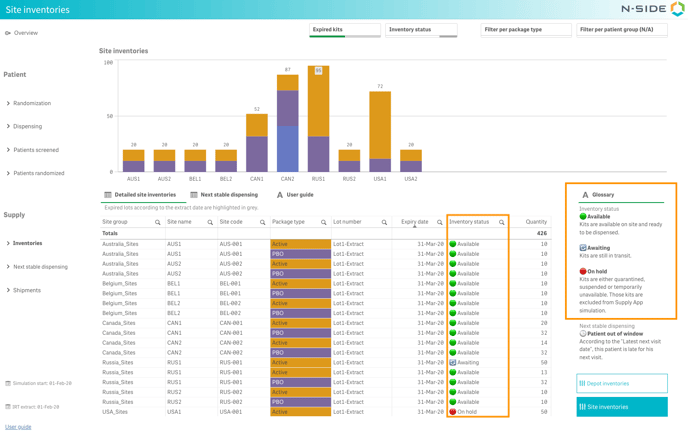
The Monitoring dashboard is now displaying kits with "On hold" status reported in the IRT data extract. You can easily spot if sites/depots have "On hold" inventories thanks to the red icon (see image below). A glossary is also displayed on the right of the "Inventories" sheet to remind you of the meaning of each inventory status (see image below).
📝 Note
"Unused" kits are not displayed in the Monitoring dashboard.
1.3. Get visibility on kits still in transit in the Initial state
In previous versions, kits at depots were considered as ready to be shipped by the Supply App regardless of their status. There was no visibility into inventory status in the Initial state even though some kits could actually still be in transit to the depots.
You can now identify kits that are still in transit to the depots in the Initial state with the new "Status" column (in the "Site inventories" and "Depot inventories" tables). Only the "Available" and "Awaiting" statuses are displayed (see image below) given that the others are not used in the simulations. 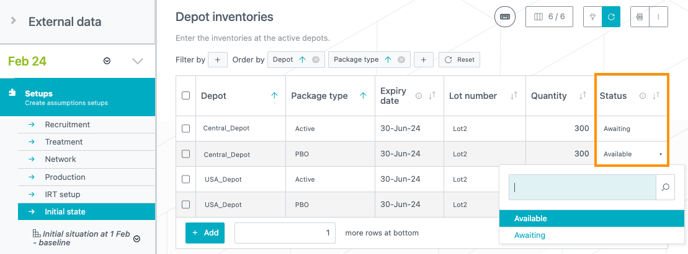
For existing Initial states, the "Available" status will be assigned to all inventories by default in this new column.
1.3.1. Be alerted when modeling depot shipments with "Awaiting" inventories
If you are modeling your depot shipments for a plan that has "Awaiting" stocks at local depots (in the Initial state), a warning banner will inform you about the depots for which the kits are not available yet (see image below).
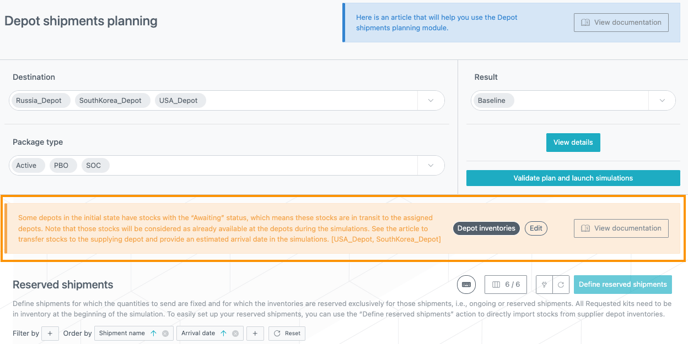
✅ Good practice for more accuracy in your results: To avoid those "Awaiting" kits to be shipped by the system before they are available, you can move your stocks back to the supplier depot and create a reserved shipment. You can click the "View documentation" button in the banner (see image above) to learn how to do it (📖 see this article).
2. Get insights into stock coverage per site
You can now get insights into your stock coverage during crisis management in the Monitoring dashboard without having to run simulations. This is done through visibility on the next visits of patients already registered in the IRT data extract as well as their next stable dispensing if they stay on their current state.
2.1. Next stable dispensing table
In the "Site inventories" view of the "Inventories" sheet, you now have access to the new "Next stable dispensing" table (see image below).
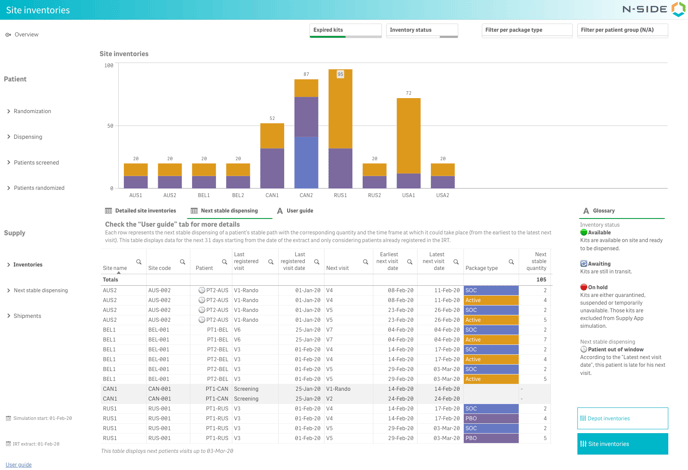 With that table, you can have an overview on the upcoming visits for the next 31 days of already registered patients for each site.
The "Earliest next visit date" and the "Latest next visit date" (see image above) are computed based on the "Last registered visit date" from the IRT data extract and take into account the visit intervals, visit windows as well as a potential baseline visit.
In addition to the next visit information, you can also get insights into the next dispensing if the patient has a stable path in his treatment. In this case, the "Package type" and the "Next stable quantity" columns display the dispensing at those next visits for that stable path. If there is no stable dispensing for the visit, those two columns will remain empty.
💡 What is a stable path?
Stability implies that patients are expected to remain on their current patient group, treatment arm and dose level (eg. patients will not be randomized, titrate or change weight) unless there is a 100% chance of transitioning to another specific state.
If patients cannot stay on their current treatment arm (eg. randomization) or dose level (they have to titrate to other dose levels), the dispensing is considered as unstable.
⚠️ What is not displayed in the table?
-
The table does not display the next visits beyond 31 days after the IRT data extract date.
-
The table does not take into account new patients that could be recruited during those next 31 days as they are not registered in the IRT data extract yet.
-
The table does not show the dispensing of locally sourced package types as they are not part of the supply chain.
-
"Discontinued" and "Completed" patients are not reported in the table as they do not have any future dispensing visits anymore.
📝 Note
A User guide is always available next to the table to remind you how to read the table and what is not considered as stable.
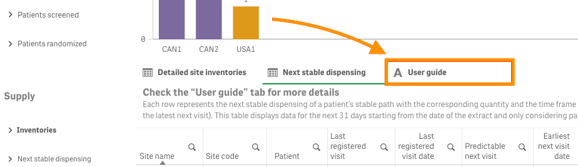
📖 You can also read this article.
2.2. Compare the next stable dispensing with your stocks
The "Next stable dispensing" table allows for the correlation between upcoming dispensing and current inventory levels (see video below), offering insights into stock coverage.
Filters applied to the "Site inventories" bar chart and both "Detailed site inventories" and "Next stable dispensing" tabs are persistent, facilitating seamless analysis. Note that "On hold" kits can be filtered out for a more accurate analysis.
With this new table, you are now able to answer the following questions:
-
Which sites are expecting patient visits in the coming month?
-
How many patients should return for their next visit in the coming month?
-
What is the stable dispensing in the coming month at my sites for patients already registered in the IRT data extract?
-
Are there enough kits available at sites to at least cover the stable dispensing of registered patients for the next month?
📝 Note
If the bar chart is not sufficient to visualize both inventories and next stable dispensing, you have the option to regenerate the Monitoring dashboard once again to have it open in a separate window and compare both views (see image below).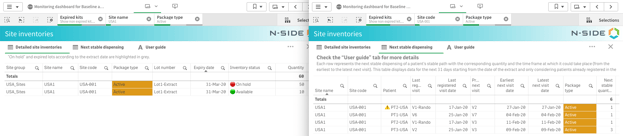
2.3. Easily spot “out of window” patients
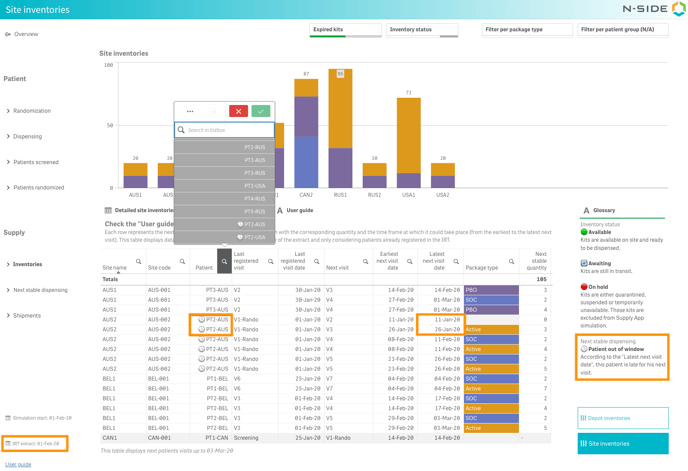
Thanks to the new "Next stable dispensing" table, you can also easily spot patients late for their next visit. Those patients are marked with a 🕒 if their latest next visit date is prior to the IRT data extract date, meaning they are “out of window” (see image below).
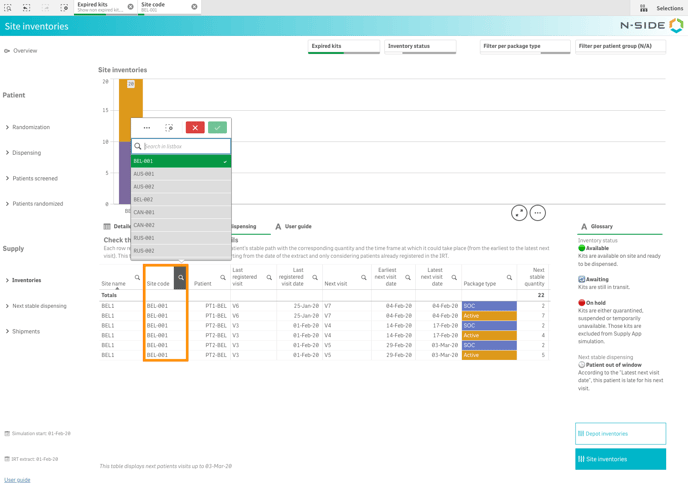
2.4. Identify sites per site code
In addition to the site name, you can now also use the site code to filter sites and run an analysis (see image below).
3. Benefit from an improved user experience with the titration graphs
3.1. Focus only on the relevant information
When using the titration graph, dose levels not used in the "Titrations" table were displayed as part of the graph. This data created noise, particularly in graphs with plenty of information, making it difficult to focus on relevant information.
With this version, dose levels are pre-filtered before the graph is loaded in the view, i.e., dose levels not used in the "Titrations" table are ignored when loading the graph (see images below).
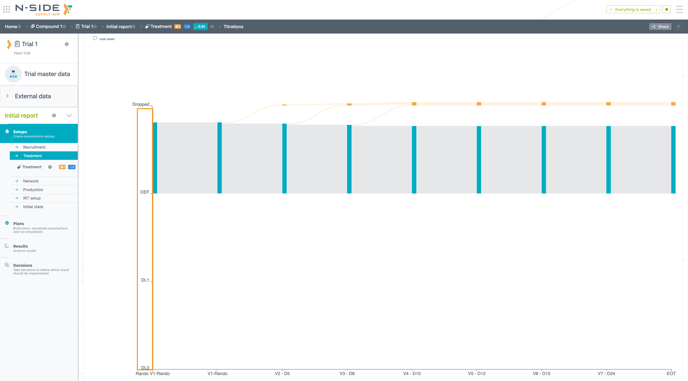
Previous versions
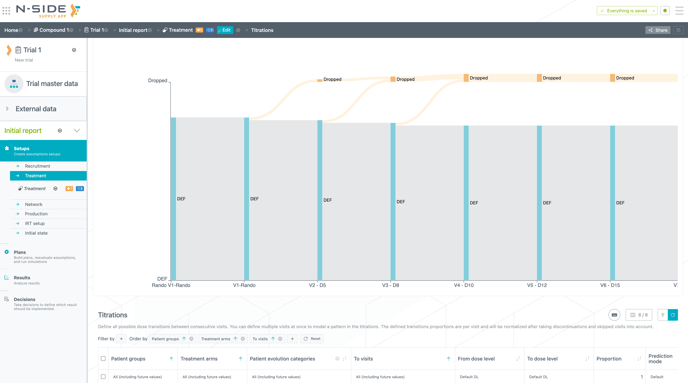
In addition, the wording in the tooltip (appearing when hovering on a titration/drop out) is now more explicit: "value" was changed to "patients" (see image below). This value is the percentage of patients to be expected at each visit and on each dose level during the treatment, after the dropout defined for their previous visit. The node label is now selected by default when opening the view.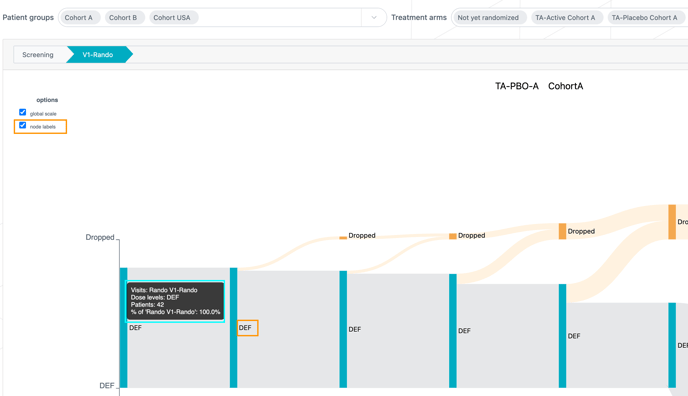
3.2. Experience an enhanced graph navigation
You can now use newly added filters for patient groups and treatment arms to focus on specific graphs without scrolling through the ones that you are not interested in (see image below).
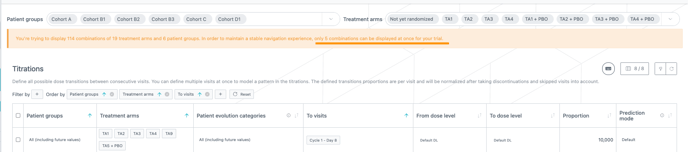
The Supply App now calculates graph complexity before loading the page.
For data-heavy trials, a banner is now displayed instead of the graph, informing you about the number of graphs that can be loaded at once for that trial (see image above).
If the complexity of a trial exceeds the maximum loading time, the graph is not displayed. A banner is displayed instead of the graph informing you about this situation. This way you are no longer blocked trying to load a graph that will display constant "Page unresponsive" messages (see image below).
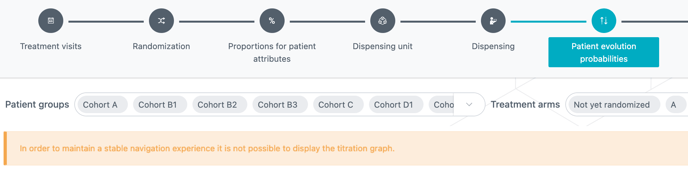 When the complexity of a trial does not have an impact on the performances, the graphs are going to be loaded all at once. However, you can still select a specific combination of patient group and treatment arm to facilitate your analysis.
4.Visualize clearer and harmonized overage related KPIs
4.1. Benefit from clearer overage related KPI names in the reporting tools
The names of some overage related KPIs have been adapted in the Excel results report, the Results dashboard and the Comparison Dashboard to make it explicit when they only relate to the future (e.g., "Packages wasted" → "Packages to be wasted"). This will help to better understand which KPI only relates to the future and avoid confusion when it comes to manual computation of the waste percentage.
📝 Notes
- The Global overage manual computation can still be done through the "Overage analysis per package type" table in the Excel results report.
- In case of relevant past productions, the Results dashboard now contains both the "Packages to be wasted" and "Global Packages to be wasted" (i.e., past and future) KPIs.
4.2. Future overage computation is now harmonized between results and the Global performance dashboard (GPD)
❗This improvement only concerns results with an initial state that contains expired stocks.
In case there is an initial state, the computation of the future waste is now harmonized with the one from the Global performance dashboard as only unexpired stocks are taken into account in the future waste computation. Indeed, as expired stocks will never be dispensed in the future, they should not be taken into account for the future waste computation. The computation is now as follows:
Future waste= (Future Productions + unexpired stocks*) - Future Dispensing
*stocks with expiry that is after the simulation start date (from the Initial state)
📝 Note
The "Current stocks" KPI still contains both expired and unexpired stocks.
5. Other updates
5.1. A more accurate drop-out reevaluation for “Completed” patients not reaching the end of treatment
For some trials (e.g., oncological), the status of patients having dropped before the end of their treatment can be received as "completed" in the IRT data extract. Those very specific "completed" patients were not considered as having dropped and the reevaluation of the drop-out was therefore underestimated.
With this version, "completed" patients who have not reach their last dispensing visit are considered in the reevaluation of the drop-out, leading to more accurate future patient demand.
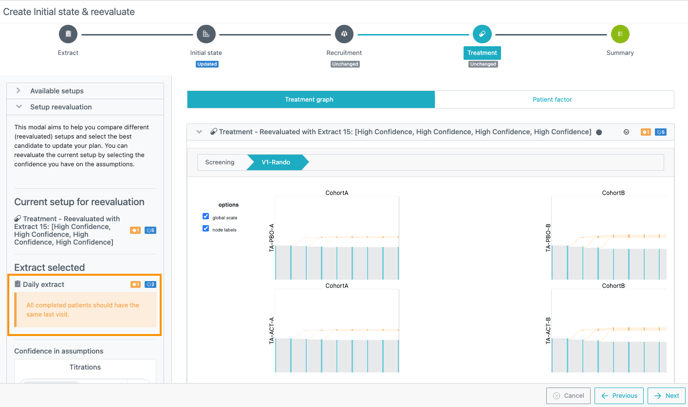
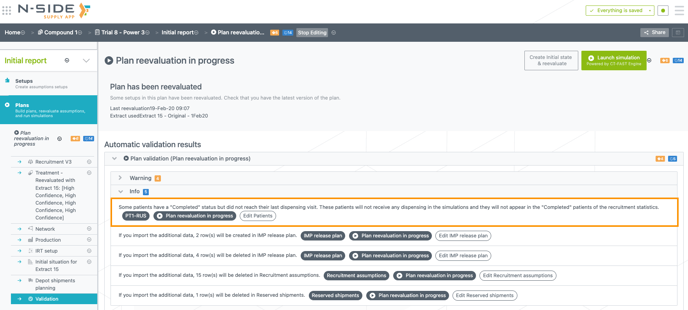
In case completed patients did not reach the last dispensing visit, you are now warned at 3 levels:
- In the IRT data extract
- During a treatment setup reevaluation (see image below)
- In the Plan validation (see image below)
5.2. Usability improvements
5.2.1. Take decisions as a Visual User
As a Visual User, you are now able to take decisions when a trial is shared with you. This improvement unblocks situations where Visual Users had to ask the owner of a result to take a decision for them.
5.2.2. Add long comments for decisions
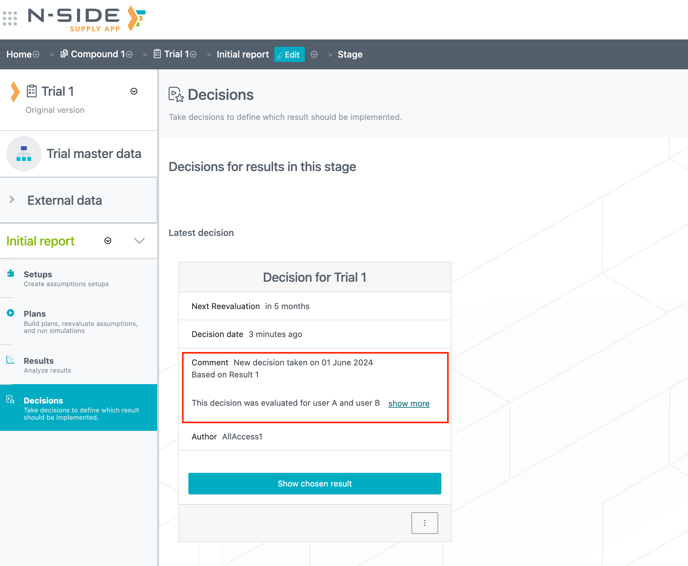
You can now enter long comments when you take a decision (see image below). In case a comment is too long or it is written in several lines, only part of it is visible in the decision card. A "show more" button is added to the decision card to display the full content of the comment (see image below).
5.2.3. Update the titles and descriptions from one single place
You can now update the name and description of a trial, setup and/or plan by clicking on "Rename" (see video below). You are also able to delete the description.
5.2.4. Improved usability in the results table
The "Missed visit" column has been split in two: a "Missed visits [%]" and a "Missed visits" (as an absolute number) (see image below), giving the possibility to work with any of the values individually and reducing the time spend by performing this split manually. Thanks to this you can now also order/filter per relative (%) values.
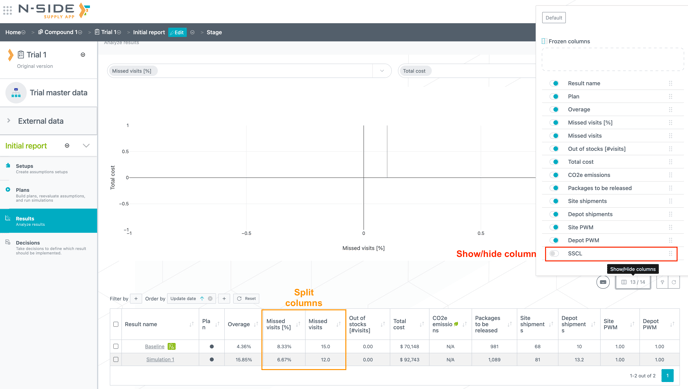
The SSCL column is now hidden by default. You can however unhide it directly from the dedicated button on top of the table (see image above).
5.2.5. Press “Enter" to launch simulations
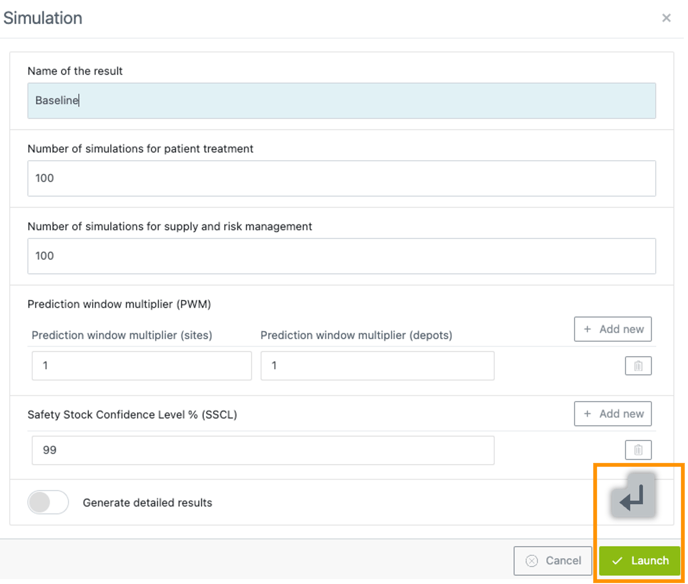
From the "Launch simulation" window (see image below), hitting the "Enter" key on the keyboard will launch the simulation.
5.2.6. "Randomization" step is displayed by default
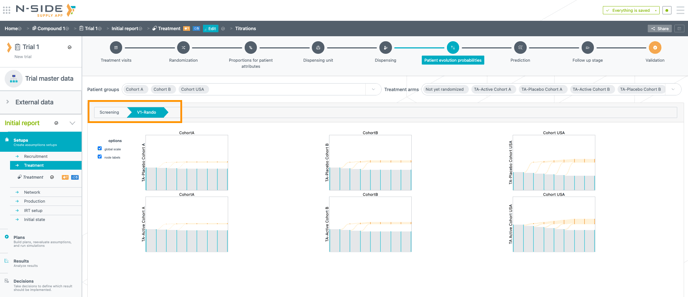
The default view for the "Randomization" and "Patient evolution probabilities" tabs now displays the "Randomization" step for the graphs (see image below) or the latest randomization block in case of having more than one.
5.3. Dashboards improvements
5.3.1. Results dashboard
- Some wording across the dashboard have been adapted:
-
“Enrolled” → “Screened”
-
“Simulation date” → “Simulation start date”
-
- Many updates in the "IMP release plan" sheet:
-
-
The default view is now by date instead of by month
-
In case you have a trial with multiple central depots, you are now aware from which central depot the products have been released, thanks to the new "Central depot" column.
-
You can now better navigate between the different views as the three of them are always displayed on the right.
-

5.3.2 Comparison dashboard
- The IRT parameters names in the "Recommendations" sheet are now more explicit:
-
“IVRS” → “IRT resupply algorithm”
-
”Single DNS” → “Single "do not ship" per shipment”
-
”Use SW for SS” → “Use short window for computing safety stocks”
-
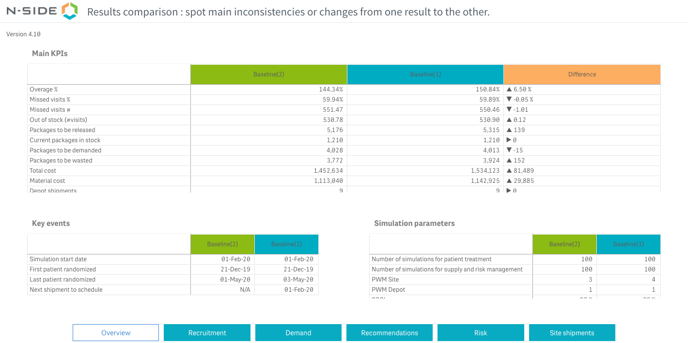
- You can now open 2 results with the same name: "(1)” will be added next to the main result name and “(2)” next to the other selected result name (see image below).
5.3.3. Strategic dashboard
-
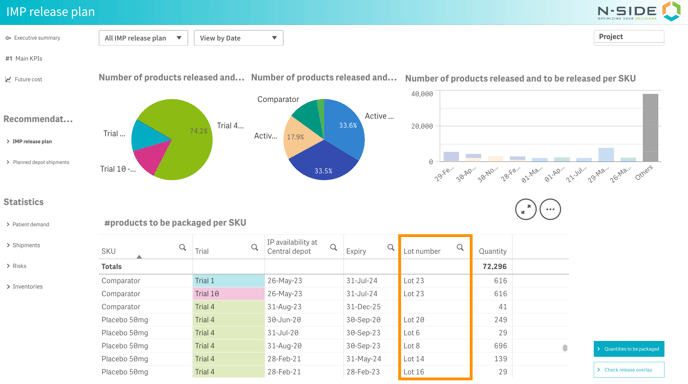
In the "IMP Release plan" sheet, lot numbers are now available for new results (see image below).
-
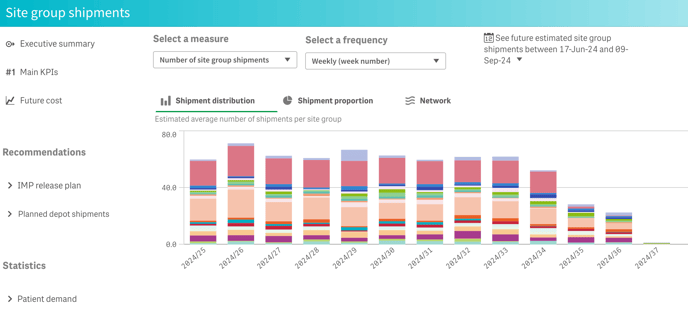
In the "Site group shipments" view, the weekly (by week number) frequency is now in "yyyy-ww" format instead of "ww" (see image below).
5.3.4. Monitoring dashboard
The forecast accuracy value was removed from the "Randomization" and "Dispensing" sheets due to its lack of use and the confusion it brought about data interpretation.
5.4. Results report improvements
5.4.1. Copy/paste Strategy optimization curve information from the Supply App
You can now copy/paste the different results information from the "Results" table to the "Strategy optimization curve (SOC)" sheet of the Excel results report (see video below).
In addition:
- The "Missed visits" column in the Supply App results table has been split into two columns "Missed visits [%]" and "Missed visits" (see video above).
- The SOC graph in the Results report is now expressed in terms of percentage of missed visits [%].
5.4.2. Depot shipments are now automatically filled in
This "Depot shipments - consulting" sheet table is now automatically filled and ordered per departure date and destination (see image below).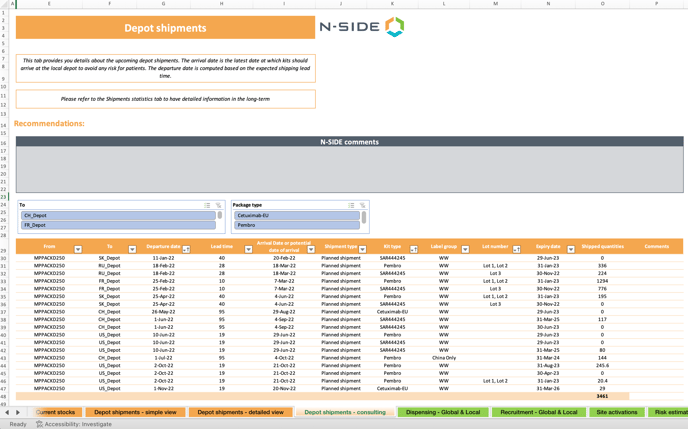
5.4.3. Access results and dashboards from the Results report
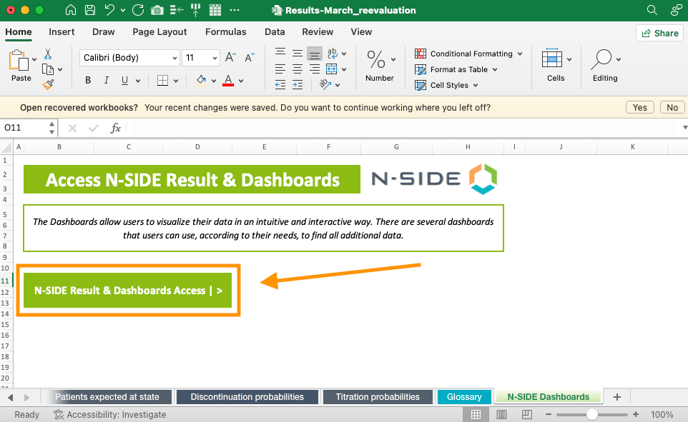
You can now access the "Results" view and its dashboards in the Supply App directly from this new hidden sheet (see image below). The link is automatically generated and available for every results for which simulations were run, starting from Supply.2024.3.
5.4.4. Visualize data based on Trial master data ordering
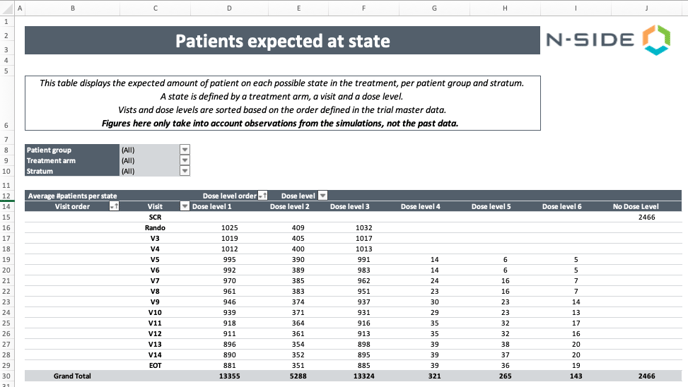
In the "Patients expected at state" sheet, visits and dose levels in pivot tables are now ordered based on the Trial master data ordering (see image below).
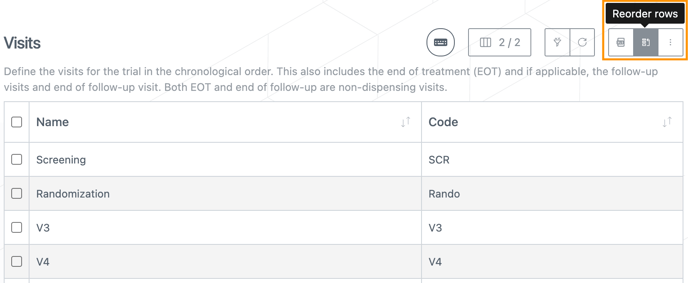
To benefit from this improvement, you can reorder visits, dose levels and patient groups in the Trial master data through the "Reorder rows" action (see image below).
5.4.5. New "Discontinuation probabilities" sheet
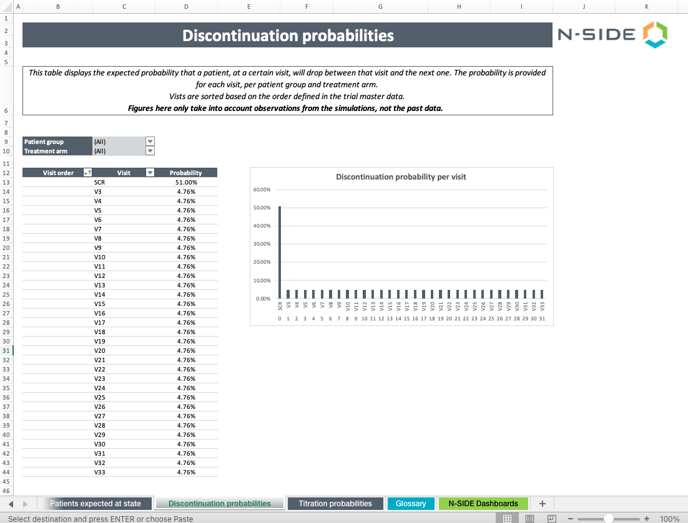
This new sheet displays the discontinuation probability per visit with the possibility of filtering it per patient group and per treatment arm (see image below).
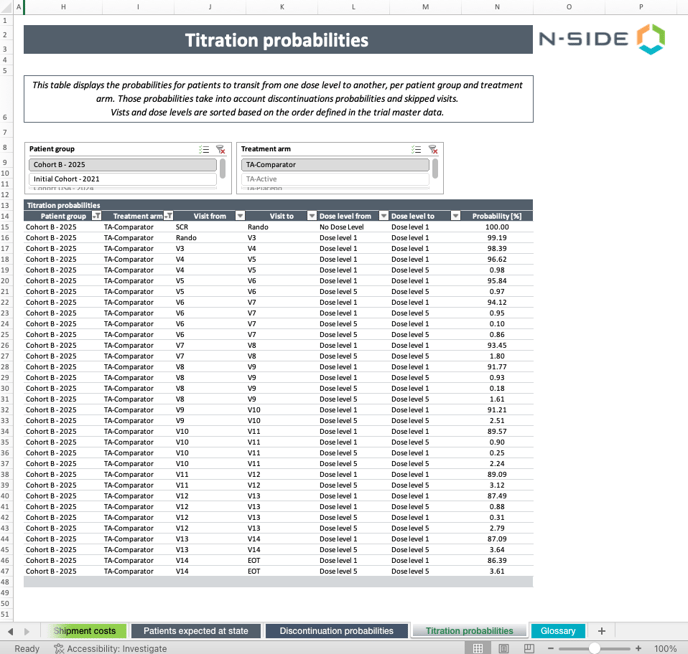
5.4.6. New "Titration probabilities" sheet
This new sheet displays the titration probability per visit with the possibility to filter it per patient group and per treatment arm (see image below).
5.4.7. Access more information in the "IMP release plan" sheet
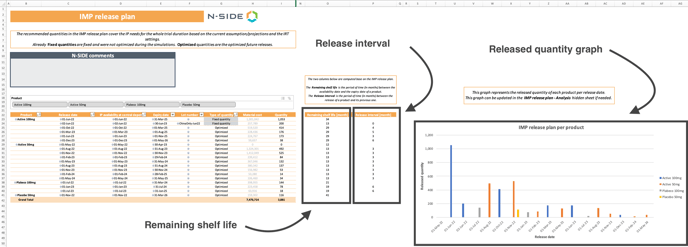
In the "IMP release plan" sheet, you can now visualize information on:
- Remaining shelf life: get the remaining shelf life for each of your release in terms of months (see image below). Remaining shelf life [month] = Expiry date - Availability date
-
Release interval: get the release interval for each of your product release in terms of months (see image below). Release interval [month]= Release date - Release date of previous release
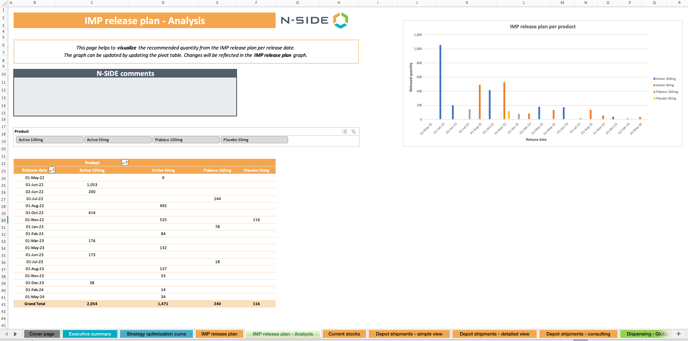
- Release quantity per product: visualize your IMP release plan per product with this new graph (see image below).
- This new graph is a snapshot from a new hidden "IMP release plan - Analysis" sheet (see image below) and the graph from the hidden sheet can be updated to filter it per product.
5.4.8. Date format is now aligned with Supply App
The date format for the "Current stocks" and the different "Depot shipments" sheets is now aligned with the one from the Supply App (e.g.,. "19-Feb-24").
6. Bug fixes
The following issues are now fixed:
-
-
When creating a trial, the description field became mandatory if you typed anything in it, even if the description was removed before saving.
-
In case some values in a table (e.g., "Routes" table in the network) were empty, when you tried to paste values over them, an error saying that “no tabular data” or “Pasted content size does not match selection size” was displayed.
-
✅ Empty values in the tables are now counted as valid cells.
-
-
Visual Users were able to access the "Update setup" option within a plan and click on "Confirm", even though they did not have the right permissions to perform this action.
-
In the Depot shipment module, when you were trying to convert only some of the suggested shipments into planned shipments, the Supply App was removing all shipments from the "Shipments to be optimized" table.
-
For networks with (at least) 2 consecutive local depots (see image below), the quantities computed from one local depot to another was covering the demand up to the frozen period + all the lead times, including the lead time from the central depot to the local one.
-
✅ For those multi-layered networks, the lead time from the central depot to the local depot is not taken into account anymore in the quantities computed for a local to local depot shipment.

-
-
When a site opening happened just a few days before the simulation start date, the enrollment for that site was not starting directly at the site opening but at the simulation start date.
-
7. User documentation
The following articles are added (or have been modified) to enrich the documentation and help you in your usage of the N-SIDE Supply App: