
Table of contents
-
1. Analyze performance metrics for your program(s) (Global performance dashboard update)
1. Analyze performance metrics for your program(s) (Global performance dashboard update)
Previously, the Global Performance Dashboard (GPD) focused on single trials which prevented users to have an aggregated view to generate value from it.
With this Global performance dashboard update, you can now have an overview on waste and cost metrics to identify deviations in your program. You also have the capability to drill down at the trial level for more granular analyses.
ℹ️ What is a program?
In the context of these release notes, the term "program" is used to refer to a set of clinical trials that share the same Drug Product (DP). This implies that these trials are interconnected through their use of the same medicinal product or formulation being tested or developed.
In the dashboards, it can be seen as a portfolio of trials that share common aggregation units.
1.1. Match stock keeping units (SKUs) with aggregation units
To provide a comprehensive view of these metrics' performance across various trials, the previous Global performance dashboard had limitations due to its reliance on package types of each trial, resulting in a GPD that is challenging to interpret at the program level.
You can now match SKUs with newly added aggregation units in the "SKUs and aggregation units" table of the Master data. This means that you can assign several SKUs (used in different trials) to the same aggregation unit which enables to have an aggregated view of performance metrics at program level.
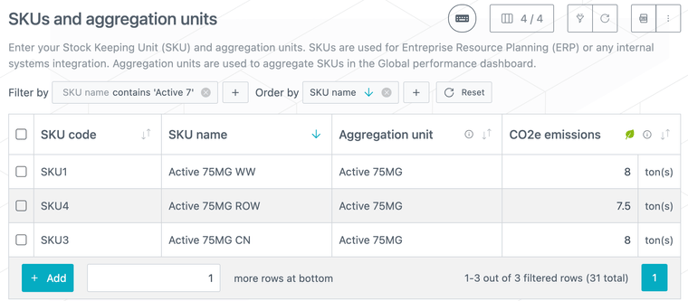
1.1.1. Visualize aggregation units (linked to SKUs) in the Trial master data
You can see the aggregation units, that are associated to SKUs in the Master data, in the newly added "Aggregation unit" column of the "Products" table in the Trial master data (see image below).
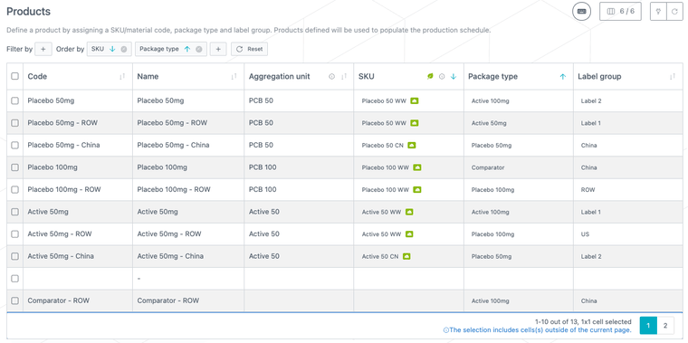
When aggregation units are entered (or edited) in the Master data for existing SKUs, these aggregation units will automatically appear in the:
- Trial master data as soon as you update the references in it (i.e., edit/save).
- Global performance dashboard as soon as the dashboard is reloaded.
1.2.1. Get a quick overview of the performance metrics
In the new "Overview" sheet, you can quickly see the performance metrics (e.g., global waste and global material cost) and their deviations compared to previous decisions, at the trial level (see image below) or the aggregation unit level.
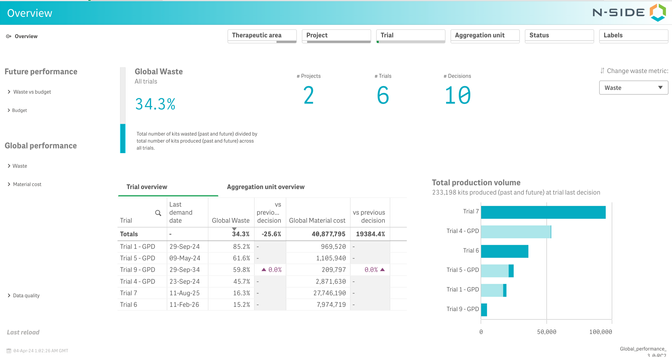
All KPIs and metric are reactive to the selected filters.
This overview can help you answer the following questions:
-
What is the aggregated waste metrics across my portfolio of trials?
-
What is the performance of each trial/aggregation unit?
-
How has the performance evolved since the previous time point (Decision or Quarter)?
-
How significant is the performance evolution in terms of cost?
-
What is the material cost of each trial/aggregation unit?
1.3. Perform a retrospective analysis of waste metrics at program level
On the left-hand side menu, you can now access a new "waste" sheet where you can perform a global waste retrospective analysis for kits shared over multiple trials by selecting aggregation units or SKUs shared among different trials. You can see the evolution of waste per quarter, per trial or per SKU (see image below).
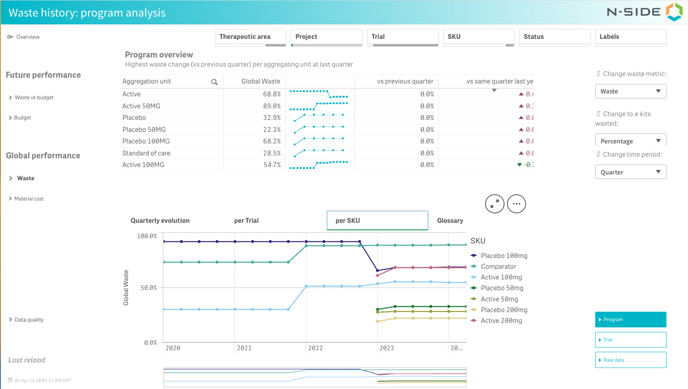
As the dates of the decisions can differ between trials, you can choose the time granularity that is relevant for your analysis (month, quarter, year).
In addition to the waste, overage, and allocation rate KPIs, you are now also able to analyze the waste cost (see image below) to better grasp the importance of the deviations.
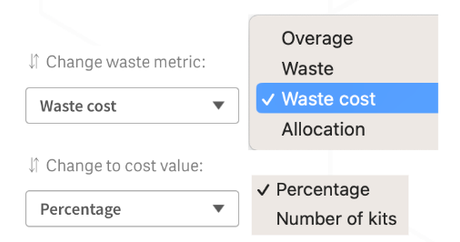
ℹ️ The waste cost is defined as:
number of packages wasted x (Labelling cost + Packaging cost)
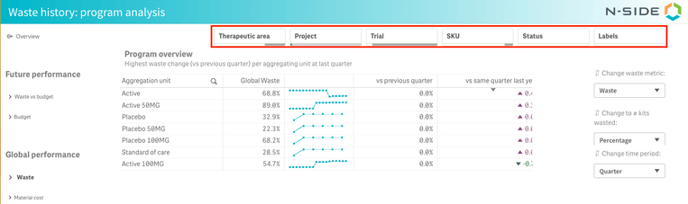
To help you perform your analysis, you can use the relevant filters at the top of the sheet (see image below). Those filters are applicable to all sheets of the dashboard.
This history of waste metric across all trials can help answer the following questions:
-
What is the evolution of the aggregated waste metrics across my portfolio or across specific aggregation units ?
-
Which trial is driving the evolution of the waste?
-
For which trial does the waste increased the most compared to the previous decision?
-
For which trial did the waste increase the most compared to the baseline (first decision)?
1.4. Access a more granular history of waste metrics at trial level
The trial evolution view (accessible through the bottom right "Trial" button) now provides more granular information. You can now get a break down of the waste for the trial at the right level of granularity:
-
Per Aggregation unit
-
Per SKU
1.4.1. Improved readability of the decision context
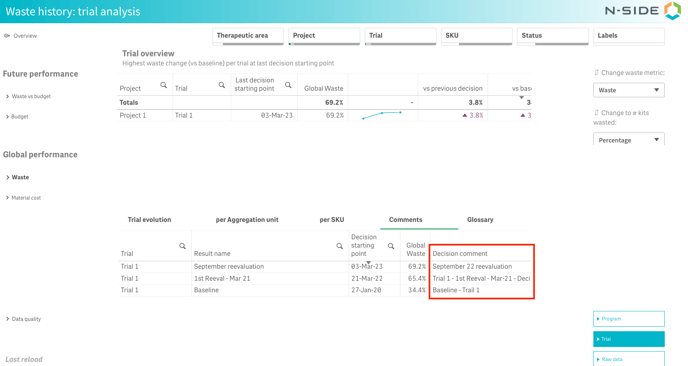
You can now read the history of decisions in the dedicated “Decision comment” column (see image below).
Additionally:
- You can also export the table if you need to use the decision comment in another tool.
- You can get an overview of comments across a program. The “Comments” tab is available even if multiple trials are selected (see image below).
1.5. Track the evolution of material cost at program level
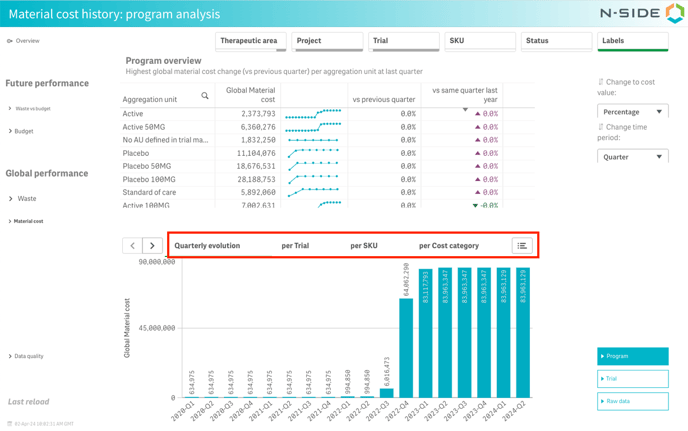
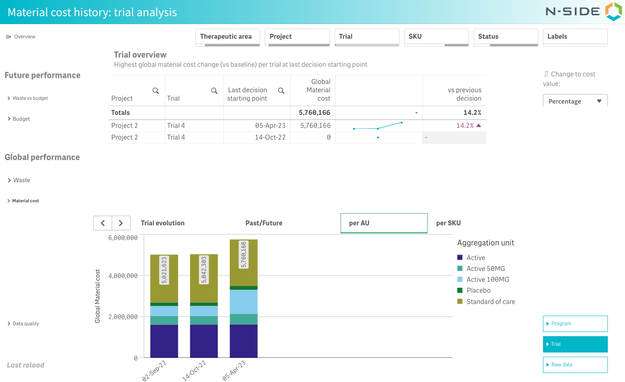
You can now access a new "Material cost" sheet (the left-hand side menu), where (by default) you can see the quarterly evolution of material costs for the selection of trials and aggregation units.
In addition, you can get a break down of the material cost at the preferred level of granularity to identify what is driving the evolution: quarterly evolution, per trial, per SKU, per cost category (see image below).
1.6. Track the evolution of material cost at trial level
As for the program level, you can also track the evolution of material cost at trial level with the following granularity: trial evolution, past/future, per aggregation unit (see image below), per SKU, per cost category.
1.7. Access raw data
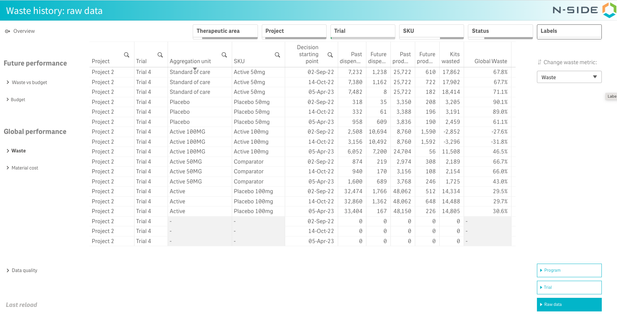
You can access the raw data used for the waste (see image below) and material cost computations. The detailed parameters used to compute the metrics are available for each trial, product and decision.
1.8. Analyze the future performance
1.8.1. Take decisions based on future waste
The sheet previously named "Forecasted waste" has been renamed "Waste vs budget" (see image below) and the names of the axis and the columns have been improved for a better comprehension.
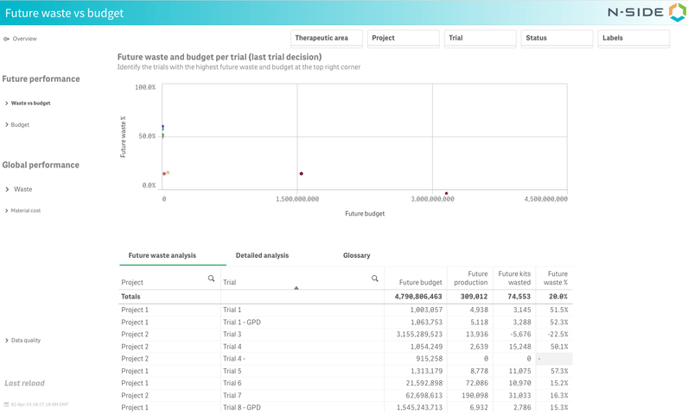
As a reminder, this sheet contains only future values of waste and cost and will help you answer the following questions:
-
On which trial should I focus my efforts in the future?
-
For which trial should I expect the highest future budget?
-
Which trials are driving my future waste/allocation rate?
-
-
When was the last simulation start date and when is the last demand for each trial?
-
What is the current stock and what are the future quantities to be produced for the trial?
-
What is the split between the frozen and optimized future quantities to be produced?
-
Is the waste driven by the kits in stock?
1.9. Get a quick understanding of the budget distribution over time
Access the new "Budget" sheet to analyze your future budget per trial and cost category in order to better plan the future (see image below).
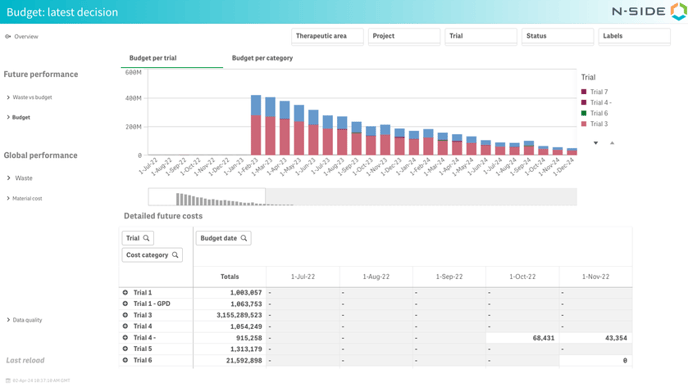
This sheet can help you answer the following questions:
-
When will the budget spending happen for a given trial?
-
Which cost category or trial is driving the future budget?
1.10. Better spot and fix inconsistent data
A dedicated “Data quality” sheet has been created so you can more easily verify the quality of data.
2. Other updates
2.1. New custom prediction granularity
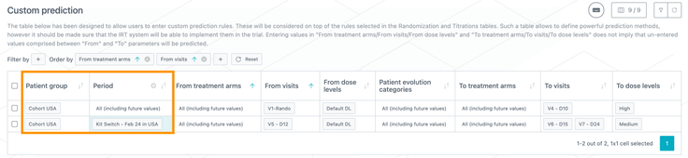
You are now able to model custom predictions per patient group and dispensing period (related to kit switches) (see image below).
As a reminder, this table can be used to define prediction rules for non-consecutive visits. Those rules will be considered on top of the prediction parameters that are selected for randomization and titrations.
2.2. Easily solve IRT data extract issues when opening the Monitoring dashboard
From now on, when you open a Monitoring dashboard, you are informed if the selected IRT data extract contains errors in a new opening window. From that window, you can update the problematic row and save changes to solve the error for the IRT data extract (see video below). You do not need to navigate to the IRT data extract or the Matching to solve the errors anymore.
2.3. Monitoring dashboard updates
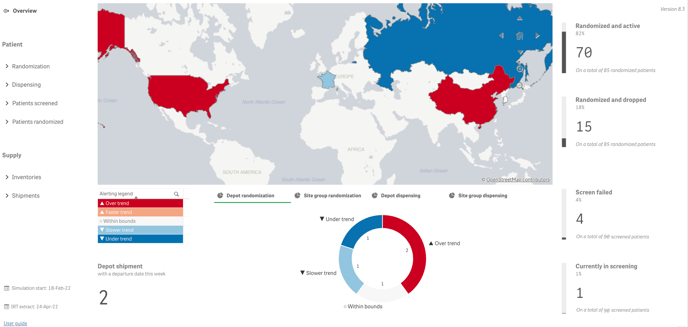
2.3.1. Access a more comprehensive "Overview" sheet
-
- The alert color-coding is now more intuitive and better adapted to color-blind individuals (see image below the next bullet point).
- The "Patients KPIs" (on the right side) are reordered to have the number of randomized patients first (see image below).
-
-
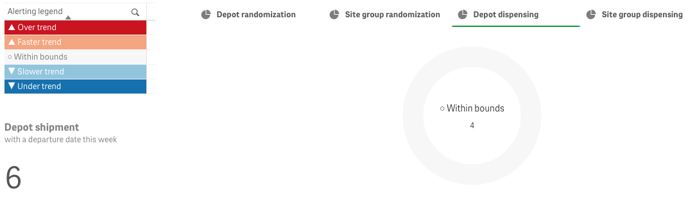
In the "Depot dispensing" tab, displaying the number of depots on top of the bar chart was confusing. The bar chart is replaced by a pie chart per location with no package type info (see image below).
-
2.3.2. Benefit from more visibility on applicable filters
Filtering per patient group and per package type does not always apply depending on the context. Navigating through another sheet, for which a filter is not available, results in an empty sheet. To provide visibility on this, those two filters are now always displayed in every sheet and have the mention “(N/A)” if not applicable to that sheet.
2.3.3. Visualize non-expired kits by default
The "Inventories" sheet now shows non-expired kits by default. However, you still have the possibility to also display the expired kits.
2.3.4. The wording of some elements is now more accurate:
-
-
Patient label → Patient group
-
Patient enrolled → Patient screened
-
2.4. Understand why jobs are queued
From now on, in the “Current jobs” view, if your jobs remain more than two minutes in the “Queued” column because the system is already busy running other jobs, you will be warned through a message that your job in not stuck but waiting (see image below).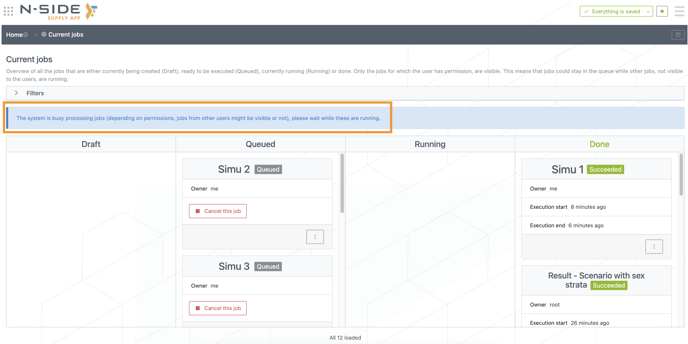
3. Bug fixes
The following issues are now fixed:
-
Advanced users could not manually upload an IRT data extract even if they were contributors.
-
In case the usability period of package types was set to "Next dispensing of..." in the Network setup, all strata were not always considered when computing the DND, resulting in strange combinations of strata, visits, dose levels and treatment arms.