
Highlights
Benefit from an increased autonomy as an Advanced User.
Perform a global waste retrospective analysis through a new dashboard.
Table of contents
1. Benefit from an increased autonomy as an Advanced User
2. Perform a global waste retrospective analysis through a new dashboard
1. Benefit from an increased autonomy as an Advanced User
1.1. Work with the most recent information
As an Advanced User, you can now update references of compounds and trials and any other data sets you are contributor of, except the Master data. If you are contributor of an outdated data set (i.e., there is a clock icon next to the data set name), you can update it in order to run scenarios with the most recent information.
📝 Notes
-
Even though you can update a compound or a trial, you cannot create, rename, delete or share one.
-
After a (Trial master or Master) data update: Updating a plan will automatically update the other data sets needed to run simulations (setups, importable data, lot management, trial master data and compound).
-
As any contributor (either Power or Advanced User) can update their own trials and compounds, there is no need to proactively update all the references after a Master data update.
1.1.1. How to update an outdated data set?
-
Open the data set you are contributor of
-
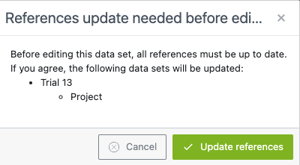
Click the edit button in the gray horizontal bar
-
Click “Update references” and save the updates.
→ As a result, the clock icon will disappear.
1.2. Leverage additional rights during your trial management
As you did not have editing rights to all data sets, as an Advanced User you could be blocked during your reevaluation, in case a Power User was unavailable at that time.
To lift this constraint, we decided to give you additional rights so that you can perform these changes. However, some of these additional rights are still restricted in order to clearly distinct what can now be edited by an Advanced User and what should still normally be edited by a Power User.
1.2.1. Additional and unrestricted rights
Advanced Users can now edit/create/duplicate/delete/share the following data sets without restriction:
-
Trial master data: “Products” and “Locations” tabs
-
Matching
- Stages (create, edit and delete)
-
Treatment setup: “Proportions for patient attributes” and “Patient evolution probabilities” tabs
-
Network setup
-
IRT setup: All tabs except “IRT configuration” which can only be edited by a Power User.
1.2.2. Restricted additional rights
A lock mechanism is introduced in order to make a clear distinction between what can be edited by an Advanced User and what should normally be edited by a Power user. This mechanism prevents an accidental update.
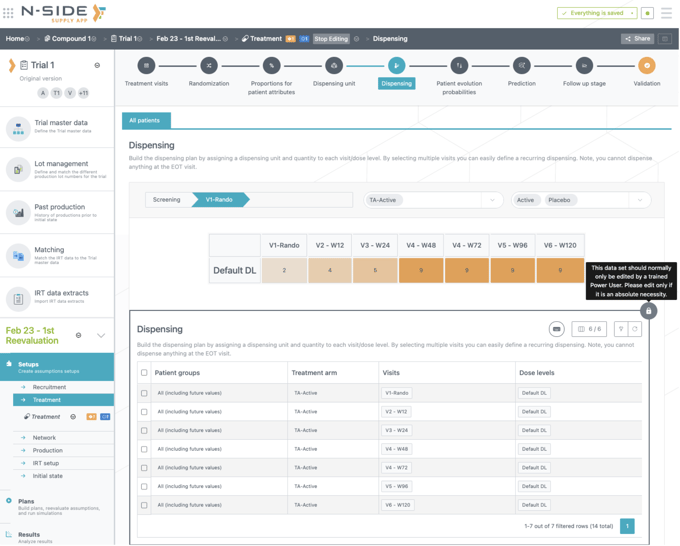
The locks are only visible by Advanced Users in editing mode for data that should only be edited if it is a necessity (see screenshot below). The locks make sure Advanced Users are purposefully editing the targeted setup.
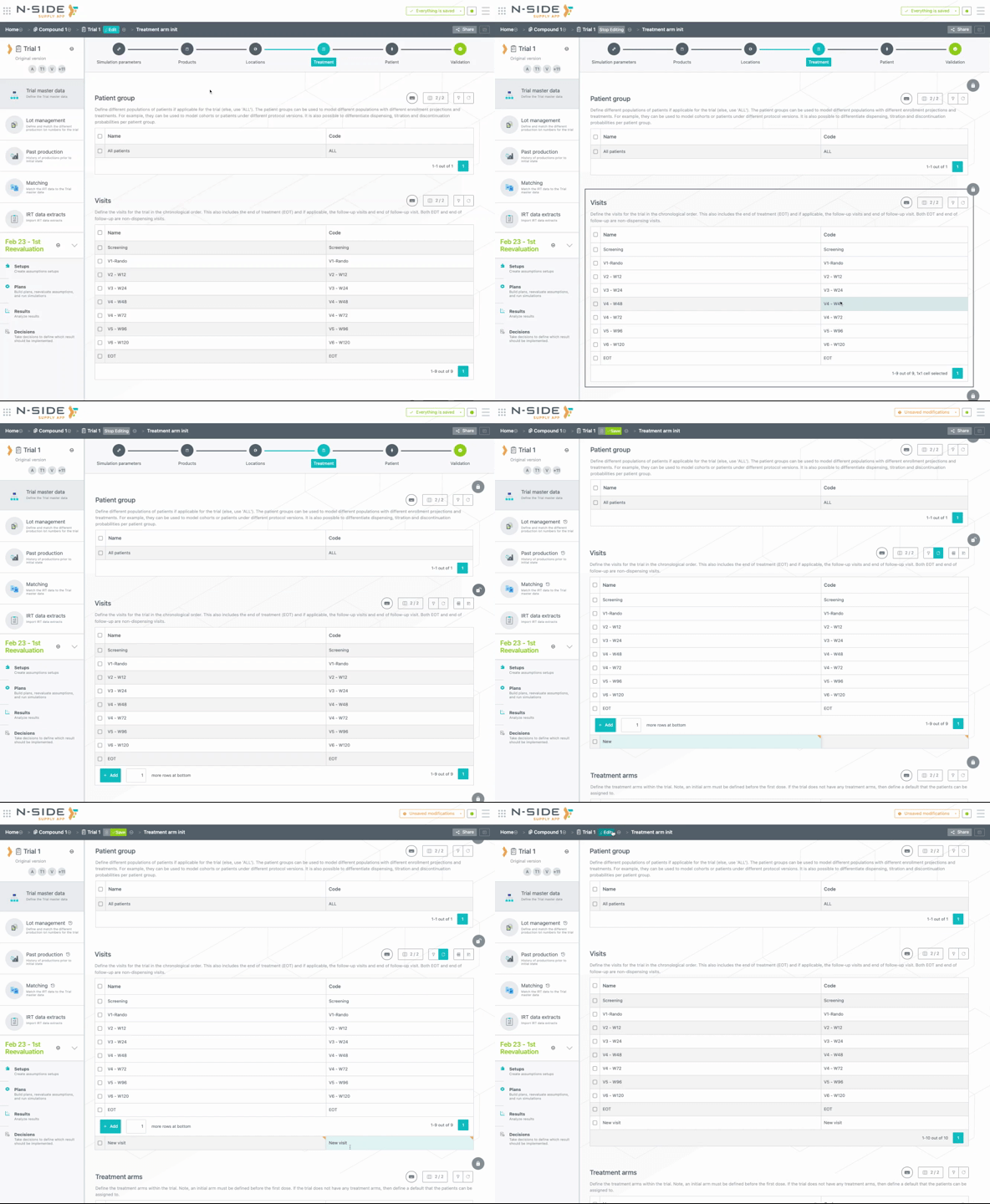
As an Advanced User, if you absolutely need to unlock the data set to edit it, you can do so by clicking on the lock (see visual below).
The following data sets should normally be edited by a Power User and will contain a lock:
-
Trial Master Data: “Simulation parameters”, “Treatment” and “Patient” tabs.
-
IRT data extract
-
Treatment setup: all tabs except “Proportions for patient attributes” and “Patient evolution probabilities steps” (see 1.2.1. above).
1.2.3. Main advantages of these additional rights
As an Advanced User, with those additional rights, you can now:
-
Model new information during a trial reevaluation (e.g., new location, lead time, drop-out, titrations, dose level, buffer levels).
-
Resolve errors coming from the IRT integration that were previously preventing you from creating an initial state and opening the Monitoring Dashboard.
-
Duplicate and edit any setup (except the “IRT configuration” tab in the IRT setup which still needs to be updated by a Power user).
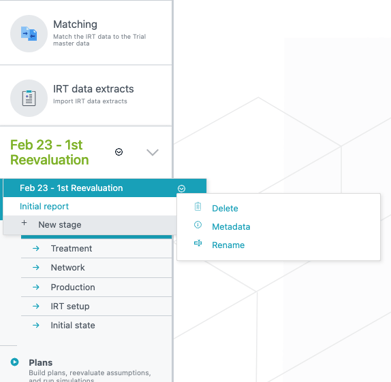
When creating or duplicating a data set (stage, setup, plan or result), you become owner of it. As an owner, it is possible for you to delete the data sets to clean your trial modeling.
📝 Note
Current sharing relations are not updated, only the Advanced User rights are.
If, as an Advanced User, you were viewer of some data sets (compound, TMD, matching, setups, …), you will stay viewer of them.
To leverage these additional rights for some data sets as an Advanced User, you need to become contributor of those data sets.
2. Perform a global waste retrospective analysis through a new dashboard
The new Global performance dashboard offers a:
-
Historization of waste metric across all trials and at trial level with a package type granularity
-
Forecasted waste analysis
So that you can now:
-
Analyze the waste evolution across your trials
-
Track and identify trial waste deviations
Accessible from the top right of the home page (see screenshot below), this new dashboard gathers and uses the waste information from decisions. This means that only trials for which there is at least one decision will have relevant data to display.
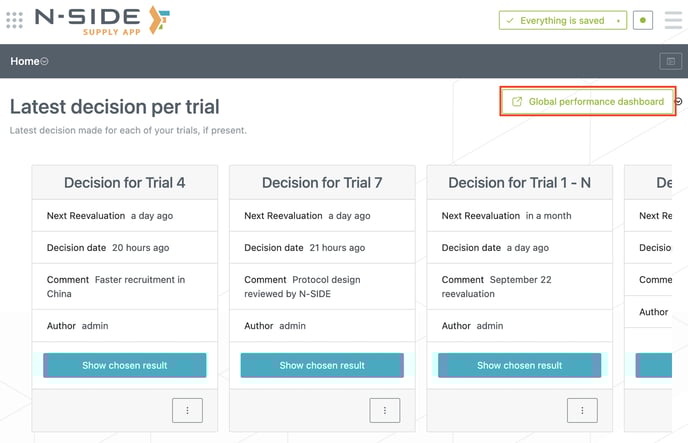 This dashboard is shared between all users at the same time, meaning that you have access to the same dashboard (with all the available information) as every other dashboard user, even if a decision is not shared with you.
2.1. Decisions as the source of truth to create the historization
-
The historization is done based on a date per decision: the decision starting point
-
If there is an initial state, the decision starting point is the simulation start date (from the initial state),
-
If there is no initial state, the decision starting point is the first site activation date.
-
-
If there are 2 decisions with the same decision starting point, the dashboard considers the latest decision that was taken.
-
The term “Last decision” refers to the decision with the more recent decision starting point.
-
The term “Baseline” refers to the decision with the oldest decision starting point.
2.2. Update of the data feeding the dashboard
-
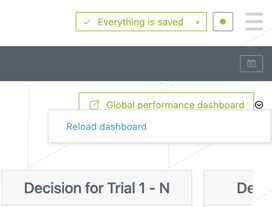
Automatic (default): data are reloaded overnight (4am GMT), so any change in decisions (new result, a decision retracted, etc) are visible the next day in the dashboard.
-
Manual: any user can manually reload the dashboard by clicking on the relevant action next to the dashboard button (see screenshot on the right). As the volume of data can get quite significant, the reload can take some time. Note that this action will not create a service interruption of the dashboard.
⚠️
Prerequisites
In order to leverage this new dashboard, there are therefore two prerequisites:
-
The use of decisions so that the history of a trial can be displayed
-
The use of past productions so that the global waste can be computed.
Removal of the overage views from the strategic dashboard
With this version, this dashboard becomes the single source of truth for aggregation of results and global waste metrics. Previous versions provided aggregation of result waste metrics in a dedicated view in the Strategic dashboard. This view is removed.
Therefore, you should now leverage the Global performance dashboard to access the information previously available in the Strategic dashboard.
2.3. Analyze global waste metrics across all trials
In the “Trial overview”, you have access to the overview of all trials with their respective last decision starting points as well as to the waste increase compared to the previous decision and the baseline.
With the filter at the top right, you can choose to display the “waste metric” in 3 different forms: overage, waste and allocation. The selection applies to the table and the global KPI (displayed next to the filter).
 User documentation
See "Trial overview, trial evolution and forecasted waste" to have more information on how those metrics are computed.
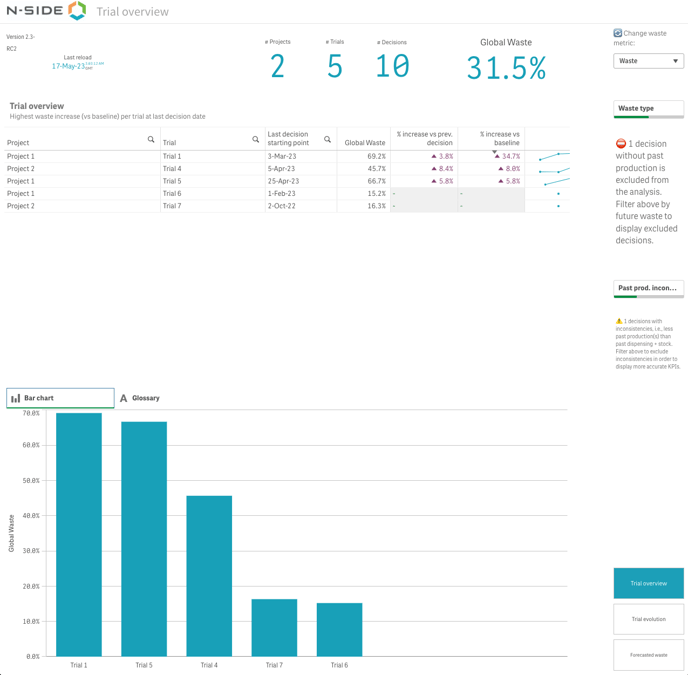
Other informative KPIs are available as well:
-
The last reload time to make sure the dashboard is using the most recent information
-
Number of Projects, Trials and Decisions part of the analysis
This historization of waste metric across all trials can answer the following questions:
-
What is my global waste across all my trials?
-
What are the trials that are driving the waste?
-
What are the trials for which the waste increased the most compared to the previous decision?
-
What are the trials for which the waste increased the most compared to the baseline?
2.4. Visualize the historization of waste metrics at trial level with a package type granularity
Deep dive into the waste evolution of a specific trial and identify what could be driving potential deviations.
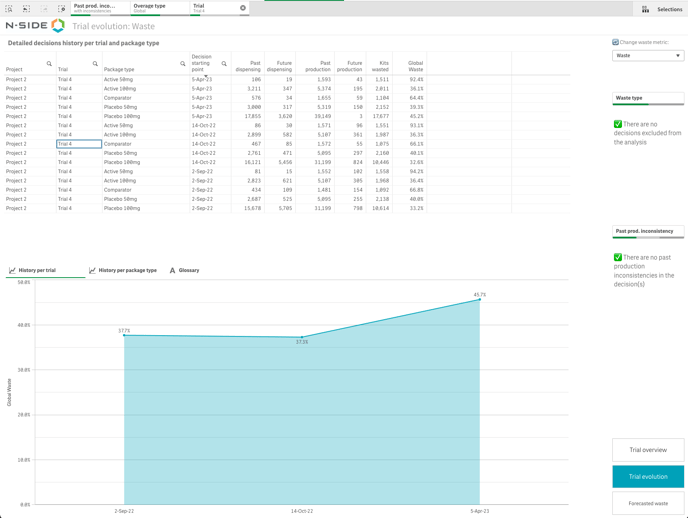
In the “Trial evolution” view, you have access to an exhaustive list of all trials and all their associated decisions.
By selecting a specific trial, you can access:
-
The historization of waste for this trial (“History per trial” tab)
-
The historization of waste for this trial with an additional package type granularity (“History per package type” tab).
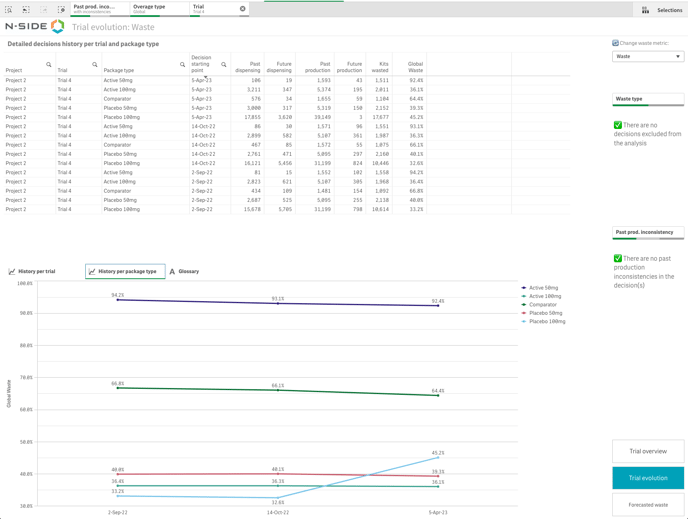
For each trial and for each decision, you can see the breakdown per package type.
This historization of waste metric at trial level can answer the following questions:
-
How is the waste evolving throughout my trial?
-
How is the waste evolving for a particular package type?
-
What are the package types driving the waste in that trial?
-
Which parameter is driving the waste increase in that trial?
⚠️
Data inconsistency
The quality of the global waste computed is greatly dependent on the quality of the input, i.e., we can rely on the past productions being up to date.
For results with an initial state, decisions can be (partially) excluded from the analysis in two situations:
-
No past production is defined: decisions having no past information are excluded from the analysis.
-
There are some past production inconsistencies for some or all package types. In this case, the package types with inconsistencies are excluded.
To learn how these inconsistencies are handled, please read: GPD - Data inconsistency
2.5. Take decisions based on the forecasted waste
As mentioned further above, the “Overage” tab is removed from the Strategic dashboard and therefore the “Forecasted waste” view is now included in the Global performance dashboard. This view contains only future values and its purpose has not changed.
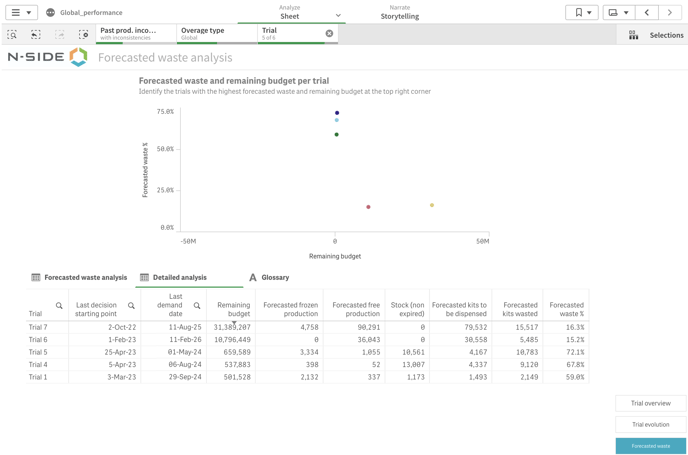
It can still help you answer the following questions:
-
On which trial should I focus my efforts in the future?
-
What is the current stock and what are future quantities to be produced for the trial?
-
What is the split between frozen and optimized future quantities to be produced?
-
Is the waste driven by the kits in stock?
2.6. Leverage decision comments to add context to the analysis
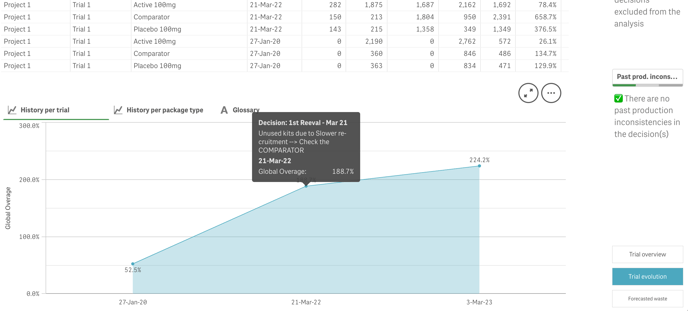
You can use decisions comments to add context to your analysis and explain potential deviations in the Global performance dashboard. In fact, in the “Trial evolution” tab, hovering over a decision point on the “History per trial” chart will display the comment of the decision.
2.7. Save and quickly access recurring analyses
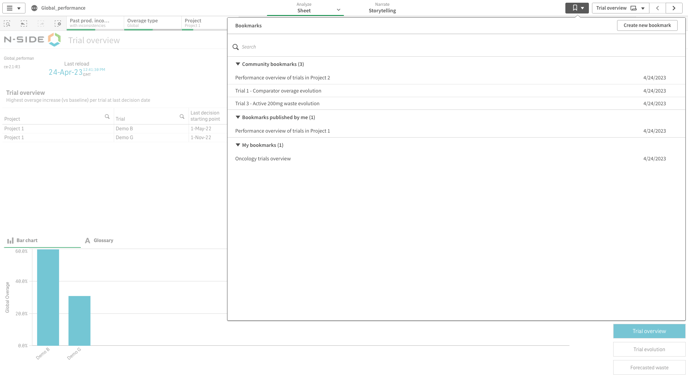
In order to avoid filtering and navigating each time you want to perform a recurring analysis, you can use bookmarks from the dashboard. This can also help you share information with other colleagues.
Any dashboard user can access, create, share and search for bookmarks from the top right bookmark menu.
📖 User documentation
To learn more about bookmarks, read this article: GPD - Bookmarks.
📝 Note
Bookmarks are persistent in time: they remain after logging out and in.
3. Other updates
3.1. Get more visibility on who has performed modifications in a data set
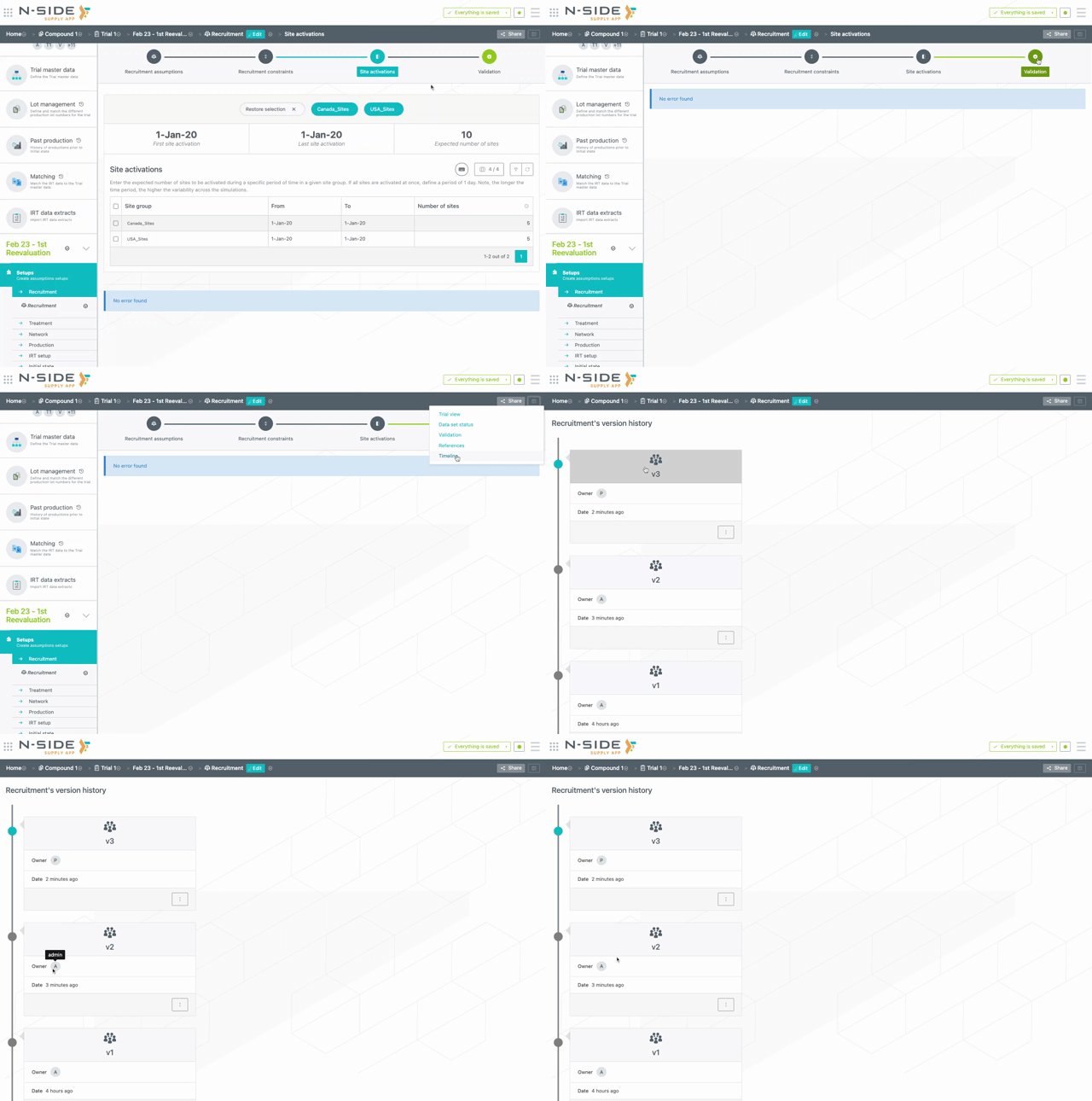
You can now identify who edited a data set in the timeline. The timeline is accessible from the button next to “Share” when you are in the “Validation” tab. The user name displayed is now the one of the user who did the update and not the owner of the data set anymore.
3.2. Improved routes usability
3.2.1. A clearer link between routes and the Master data
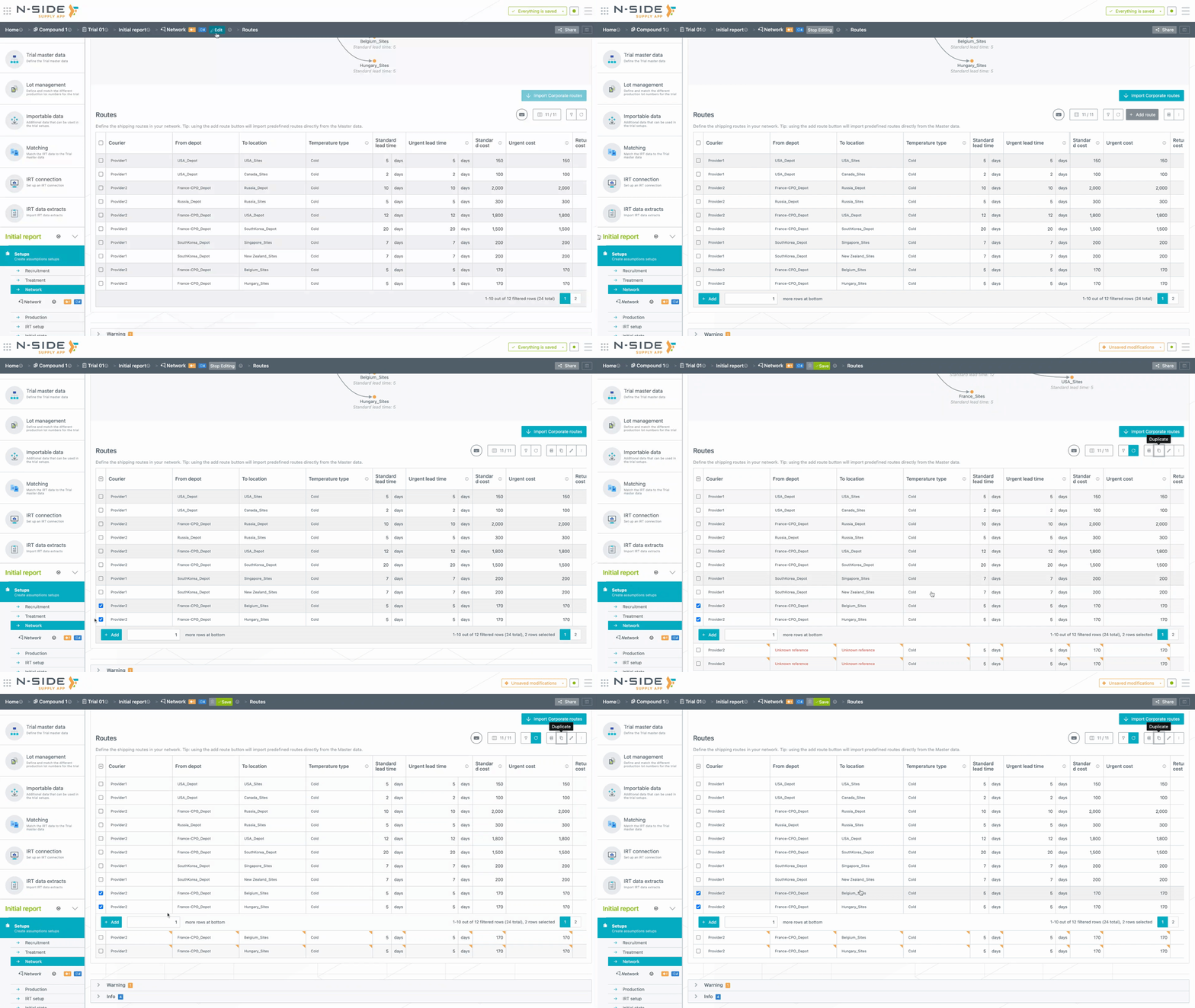
The link between the routes defined in the Network setup and the Master data information is now more explicit thanks to the (optional) new “Courier” column in the table. The system actually identifies a corresponding Master data route if there is a match with the route entered in the network setup based on the courier, the temperature type and the “from” and “to” locations.
3.2.2. Validation messages are more understandable
- When a network route has some inconsistencies compared with the one in the Master data, only one message, grouping all the inconsistencies, is now displayed. An Edit button is added in the message so that you can directly edit the mentioned route.

- When the network route does not have a corresponding route in the Master data, an info message is now displayed. Thanks to this info message, you can access all those inconsistent routes and edit them directly.

3.2.3. The “duplicate” action has been made available again
Due to technical reasons we had to remove this action from the “Routes” table in the Network setup when releasing the new table in the Supply App with version Supply.2022.4. This limitation is now lifted.
3.3. Access more information on site openings in results
When creating an initial state from an extract, the site activation date is now included in the initial state. Therefore, you can now visualize sites openings happening before the simulation start date in the initial state and the Result report.
📝 Note
Only results with initial states created with Supply.2023.3 and after, will benefit from this improvement.
3.4. Benefit from smoother data set updates
-
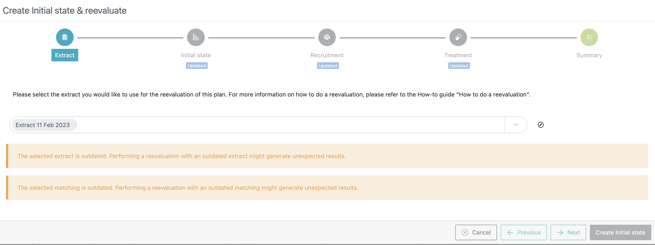
When performing a reevaluation, you will now be warned in case the extract and the matching are outdated. This prevents you from going further with the reevaluation and therefore from getting unexpected results in case you were not aware of these outdated data sets.
-
Updating the references for a plan now also updates the references in “Lot management” and “Importable data”. This should ensure simulations are running and dashboards are loading correctly after updating a plan.
3.5. Usability improvements to gain time in your day-to-day work
-
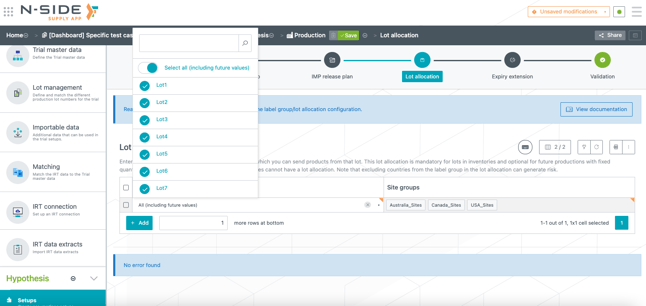
You can now use “Select all” for lots in the “Lot allocation” tab
-
You can now directly edit faulty rows when facing the "The lot of this inventory may not be used at its location" message at plan validation level.

3.6. Naming updates
-
The naming has been updated at some locations of the App to better match their content
-
In the IRT data extract: "Dispensing" has been renamed "Dispensing history".
-
In the “Recruitment constraints” tab: the "Patient type" column has been changed to "Floor type" in the “Recruitment floor” table.
-
In the “Recruitment constraints” tab: the "Patient type" column has been changed to "Cap type" in the “Recruitment cap” table.
-
4. Bug fixes
The following issues have been fixed:
-
When patients had an unscheduled visit in the extract on the same date as their last visit, the dose level considered was the one corresponding to the unscheduled visit, leading to unexpected values in the results.
-
✅ Unscheduled visits are now only used to record the associated past dispensing. This means that unscheduled visits are no longer considered when:
-
reevaluating titrations and dropout probabilities,
-
computing the patient last visit in the initial state,
-
computing the consecutive dose level value in the initial state.
-
-
-
New expiries (resulting from an expiry extension) were not taken into account when computing depot shipments. The simulations were ignoring those quantities while those were available to be shipped after the expiry extension.
-
✅ Depot shipments now properly consider lots with their extended expiries
-
-
The lot number was not displayed when the departure date of a reserved shipment was before the simulation start date.
-
✅ Reserved shipment lot numbers are now always displayed.
-
-
Incorrect inventories were considered in the simulations in case there is a mismatch between label groups and lot availability, i.e., when the lot availability corresponds to multiple label groups. For instance, if there were 2 label groups and a lot had all sites as lot allocation then the lot was duplicated. The copy of the lot for each label group was creating fake stocks in the results and impacted the recommendations.
-
✅ Lots are not duplicated anymore when the lot availability corresponds to multiple label groups.
-
-
When patients were discontinued at a visit occurring after the randomization visit, the system counted them as discontinued at the randomization visit. This had an impact on the reporting tools, giving the impression that the dropouts happened at the beginning of the study. However, this issue did not impact the drop-out rate used during the simulations, neither the reevaluation of drop-out rates.
-
✅ Discontinued patients are now counted as discontinued at the corresponding last visit.
-
-
The system failed when the last dose date (Trial master data) was set before the simulation start date (Initial state).
-
✅ Now an error message prevents you from launching simulations when the last dose date is set before the simulation start date. The message displayed contains an “Edit” button, which leads to the configuration of the Initial state setup.

-
-
When updating the overage for a result, fatal errors were displayed in case some products were defined in the past productions but were not part of the Trial master data when the original result was generated.
-
✅ The App now ignores past production using products that were not included in the Trial master data when the original result was generated. In this case, the App displays a warning so that you are aware of the situation and can proceed accordingly.
-
5. User documentation
The following articles are added (or have been modified) to enrich the documentation and help you in your usage of the N-SIDE Supply App: