
Highlights
Access an increased granularity for your trial monitoring thanks to a fully revamped Monitoring dashboard.
Benefit from a better user experience when using dashboards with the capability to open them in new browser tabs.
Table of contents
1. Leverage a fully revamped Monitoring dashboard
2. Benefit from a better user experience with dashboards by opening them in new tabs
1. Leverage a fully revamped Monitoring dashboard
With this release, you have access to a fully restructured monitoring dashboard which provides information with an increased granularity, allowing you to easily spot any deviations in the monitoring of your trial.
The dashboard navigation was completely redesigned with a new navigation bar on the left side with 2 main parts: Patient & Supply.
1.1. Get an overview of your trial status in one single place
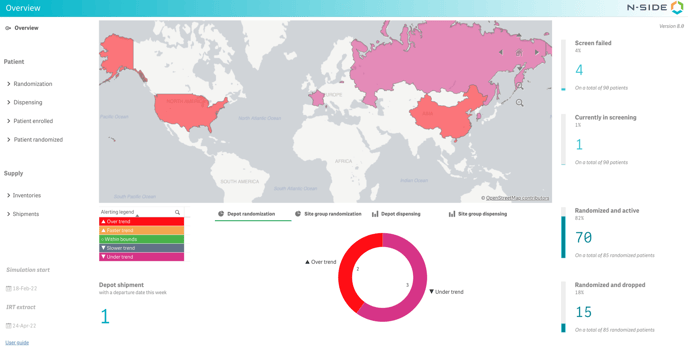
You can now visualize a summary of the monitoring alerts in one single page so that you are aware of the current status of your trial and if there are any deviation affecting it. You can start from there and deep-dive into a more detailed analysis and eventually take actions.
The computation for the five levels of alert has been reworked to make them more intuitive:
-
Over trend: today’s actual is superior to the maximum forecast of the day,
-
Faster trend: today’s actual is close to the maximum forecast of the day (5% below or less close to the bound)
-
Within bounds: today’s actual is within the minimum and maximum bounds (at least 5% away from those bounds)
-
Slower trend: today’s actual is close to the minimum forecast of the day (5% above or less close to the bound)
-
Under trend: today’s actuals is inferior to the minimum forecast of the day.
The overview gives a summary of the situation in one page:
-
Randomization monitoring: the number of depot or site group per alert level
-
Dispensing monitoring: the number of depots or site groups per alert level
-
The total number of enrolled and randomized patients (on the right)
-
The number of depot shipments departing in the 7 coming days (bottom left)
1.2. Benefit from an improved monitoring granularity
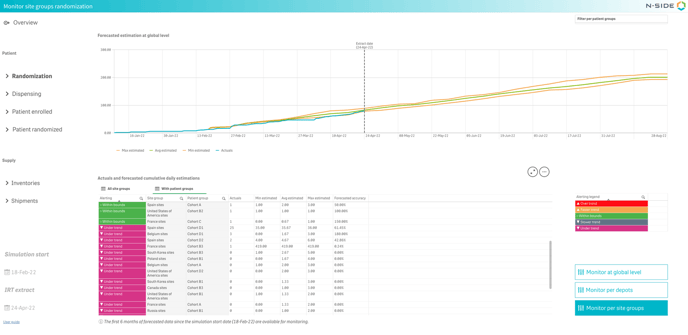
You are now able to monitor randomization at site groups level and/or per patient groups in addition to the global and depot levels. You can therefore monitor the situation in detail in terms of location and treatment, making it easier to communicate and react with the right the information.
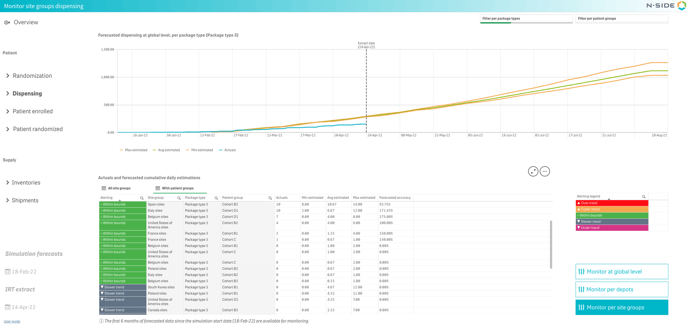
As for the dispensing, the same levels of granularity are available: you can now monitor dispensing at site groups and/or per patient groups. It is also easier to focus on a selection of package types with the new package type filter.
1.3. Access more information about actual data: enrolled and randomized patients
From now on, you can visualize information on enrolled patients across all site groups and their associated sites, meaning that you can visualize the number of patients screen failed/in screening/randomized for each site group and site.
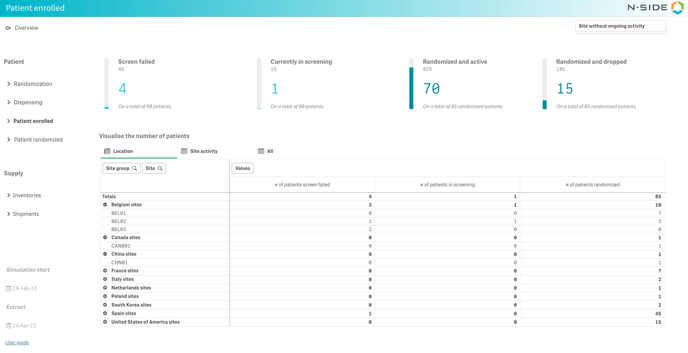
Regarding site activity, you can now filter on sites without ongoing activities. These are defined by the following condition: sites that are observed as actively enrolling patients and where there is currently no active patient (in screening or randomized).This information is particularly useful in case the randomization period is over as you can identify where to stop sending buffer kits.
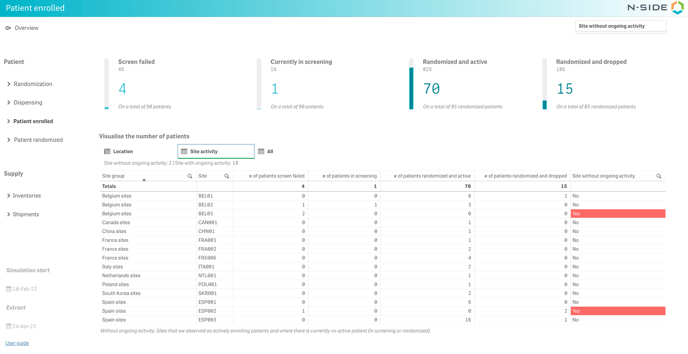
In the “Patient randomized” section, you can visualize the repartition of randomized patients across all site groups and associated sites as well as the number of patients randomized per treatment arm, per patient group and per status.
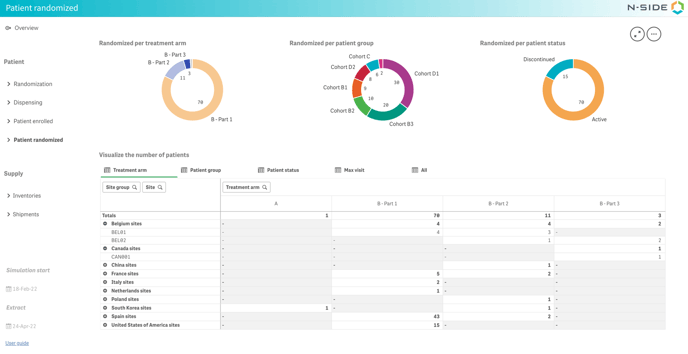
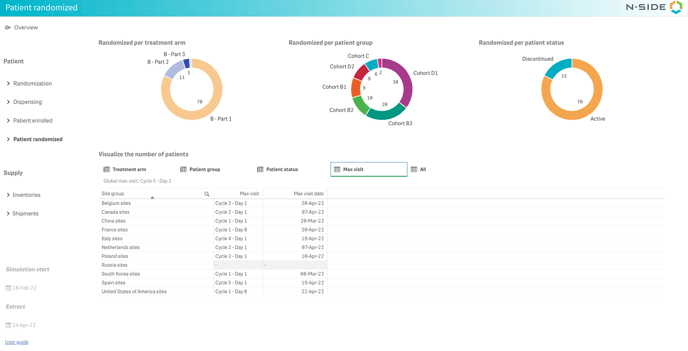
In the same section, you can also easily identify the most advanced patient in the treatment schedule (max visit) observed with different levels of granularity. This is particularly useful to know if there is a reevaluation required to extend the visit schedule for some treatment characteristics (treatment arm and/or patient group). The max visit is available per site group, per treatment arm, per patient group and/or per patient status by clicking on the desired info on the pie chart at the top.
1.4. Know more about the inventories and shipments
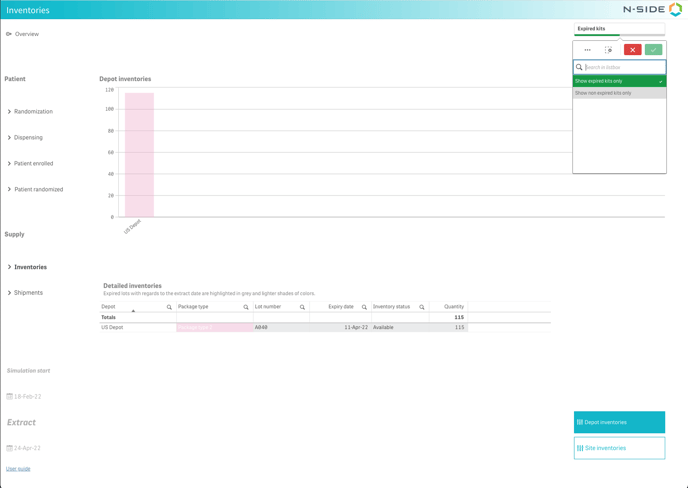
Benefit from a better visualization of the inventories per depot and site level, meaning that you can now see the expiry date/status/quantity of a specific lot for a specific site.
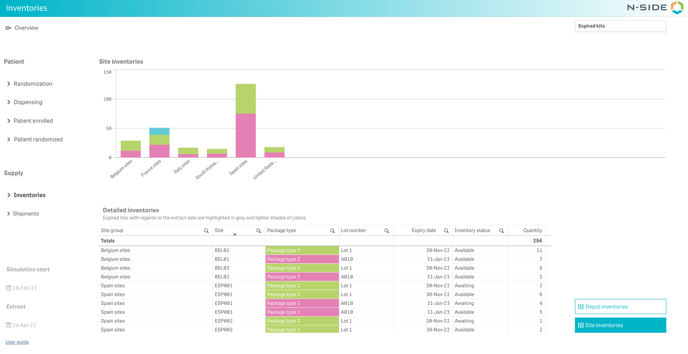
See the expired kits in depots and/or sites (with regards to the extract date). They can be displayed by applying the filter at the top right of the page.
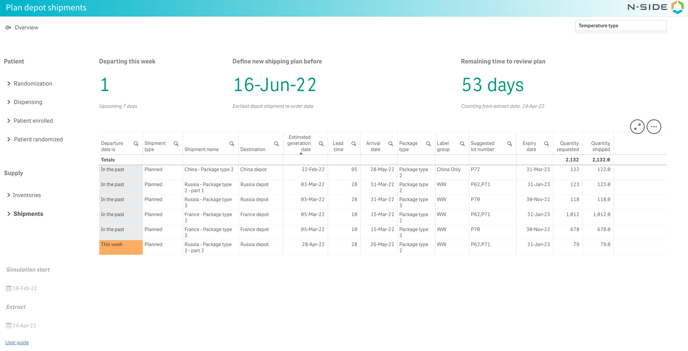
Regarding shipments, you are now able to filter the depot shipments by temperature type, which is helpful for trials with multi-network. Additionally, the extract date is now used to compute the remaining time to review the plan (instead of today’s date), matching it closer with reality.
1.5. Easily make the link between the monitoring alerts, the patient actuals and the inventories
The filtering experience is seamless between the sections in the dashboard. You can easily monitor at depot or at site group level to then make the link with the actuals and then the inventories (when relevant).
For example, you can select an alerting level in the overview and navigate between the different sections of the dashboard to analyze deeper the drivers of the alert (see video below).
📝 Note
When more than one option per filter is applied (e.g. two package types selected) the graphs only display the actuals.
1.6. Using the Monitoring dashboard with results generated prior to Supply.2023.2
⚠️ Warning
Results generated before Supply.2023.2 will still display the old monitoring dashboard.
We therefore strongly recommend to re-run the simulations for older results if you want to benefit from these new dashboard capabilities.
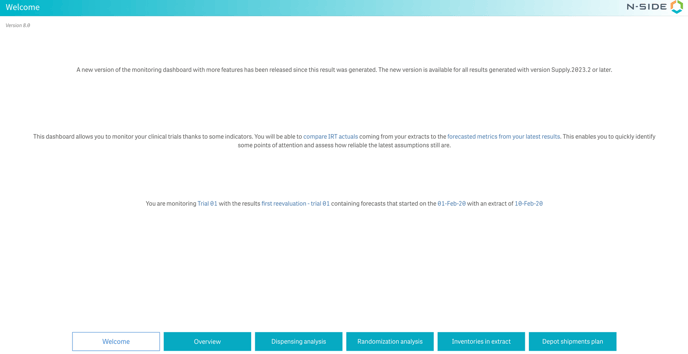
A message is displayed in the welcome page specifying that the new dashboard is available for results generated with Supply.2023.2 or later.
2. Benefit from a better user experience with dashboards by opening them in new tabs
Previously, dashboards were displayed in a side panel which prevented to browse the model in the Supply App and visualize the result at the same time.
With this new version, dashboards are now displayed automatically in new tabs which offers you a better user experience:
-
The dashboard is displayed full screen.
-
You can browse the App with the dashboard on the side which is useful if you need to adjust modelling assumptions based on preliminary results.
-
You can open several dashboards simultaneously to compare different results and information.
From the result side panel, the dashboards can be opened in a new tab.
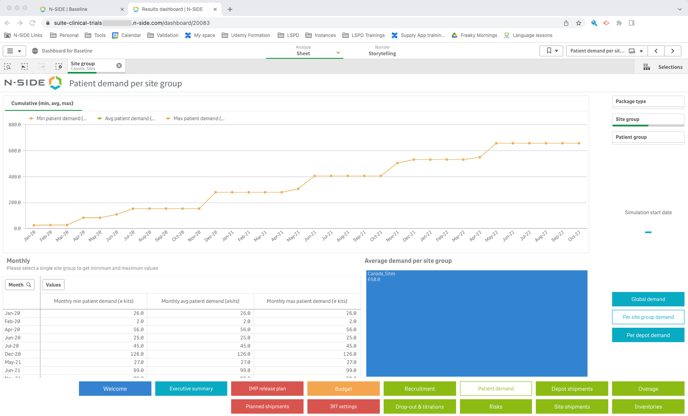
Dashboards size before opening them in a new tab:
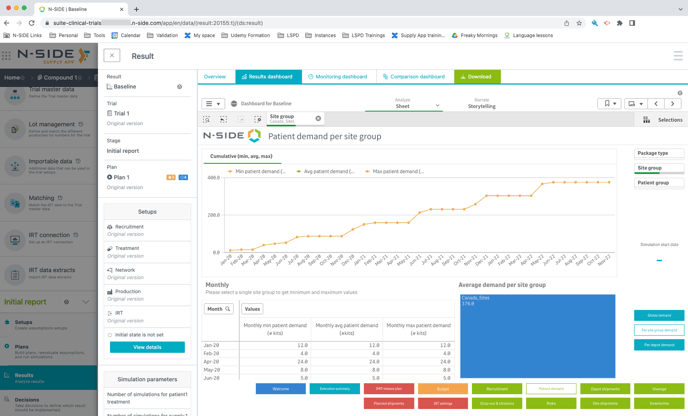
Dashboards size after opening them in a new tab:
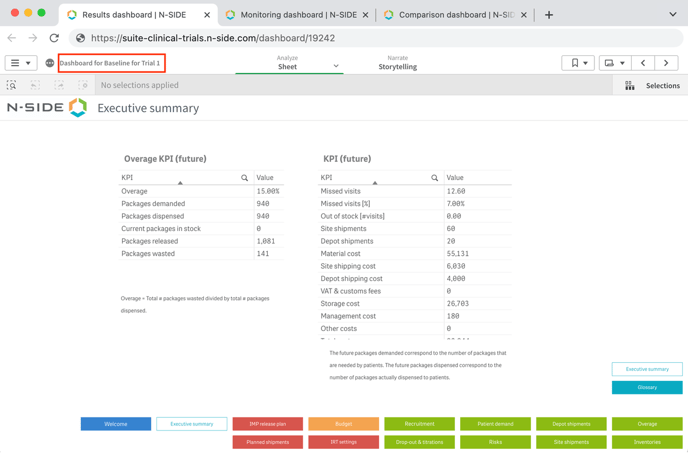
In case you have different dashboards open, you can easily identify the dashboard type in the tab name and the name of the result in the upper left corner of the dashboard (see screenshot below).
⚠️ Warning
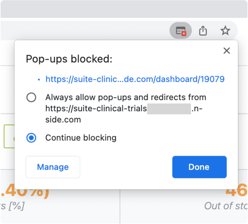
Depending on your browser settings, the opening of the dashboard could be blocked (small icon on the right of the location bar). To allow the opening of dashboards you need to manage the pop-ups permissions in your browser settings (Settings > Privacy and security > Site settings > Pop-ups and redirects).
3. Other updates
3.1. Get better default values
-
In the window opened via the “Launch simulation” button, the default SSCL is now 99% (and not 100% anymore).
-
When entering the “Shipping groups” tab of the Network setup, the default view is now “Depot shipping groups” and not “Site shipping groups” anymore.
3.2. Auto-fill the fallback rate (recruitment setup)
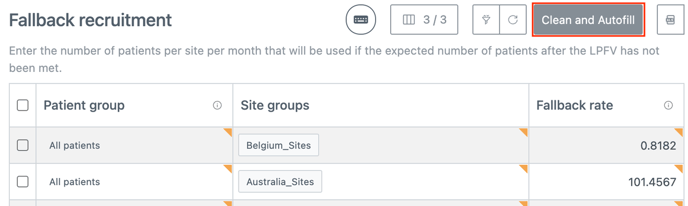
In case the enrollment should continue linearly after the LPFV, You can now auto-fill the fallback rate via the “Clean and Autofill” button (see screenshot below). The table gets cleared and a new fallback rate is generated which lets the enrollment continue linearly after the LPFV. This fallback rate is generated per (site group, patient group) combination. Note that site groups are considered only if there are site openings defined for them.
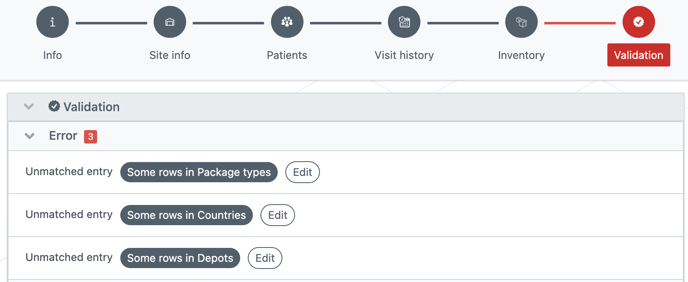
3.3. Visualize unmatched entries errors in the IRT data extract
Previously, when too many entries were not matched in the IRT data extract, the error message had to be truncated and did not show the problematic entries.
Now you can see a message per table containing unmatched entries that you can edit from there if need be.
3.4. Lot availability different from Label group messages have been grouped
One message per package type is now generated mentioning all the lot availabilities that don’t correspond to the Label group regions.

4. Bug fix
The following issue has been fixed:
-
Having a lower number of site openings, for a particular site group in the Recruitment setup, than the actual number of sites defined in the Initial state lead to a soft fail of the simulation.
-
Example of a scenario which was previously soft failing and does not anymore:
4 sites in the recruitment setup, 5 sites in the initial state including 1 without inventory nor patients.
The site without inventory nor patient is considered as inactive and not considered in the simulation.
-
5. User documentation
The following articles are added (or have been modified) to enrich the documentation and help you in your usage of the N-SIDE Supply App:
- Monitoring dashboard - Access & Overview
- Monitoring dashboard - Randomization
- Monitoring dashboard - Dispensing
- Monitoring dashboard - Patient enrolled
- Monitoring dashboard - Patient randomized
- Monitoring dashboard - Inventories & Shipments