
Highlights
Gain data management flexibility:
-
New filtering and ordering capabilities of the tables.
-
Select & copy information from a table of the Supply App to paste it somewhere else.
-
Easily paste the content of your clipboard to a table of the Supply App.
Better match your trial reality by leveraging the new patient group granularity for the treatment setup.
Create and manage IRT connections more easily.
Table of contents
1. Benefit from more data management flexibility
2. Leverage a new patient group granularity for the treatment setup
3. Create and manage IRT connections more easily
1. Benefit from more data management flexibility
You can now customize tables, enjoy a smoother navigation and enter your data in an easier way to match your project specificities.
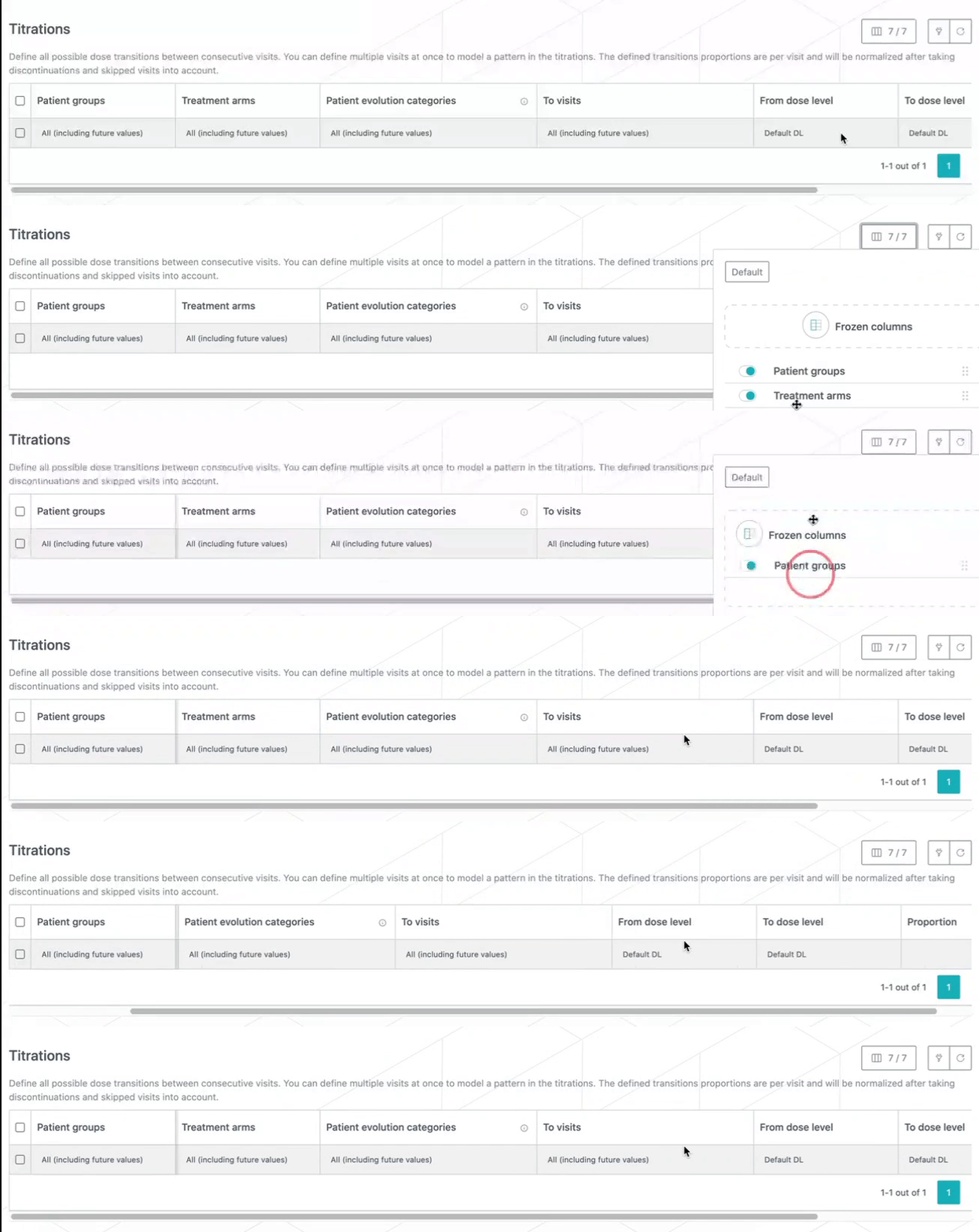
1.1. Freeze & reorder columns
Decide which columns to see, in which order, as well as which ones should be frozen when scrolling the table via the “Show/Hide columns” button.
1.2. Filter & order the table
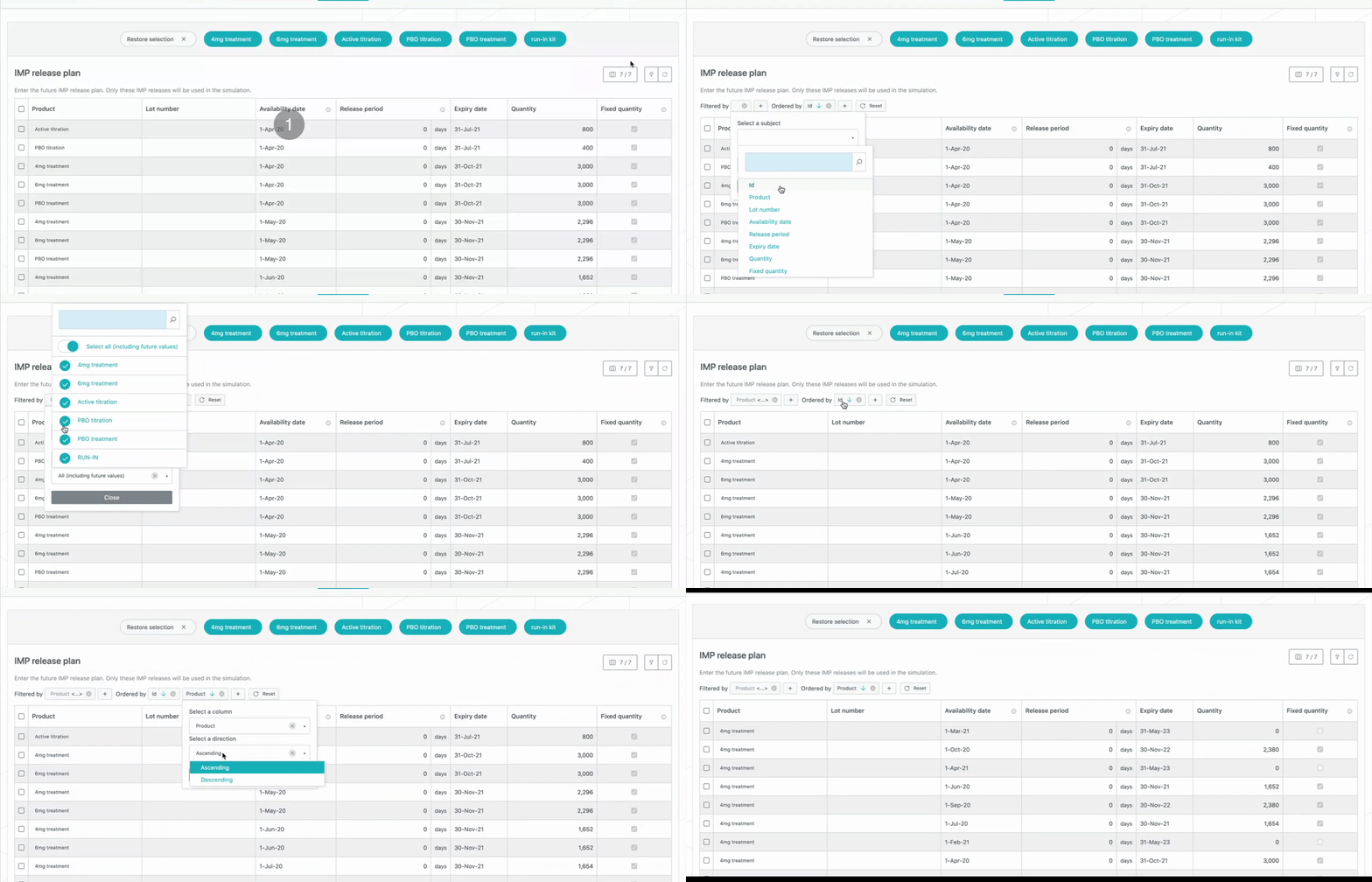
Decide to only show rows containing a certain value and/or reorder the displayed rows using the new “Filter & sort your data” button.
For example, in the “IMP release plan”, you can decide to show only some specific products or reorder the productions by product.
In the “Matching”, you can filter out already matched values for a faster data entry.

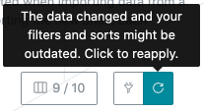
In case some data has been added or modified in the table, the filters need to be reapplied via the “Reapply filters/orderings” button.
1.3. Create new rows and visualize updates
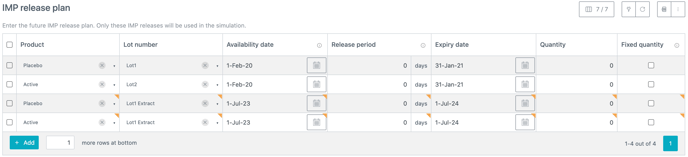
When adding rows to a table, they will appear in a temporary table below the main one. These rows are displaying a yellow corner in each cell as well. Once those rows are all complete, they can be inserted in the main table via the “Reapply filters/orderings” button.
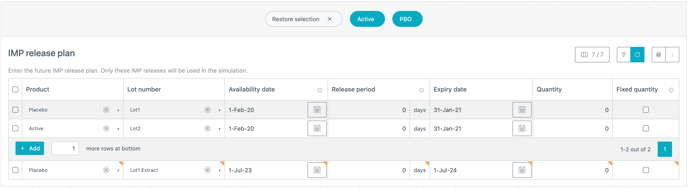
Just as for new rows, you can easily spot which ones have been updated since the last save thanks to the display of yellow corners.
1.4. Select rows at table level
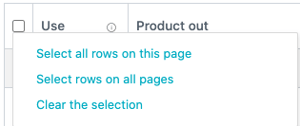
From the top left corner of a table you can now:
-
Select all rows on this page
-
Select rows on all pages (this option respects the applied filtering conditions)
-
Clear the selection
You can now also use SHIFT+click to select multiple rows.
Information has been added at the bottom of the table to let you know if the selected rows are:
-
Outside the visible page
-
Outside the currently applied filters.

1.5. Reorder rows
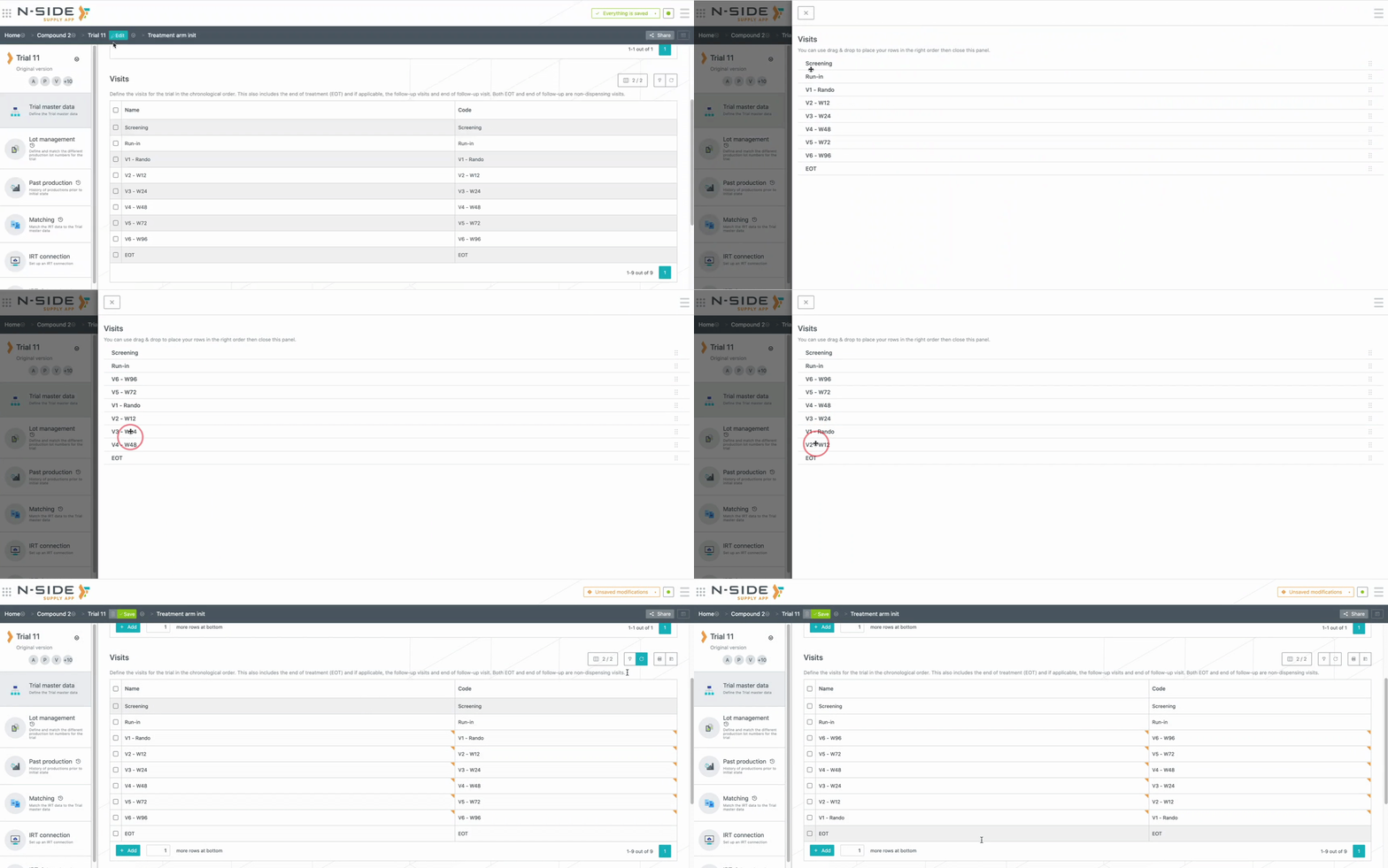
Change the order of the rows via the new “Reorder rows” button (replacing the previous “Move up/down” buttons). Note that you must edit the dataset for this button to appear and that its availability depends on the table.
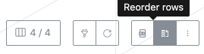
This button opens a side panel where you can drag and drop rows to re-organize them. Clicking on the “Reapply filters/orderings” button updates the rows order afterwards.
1.6. Select and copy a table
You can now select and copy (ctrl/cmd + C) a table content in order to paste it somewhere else (e.g. in Excel or in other cells).
The selection can be done in both editing and non editing modes, by clicking first on a cell and extending the selection via drag and drop to the last cell which should be selected.
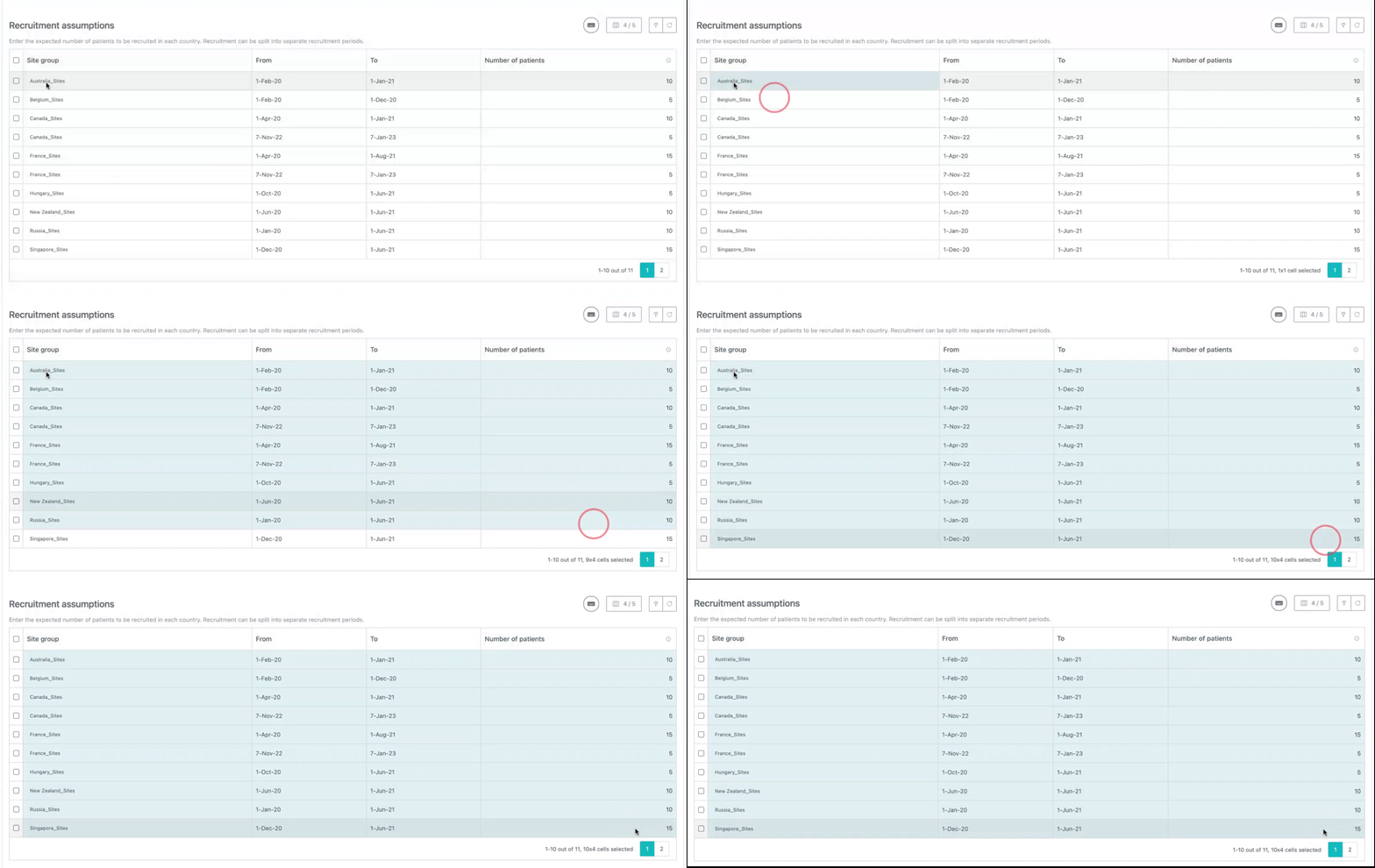
You can also use shortcuts to faster select several cells at once. The existing ones can be found via the “keyboard” icon in the Suite.
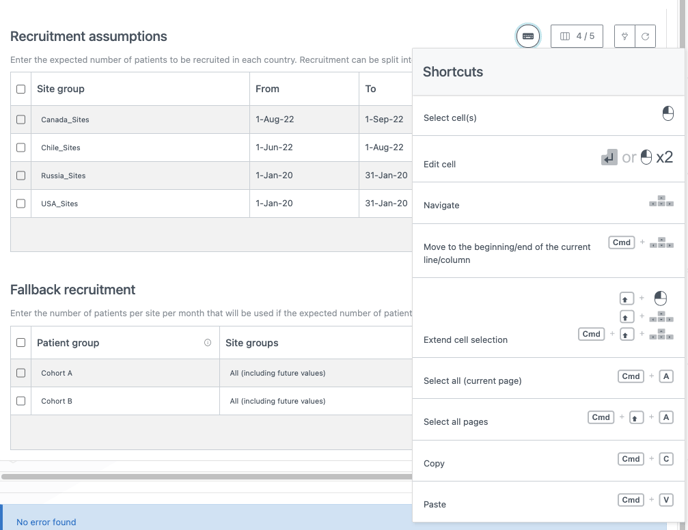
The way to edit a cell has been updated in order to allow copying cells also in editing mode.
To edit a cell, you need to be in editing mode and either:
-
Click two times on a cell (selection then edit).
-
Select a cell and then press “Enter”.
📝 Note
-
In case you use Windows as operating system, Command is replaced by Control in those shortcuts.
-
Your computer settings must consider a full stop (.) as a decimal separator for the content to be properly pasted to an external tool (e.g., Excel):
-
Mac OS: System preferences > Language and region > Advanced > Number separators should be a full stop ( . ).
-
Windows: Start > Control Panel > Region > Additional Settings > Decimal Symbol should be a full stop ( . ).
-
1.7. Select and paste to a table
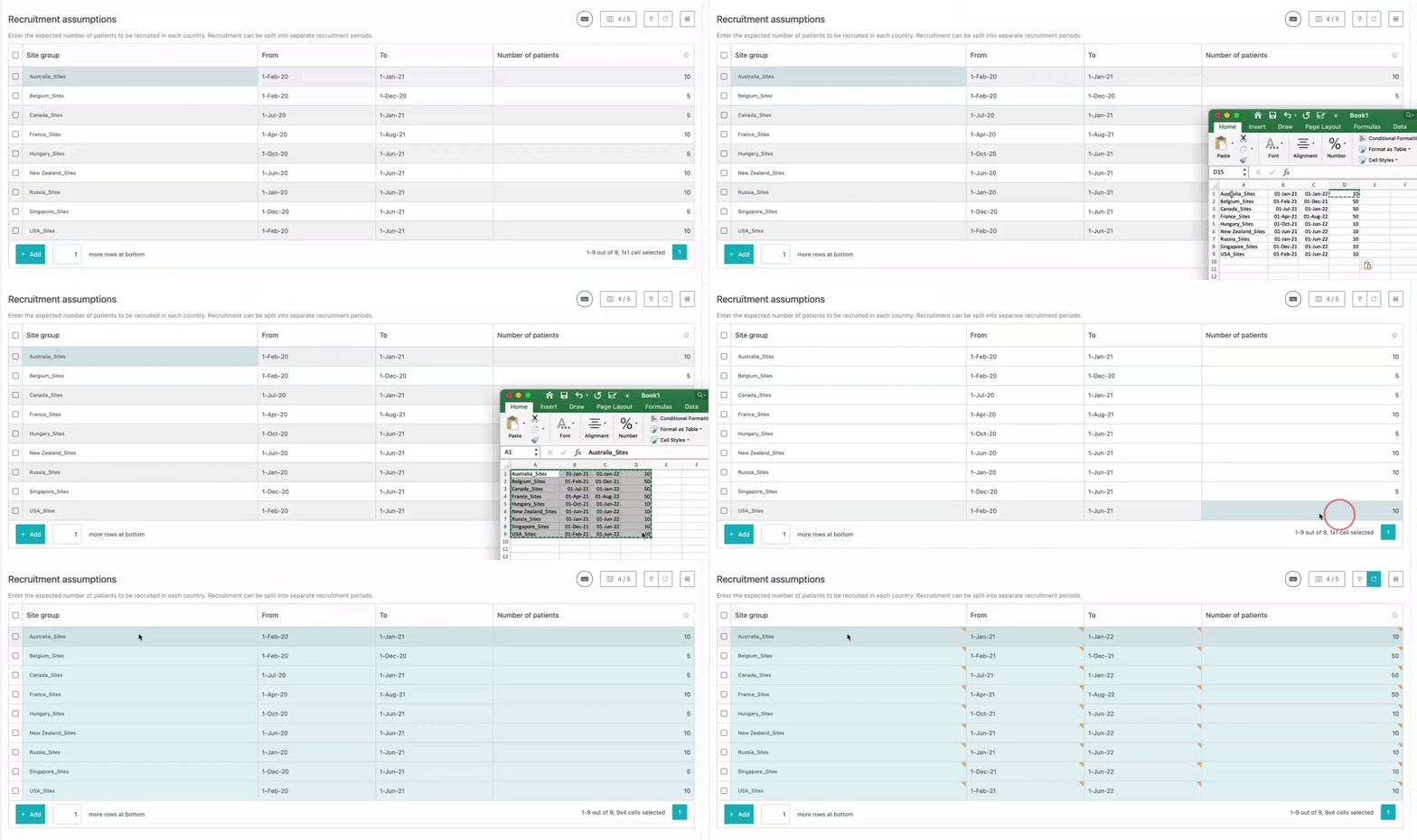
You can paste the content copied to the clipboard in a Supply App table. Information can be copied either from the table itself or from external sources such as an Excel file.
📖 User documentation
For complete guidelines on how to paste properly, see: N-SIDE Suite - Tables data entry.
1.8. Other changes
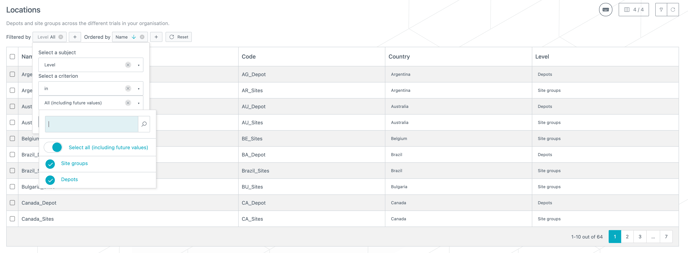
In the “Locations” tab of the Master Data, the site groups and depots tables have been merged into a single “Locations” table. You can easily show only one of the two location levels using the filters.
2. Leverage a new patient group granularity for the treatment setup
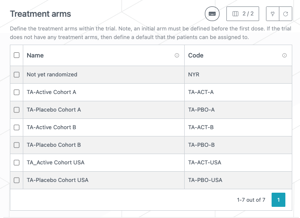
With previous versions, modeling dispensing per patient group was only feasible by duplicating the number of treatment arms for each patient group. This was counterintuitive, not aligned with the reality of the trial and led to requesting the IRT provider to mimic these duplications in the data extract.
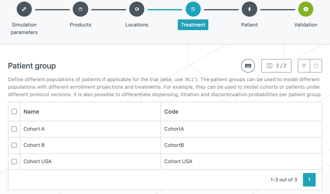
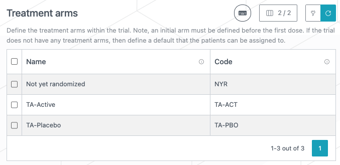
With Supply.2022.7, you are now able to model and analyze the dispensing per patient group as well as drop-out and titrations without using any workaround.
2.1. Modelling in the Trial Master Data
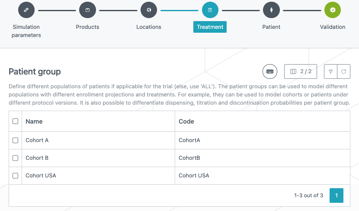
You can now simply model your treatment per patient group without having to create “fake” treatments arms.
Before Supply.2022.7:
With Supply.2022.7:
2.2. Model dispensing and patient evolution probabilities per patient group
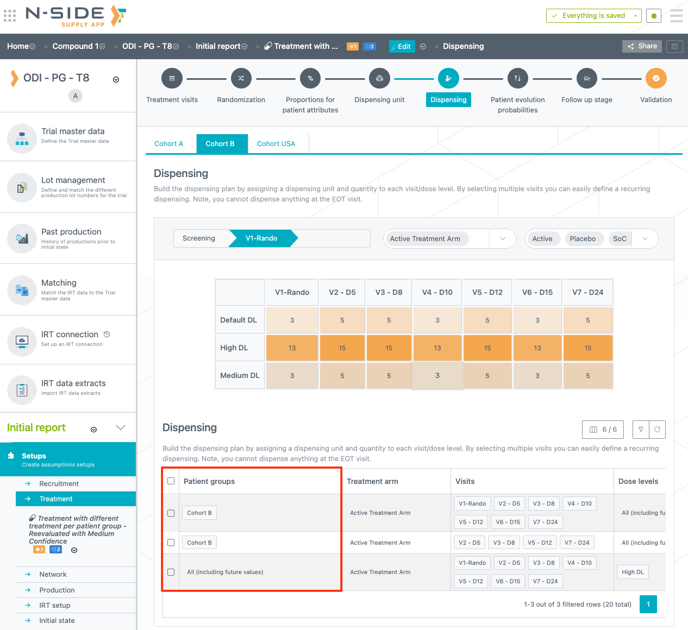
You can now leverage the patient group granularity in the following tables: “Dispensing”, “Titrations”, “Discontinuation probabilities” and “Follow-up dispensing” by using the new patient group column (see screenshot below for example).
📝 Note
-
Existing trials are compatible with these changes.
-
If multiple patient groups are defined in the same row of a table, the reevaluation values will be computed per patient group and split on different rows.
-
It is not possible to model different visit schedules per patient groups.
-
It is not possible to predict transition per patient group through the “Custom prediction” table.
2.3. Gain visibility on dispensing per patient group in the Results dashboard
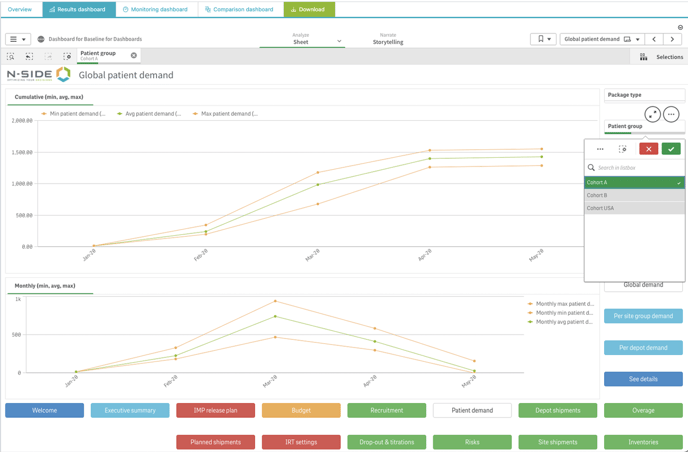
You are now able to analyze the dispensing per patient group in the Results dashboard as well. You can filter each location granularity (global, depot and sites group demand) of the “Patient Demand” view per patient group to check the dispensing per patient group at those different levels.
📝 Note
For trials with patient groups, for results generated prior Supply.2022.7: the “Patient demand” sheet will be empty when filtering on a specific patient group.
The only way to leverage the new reporting granularity is to re-run the associated plan.
3. Create and manage IRT connections more easily
As an IRT Manager, you do not need to manage IRT credentials within trials anymore, e.g., you do not need to go through each trial to update credentials (in case of a password change) anymore.
You can now manage your connection credentials (login & password) in a single place called “IRT credentials” and therefore no longer need to copy those credentials for each connection.
3.1. IRT Credentials
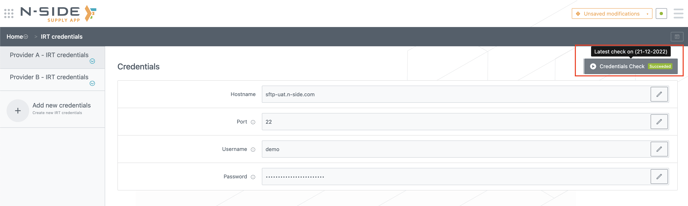
The “IRT credentials” section is accessible from the Home page (see screenshot below) for users with:
-
IRT Manager and IRT Reviewer roles (note that IRT Reviewers have a read-only access).
-
All Access profile.
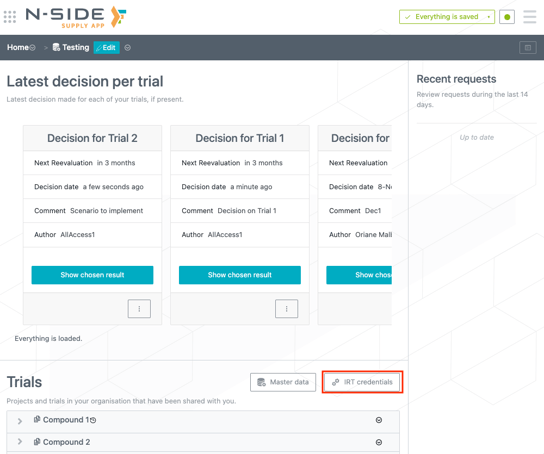
In this section, IRT Managers and All Access users are able to:
-
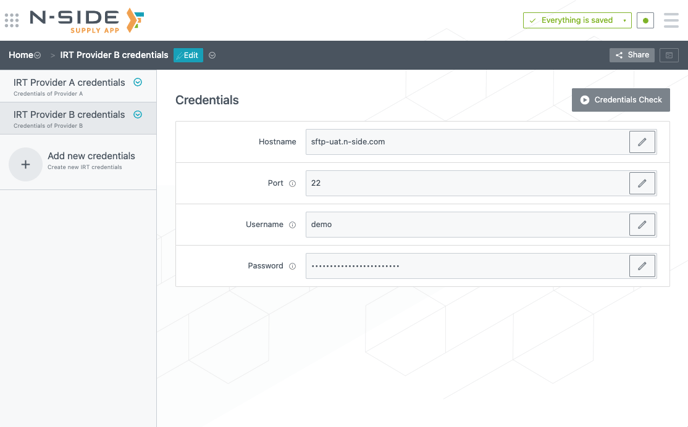
Create new IRT credentials and/or manage existing IRT credentials common to many trials.
-
Directly check the validity of your credentials in a single click.
3.2. Select IRT credentials to set up a trial IRT connection
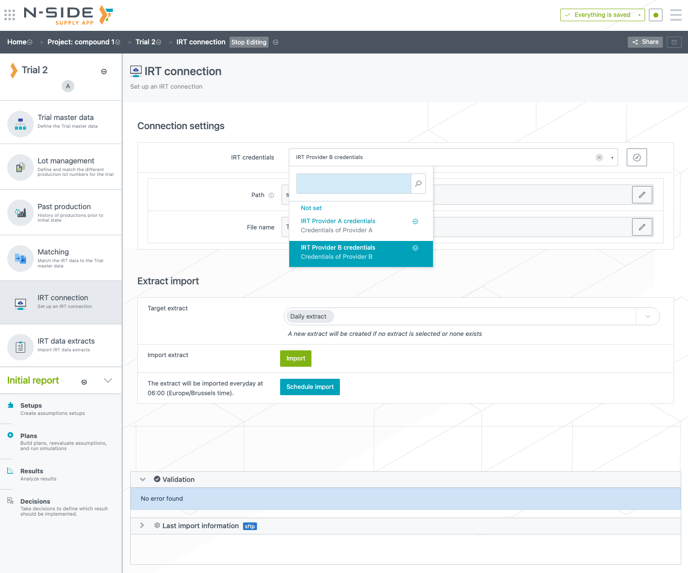
When you have to setup a new IRT connection, you can now simply select the IRT credentials from the drop-down menu (see screenshot below), choosing from the ones already entered.
In addition, the “IRT connection” section was reworked to have all IRT connection settings in one single page.
Note
This update of the IRT connection management does not impact existing connections and scheduled imports.
Existing credentials will be automatically moved to the “IRT credentials” section when transitioning to this new version.
4. Other updates
-
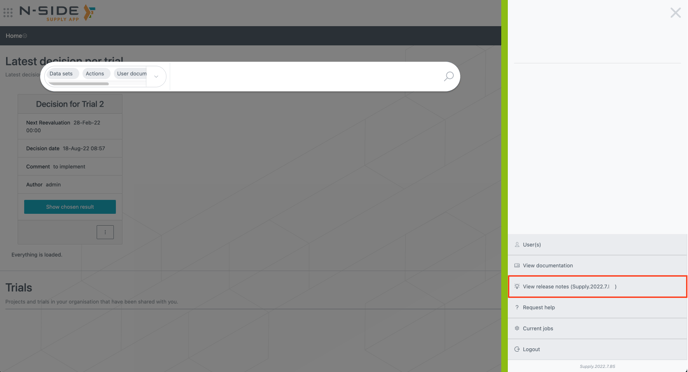
Access the Release notes directly from the side-panel (see screenshot below).
-
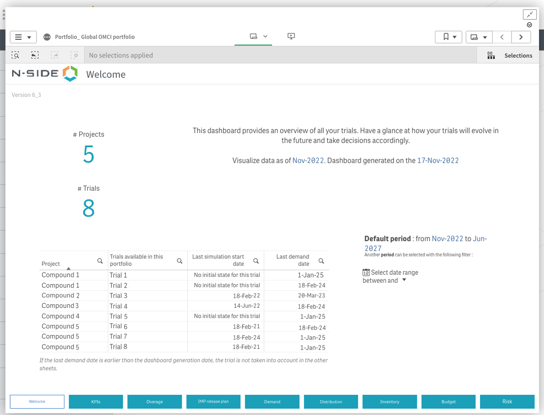
Visualize the number of projects and trials in the “Welcome” sheet of the Strategic dashboard.
-
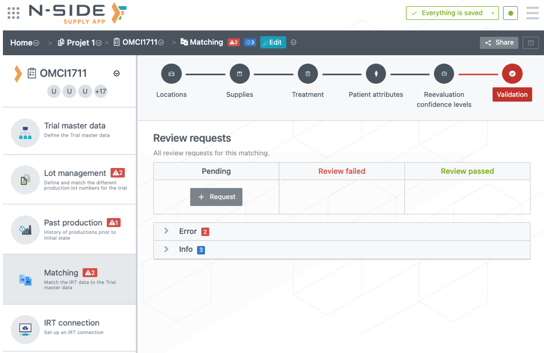
Easily spot errors from the navigation menu for the “Lot management”, “Past production” and “Matching” sections.
-
The “Review requests” feature has been removed from the home page and the following sections: “Matching”, “Plans”, and “Results”.
5. Bug fixes
-
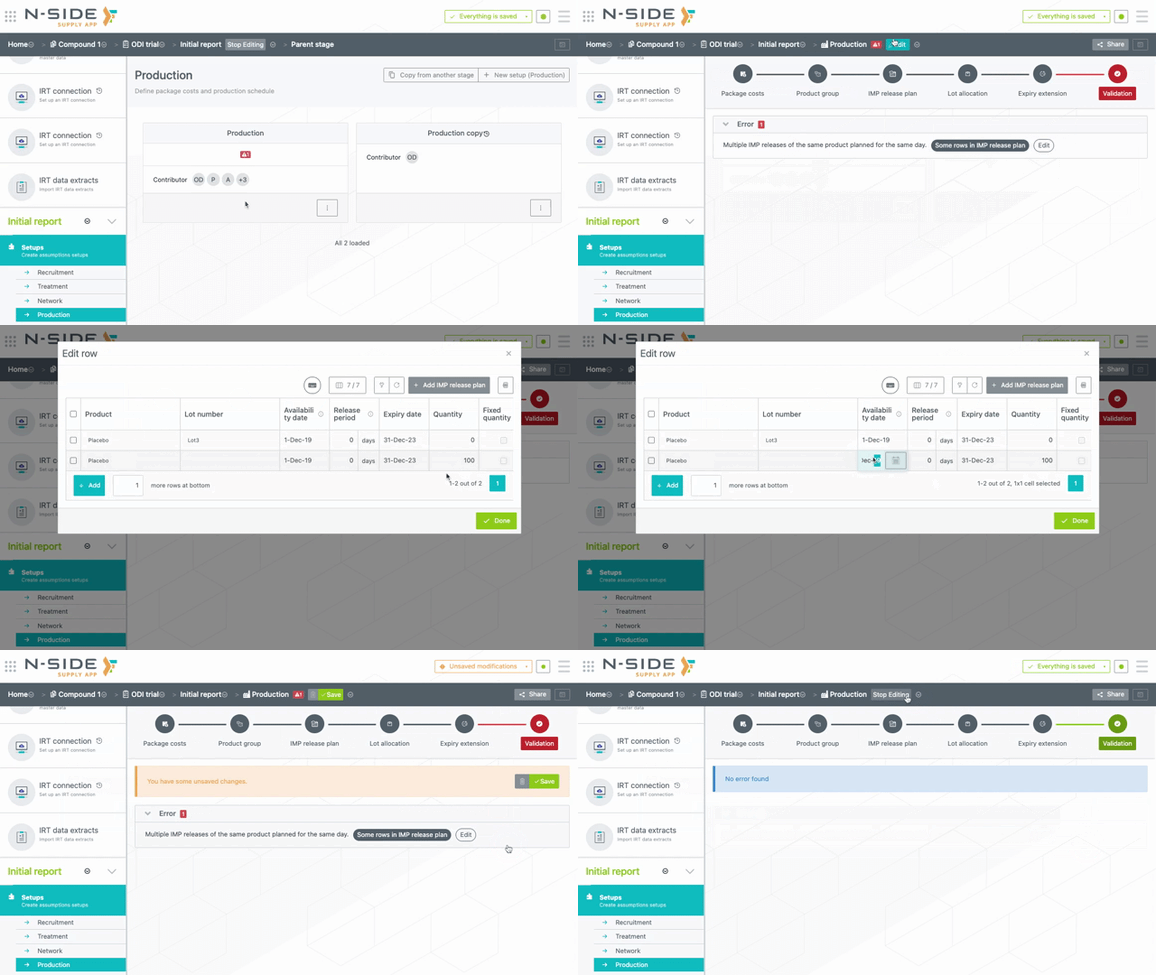
User can now directly edit multiple rows from validation messages (see GIF below).
-
Several issues with the date formatting in the dashboards have been fixed:
-
Strategic dashboard
-
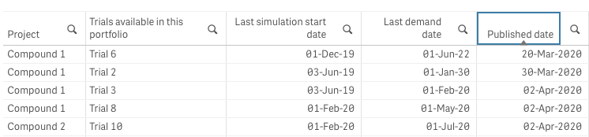
Published dates in the “Welcome” sheet of the Strategic dashboard are now sorted per date and not per number value anymore.
-
Expiry date was expressed as mmm-yyyy or yyyy and is now expressed as expected: dd-mmm-yyyy
-
-
Results dashboard
-
In the “IMP Release Plan” sheet, dates were expressed as mmm-yyyy and are now expressed as expected: dd-mmm-yyyy
-
An explicit message explaining that past productions do not have a release date has been added.
-
Lot numbers such as 1.1 and 1.10 are now differentiated for suggested shipments and the filtering can distinguish both.
-
-
6. User documentation
The following articles are added (or have been modified) to enrich the documentation and help you in your usage of the N-SIDE Supply App: