
Table of contents
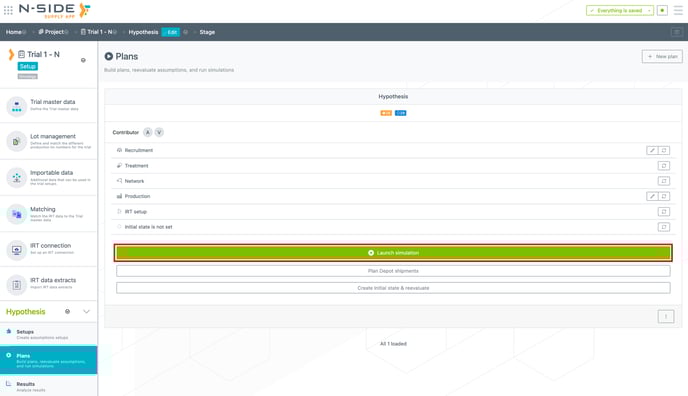
Launching simulations is possible from the plan card:
Or the detailed plan view (accessible by clicking on the plan):
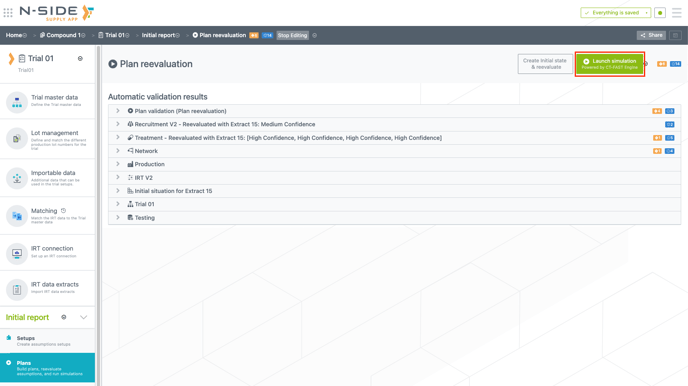
This tab displays a summary of the setups that will be used inside the plan and any  ,
,  or
or  messages associated to these setups.
⚠️ The plan must be error-free to be able to launch simulations.
Simulation parameters
When launching new simulations, you can choose:
-
The name to give to the results.
-
The number of simulations to perform, one number for the patient demand estimation (Number of simulations for patient treatment field) and one number for the supply chain management (Number of simulations for supply and risk management field).
-
The Prediction Window multipliers (PWMs) for both sites and depots, that will be applied to the prediction windows defined in the IRT setup.
-
The level of risk covered by the buffers, called the safety stock confidence level (SSCL) (given by a number between 0 and 100, 100 meaning 100% of the risk).
Multiple sets of PWMs and SSCL can be defined beforehand to run multiple resupply strategies. The results coming from those strategies can be compared in the Results section.
📖 To learn more about simulation parameters and how to use them, read this article: N-SIDE Supply App - Simulation parameters : Details & Good practices
By clicking on Launch simulations, a job is sent to the server and the simulations start running on the cloud. If several jobs are in progress, the new job will be queued until resources are freed.
Results
You can access the simulation results via the trial view, by clicking on the Results section in the sidebar (see image below).
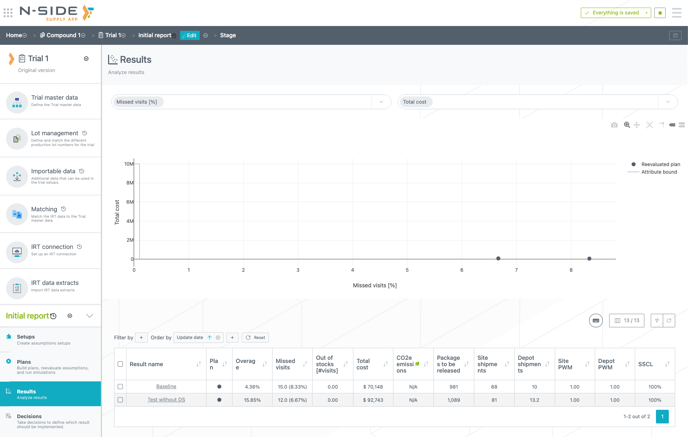
This screen shows all available results for the selected trial, and compares the different strategies via a graph displaying (by default) the remaining total cost of the trial in relation with the percentage of missed visits (see screenshot below). You can change the axis of the graph by using the two drop menus on top of the graph. Available options that can be selected for each axis are the following:
-
Overage
-
Missed visits
-
Missed visits [%]
-
Out of stocks
-
Total cost
-
Packages to be released
-
Site shipments
A specific result is represented by a colored dot and the color matches the plan used to generate the result. If several results come from the same plan, they will have the same color. You can filter this graph by using the legend on the right of the graph. Clicking once on the name of a plan will filter out this plan while clicking twice will isolate it in the graph.
You can see the results of your simulations, and of other users' simulations if you are granted access to them.
You can then dive into the details of the results listed in the view by clicking on the name of the result. You access detailed view where you can access different dashboards, download the Result report and take a new decision for this result (see image below).
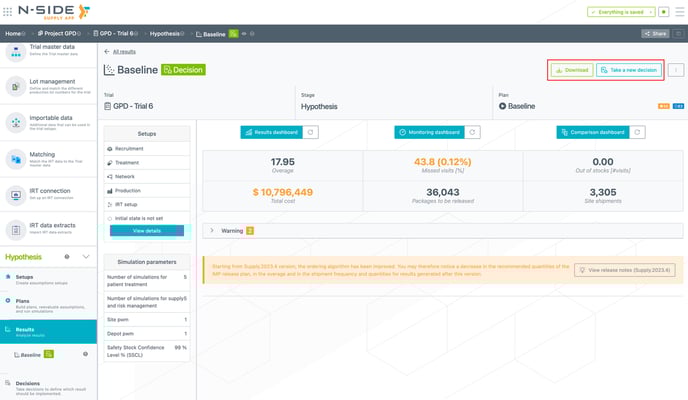
The sidebar provides contextual information regarding the result and the configuration used to generate it.
In the top section, you can see names of the result, the trial and the stage but also the plan that was used to generate the result.
In the middle section, you can see the name of setups used to generate the results.
Finally, the bottom section of the sidebar displays simulation parameters that have been used when launching the corresponding plan: the number of simulations, the risk covered by the buffers (SSCL), and the prediction window multipliers (PWM).
💡 Tip
The sidebar can be reduced/expanded by dragging the double-headed arrow, when hovering over the right extremity of the sidebar.
By clicking on View details, you are redirected to the view of the plan that was used to generate the result. Note that this view is the same as when launching simulations with a new plan. In the sidebar of this view, you can also access all setups that were used to generate the result. This purpose of this view is to access information regarding the setups and the plan that were used to generate the result, even if the plan has been updated since the generation of this specific result.