Table of contents
Proportions for patient attributes
In this tab, you define the distribution ratio between all categories of the different patient attributes, which are shown in the table header.
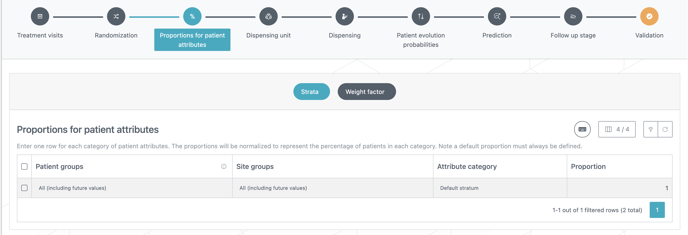
The proportions can be defined per patient group.
❗If the attribute is used for dispensing (i.e. dispensing factor), the proportions can also be defined per country.
However this is not applicable to patient attributes used to impact randomization (i.e. pre-randomization factor) or re-randomization/titrations/skipped visits (i.e. patient evolution factor).
💡 Tip
You do not have to make sure that the total sums up to 1 or 100. If it is not the case, the system will normalize the proportions to get percentages.
Dispensing unit
In the dispensing unit tab, you define the dispensing factor, i.e., the patient attribute impacting the dispensing (“weight factor” is used by default if there is no patient attribute impacting the dispensing) and medication units that will be dispensed to the patients. These units can include multiple package types and the quantity for each package type will be defined with regard to patient attributes. This tab is where you will define any variable dispensing such as weight-based dispensing, BSA-based (body surface area) dispensing, age-based dispensing, etc.
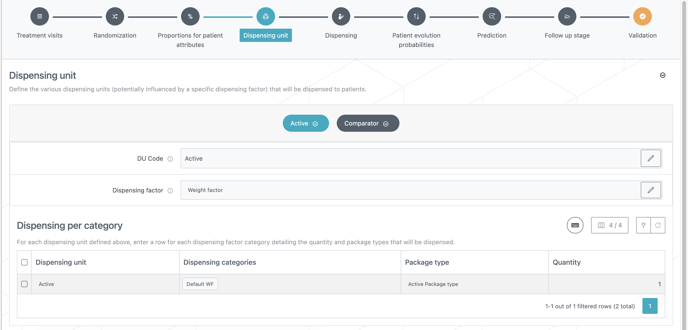
This is not where you should define dispensing that varies according to dose levels, visits or treatment arm. If the dispensing is the same regardless of all patient attributes, then all attributes should be entered in the same row.
❗If the dispensing of the trial is impacted by two or more patient attributes, please combine them as a single dispensing factor that represents them all. Combination of attribute categories should therefore also be defined to correctly model the dispensing. The creation of these combinations of patient attributes and attribute categories must be done in the Patient tab of the Trial Master Data.
📖 For more information on how to use of patient attributes : How to use patient attributes
💡 Tip
Different patient attributes may be used for different dispensing units. For example, it is possible to dispense package type A according to patient weight, and package type B according to patient age.
Dispensing
In the dispensing tab, you enter how many dispensing units (see section above) will be dispensed to patients and when. The data entry is mainly done per patient group, treatment arm and dose level and can be different by visit. To ease the data entry, multi-selection can be used on visits and dose levels if the same dispensing applies to multiple visits or multiple dose levels.
You can also define different dispensing periods (see “Periods” below).
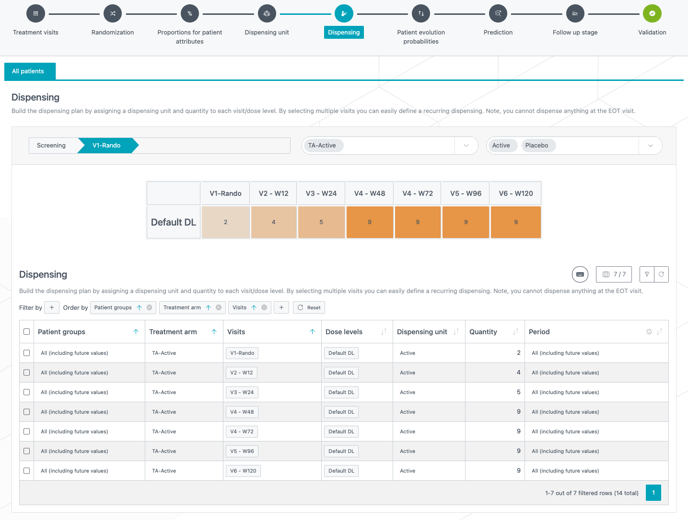
On top of the table, a dispensing graph (see screenshot below) will help you double check that the data entry was done correctly. The graph will show how many dispensing units are dispensed at each visit and on each dose level.
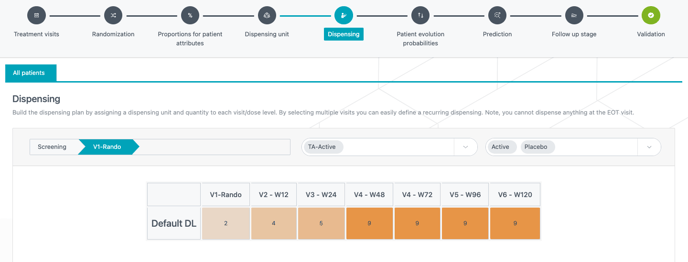
On top of the graph, there are a few filters that help reduce the amount of data that is shown in the table and the graph (the filters apply to both). You can filter on:
-
Patient group (e.g., “All patients” on the image above)
-
Treatment phase (screening and randomization typically).
-
Treatment arm and dispensing unit(s). Multiple dispensing units can be selected at the same time.
-
Dispensing periods, if there are any (otherwise the filter does not appear).
|
The quantities entered will be applied on the dispensing units. If a quantity of 2 "active dispensing unit" is dispensed and an "active dispensing unit" contains 2 kits of active, the patients will be dispensed 4 kits in the simulations. |
Periods
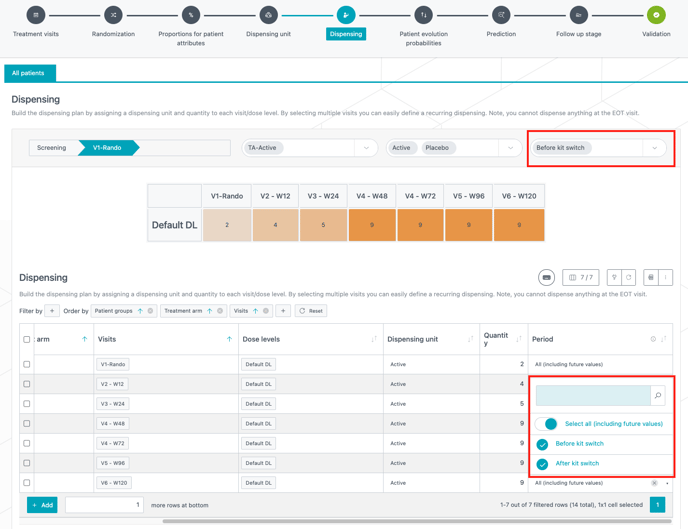
You can define dispensing periods, typically to model a kit switch. You can access the Period section below the Dispensing table (see red frame on the image below).
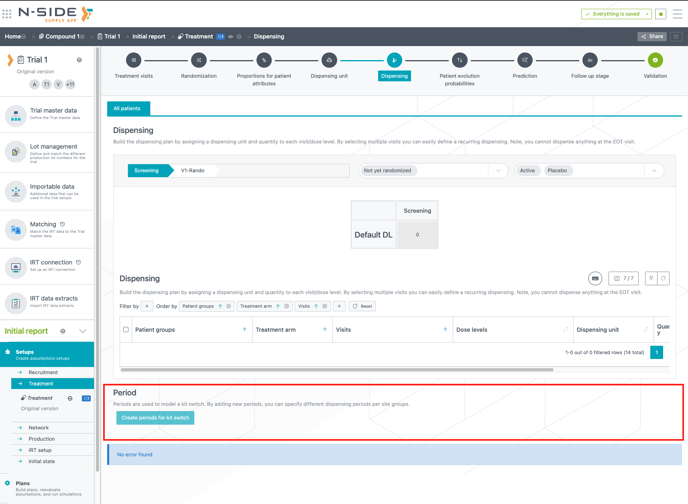
Clicking on Create periods for kit switch automatically creates two periods by default: Before kit switch and After kit switch. However, these default periods can be renamed if needed and you can create as many additional periods as your trial needs.
Once periods are created. You can define switches between periods
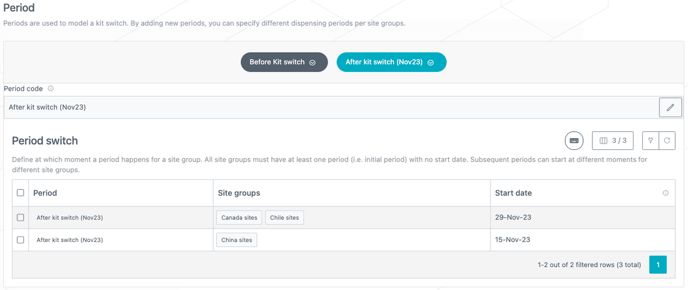
Each period switch (see image below) is defined by a start date that can be applied to one or several site groups. By default, the "before kit switch" period is set for all site groups and its start date is left empty, as this is the initial period starting at the beginning of the trial. However, start dates can differ between site groups. e.g., you can have a start date for Canada and Chile, and a different one for China (see image below).
Once periods are created you can also select them in the Dispensing table or filter on a specific period (see red frames on the image below). This way you can define different dispensing according to those periods with different package types and different quantities.