
Table of contents
In the N-SIDE Suite, plans are the trial models that are used to run simulations and are built by assembling setups. The plans that have been defined are accessible by clicking on the Plans section in the sidebar.
Building a plan
Selecting a setup from the following setup categories: recruitment, treatment, network, production, IRT is necessary to build a plan and be able to run simulations. The initial state setup is optional.
To create a new plan:
-
Click on + NEW PLAN on the top right of the screen.
-
Choose a name for the plan and click on CONFIRM.
-
A window will appear with all the available recruitment setups in the left sidebar. By selecting those setups, you can compare the different recruitments and decide which one to go with by clicking on it. A filter is available to show the recruitment in specific countries if desired. To validate the recruitment choice, you can click on NEXT.
-
The same operation has to be done for all the other setups.
-
Once you are confident with the setup selection, click on CONFIRM CHANGES will bring you to a view of the plan details. Here, you can access the peer validation status (if the plan has been submitted for peer review, accepted or rejected), the validation messages for the whole plan and per setup and the setups from the sidebar.
In the Plans section, you can see all plans that have been defined in the trial, for the selected stage. Only the plans that have been shared with you will be visible.
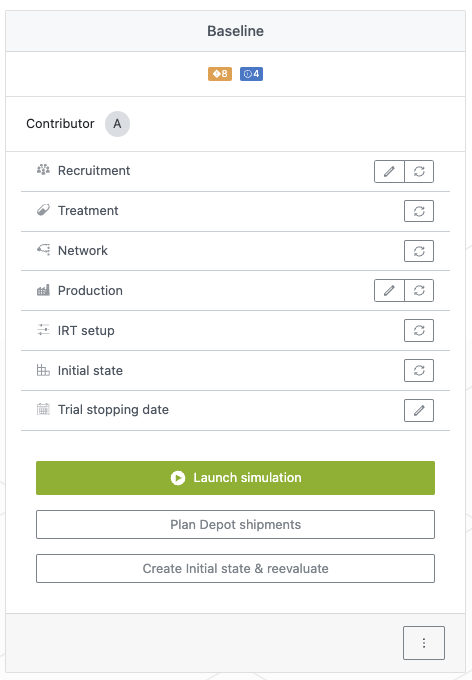
The plan cards contain a multitude of information:
-
The plan name on top.
-
An overview of the plan validation, showing how many infos/warnings/errors there are.
-
The list of contributors and viewers.
-
The list of setups used in the plan.
- The Trial stopping date (optional).
-
A Modify button (see image below) next to all setups, allowing to modify the plan (see next section).
-
A Quick access button (see image below) for the recruitment, production and initial state. For more details, see the quick assumptions update section below.

-
-
A Launch simulation button that allows to directly launch simulation (if the plan does not contain any errors and is up to date).
-
A PLAN DEPOT SHIPMENTS button to quickly access the Depot shipments planning module.
-
A CREATE INITIAL STATE button to adapt the data inside the plan thanks to trial actuals coming from the IRT. See the reevaluation section for more details.
Updating a plan
Updating a plan consists in changing the setups choices. Changing the data should be done inside the setups, from the Setups section. If you want to update the data inside a plan from the Plans section, it is possible but only for part of the setups. This process is detailed in the next section.
Changing the setup to be used inside a plan is done by clicking on the Modify button (see above) of the chosen plan card. This action will open a window showing the selected setup, as well as a list of all the other setups available. From this view, you can select the desired setup as a candidate, and then click on CONFIRM CHANGES.
Quick assumptions update
Sometimes during the course of analysis on a trial or right after, you will receive updated information that you may like to quickly update inside the plan to run new simulations and get updated results quickly.
For such events, you do not need to go through all setups one by one and face the whole volume of data in there. A Quick access button (see above) is available to access the most important and dynamic inputs directly from the Plans section. Both advanced and power users are one click away from:-
The recruitment rates;
-
The production schedule;
-
The forced shipments from the initial state.
This allows you to quickly get new results when receiving recruitment updates, production constraints or delays or depot shipment updates.
-