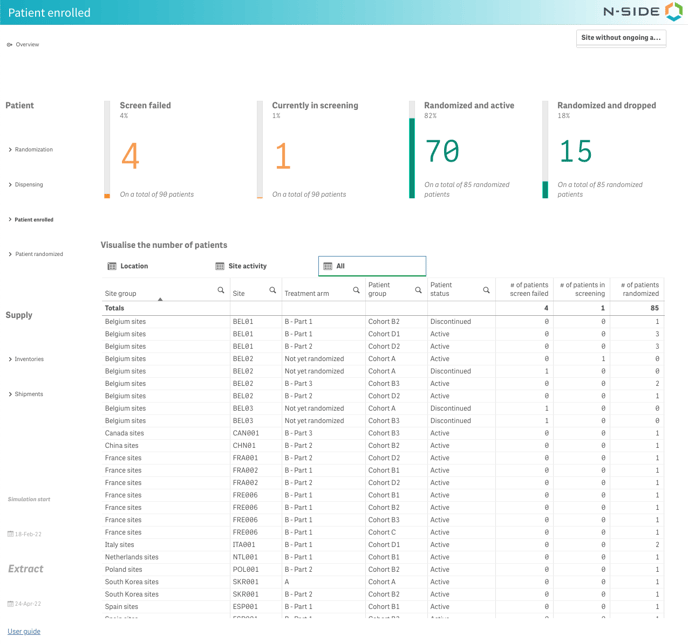
With this view, you can access several information about screened patients.
First, you find the same KPIs that are displayed on the overview: number of patients screen failed, in screening, randomized and active and randomized and dropped, at the date of the extract, as well as their corresponding percentage (compared to the respective total number of patients).
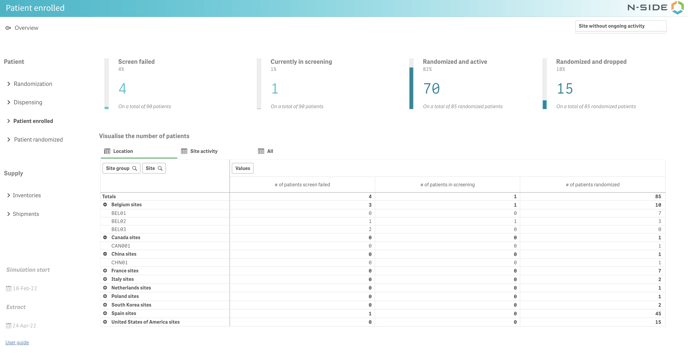
In the table below, you can visualize the number of patients through different dimensions.
With the Location tab, you can visualize the repartition of screened patients across all site groups and their associated sites, meaning that you can visualize the number of patients screen failed/in screening/randomized for each site group and site.
With the Site activity tab, you have a breakdown of the main 4 KPIs per site as well as the information on site activity. You can also filter this site activity with the filter at the top right corner of the window (see image below).
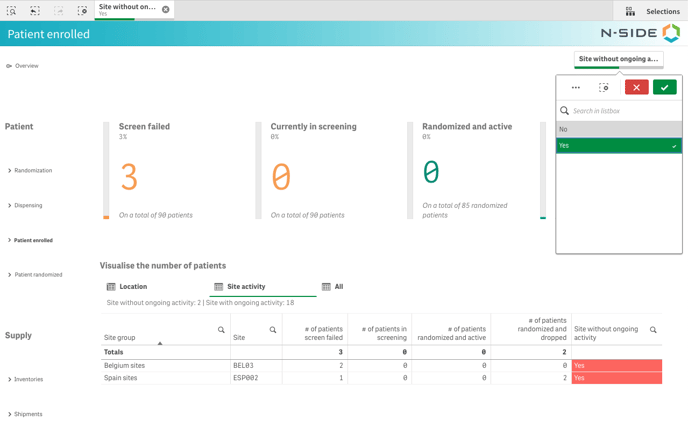
ℹ️ A site without ongoing activity is a site that is observed as actively enrolling patients and where there is currently no active patient (in screening or randomized).
💡Tip
This site activity information is particularly useful in case the randomization period is over as you can identify where to stop sending buffer kits.
With the All tab, you can visualize the number of patients screen failed, in screening and randomized per site, treatment arm and patient group.