
There are two main views in the Supply plan sheet: quantities to be released and quantities in stock.
Quantities to be released
This view provides information on past and future releases. At the top, the bar chart displays quantities (to be) released per release date and per product. At the bottom, a table presents the details about those releases by providing information about the availability/release date, the expiry date, the lot number and whether the quantity was fixed or optimized or if it is from a past production. Note that past productions are highlighted by light shaded and transparent colors.
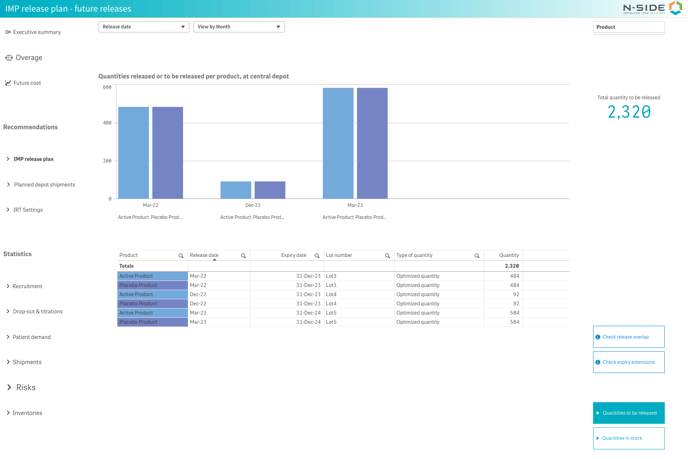
You can choose to display the data by availability at central depot or release date and by year, quarter, month or date with the two top drop-down menus respectively. You can also see the total number of products to be released beside the bar chart. Note that this number adapts according to the selections you make in filters and in the table.
Check release overlap
In this view, you can see a Gantt chart displaying the time between the availability date (or the release date) and the expiry date of each future release. The length of each bar represents the shelf-life of the lot that will be released. Therefore, you can easily see and analyze overlaps between releases of a same product.
|
This will help to evaluate if expiry replacements can be done in time, as a short overlap between releases could lead to risk. |
When hovering on a bar of the Gantt chart, you can see two dates which are the availability date (first one) and the expiry date, as well as the duration of the shelf-life (expiry date - availability date). you can filter this view per product, label group and/or availability date.
|
Common use:
|
Definitions and data meaning:
The definitions for some of the values/concepts used in this sheet are as follows:
-
Product: group of kits within a package type with a specific label group.
-
Availability date: date at which the release is available for shipping from central depot.
-
Release date: the release date is the availability date minus the release period
Quantities in stock
This view provides information on packages types quantities that are in stock at depots and sites. Note that these quantities come from the site and depot inventories of the initial state setup. At the top, the bar chart displays the quantities in stock per location (depot or site groups) with a split per package type. At the bottom, a table presents the details about those quantities by providing information about the location, the expiry date and the lot number.
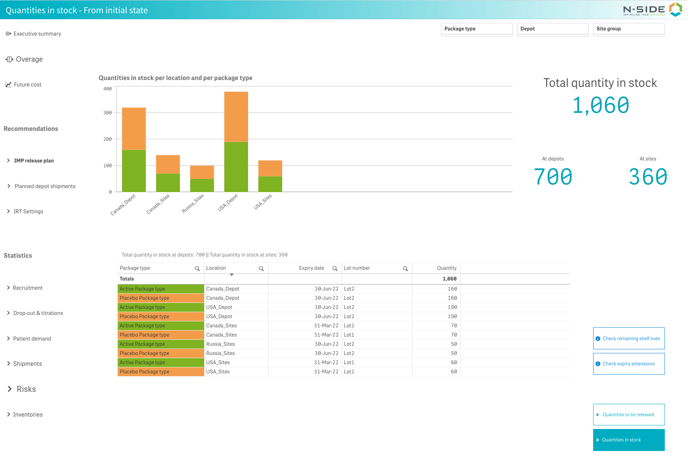
You can filter the view per site group, depots and per package type. Beside the bar chart, you can also see the total quantity in stock and also a split of this quantity between depots and sites. Note that this number adapts according to the selections you make in filters and in the table.
Check remaining shelf-lives
In this view, you can see a Gantt chart displaying the time between the simulation start date and the expiry date of each lot currently in stock. The length of each bar represents the remaining shelf-life of the lot.
|
This will help you plan for next releases in order to keep a long enough overlap between expiry dates for each product. |
When hovering over a bar of the Gantt chart, you can see two dates which are the simulation start date (first one) and the expiry date, as well as the duration of the remaining shelf-life (expiry date - simulation start date). you can filter this view per package type.
|
Common use:
|
Check expiry extensions
With this view, you can visualize your expiry extensions and analyze their feasibility.
The chart above displays the relabelling periods (start date to end date) as horizontal bars.
The table below can be used to analyze the feasibility of the expiry extensions by comparing the requested quantities you want to relabel with the forecasted quantities.
|
Attention point This table does not give information on the risk the expiry extensions could raise. Before analyzing the feasibility of the extension campaigns, we strongly recommend you to first drive a risk analysis (Risks sheet) and analyse if the expiry extension is risk-free or if it created some additional risk spikes. |
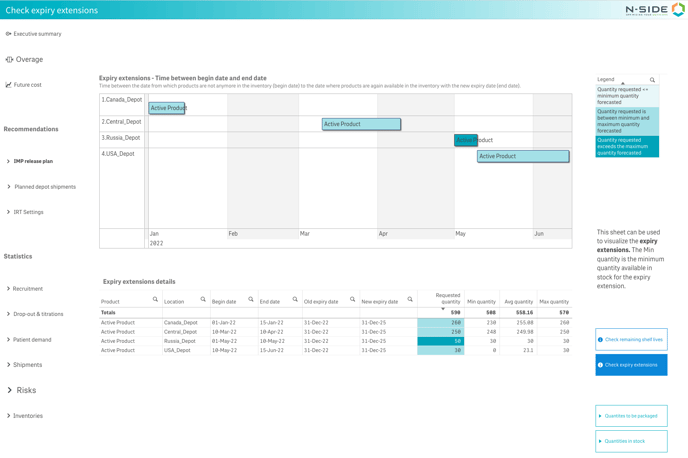
Forecasted quantities (Min, Avg, Max) are outputs of the simulations. They provide information on how many kits were relabeled during the simulations.
Requested quantities are inputs used in the simulation (i,e,. quantities you entered in the Expiry extension table). The color legend helps to understand the outputs quantities.
|
Color legend |
Meaning of the simulation outputs |
|---|---|
|
 |
The requested quantity has been relabeled because there are always enough kits in stock. In each simulation, there are more kits in stock than the number of kits requested. |
|
 |
Not always enough kits in stock to relabel the requested quantities. In some simulations, there are more kits in stock than the number of kits requested. |
|
 |
All kits in stock were relabeled but never reached the requested quantities. In each simulation, there are less kits in stock than the number of kits requested. |
|
With this view, users will be able to:
|