Table of contents
Where can you find it ?
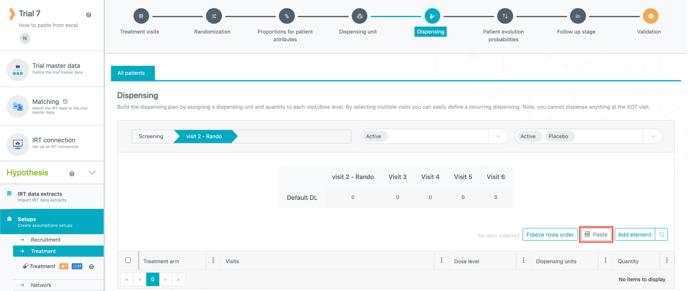
The Paste action is available on all tables through out the N-SIDE Suite on the top right corner, next to all other edition actions.
How can you use it ?
-
Click Paste on the top right corner of any table in The Suite.
-
This will open a new window where you’ll be able to paste your data.
-
-
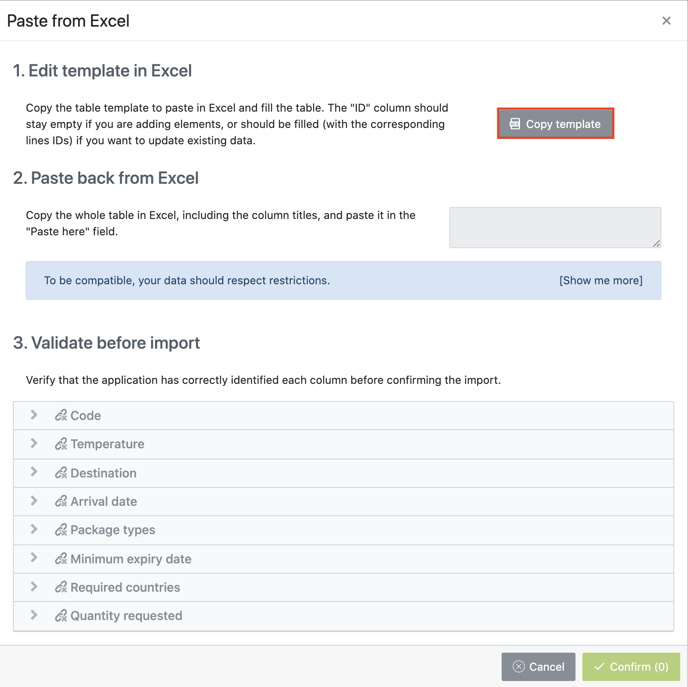
Click Copy Template to make the system copy the Excel template in your clipboard.
-
The template contains all columns for the table you are about to fill, including the Id column which is hidden by default in The Suite.
-
You can also have access to this template when exporting the tables’s data set to Excel.
-
-
Open a new Excel sheet and paste the template.
-
Enter new rows in the table following the right format for each column.
-
Select and copy all rows and columns, headers included.
-
Paste the template in the empty field in the Paste back from Excel section.
-
Validate that all your pasted entries are valid.
-
Check for warnings in each collapsible section of Validate before import.
-
For each column, you can define a default entry for all invalid or optional entries if required.
-
Verify that the total number of entries is aligned with your expectation in the Confirm button on the lower right corner.
-
-
Click Confirm to create or update the pasted rows and finalise your process.
If you encounter issues when trying to solve warning messages, please contact the Service Desk for support.
What is the right format for each column ?
The system accepts that you paste the name or the code for any entry excepts for visits where you can only paste the name. Depending on the entry, you will find the code or the name source location in the Master data or in the Trial master data (see table below).
❗Important information
-
Names and codes are space/case sensitive.
-
Only . is supported for decimals.
💡 Tip
- If several references have to be entered for the same entry, use commas between references but without spaces after commas. For example : Visit 2,Visit 3,Visit 4.
Here are the valid paste formats that are accepted by the system:
|
Entry |
Valid paste format |
Code/Name source location |
|---|---|---|
|
Date |
DD-MMM-YY (e.g. 1-Jan-21) |
|
|
Depot |
Code/Name |
Master Data |
|
Temperature type |
Code/Name |
Master Data |
|
Site group/country |
Code/Name |
Master Data |
|
Attribute category |
Code/Name |
Trial Master Data |
|
Dose level |
Code/Name |
Trial Master Data |
|
Label group |
Code/Name |
Trial Master Data |
|
Lot number |
Code/Name |
Trial Master Data |
|
Package type |
Code/Name |
Trial Master Data |
|
Patient group |
Code/Name |
Trial Master Data |
|
Product |
Code/Name |
Trial Master Data |
|
Treatment arm |
Code/Name |
Trial Master Data |
|
Visit |
Name |
Trial Master Data |
Special case : Id
The Id column will be used to update an existent row when pasting data, when left empty a new row will be created in your table. This functionality is better leveraged after exporting a data set to Excel, in this case you’ll have access to the existent rows and their Ids.
Practical example
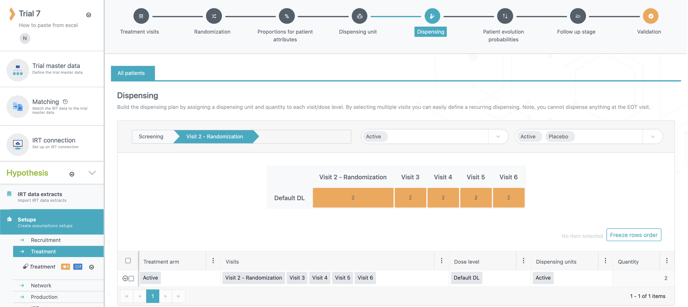
We will take a simple example where we want to paste the Dispensing table in the Treatment Setup.
The dispensing is as follows :
|
Visits |
|
|---|---|
|
Treatment Arms |
|
|
Package Types |
|
|
Dispensing |
|
1. Go to the Dispensing tab of the Treatment Setup.
2. Click on the Paste button on the right above the table (see image below).
3. Click Copy Template in the new window.
4. Paste the template into an Excel file.

The template contains all columns of the table, let’s have a look at the valid paste formats tables above to see which format we have to use for each entry:
-
Treatment arm: code/name
-
Visits: we want to paste this information into the Dispensing table so we have to use the name of the visits.
-
Dose level: code/name
-
Dispensing units are created only in the Dispensing unit tab, therefore we can only use their name (Active and Placebo in this case).
In our example, we have the names of the entries in the Dispensing tab. However, in cases where you are not sure of the code/name of the entry, you can refer to the valid paste formats tables (see above) to find where the information is located (Master Data or Trial Master Data).
As the table you want to fill in in the system is empty you should leave the Id column blank.
5. Fill in data for the new rows to be created. Once filled in, the template should look like this:

6. Select all rows and columns with headers and copy it.
7. Paste the copied content in the empty field in the Paste back from Excel section.
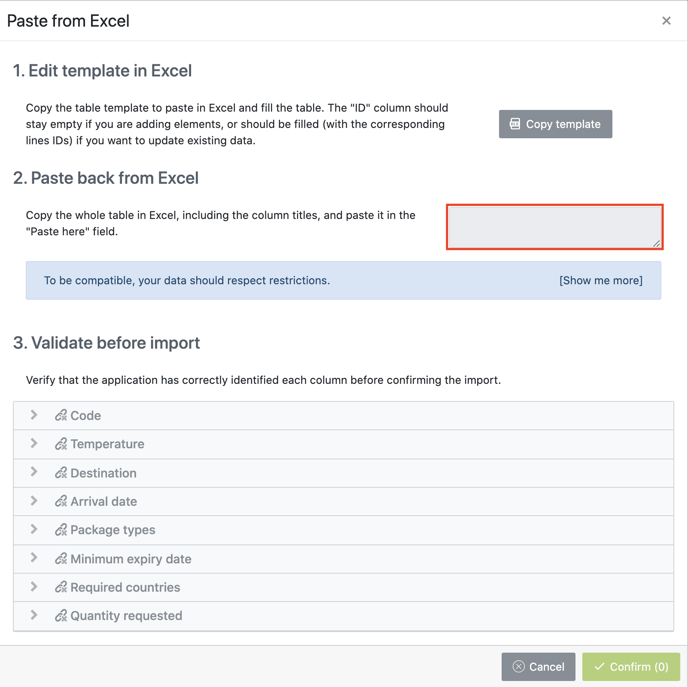
Pay attention that nothing will appear in the field after pasting the template. However, you can check that the paste worked correctly as numbers will be showcased on the green confirmation button.
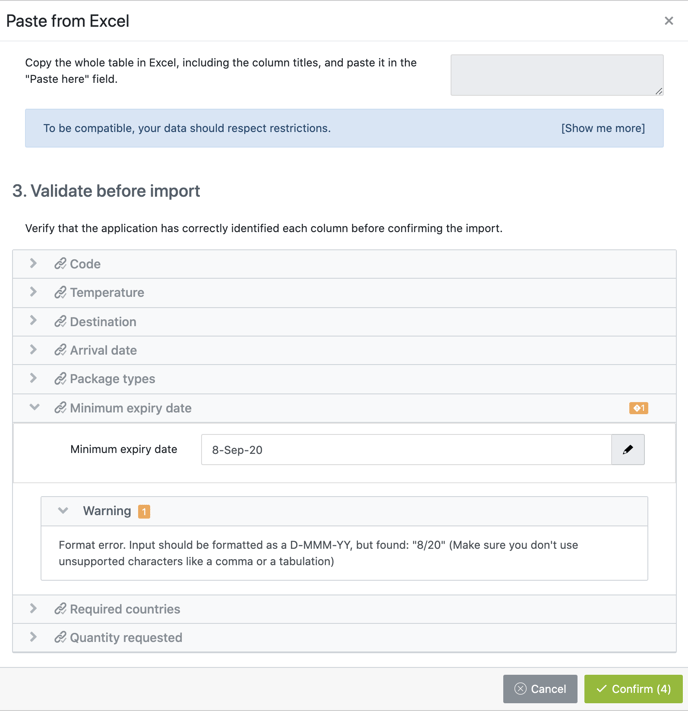
8. Validate your pasted content.
If a warning message should appear you can find the description of the issue by clicking on it.
9. Click Confirm to create the rows and visualise your changes.
This will fill the Dispensing table with the rows you just pasted.