
Prerequisite
-
Please read this article on the use of the Depot shipments planning module: N-SIDE Supply App - Depot shipments planning
-
You need to have a plan for which you have run simulations without any data entered in the depot shipments planning module (exceptions are planned shipments that are already fixed and cannot be changed).
The depot shipments planning module allows you to use two processes to plan your depot shipments :
-
Request the system to provide optimal depot shipments recommendations.
-
Manually input planned shipments.
For this article, we will describe both processes separately for ease of clarity but they can be used simultaneously for the same depot shipments schedule.
Process 1 : Optimal depot shipments recommendations
The goal of this process is to let the system provide you with shipment recommendations for shipments that you can optimize and that are not already constrained or ongoing. Specifically, the system will provide recommendations for lots (based on their expiry date) and quantities exclusively from inventories that are located upstream to supplied depots.
Step 1 : Import shipments to be optimized
You can import shipments to be optimized by first clicking the Import shipments to be optimized button (red arrow on the screenshot below).

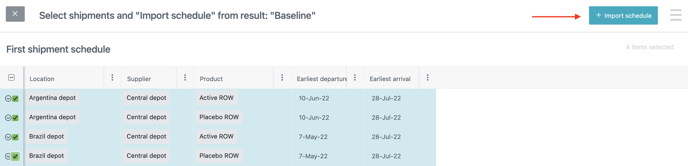
In the side panel, you can choose the shipments you want to import and then click + IMPORT SCHEDULE (red arrow on the screenshot below). Let’s select and import shipments to Argentina and Brazil for both package types (active and placebo) (see screenshot below).
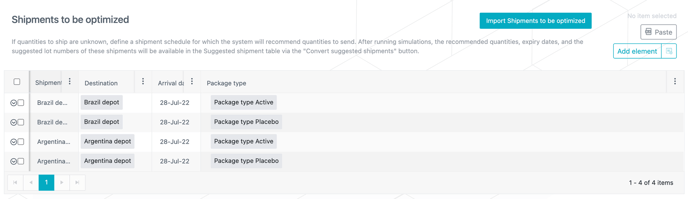
The selected shipments are now displayed in the Shipments to be optimized table (see screenshot below).
Step 2: Define a frozen period
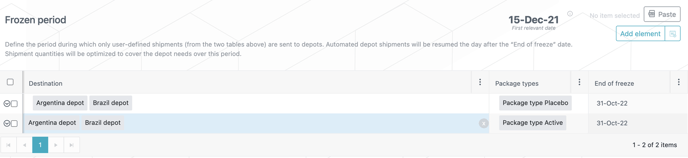
After that, we can define a frozen period that will be defined as the period of time we want to cover the demand for with these shipments.
As a reminder, during the frozen period, the system will only send “planned shipments”. Automated shipments computed and triggered by the system will be sent again the day after the end of the frozen period.
For our example, let’s take a period of approximately 3 months and set the end of the freeze date at the 31-Oct-22 for both depots and both package types (see screenshot below).
Step 3: Receive and analyze shipment recommendations
The third step is to run simulations for the plan again in order to receive shipment recommendations from the system.
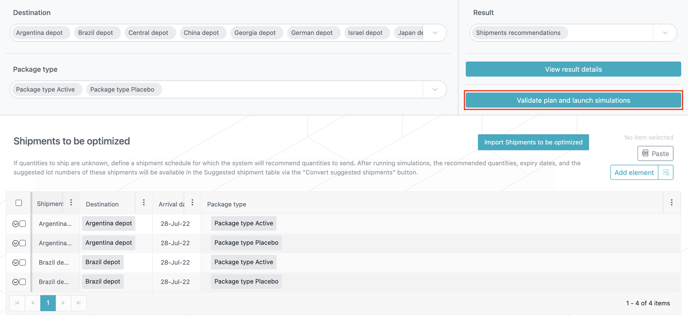
To launch simulations, click on the Validate plan and launch simulations button, accessible in the top right corner of the Depot shipments planning tab (red frame on the screenshot below).
Once the plan has run, you can visualize the shipment recommendations in the Suggested shipments table, accessible through the Convert suggested shipments button (red arrow on the screenshot below).

Let’s analyze the suggested shipments and let’s take the shipment to the Argentina depot and the active package type (red frame on the screenshot below) for example .
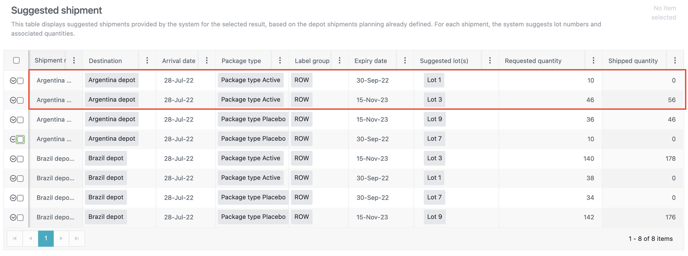
We see that the system provides us with two lines:
-
First line:
-
Expiry date = 30-Sep-22 (Lot 1)
-
Requested quantity = 10
-
Shipped quantity = 0.
-
-
Second line:
-
Expiry date = 15-Nov-23 (Lot 3)
-
Requested quantity = 46
-
Shipped quantity = 56.
-
What can we observe?
-
The expiry dates (and lots) are different between lines.
-
The total requested quantity (10+46) = total shipped quantity = 56 kits.
-
If we look at the other shipments in the table, the same pattern can be observed.
What does it mean?
In this case, this could mean that the kits sent with a 30-Sep-22 (Lot 1) are requested, as they are part of today’s inventory, but will not be sent because they will not be available anymore by the time the shipment is actually sent. Therefore, the system sends kits with a longer expiry (15-Nov-23) instead.
What lines should you select and convert into planned shipments?
In this example, as the total requested and shipped quantity are the same, we can choose “shipped quantity” as conversion criteria (red frame on the screenshot below) and select the lines with the larger number in the Shipped quantity column (see screenshot below).
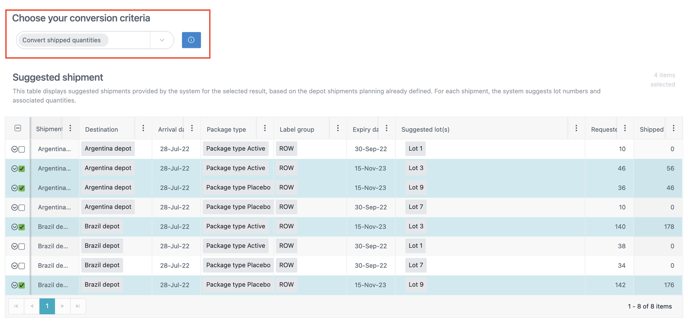
Step 4: Convert recommendations to create final planned shipments
We can then proceed with the recommendations and convert them into planned shipments.
To do that, once you selected the shipments, click CONVERT RECOMMENDATION(S) (red arrow on the screenshot below).
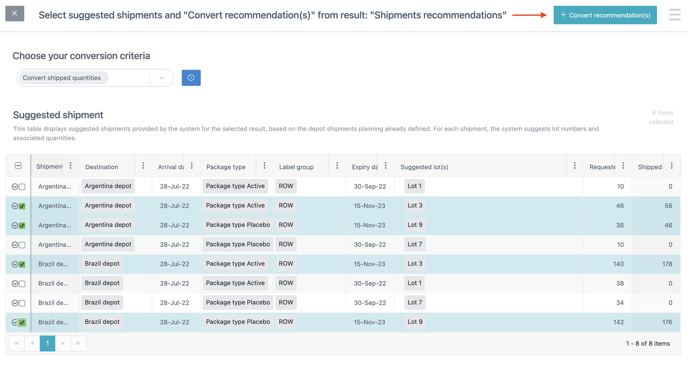
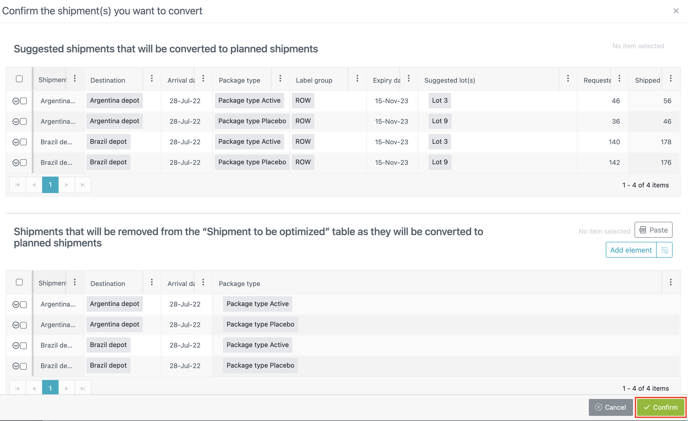
By clicking on it, a new window will open where you will see the planned shipments that will be created as well as the shipments to be optimized that will be removed.
Click CONFIRM (red frame on the screenshot below).
The Planned shipments table has now been filled with the shipments that you converted (see screenshot below).
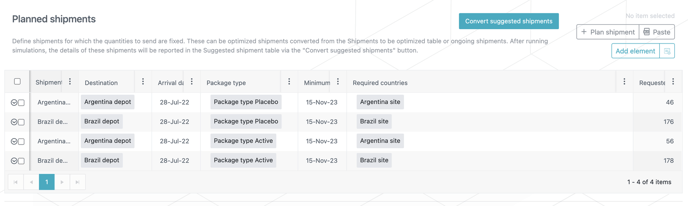
You can then run the plan again with these final planned shipments. After running simulations, you can visualize planned shipments information in the Results dashboard, under the Planned shipments sheet (Results dashboard - Planned shipments ).
Process 2 : Manual input of planned shipments
This process allows you to enter planned shipments information manually. It is recommended to use this option if you have shipments that you cannot optimize or that are already fixed by constraints.
You can manually create planned shipments by two ways: with the ADD ELEMENT button or by using the PLAN SHIPMENT helper, if you want to visualize lot number information while entering the shipment requirements (red frames on the screenshot below).
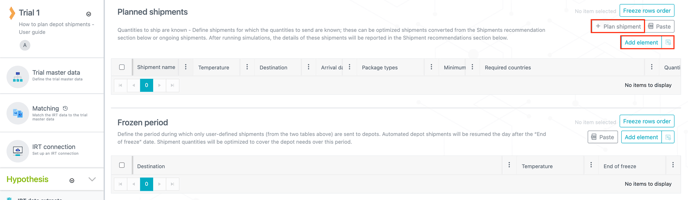
Option 1 : ADD ELEMENT
Click on the button and a row will be created in the table below. Fill in the fields with the shipment information by making sure that you use information related to a lot that is available for shipping. However simple this option seems to be, it can become tiresome if you have a lot of shipments to enter and mistakes can easily happen.
Option 2 : PLAN SHIPMENT helper
If you want to make sure that you use lots that are available for shipping and would like to check whether these lots fit your shipment requirements, we strongly suggest you to use the PLAN SHIPMENT helper.
Clicking on this helper will open a new window where you will be able to define a shipment based on information that you will provide (shipment name, temperature, destination and arrival date) and on information provided by the system (i.e. available lots)(see screenshot below).
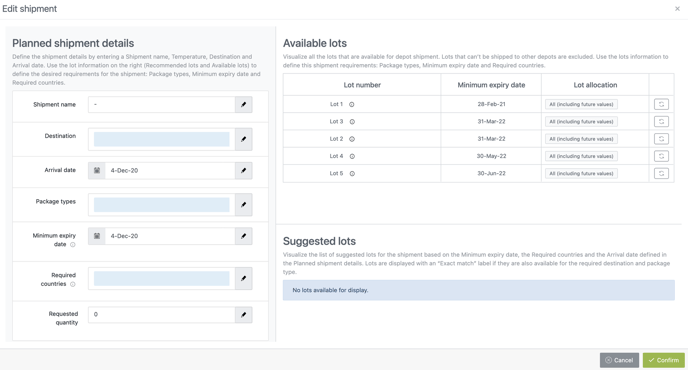
Let’s plan the following shipments:
|
Shipment name |
Package type |
Arrival date |
Requested quantity |
|---|---|---|---|
|
CHN_1 |
Active |
16-Sep-20 |
270 |
|
CHN_2 |
Placebo |
15-Mars-21 |
230 |
The first step is to fill in the first 3 fields (starting from the top) of the Planned shipment details :
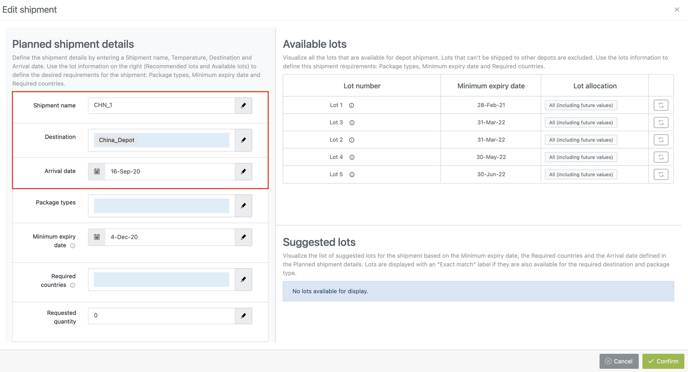
The second step is to use the Available lots to visualize lot information and fill in the remaining shipment requirements : package types, minimum expiry date and the required countries.
The required countries represent a constraint on the lots that can be used for a shipment and is linked to the lot allocation: to satisfy a shipment, the required countries must be part of the lot allocation.
Clicking on the next to the name of the lot will make a small window appear with some useful information :
-
The package type(s) associated with the lot
-
The possible destination(s) with their associated minimum arrival date(s).
Clicking on Lot 1 allows us to see that this lot includes active and placebo and can be shipped to China depot. Moreover, our arrival date (16-Sep-20) is after the minimum arrival date (9-Aug-20) (red frame on the screenshot below).
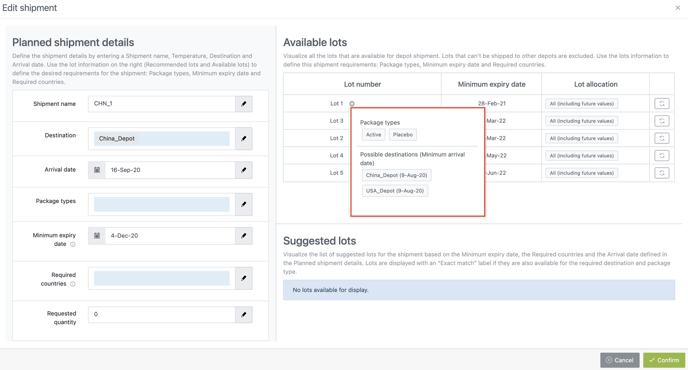
Clicking on the “double arrows” icon in the far right column of the table will automatically fill in the remaining shipment requirements in the Planned shipment details fields with the corresponding lot information.
As Lot 1 seems to fit the package types and arrival date requirements, let’s click on the icon on the right. You can see in the screenshot below that package types, expiry date and required countries have been automatically filled in and that the Lot 1 has appeared in the Suggested lots.
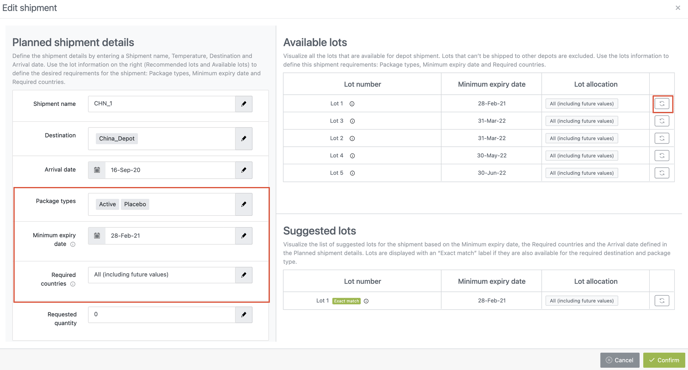
Moreover, the Lot 1 is labeled EXACT MATCH in the Suggested lots. This means that the Lot 1 matches all shipment requirements : destination, arrival date, package types, minimum expiry date and required countries. However, as the Lot 1 includes both package types we will have to remove the placebo from the selection.
If we try to fill in the same fields with the Lot 2, the Lot 2 will not appear in the Suggested lots as this lot is a future production and will be available on 1-Oct-20, after the arrival date of the shipment (see screenshot below).
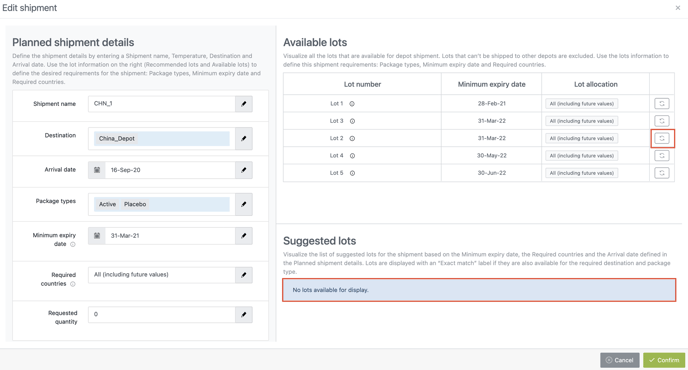
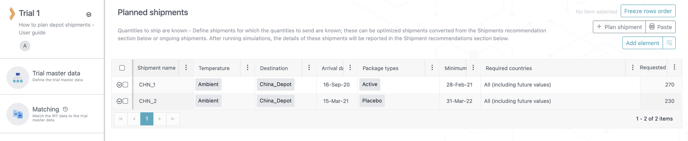
As the Lot 1 is an exact match for your shipment requirements, you can enter the quantity of kits requested and then click on CONFIRM. The planned shipment is now created in the Planned shipments table (see screenshot below).

Let’s do the same for the second shipment. Once we filled in the first 3 fields of the Planned shipment details, we can try to fill in the remaining requirements with the Lot 2 or the Lot 3 as the Lot 1 will have expired when the shipment will arrive at the Chinese depot.
By clicking on the "i" icon of the Lot 2, we can directly see that this lot only includes active (red frame on the screenshot below). As we want to send placebo with this second shipment, we will not use this lot.
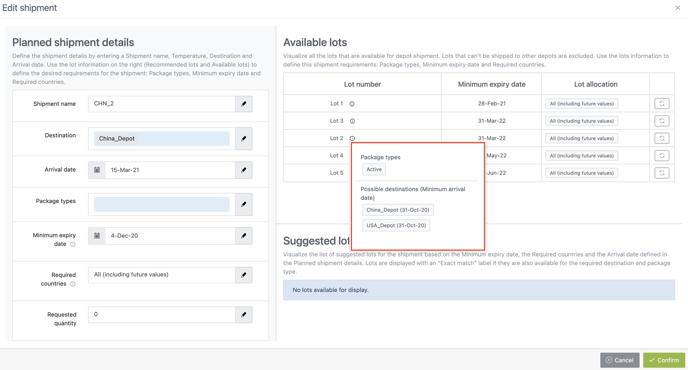
By doing the same for Lot 3, we can see that this lot includes only placebo and that it can be shipped to China with a minimal arrival date before our arrival date (15-Mar-21) (red frame on the screenshot below).
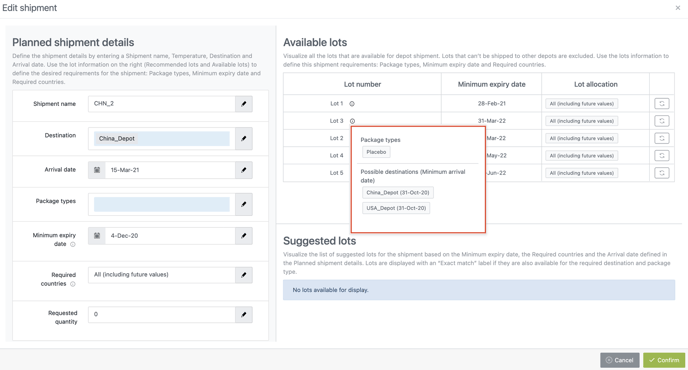
By clicking on the Lot 3 “double-arrow” icon, we can see that the Lot 3 is labeled EXACT MATCH. The Lot 2 is also suggested but is not an exact match as it includes only active. We can therefore use Lot 3 for this shipment (red frame on the screenshot below).
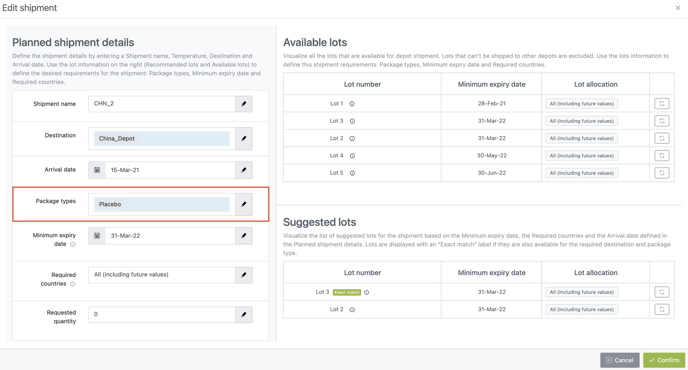
We can therefore add the requested quantity and then click on CONFIRM to create our second planned shipment (see screenshot below).
Specific case : Partial shipments
We saw in our example above a situation where we have enough kits in stock to cover the patient demand over the chosen frozen period. But what happens if we have less kits for one lot?
We can skip step 1 and step 2 as they will be identical to the example described in Process 1 (see above).
The third step is to run simulations for the plan again in order to receive shipment recommendations from the system. These recommendations are displayed in the Suggested shipments table, accessible via the Convert suggested shipments button.
In this example, we can see that the system recommends us the following quantities for the shipments:
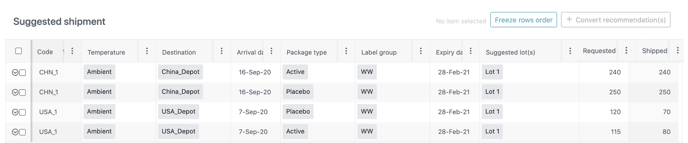
We can see that the system is able to send all kits that are requested for the CHN_1 shipment but not for the USA_1 shipment. If we take a look at the quantities shipped, we can compute that their total equals the total number of kits of the Lot 1 that we actually have in stock at the central depot: 320 kits of placebo and 320 kits of active.
The Chinese depot demand comes before the US depot as the lead time to China is longer, therefore the system can fulfil the demand for the Chinese depot but not for the US depot (quantities shipped are lower than the quantities requested).
These unfulfilled shipment are called partial shipments. These partial shipments are similar to those happening at sites, but here, they are between depots. To analyze them, go to the Results dashboard and the Planned shipments sheet. You can see at the bottom right that two views are available for this sheet. Click on the Shipment fulfilment view to access the required information (see screenshot below).
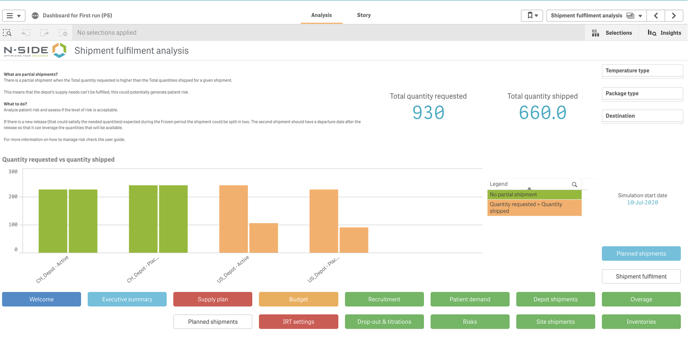
As stated in this dashboard view, these partial shipments can generate patient risk so it’s crucial that we assess if this is the case.
To do that, go to the Risks sheet.
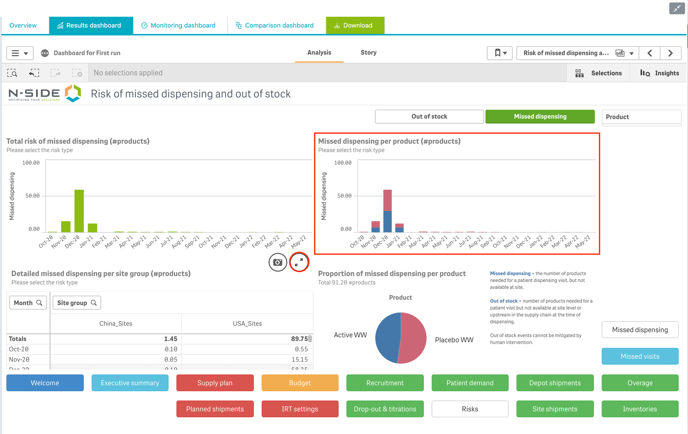
We can see that a lot of missed dispensing risk is displayed for November, December and January (i.e. during and after the frozen period) and we can see that this risk is split almost evenly between active and placebo package types (cf. pie chart) (see screenshot below).
Let’s expand the table at the bottom left to have more details on where this risk is happening. We can easily see that the risk is almost exclusively situated in the USA (see screenshot below).
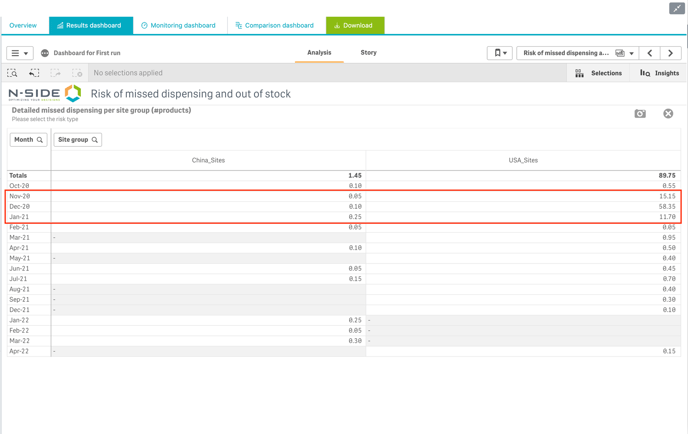
This seems to be quite logical as the system could not send enough kits to the US depot. As this risk is quite significant, we will try to mitigate it.
Contrary to shipments where requested quantity = shipped quantity, with partial shipments, you should not convert shipped quantity as this would will result in creating planned shipments with wrong quantities to send.
You could convert the requested quantity but this would not change the fact that the depot supply needs will not be satisfied.
We therefore strongly recommend to try to mitigate the risk as described below (if possible).
In our trial, we have productions of active (Lot 2) and placebo (Lot 3) that will be available on 1-Oct-20. We can then try to use these productions to account for the missing kits shipped to the USA.
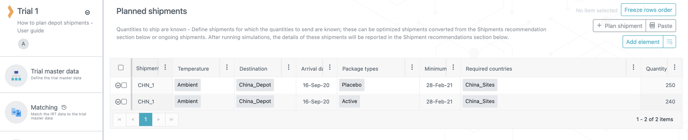
But first, let’s convert the shipment recommendations for the CHN_1 shipment as the quantities requested equal the quantities shipped, therefore covering the demand and the depot supply needs during the chosen period. As explained in this article, you can do it by converting recommendations. The planned shipments for CHN_1 will look like this :
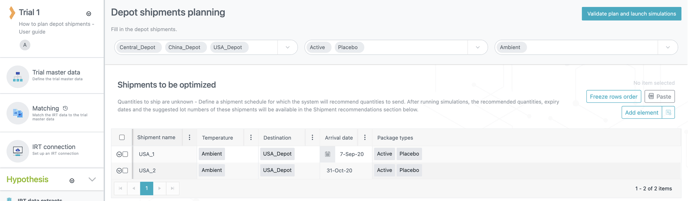
Once this is done, we can add a new shipment to the Shipments to be optimized table. This shipment will go to the US depot with kits from the 1-Oct-20 productions so it could depart on the same date at the earliest, therefore arriving 31-Oct-20 at the earliest. We can therefore add a shipment (shipment name : USA_2) with an arrival date at 31-Oct-20 for both package types (see screenshot below).
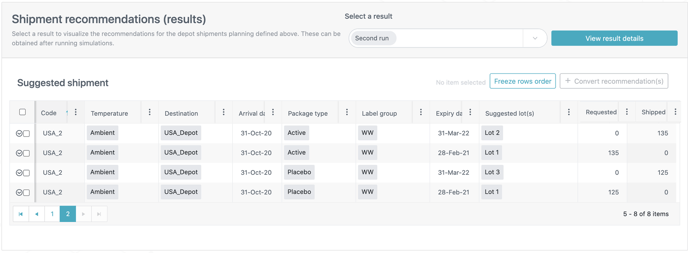
After running simulations for the plan again, we can see that the system is recommending to send additional placebo (125) and active (135) kits from future lots that will be available 1-Oct-20 (see screenshot below)
Now, let’s check if these shipments have mitigated the missed dispensing risk that was generated before. If we go back to the Results dashboard and the Risks sheet, we can see that the risk has been significantly reduced in the US sites (see screenshot below).
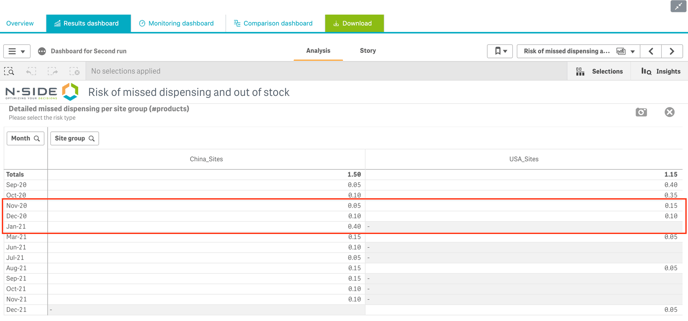
These additional shipments are therefore enough to cover the patient demand and depot supply needs in the US during the frozen period and over the lead times of the next shipments.
Tip
From a global standpoint, in the case you observe risks, we recommend you to identify their source and amend the underlying parameter (e.g. reassess shipment coverage need, review other constraints like productions, etc.). You can then run the plan again to receive new recommendations based on the changes that you made and analyze the result again. Iterate this process until you mitigate risks to an acceptable level.
The handling of partial shipments could require a bit more time and iterations to be solved. Therefore, if you encounter any difficulties with partial shipments, please feel free to contact the N-SIDE Service Desk for support.
What’s next?
Once your depot shipments schedule has been validated, you can follow up on those shipments with the Monitoring dashboard, under the Depot shipments plan follow-up sheet.
To learn more about the depot shipments follow-up, please read this page : Monitoring dashboard - Patient enrolled .