
Table of contents
This is a quick step-by-step guide to help you enter data in the Patient evolution probabilities tab of the Treatment setup.
table of contents
Titrations

Creating titration paths
-
Select the treatment arm(s) on which the titration applies. If the titration applies to more than one treatment arm, you can use the multi-selection to select several at the same time.
-
Select the patient evolution category (if any) impacting the titration. If no patient evolution category is impacting the titration, you can choose the “Default Stratum”.
-
Select the visit(s) on which the patient can titrate to. For example, if a titration happens between visit 1 and visit 2, select only visit 2. If the same titration can be applied to several visits, select those visits by following the same rule as in the previous example.
-
Select the dose level on which the patient can titrate from.
-
Select the dose level on which the patient can titrate to.
-
Select the proportion of patients that will be on the titration path defined by points 1 to 5.
-
Repeat steps 1 to 6 for each potential titration.
❗If you select multiple visits for a titration path and you want to reevaluate the proportion, the proportion will be reevaluated across all selected visits and will not be reevaluated visit per visit.
💡Tips
-
Define titration for “screening” and “end of treatment” visits as well (see “practical example” section below).
-
The titration path of patients staying on the same dose level should be defined as well.
-
When defining a lot of titration paths, you can duplicate one or several rows by checking their box and then click on “Duplicate”.
Patient evolution graph
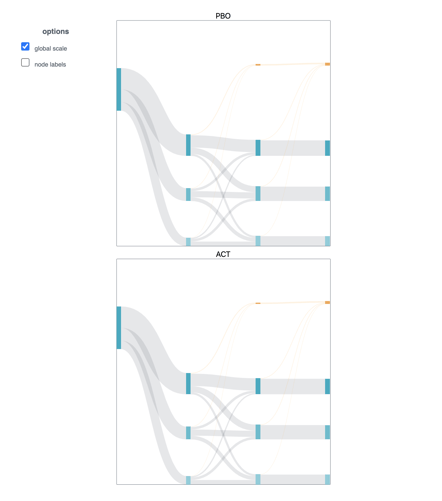
Once all titration paths defined, you can visualize the titration plan on the graph above the table (see screenshot below). There will be one graph per treatment arm and per patient group. The graphs display titrations (grey lines) between dose levels (blue nodes). By hovering over a grey line, the graph displays information such as visits and dose levels involved in the titration and the number of patients that are undergoing this titration.
❗The numbers shown in the graph are not results of simulations but forecasts, so they should be taken as indicative values and not results. Depending on the actual state of all the patients already active in the trial, the simulation results might differ.
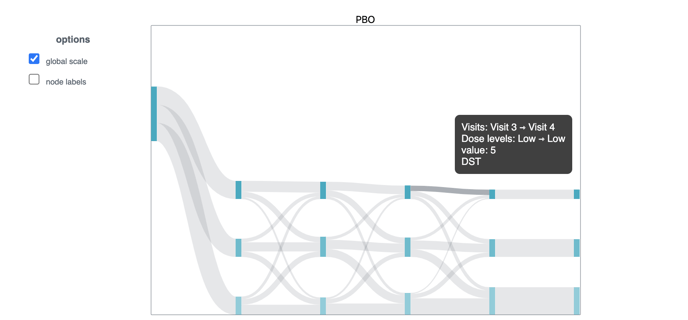
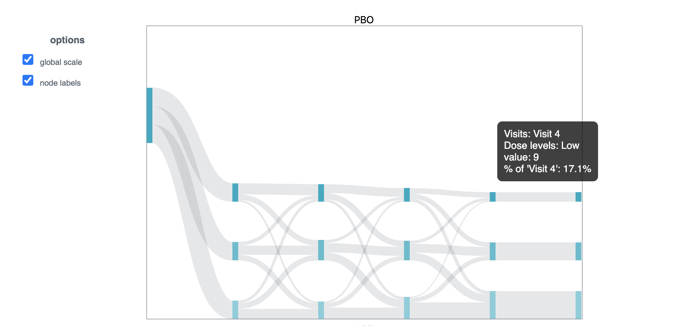
By hovering over a blue node, the graph displays the visit, the dose level, the number of patients and the percentage of the total patients that are on this specific visit and dose level (see screenshot below).
Note also that you can scroll left and right and zoom on the graph by clicking on it.
Error message
The most common error message that you will receive when entering titration data will be the following :

❗The visit displayed in the error message is the visit from which the patient can start her/his titration path. It is not the visit where the titration path ends. In this example, we forgot a titration path going from visit 4 to the next visit.
Practical example
-
2 treatment arms: active and placebo
-
4 visits : screening, visit 1, visit 2, End of treatment (EOT)
-
3 Dose levels : low, medium, high
-
Same titrations apply to both treatment arms
Screening → Visit 1
Proportions of patients on each dose level at visit 1.
|
|
Low |
Med |
High |
|---|---|---|---|
|
|
50% |
30% |
20% |
Visit 1 titration paths in the Patient evolution probabilities tab :

💡 Tip
Do not forget to create a path for the screening visit (see screenshot above)!
Visit 1 → Visit 2
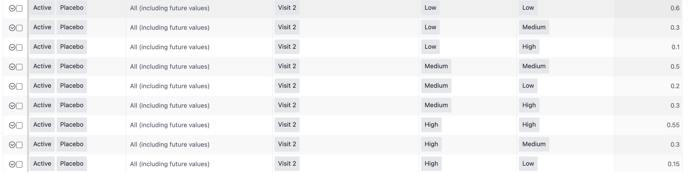
Proportions of patients titrating from one dose level (first column) to another (first row), from visit 1 to visit 2. e.g. 30% of patients on the low dose level will up-titrate to the medium dose level.
|
|
Low |
Med |
High |
|---|---|---|---|
|
Low |
60% |
30% |
10% |
|
Med |
20% |
50% |
30% |
|
High |
15% |
30% |
55% |
Visit 2 titration paths in the Patient evolution probabilities tab :
Visit 2 → EOT
All patients stay on the same dose level from visit 2 to the EOT visit.
|
|
Low |
Med |
High |
|---|---|---|---|
|
Low |
100% |
|
|
|
Med |
|
100% |
|
|
High |
|
|
100% |
“End of treatment” visit titration paths in the Patient evolution probabilities tab :

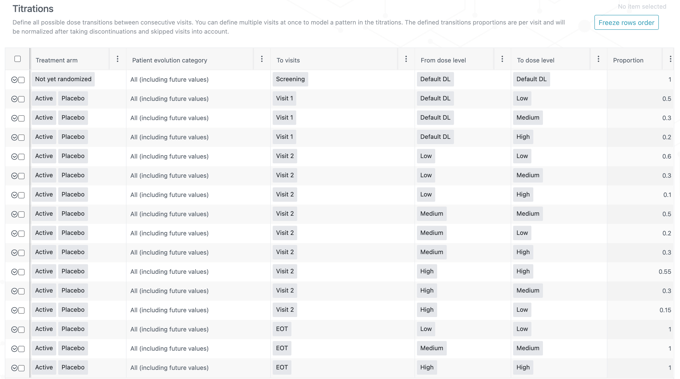
Below are the complete titrations table and the corresponding graph:
Skipped visits
Prerequisite
To define skipped visits, the system will need to work without a baseline visit and the interval comprising skipped visits should be defined in the Treatment visits tab.
Creating skipped visits
-
Select one or more patient groups on which the skipped visits apply.
-
Select one or more treatment arms on which the skipped visits apply.
-
Select the patient evolution category (if any). If there is no patient evolution category impacting the trial, select “All (including future values)”.
-
In the “From visit” column, select the visit occurring before the first visit to be skipped. For example, if the first visit to be skipped is “visit 3”, select “visit 2”.
-
Select the dose level from which the titration path (corresponding to the skipped visit(s)) will be skipped. If all titration paths are skipped, create a row for each titration path, including paths where patients stay on the same dose level.
-
Select the visit occurring after the last visit to be skipped. For example, if the last visit to be skipped is “visit 3”, select “visit 4”.
-
Select the dose level ending the titration path (corresponding to the skipped visit(s)) that will be skipped.
-
Select the expected percentage of patients that will skip the visit(s). If all patients skip the visit(s), enter 100.
⚠️ Warnings
- A randomization visit cannot be skipped.
- A patient that skips a visit ignores the associated drop-ou
Practical example
-
2 treatment arms: active and placebo
-
2 patients groups
-
6 visits : screening, visit 1, visit 2, visit 3, visit 4 and “end of treatment” (EOT)
-
2 Dose levels : low, medium
-
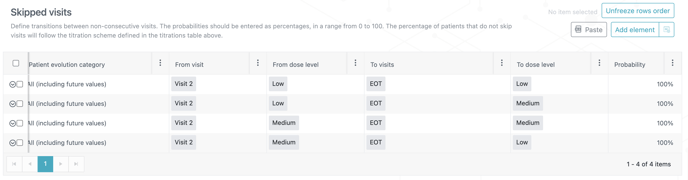
Same titrations apply to both treatment arms. Patients can titrate up or down.
-
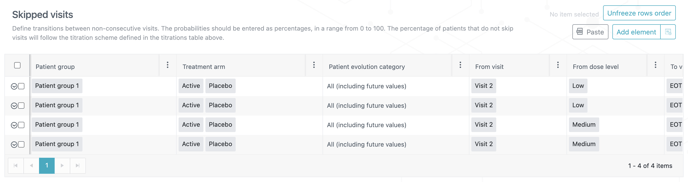
Visits 3 and 4 to be skipped for patient group 1, both treatment arms and all titration paths.
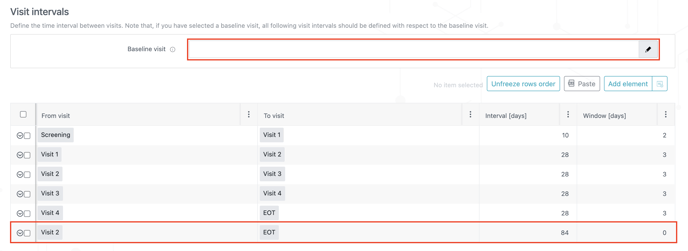
First thing to do is to enter the interval comprising the skipped visits in the Treatment visits tab. As visits 3 and 4 will be skipped, we will enter the interval between visit 2 and EOT (see screenshot below). Moreover, no baseline visit should be defined.
The skipped visits should be defined as in the two screenshots below :
Discontinuation probabilities
-
Select one or more treatment arms for which patients can discontinue their treatment.
-
Select the visit from which patients start dropping out. If the drop-out applies to a single visit, “from visit” and “to visits” should be the same.
-
Select the visit until which the drop-out is applied. This visit should be the same as the “from visit” if the drop-out applies to a single visit.
-
Enter the proportion of patients (%) that is expected to discontinue the treatment. If the drop-out is applied to a sequence of consecutive visits, this proportion will be split across all visits comprised between the "from visit" and the "to visit" visits.
-
Enter the proportion of discontinued patients (%) that will continue into the follow-up stage (if any). If the trial has no follow-up stage, enter 0.
❗If you select multiple visits for a drop-out rate and you want to reevaluate the drop-out, the rate will be reevaluated visit per visit.
Patient evolution graph
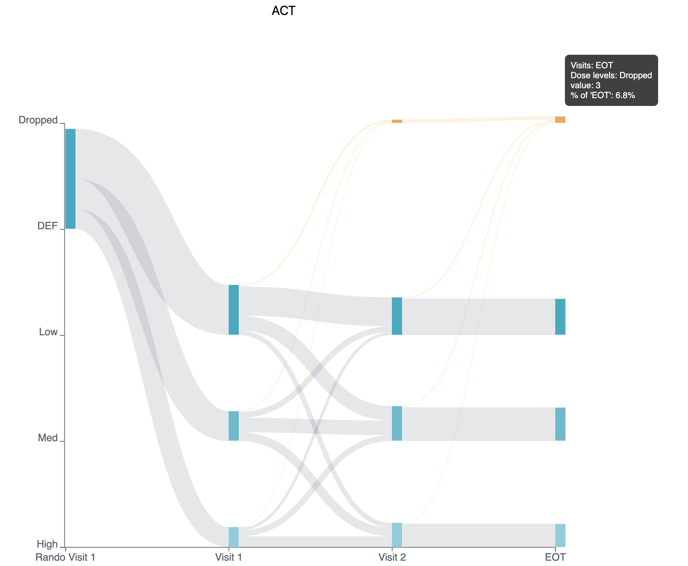
Once discontinuation probabilities entered, the graph above the Titrations table will update itself and new lines (in orange) will appear. These lines represent the number of patients that are discontinuing their treatment.
By hovering over an orange line, the graph displays information such as visits and dose levels involved in the titration and the number of patients that are dropping (see screenshot below).
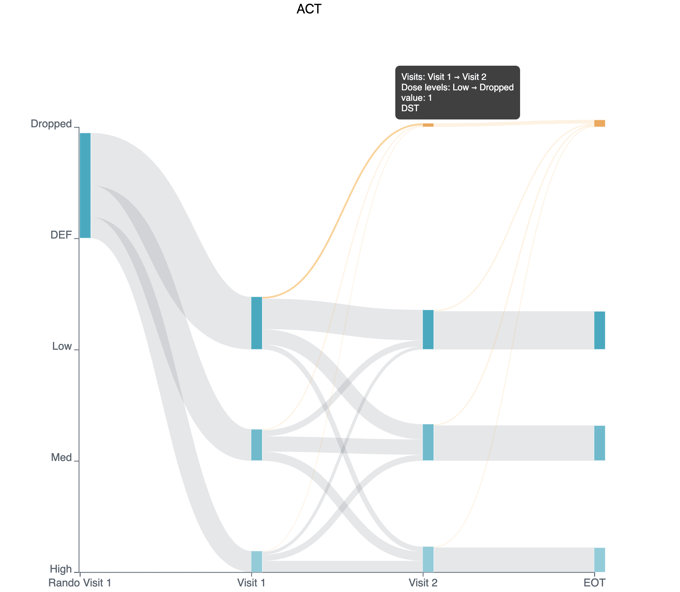
By hovering over an orange node, the graph displays the visit, the dose level, the number of patients and the percentage of the total patients that have discontinued their treatment (see screenshot below).
Practical example
-
2 treatment arms: active and placebo
-
4 visits : screening, visit 1, visit 2, End of treatment (EOT)
-
Screening failure : 20%
-
Same drop-out expected for both treatments arms
-
Drop-out expected for the trial : 10%
-
No follow-up stage
The data entered in the system should be as follows :
