Table of contents
Taking a decision
By taking a decision in the Supply App, you can decide what result to operationally implement for each trial and stage. Moreover, other people working on the same trial and stage (trial participants) will know as well what is the decision to implement.
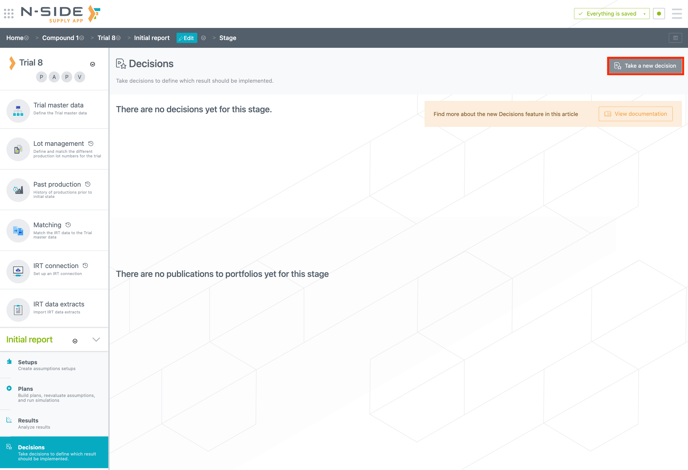
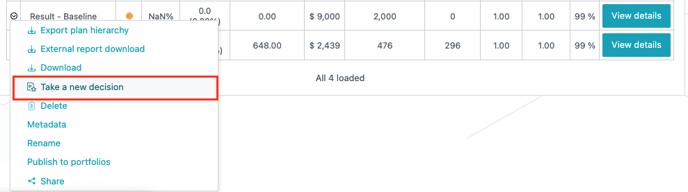
You can take a decision from two places in the App:
“Decisions” section
“Results” section
-
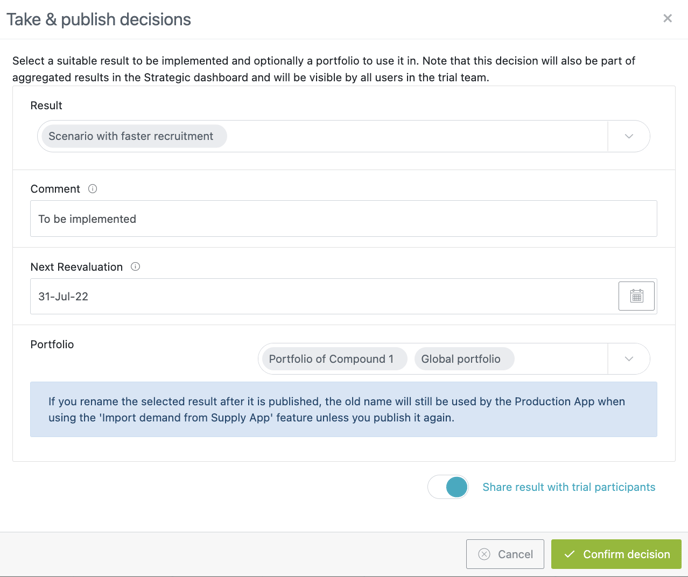
Select a result to implement (mandatory)
-
Add a comment (optional)
-
Select the next reevaluation date (mandatory)
-
Publish the result to one or several portfolios (optional)
Here you can find all decisions and all publications to portfolios for a trial stage. You can always see the latest decision but also the ones that were taken previously. The bottom part (i.e., publications to portfolios) helps you easily find the portfolio(s) where results have been published.
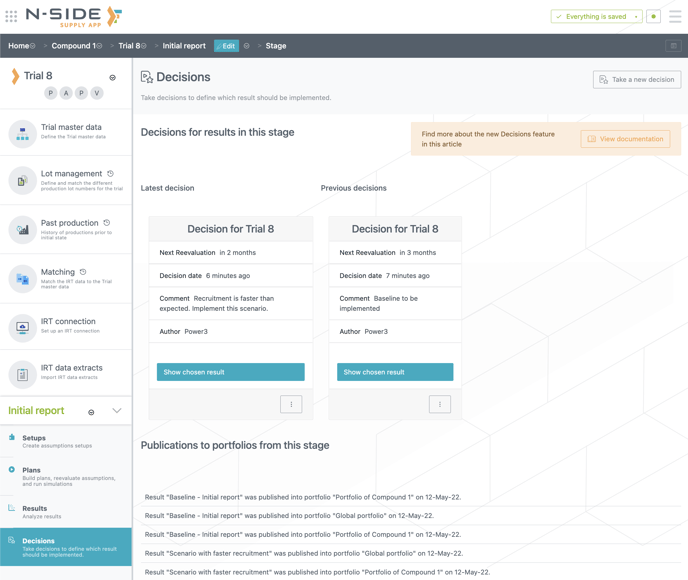
For each trial for which you take a decision, a decision card is created from which you can directly access the latest chosen result.
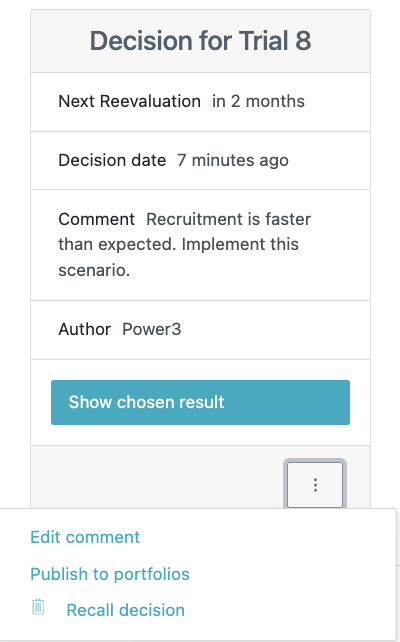
From the contextual menu of a card you can:
-
Edit the comment (Advanced and Power Users only)
-
Publish the result to one or multiple portfolios
-
Recall the decision: the previous decision (if any) will again become the latest one. Note that only the author of the decision or a user with an All Access profile can recall decisions.
Latest decision per trial
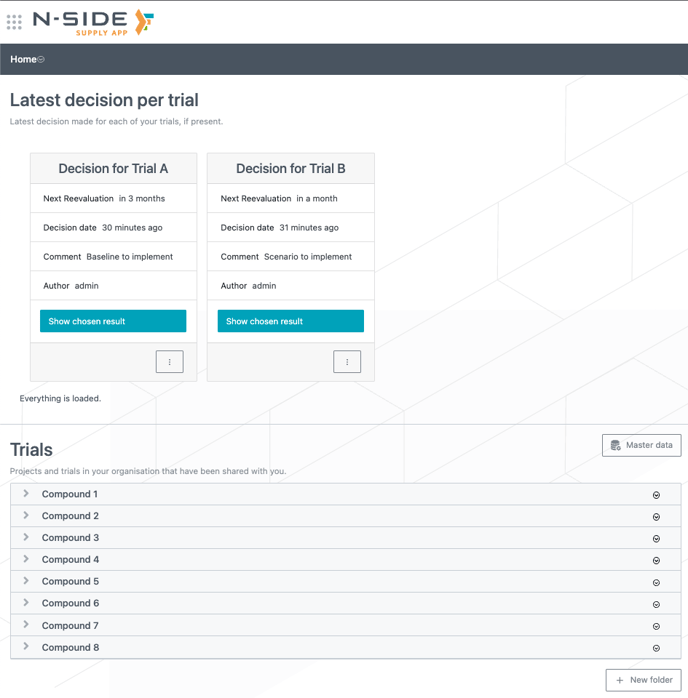
You can easily and quickly access the decisions for your trials from the Supply App home page (top left). These decisions are the latest per trial and each decision card is updated every time you take a new decision for the same trial.
Publish to portfolio(s)
You can also simply publish a result to one or several portfolios from the contextual menu (drop-down) of a result.
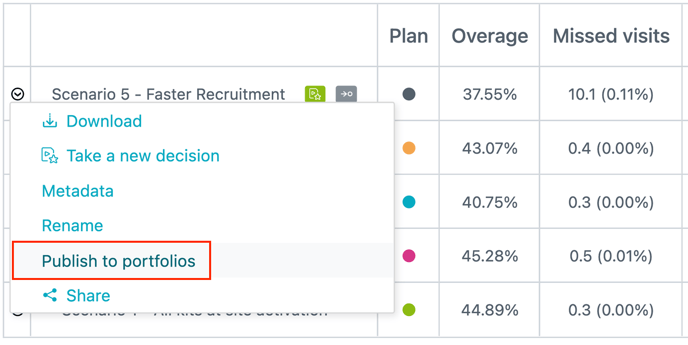
A new window opens up where you can choose one or several portfolios in which to publish your result.