
Highlights
Visualize all demands in one place and troubleshoot missed demands more easily.
Better understand your results with major dashboard improvements.
Table of contents
1. Visualize all your demands in one place
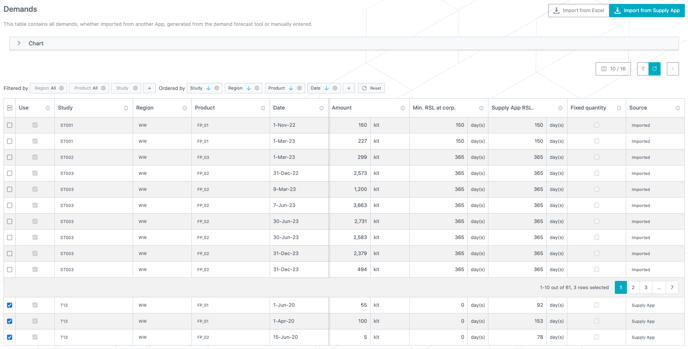
The “Demands” table now gathers demands coming from all sources.
It can be populated using different methods:
-
Generate demands from the “Demand forecast”.
-
Import demand from Supply App/Excel (see red frame on the screenshot below).
-
Create a demand manually by adding a line in the table.
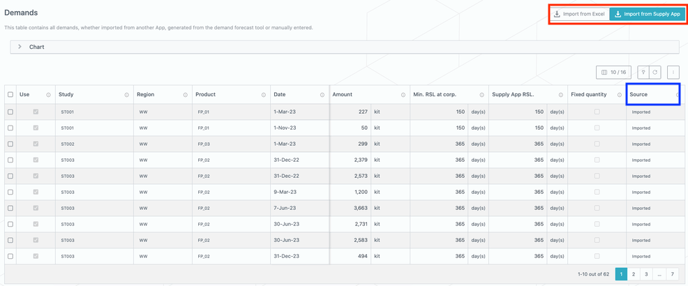
The new “Source” column gathers information about how the demand line has been generated (see blue frame on the screenshot above).
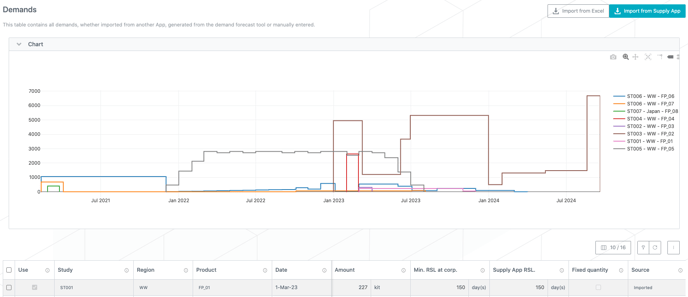
On the top of the “Demands” table, a chart can be unfolded in order to visualize the demand evolution over time for each study - region - product combination.
2. Troubleshoot missed demand more easily
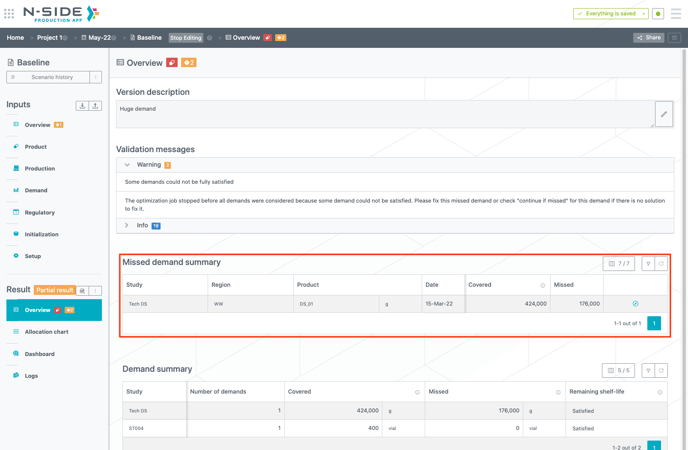
Optimizations can be now automatically stopped after encountering an unexpected missed demand, allowing to troubleshoot it based on a partial result.
By default, the optimization stops at each missed demand as indicated in the “Demands” table via the “Continue if missed” column (visible by displaying the Advanced preset) (see red frame on the screenshot below).

When a missed demand is encountered, the demand which could not be answered is available in the “Missed demand summary” table (see red frame on the screenshot below) of the Result overview.
In case the missed demand is real and cannot be solved, the “Continue if missed” checkbox of the demand should be checked in order to still move forward in the optimization and complete it. Moreover the optimization result is no longer impacted by missed demand penalty costs therefore you can be confident in your result even with missed demands.
📝 Note
The “Continue if missed” checkbox is checked for all demands of already existing scenarios in order to ensure a consistent result in case of re-optimization.
3. Import demand and do the mapping in one step
The mapping now takes place directly at demands import.
The import actions available above the “Demands” table lead to a window suggesting the combinations of Study - Imported product - Region for products that are not mapped yet.
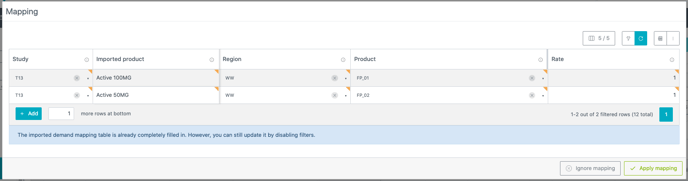
Once the mapping is done and applied, the imported rows are directly updated to contain the right product, region and amount. They appear at the bottom of the table.
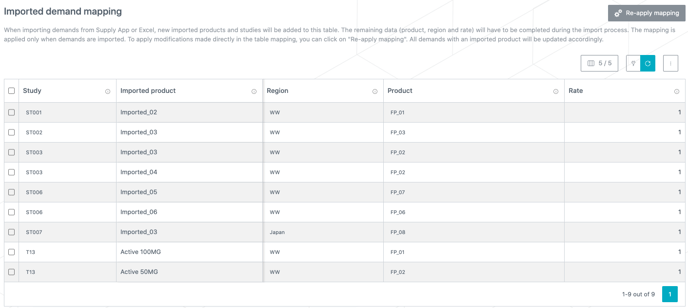
In order to simplify the interface and remove an encoding step, the “Imported products” table has been removed. Imported products are now defined per line of imported product mapping via a text field.
📝 Note
As a consequence of removing the “Imported products” table, the “Imported products” field from the “Imported demand mapping” table became a text field which takes only one product as input. In case a line of “Imported demand mapping” was mentioning a certain number of products, this line has been split into the number of products.
If the mapping needs to be modified after the import took place, a “Re-apply mapping” action has been introduced above the “Imported demand mapping” table.
4. A more comprehensible and easy to use dashboard
4.1. Executive summary
With the new “Executive summary” sheet, you can have an overview of your optimization result and drive your analysis to other sheets depending on the KPI’s values and colors.
For each stage you can see lots that have the shortest release to first usage margin, the lowest lot allocation and what is the next new lot release.
The second table contains the following study-related KPIs: next IMP release and missed demand.

These KPIs are highlighted in different colors to drive your analysis towards where it matters the most (see the color coding details in the Glossary). You can further deep-dive into your analysis by following the indications given in the “Next steps” columns of the tables. Notably, in case the data is highlighted in red, you should have a more in-depth look at the root cause.
4.2. Demand
You can analyze demand or need information with the new “Demand “ sheet.
The table displays the demand/need details while the bar charts display the missed demand/need and the demand/need per product respectively.
The demand is the final product quantity satisfied through the manufacturing plan. The need is the demand on final product shifted in time and quantity for the upstream stages and products in the chain, i.e., what is needed before the creation of a final product.
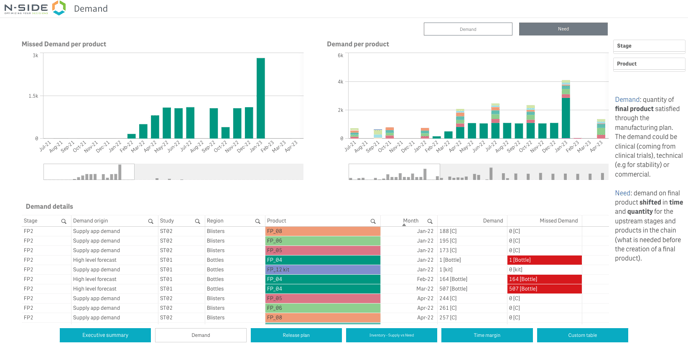
This sheet can help you answer specific questions like:
-
How is the demand/need spread over the time horizon?
-
If there is any missed demand, when does it (or the corresponding missed need) appear?
4.3. Release plan
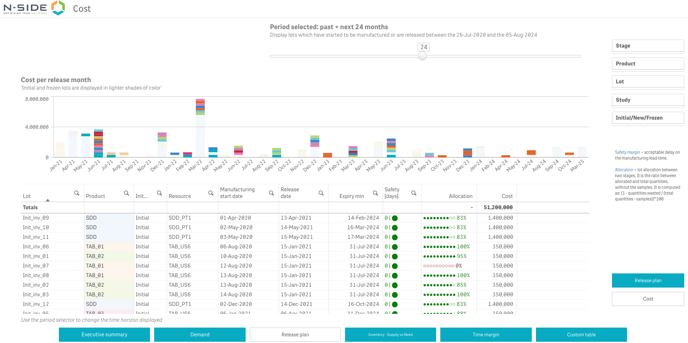
With this sheet, you can visualize the release plan and associated costs for the whole dataset. The tables of both “Release plan” and “Cost” views have been completed with information previously available in the table of the “Lots genealogy” view (which has been removed).
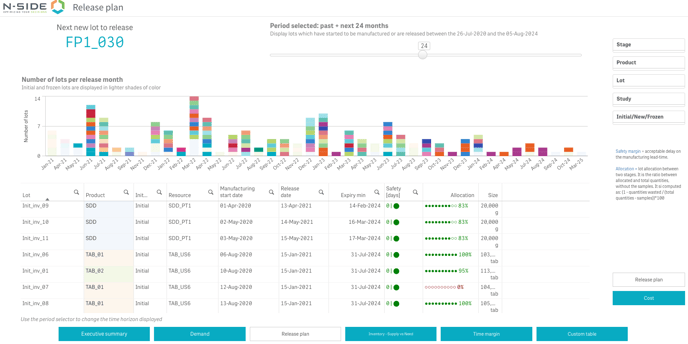
In case a specific product is selected in the “Release plan” view, the vertical axis shows the number of product units per release month.
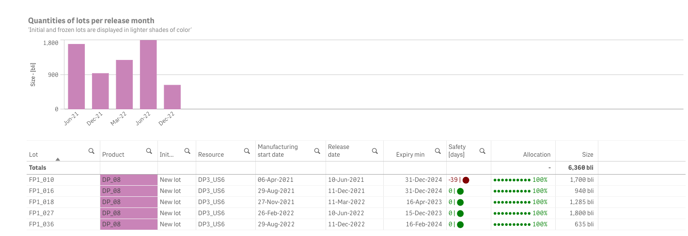
The “Cost” view can be accessed via the switch buttons at the bottom right.
4.4. Inventory - Supply vs Need
Thanks to this sheet, you can follow the evolution of your forecasted inventory and analyze the relation between supply and need over the course of your project.
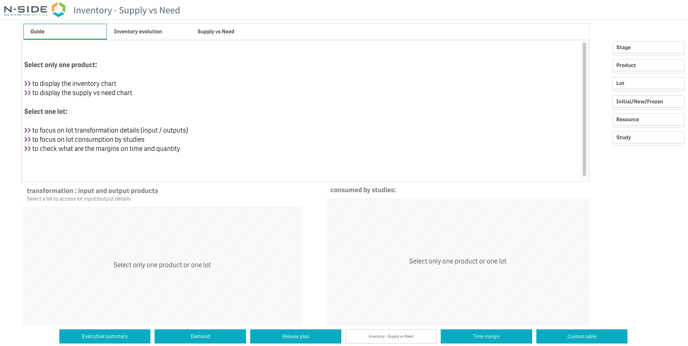
A product (or a lot) needs to be selected first for the charts to appear as explained in the “Guide” tab.
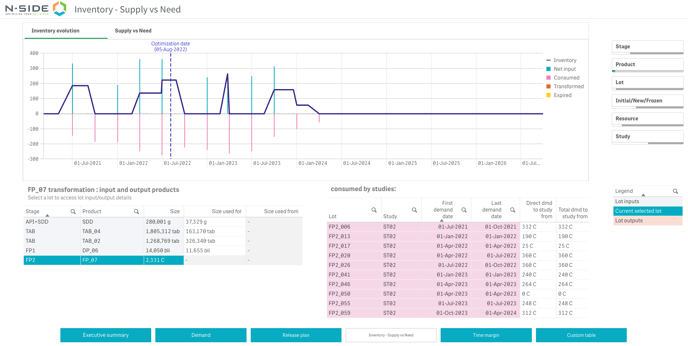
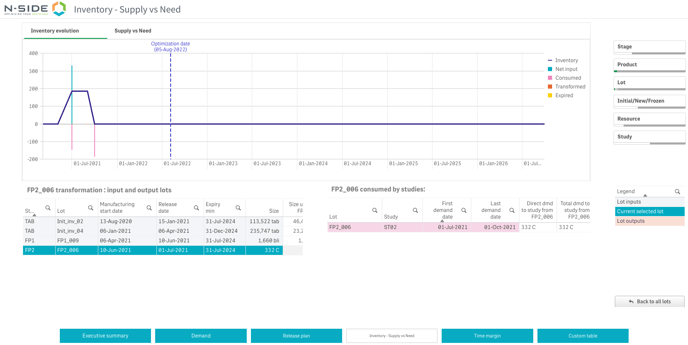
The Inventory chart can be checked at product and lot level. It displays the number of units in stock over time.
📖 User documentation
See “Result dashboard - Inventory & Supply vs Need ” for more explanations on how to use this chart.
This chart can help you answer the following questions:
-
Until when am I safe with my current inventory?
-
Until when am I safe if some of the lots are not produced?
When selecting a lot, both the chart and the left table are adapted to this level of granularity. The left table then answers an additional question: Where does my finished product come from?
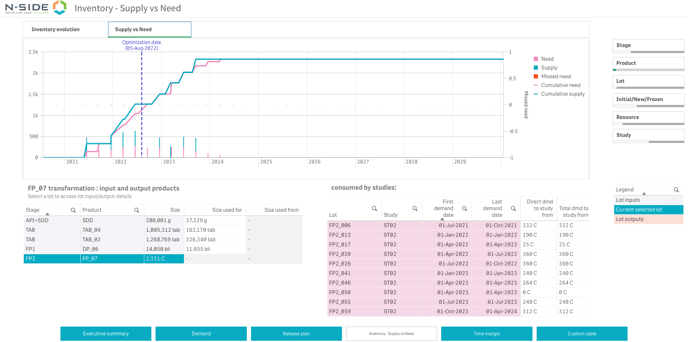
The Supply vs Need chart is only available at product level.
It will help you answer the following questions:
-
Which time margin do I have between release date and transformation/consumption?
-
Which quantity margin do I have between release and transformation/consumption?
4.5. Time margin
With this sheet, you can visualize the time margin between release and first usage dates of different lots. Selecting a lot highlights its input(s) and output(s) lot(s) and to which study it is allocated.
Hovering on a box in the Gantt gives more specific information about lots (manufacturing start and end dates, release date, release to first usage margin, minimum expiry) and studies (study, first and last demand dates, minimum remaining shelf-life).
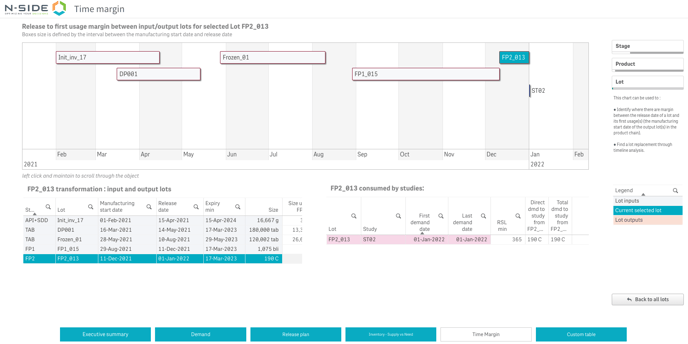
This sheet can help you answer the following questions:
-
What are the inputs/outputs of a specific lot?
-
To which study is a specific lot and/or its output products allocated?
-
Could a specific lot manufacturing date be moved and by how many days, considering the manufacturing date of the next lot in the chain?
5. Easily compute the total lead-time of a specific product
In the new “Lead-time summary” tab of the “Production” input, you can see the total lead-time necessary to release of a specific product.
Select the product and the associated production configuration for each step of the manufacturing process until reaching the product for which the total lead time is needed.
The total lead-time range appears on the left of the screen and the inputs used to compute it appear in the table on the right.

6. Other updates
6.1. Manually update forecasted demands
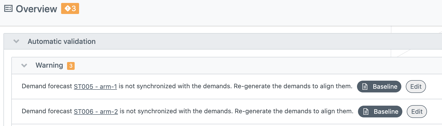
In some cases, the demands generated from the “Demand forecast” do not match the reality (too small quantities by the end of the horizon which need to be aggregated). You can now directly update those amounts for the demands generated in the “Demands” table when needed.
A warning has been added to keep track of the discrepancies between the theoretical demands coming from a specific demand forecast line and the total amount of demands effectively referring to this forecast. It appears in the “Demands” table as well as in the “Scenario overview” and the “Inputs overview”.

6.2. Access the release notes from the App directly
You can now access the release notes of the version directly from the side-panel menu.

7. User documentation
The following articles are added (or have been modified) to enrich the documentation and help you in your usage of the N-SIDE Production App: