
Gain data management flexibility thanks to new table customization capabilities. Organize your work better and quickly find the data of interest by labeling scenarios. Leverage new comparison capabilities to help your decision-making.

New | User Documentation
New
Benefit from more data management flexibility with new table customization capabilities
With these new capabilities you can customize tables, enjoy a smoother navigation and enter your data in a more user-friendly way to match your project specificities.
Freeze & reorder columns
Decide which columns to see, in which order, as well as which ones should be frozen when scrolling the table via the “Show/Hide columns” button. The “Basic” and “Advanced” views (available for certain tables) are now selectable from the top of this menu.
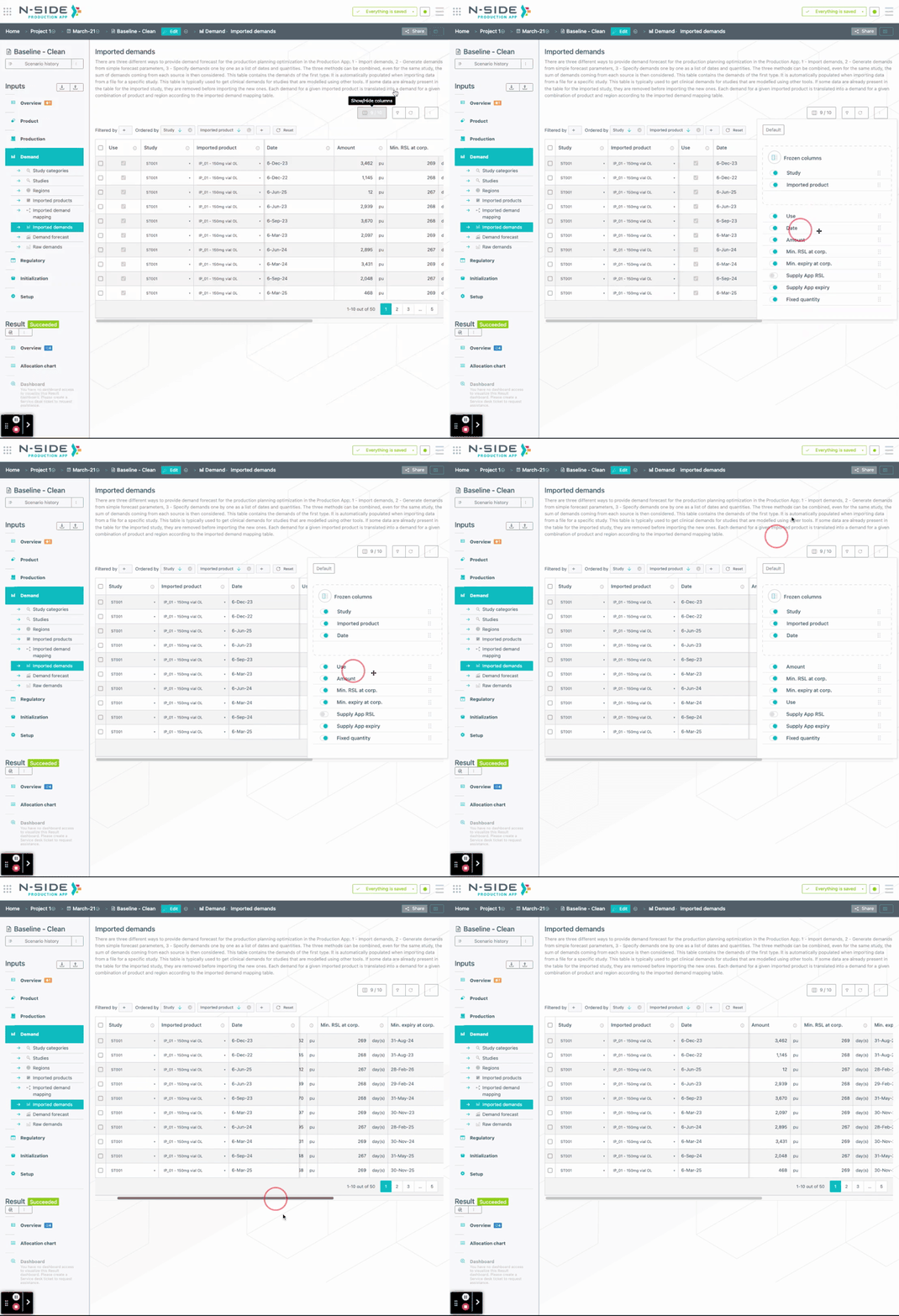
Filter & order the table
Decide to only show rows containing a certain value and/or reorder the displayed rows using the new “Filter & sort your data” button.
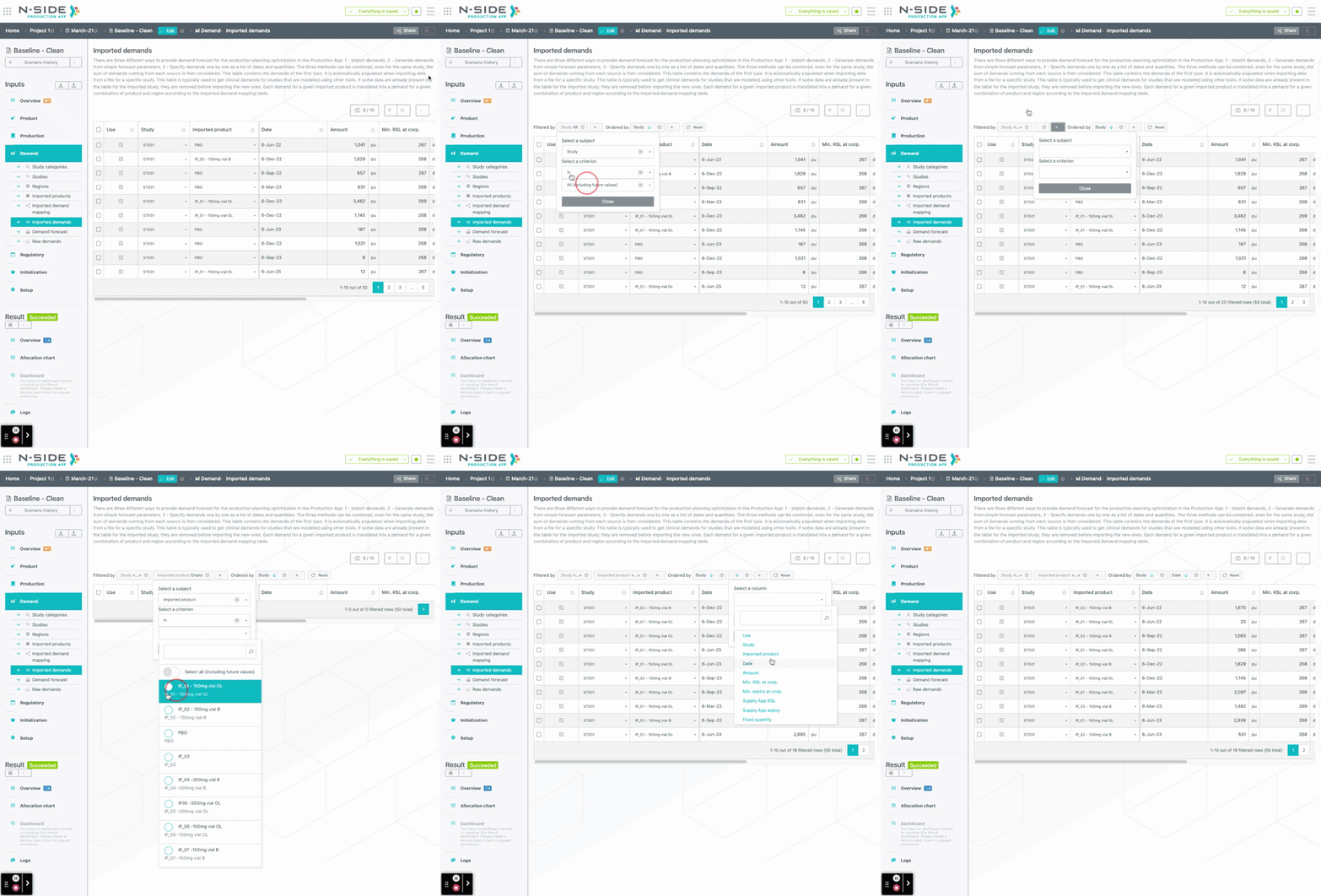
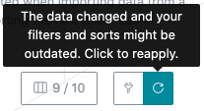
In case some data has been added or modified in the table, the filters need to be reapplied via the “Reapply filters/orderings” button.
Create new rows and visualize updates
When adding rows to a table they will appear in a temporary table below the main one. These rows are displaying a yellow corner in each cell as well. Once those rows are all complete, they can be inserted in the main table via the “Reapply filters/orderings” button.
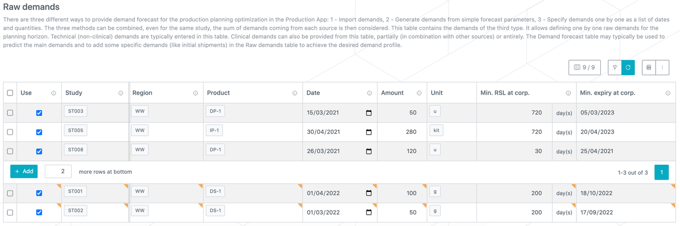
Just as for new rows, you can easily spot which rows have been updated since the last save thanks to the display of yellow corners.
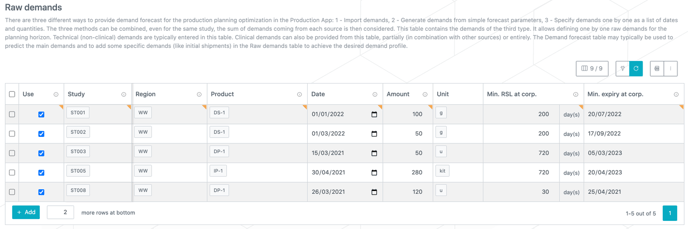
Select rows at table level
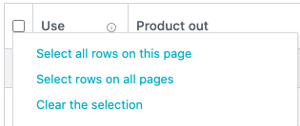
From the top left corner of a table you can now:
-
Select all rows on this page
-
Select rows on all pages (this option respects the applied filtering conditions)
-
Clear the selection
You can now also use SHIFT+click to select multiple rows.
Reorder rows
Change the order of the rows via the new “Reorder rows” button. Note that you must edit the dataset for this button to appear and that its availability depends on the table.
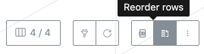
This button opens a side panel where you can drag and drop rows to re-organize them. Clicking on the “Reapply filters/orderings” button updates the rows order afterwards.

Organize and filter your scenarios by using labels
You can now create and add labels to your scenarios to better organize your work and help you and other users find the data of interest more easily.
You can create labels from the scenario card or from the scenario view.
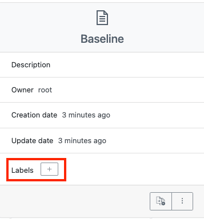
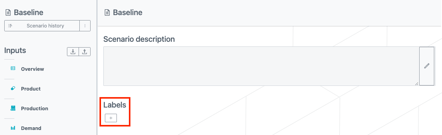
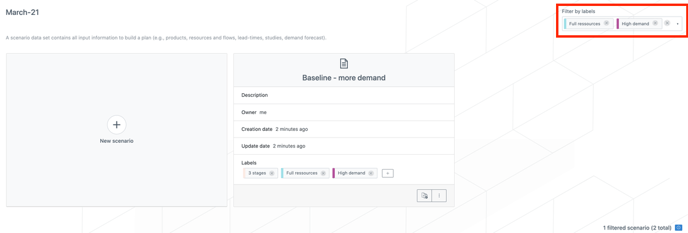
A color is automatically assigned to a label when it’s created so that you can quickly visualize scenarios with similar labels from the milestone page.
Scenarios with identical labels can also be retrieved with the filtering option. This will allow you, and other users, to quickly find the information that matters.
Understand lot production plan differences between selected scenarios
You can now compare lot productions in the comparison view thanks to the new “Lot productions” section. With this new comparison capability, you will be able to quickly visualize if the production plan of lots differ on key aspects: date, size, type (stock, frozen, future).
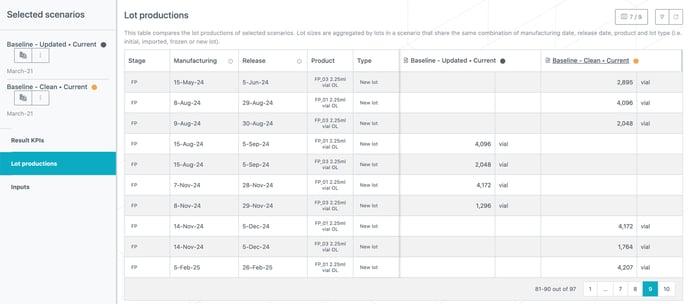
The produced quantity appears per scenario, for each combination of [Manufacturing start date - Release date - Product - Lot type].
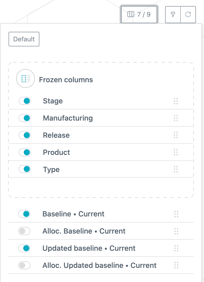
The Allocation ratio for each scenario is hidden by default but can be added to the table via the Show/Hide columns button.
Understand input differences between selected scenarios
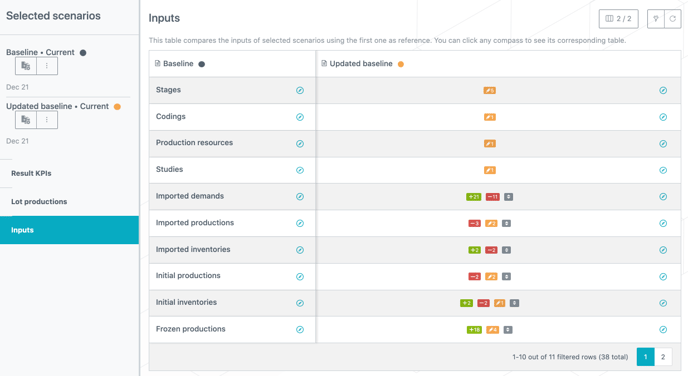
You can now compare inputs data in the comparison view thanks to the new “Inputs” section. This will help you quickly spot differences between inputs to know where to focus your analysis.
In this section, you can visualize differences (with colored badges) between inputs of scenarios, the first selected scenario being the reference one. The colored badges give the following information:
-
Red: the dataset misses some rows from the reference scenario.
-
Orange: the dataset contains modified rows compared to the reference scenario.
-
Green: the dataset contains some additional rows compared to the reference scenario.
-
Grey:
-
Equal sign: the dataset contains the same rows, in the same order.
-
Up/down arrows: the dataset contains the same rows, in a different order.
-

The compass appearing in each cell redirects to the scenario dataset.
User Documentation
The following articles are added/updated to enrich the documentation and help you in your usage of the N-SIDE Production App: