- 1. Account for your reality by freezing lots anywhere in the horizon [Project scenarios]
- 2. Various enhancements
- 2.1 [Update] Better identify Available & Disposal quantities in Excel and Cockpit charts
- 2.2 [New] Inventory chart in Project Scenario Excel
- 2.3 [Update] Get a more complete view in the “All lots” Cockpit
- 2.4 [Update] Better understand the concepts from the Project Scenario Excel
- 2.5 Enhancements & Fixes
1. Account for your reality by freezing lots anywhere in the horizon [Project scenarios]
In some situations lots need to be fixed already pretty far in the horizon (technical lots used for stability or validation, commercial lots,…). From this version, lots can be frozen during the frozen period, but also later on in the horizon. New lots will continue to be forecasted when needed, as long as it is after the frozen period.
1.1 Prevent forecasting new lots during the frozen period
In order to ensure that no new lots are forecasted during the frozen period, one should be defined per product, through the Products table. As soon as the “Frozen until” attribute is defined, any new forecasted lot will be manufactured after this date.
In the migration to 2025.8, in order to prevent changes in the modeling, this attribute is automatically set to the manufacturing date of the latest frozen lot for each product. This way, the same result is produced with no new lots created in between your current frozen lots.
1.2 Efficiently use the cockpit while performing (un)freeze actions
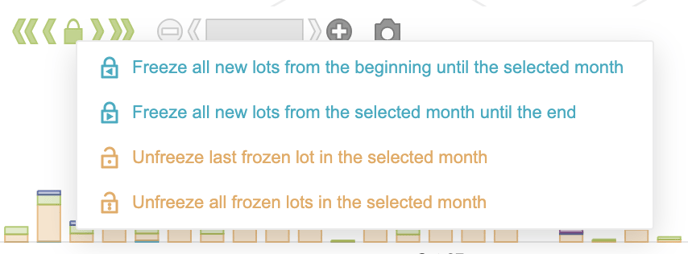
The cockpit actions have been revamped with a single dropdown menu (padlock 🔒) containing all “freeze” actions:
- Blue actions relates to freeze actions (i.e. adding a lot in the manufacturing lot table),
- Orange actions relates to unfreeze actions (i.e. removing a lot from the manufacturing lot table).
It is also worth noting that only the eligible actions appear in the dropdown menu (depending on the state of the selected lots).
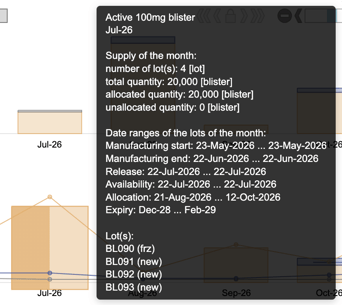
Due to the fact that there can be frozen lots anywhere in the horizon, there was a need to make it clearer from the cockpit when there is a mix of new and frozen lots manufactured during one single month. The “bars” containing a mix of frozen and new lots are now represented as bi-color and the list of lots in the tooltip are suffixed with “(new)” or “(frz)” indicating whether the lot is forecasted, or frozen.
1.3 Understand the changes brought by this new functionality
1.3.1 Situations in which you could face new missed demand
Missed lots can never be allocated to consumers
In order to achieve reproducibility of a scenario when freezing a lot, a lot that is missed can no longer be allocated to any consumer, even if this lot has a stability plan.
Pre-allocated consumers won’t receive additional allocations if pre-allocation can’t be satisfied
The predictor now “reserves” pre-allocated quantities for the lot and the consumer. For instance, if a pre-allocation of 100 is defined between a DP lot of size 100 and a consumer of size 100, but only 80 could be allocated (due to insufficient DS for instance), the 20 remaining units of the lot won’t be allocated to anything else, and the consumer will not receive the missing 20 units from another lot, yielding 20 units of missed demand.
1.3.2 Behavior of pre-allocations when no specific size is defined
A free pre-allocation from a lot A (i.e. a pre-allocation without a size defined) is now considered as a fixed-size pre-allocation where the size is deduced from all other fixed-size pre-allocations from A.
- For instance, if a pre-allocation of size 10 from a lot A of size 100 is defined, then a free pre-allocation from A will have a computed size of 100 - 10 = 90 units.
If the consumer size is more constraining, then the size of the free pre-allocation is determined by the consumer size.
- For instance, in the previous example, if the consumer requires 50 units, then the free pre-allocation will have a size of 50, instead of 90.
2. Various enhancements
2.1 Better identify Available & Disposal quantities in Excel and Cockpit charts
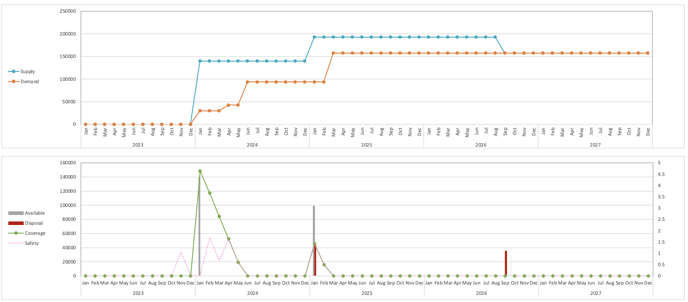
Excel: In Coverage Sheet, bottom chart, instead of showing the resulting Supply (available - disposal) we now show two separate bar charts, Available (gray) and Disposal (red). This allows to better understand drops in cumulated Supply curve (top chart) and also to better handle cases where Available and Disposal are non zero at a same month.
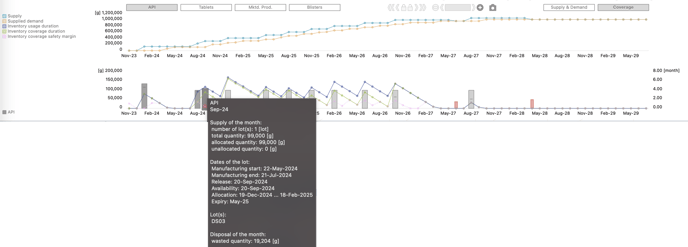
Cockpit: Coverage tab, bottom chart, disposal red bars added and tooltip on supply and disposal bars showing quantity wasted in the month.
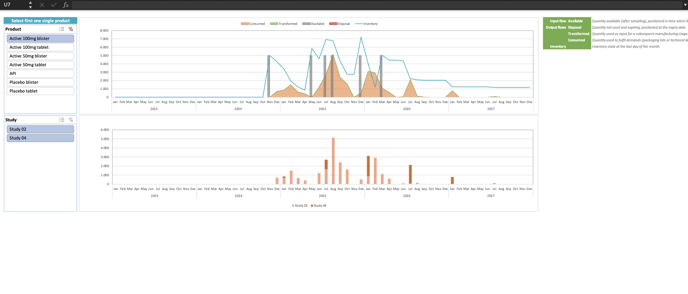
2.2 New Inventory chart in Project Scenario Excel
You can now see, in one single sheet of the project scenario Excel, information regarding the Supply, the Demand, and the Inventory for a specific product. The information is part of:
- A top chart that displays aggregated consumed (not per study) and transformed quantities, compared to monthly supply (available) and inventory.
- A bottom chart that displays the consumption split per study and can be filtered to display demand from all or only specific studies.
2.3 Get a more complete view in the “All lots” Cockpit
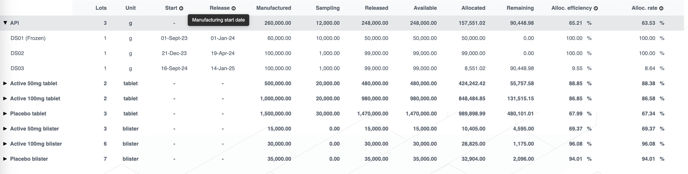
You now have a more complete overview in the All lots cockpit thanks to those new fields:
- Start date and Release date (no information at aggregated level).
- (Frozen) information after the lot code to identify if a lot is frozen or forecasted.
2.4 Better understand the concepts from the Project Scenario Excel
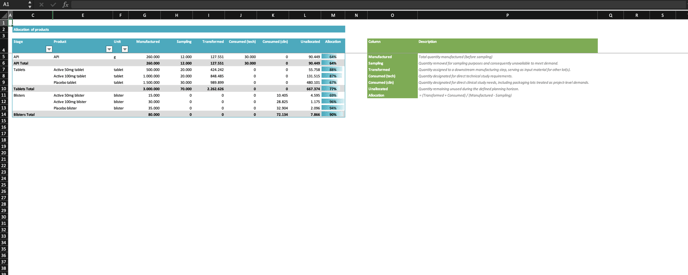
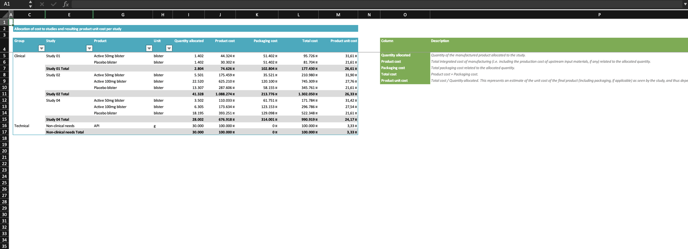
You now find some descriptions in most sheets of the project scenario Excel, explaining the meaning of each column contained in the sheet (see below example).
2.5 Enhancements & Fixes
- [Change] The cockpit tooltips fade in/out in a smoother way and require less hover time.
- [Change] The assumptions extract now contains a column to identify if the scenario has its latest version published or not.
- [Fix] The issue that was sometimes leading to duplicated lines in the project master tables (Processes, Sites, Lines, Handling conditions, Stages, Products, Studies) is fixed.