Table of content
- 1. Easier handling of multiple scenarios thanks to labels
- 2. Cockpit improvements
- 3. Excel reports improvements
- 4. Take and store notes within scenarios
- 5. Various improvements and fixes
- 6. Assumptions extract report
1. Easier handling of multiple scenarios thanks to labels
Labels were added to allow for differentiation of scenarios and improved handling of multiple scenarios in a project or trial folder. Labels are a way of adding short identifying information to scenarios such that identifying scenarios with specific characteristics becomes more efficient. This improves your daily workflow and allows you to always keep a clear overview over your active scenarios.
1.1 Add identifying information to scenarios with labels
You can now add Labels to trial and project scenarios directly on the scenario cards. Trial Managers can update labels on any trial scenario, and Project Managers can update labels on any trial scenario and project scenario. Everyone can view the labels already added to a scenario. When adding labels, you can choose from a list of existing labels (labels already used for trial or project scenarios respectively respectively) or create a new label. Each label has a unique associated colour which makes them visually easier to identify. Labels can also be removed using the x button on the label.
You can add labels to a scenario by clicking on the "+" icon.
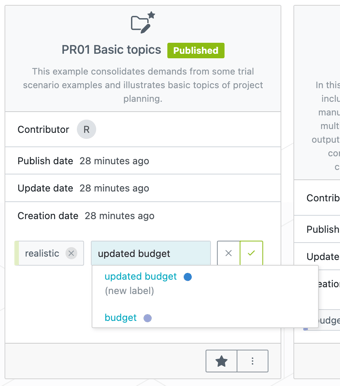
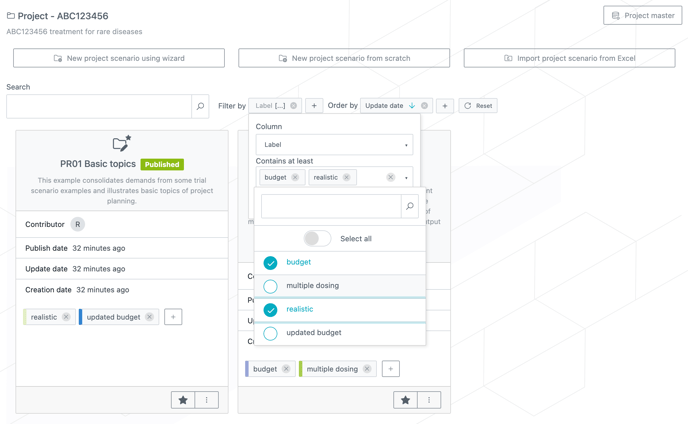
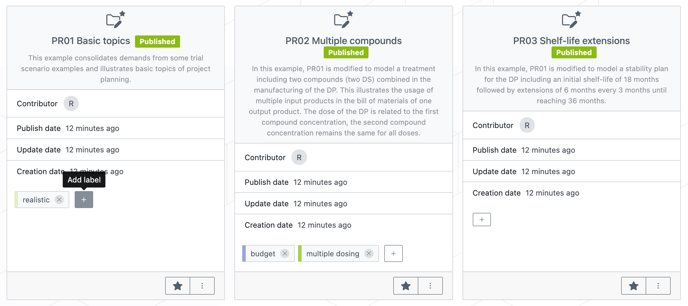 In order to add a new label, you have to type into the field and press enter or click on the checkmark. Otherwise choose an existing label from the dropdown list (see first screenshot).
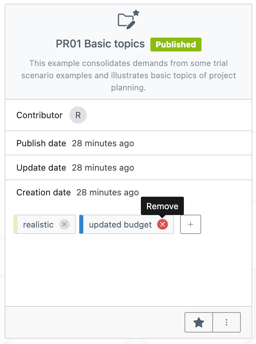
In order to remove labels, click on the x on the label (see second screenshot).
1.2 Find scenarios based on labeling information
After adding labels to scenarios, you can use the search, filter, and sort toolbar at the top of the page to filter by one or multiple labels. The filters in the toolbar can find scenarios that have labels satisfying at least one filter
2. Cockpit improvements
-
You can now zoom and horizontally scroll in the Cockpit.
-
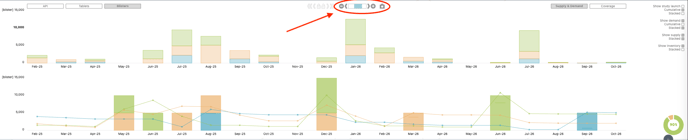
A new “camera” button allows you to directly export the cockpit as a PNG file.
-
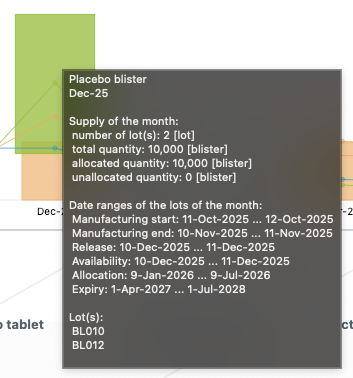
Additional information has been added to tooltips in the Cockpit for both the Supply vs. Demand and Coverage views that are available for both trial and project scenarios.
3. Excel reports improvements
-
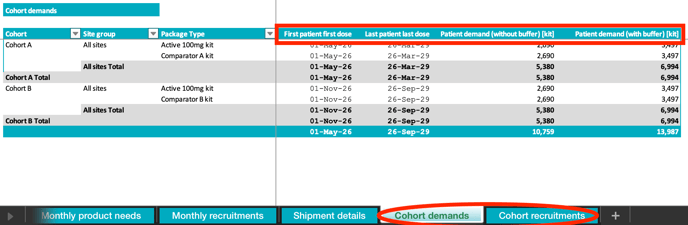
The internal trial Excel report now contains two additional sheets containing Cohort information
- “Cohort demand” reports some data (see screenshot) in function of the triple
(Cohort, Site Group, Package Type)
- “Cohort demand” reports some data (see screenshot) in function of the triple
-
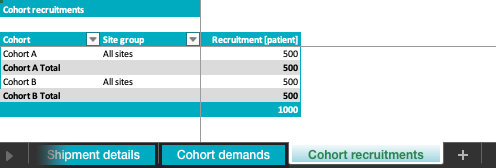
- "Cohort recruitment" reports the recruitment in function of the duo
(Cohort, Site Group)
- "Cohort recruitment" reports the recruitment in function of the duo
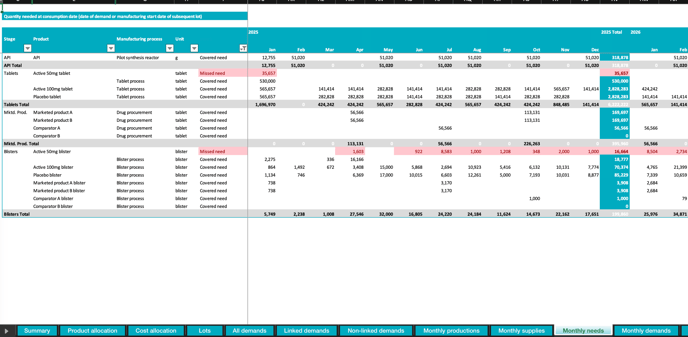
- A sheet, Monthly needs following the same layout as Monthly productions and Monthly supplies was added to the project Excel report. This sheet contains the covered need and the missed need. Missed need is highlighted in red and appears only if applicable.
-
In the project Excel report, the Total packaging cost [¤] and the Demand coverage values were sometimes wrongly computed. This is now fixed.
4. Take and store notes within scenarios
-
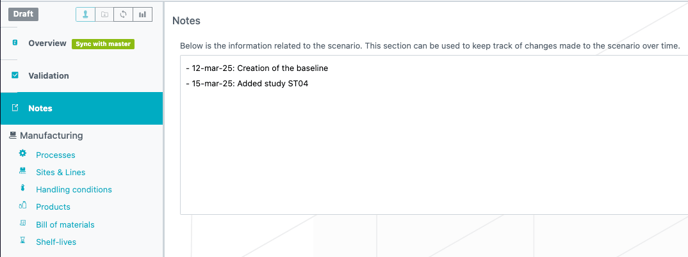
You can now write notes for each scenario.
-
A new “Notes” section has been added to the sidebar.
-
This section includes a free-text field where users can store relevant information, such as the history of changes or details that should be shared within the team. To write in the field, the scenario must be in editing mode.
-
5. Various improvements and fixes
-
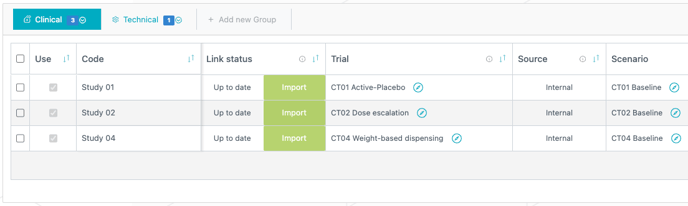
In the Study Table of a project scenario, links have been added to the corresponding trial scenarios and their respective trial folder, making it easier to navigate between them.
-
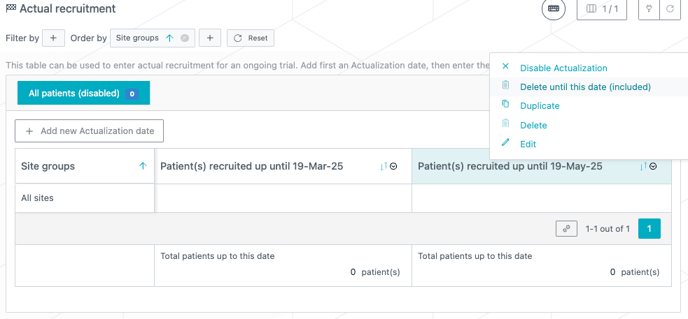
Cleaning the Actual Recruitment tables is now more efficient. Instead of deleting one actual at a time, users can now remove all actuals up to a selected date using the “Delete until this date (included)” option in the action menu.
-
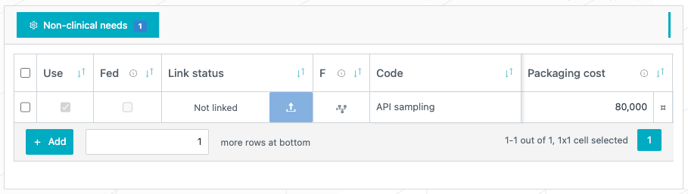
An optional Packaging cost can now be defined in the Demand table (see first screenshot). This cost is included in the total packaging costs and will also appear in the Non-Linked Demand table of the Excel report (see second screenshot).

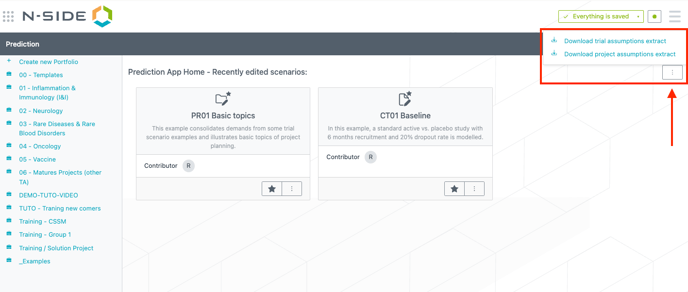
6. Assumptions extract report
Admin users can now download a report containing the input data of all tables of all baseline trials or baseline projects. The download button is exposed to Admin roles only, and is available in the home page of the Prediction App, in the three dot menu at the top right of the page. This report also contains the list of baselines and the respective metadata (creation date, owner name, …).