Table of contents
- 1. Better identify lots, demands, and freeze lots and allocations
- 2. Align trial and project scenarios with the master
- 2.1 Project master as a single source of truth
- 2.2 Access to the project master and project master manager role
- 2.3 Push lots to the project master from the project scenario
- 2.4 Align your project scenario with the single source of truth
- 2.5 Align your trial scenario with the single source of truth
- 2.6 Import studies in a project scenario
- 2.7 Import results from supply app
- 3. Other updates
- 4. Bug fixes
1. Better identify lots and demands and easily freeze lots and allocations
1.1 Packaging and manufacturing lots in project scenarios
This new version brings important updates to how lots and demands are managed in project scenarios:
-
The Lots table has been renamed Manufacturing Lots and remains under the Planning section.
-
The Demands table has been split into two separate tables: Demands and Packaging Lots.
The Packaging Lots table shows demands in terms of packaging lots imported from linked trials. They typically represent clinical demands.
The Demands table displays raw demands directly in terms of the product, as defined in the project. Those demands are associated with studies that are not linked to a trial and usually represent technical demands.
When importing from a trial, demands are now imported as packaging lots, which generate project demands based on the package design defined at the trial level.
1.1.1. Ignore recipe
A new “Ignore recipe” property is now displayed for each lot (see image below), whether manufacturing or packaging. This option lets you indicate that the input allocations can fulfill the lot’s needs without following the recipe. For lots pushed to the project master (see section 2.3 below), this property is automatically enabled, as these lots are considered fully satisfied by their input allocations..png?width=688&height=176&name=Packaging_lots_ignore%20(1).png)
1.1.2. Expiry date
There are two options to constraint the expiry of a packaging lot:
-
Expiry min from usage: The minimum required expiry date, calculated at trial scenario level, based on planned usage of the lot.
- Expiry min from input: The minimum required expiry date, calculated at trial scenario level, using input data. This includes the estimated remaining shelf-life or the expiry date directly defined for the lot.
One of those two constraints must be selected through the Chosen exp. min field.
The actual expiry date of the lot, determined by upstream product(s) allocation(s), is displayed in the Expiry date column.
1.2 Allocations
The previous Lot to Lot and Lot to Study types of allocations have been replaced by three new types:
-
To Manufacturing Lots
-
This table replaces the previous Lot to lot table.
-
-
To Packaging Lots
-
This table contains allocations from manufacturing lots to packaging lots.
-
Allocations to a packaging lot can only be defined from lots whose product is an input product in the recipe of the packaging lot as specified in the original trial scenario.
-
-
To Demands
-
This table contains allocations from manufacturing lots to demands.
-
1.2.1. Migration of lot to study allocations
-
Previous Lot to Study allocations are migrated into the To Packaging Lots and To Demands allocations, depending on the destination study.
⚠️
-
After migration, allocations to study should be carefully reviewed, as the allocations may not align with what the project manager expects.
-
Forecasts may differ due to this migration, and allocations might need adjustments to restore the desired outcomes.
1.2.2. Reusable option
-
Each allocation now includes a Reusable option, allowing you to decide whether excess allocation quantities can be reused for other allocations or not.
-
In the previous version, all allocations were set as reusable by default.
-
If an allocation is set as non-reusable, any excess quantity is considered lost.
1.3 Freeze parent lot(s) and allocations in project scenarios
This version brings new actions to simplify freezing parent lots and their input allocations within project scenarios.
From the Manufacturing Lots, Packaging Lots, or Demands tables, you can now freeze all parent lots of a specific lot or demand with a single click. This action is triggered by clicking a button with an icon that represents lots with arrows pointing downward to the parent lots (see first image below).
.png?width=688&height=179&name=Freeze_parent_bon%20(1).png)
Triggering the Freeze parent lot(s) action opens a modal which displays the parent lots that are created from this action (see image below).
.png?width=688&height=190&name=Freeze_parent%20(1).png)
Once confirmed, the corresponding lots are created in the Manufacturing lots table (see image below).
.png?width=688&height=168&name=Frozen_lot%20(1).png)
Once all parent lots of a specific lot or demand have been frozen, the “Freeze Parents” button is replaced with a new button to freeze input allocations.
Your can freeze input allocations of a lot or demand by clicking on a button represented by an icon with an arrow pointing from the left (see image below).
Freezing input allocations ensures that they remain fixed with constant size based on the system’s computation. This option is only available when not all input allocations are already frozen.
.png?width=688&height=180&name=Freeze_input_allocations%20(1).png)
Triggering the Freeze input allocation(s) action opens a modal which displays the allocations that are created from this action (see image below).
.png?width=688&height=207&name=frozen_inputs%20(1).png) Once confirmed, the corresponding allocations To manufacturing lots or To packaging lots are created (see image below).
Once confirmed, the corresponding allocations To manufacturing lots or To packaging lots are created (see image below).
.png?width=688&height=179&name=allocations_created%20(1).png)
These two actions are only enabled when applicable, providing users with clear guidance through the process based on the available options.
1.4 Studies and demands
A new property has been added to Groups to better manage linked and unlinked studies.
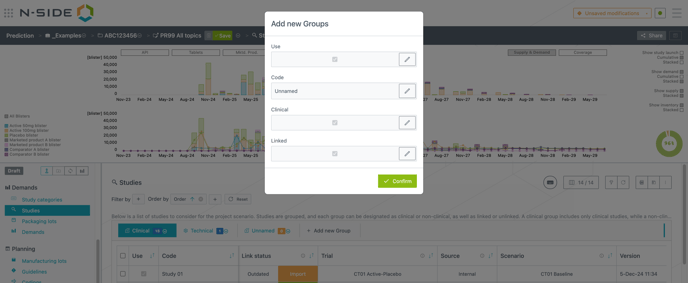
When creating a new group in the Studies table, you can now define whether it is Linked or Unlinked, in addition to specifying the Clinical/Non-clinical attribute (see image below).
1.4.1 Linked groups
These groups include studies with demands imported from a trial scenario. These demands are visible only in the Packaging Lots table.
1.4.2. Unlinked groups
These groups consist of studies that require demands to be directly defined in the Demands table.
1.4.3. Typical Use Cases
-
Linked groups are generally used for clinical studies.
-
Unlinked groups are typically for non-clinical studies, though exceptions exist:
-
A clinical unlinked group can be created for clinical studies with demands entered directly in the Demands table instead of being imported from a trial.
The status indicator is now displayed for all linked studies.
1.4.4. Excel report update
The Clinical Demands sheet has been replaced by the Linked Demands sheet and the Non-Clinical Demands sheet has been replaced by the Non-Linked Demands sheet.
1.4.5. Migration of studies and demands
Previous clinical demands are automatically migrated into packaging lots. Demand quantities and recipes are calculated based on the underlying quantities of the original demand.
Previous non-clinical demands are automatically migrated into demands.
1.4.6. Special case: manually added clinical demands
Manually added clinical demands are migrated into (non-linked) demands. For each study containing manually added clinical demands, a corresponding study is created with the same study name, suffixed “ (migration)”. These studies are grouped into a new group called “Raw clinical (migration)” which can then be re-organized by the manager as needed.
2. Align trial and project scenarios with the master
This new module brings you the in-app ability to:
-
make decisions regarding fixed lots and allocations at project level
-
make fixed lots and allocations decisions accessible for each project for each user
-
easily synchronize ongoing trial and project scenarios with the taken decisions
This module is available as a premium add-on and is not included by default. Please contact your Customer Success Manager for activation and pricing details.
2.1. Project master as a single source of truth
A new Project master has been added as a centralized repository of fixed information that serves as the single source of truth for all trials and project scenarios within a project.
The Project master consolidates all past lots and lot allocations, as well as planned lots and allocations that are fixed and should be produced as defined.
Data in the master can be:
-
-
Entered manually in the master directly.
-
Pushed from a project scenario.
-
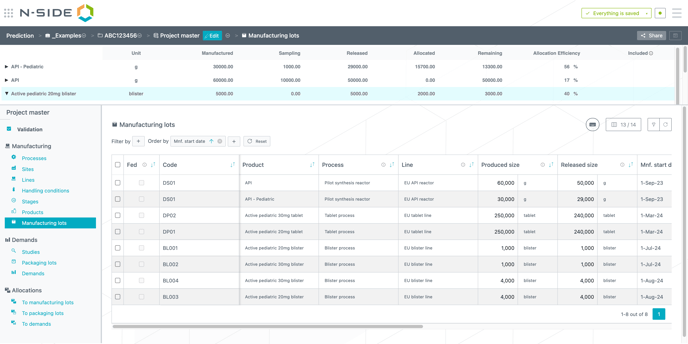
In the image below, you can view an example of the Manufacturing lots table which is part of this Project master, as well as the list of all the tables which are part of it in the left sidebar.
2.1.1. Managing master data in scenarios
Elements manually added to the Project master can be imported into a project scenario, but only if all referenced elements (directly or indirectly) have identical codes in both the master and the scenario.
Elements with unknown references (i.e. references having different codes in the master and scenario) are ignored, allowing scenarios to maintain independent baselines.
Some elements can be defined in the master as invisible to all scenarios. For instance a study and all its associated lots can be entered in the master without being linked to any scenario, provided the study code is not included in any scenario.
❗It is important to avoid changing codes, especially in the Project master, as modifying the codes of objects such as products, stages, manufacturing lines, … in the master or a scenario can break links between the scenario and the master.
2.1.2. Overview and Aggregation
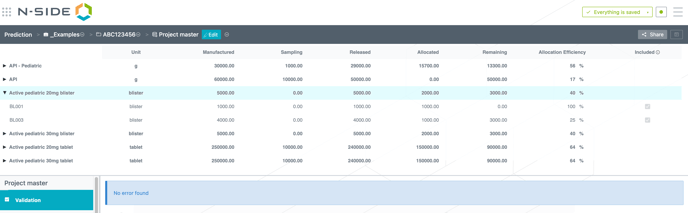
The cockpit of the Project Master provides an overview table of all manufacturing lots included in the master data (see below screenshot).
Each product is displayed as an aggregated line that can be expanded to show its associated lots.
The “Included” checkbox allows users to decide whether specific lots are part of the product aggregation.
2.2. Access to the Project master and Project master manager role
A new Project Master Manager role has been added in this release. This role should be assigned to pre-existing Project Managers if there is an intention to work with Project Master data.
The Project Master Manager has the following rights:
-
Create the unique Project master for a specific project (see image below).
-
Update the Project master, either directly within the master itself or by pushing manufacturing lots, packaging lots, demands, and allocations from project scenarios to the master.
2.2.1. How to access the project master
To create a Project master, a button is available in the Project Folder at the top-right corner of the screen (se image below). Once the master is created, access is provided through the same button.

2.2.2. Additional Information
After creating a Project master, certain functionalities will become visible in project scenarios.It is not possible to duplicate, delete, or create more than one Project master per project.
2.3 Push lots to the project master from the project scenario
Project Master Managers can export lots and allocations from a project scenario baseline to the Project master.
2.3.1. Conditions for export
To export a lot to the Project Master, the following conditions must be met:
-
Ancestors must be frozen: All ancestor lots and their allocations must be frozen with fixed sizes in the scenario.
-
Ancestors must be exported: All ancestor lots and their allocations must already be exported to the master.
-
No missing quantities: The lot must not be totally or partially missed in the scenario.
2.3.2. Export Workflow
A Push action, highlighted in dark blue, initiates the export (see image below).
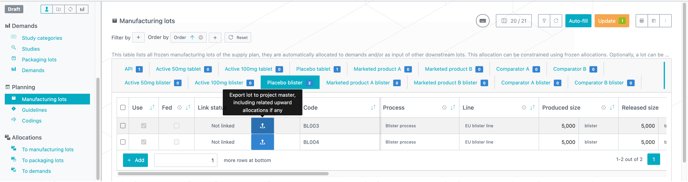
After the export, a confirmation modal provides a summary of what has been added to the master (see image below).
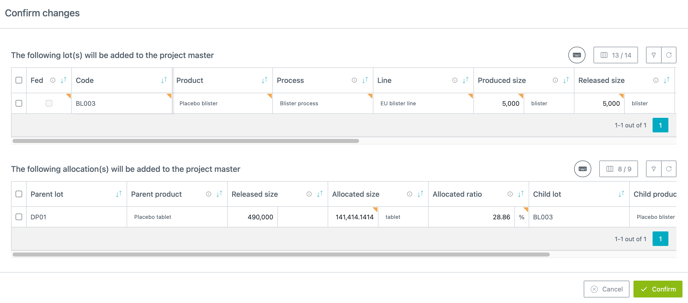
When a lot is exported, its input allocations are automatically exported along with it.
The Ignore Recipe flag is activated for the exported lot, indicating that the input allocations fulfill the needs even if they do not adhere to the recipe.
The actual expiry date of the lot is used to determine the expiry date in the Project Master and replaces the “Exp. min from input” value in the scenario.
The “Chosen exp. min” field in the scenario automatically switches to “Exp. min from input.”
⚠️
-
Exporting a lot to the Project Master should be considered as a definitive action.
-
If a lot is pushed by mistake, it is possible to manually remove elements from the Project master, but this action should be taken with extreme caution to avoid inconsistencies.
-
It is not possible to update a lot or allocation in the master by re-exporting it from a scenario. Updates to elements must be made directly in the Project master, and this should also be done with extreme caution.
2.4 Align your project scenario with the single source of truth
When lots, demands or allocations from the Project master relate to a product, study, or other component used in a project scenario, they must be accounted for in that scenario to maintain alignment.
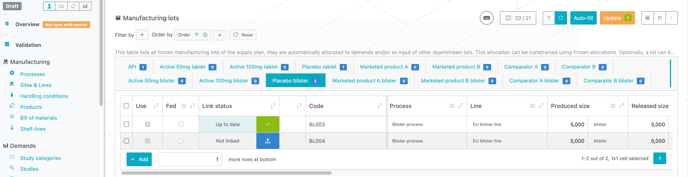
2.4.1. Indicators of synchronization
Several indicators help determine whether a project scenario is synchronized with the Project Master:
-
Sync badge:
-
A “Sync with Master” or “Not Sync with Master” badge is displayed in the sidebar near the overview.
-
- Update button:
- An “Up to Date” or “Update” button appears in the top-right corner of these tables:
- Demands
- Manufacturing Lots
- To Manufacturing Lots
- To Packaging Lots
- To Demands
- The button displays “Up to Date” when no new elements need to be imported or updated. Otherwise, the button displays “Update,” with a tooltip indicating the number of new and outdated lots.
- Clicking the button automatically imports all new elements and update all outdated elements of the table. A confirmation modal summarises the changes made.
- Out of sync elements are not affected by this action.
- An “Up to Date” or “Update” button appears in the top-right corner of these tables:
- In-line status:
- A “Link Status” field in the Packaging Lots, Demands, Manufacturing Lots, To Manufacturing Lots, To Packaging Lots, and To Demands tables shows the synchronization status of each element.
The image below gives you an idea of the look of those different indicators of synchronization.
2.4.2. Element link status
Each element linked to the master can have one of the following statuses:
-
Not Linked:
-
The element does not exist in the master.
-
If conditions are met, clicking the button exports the element to the master.
-
-
Up to Date:
-
The element exists in the master and is identical.
-
No action available.
-
-
Outdated:
-
The element exists in the master but has been updated in the master.
-
Apart from packaging lots, the element can be updated by clicking the button, replacing the scenario’s values with those from the master.
-
-
Out of Sync:
-
The element exists in the master but has been updated locally (i.e. in the scenario).
-
Apart from packaging lots, the element can be reversed by clicking the button, replacing the scenario’s values with those from the master.
-
📝 Notes
-
If an element is first updated in the master (making it Outdated) and then updated in the scenario with identical values, it will revert to Up to Date.
-
If an element is both Outdated and Out of Sync, it appears as Out of Sync.
- It is not possible to update or directly import packaging lots from the Project Master. If the Packaging Lots table is not synchronized with the Project Master, the trial scenario from which the demand was originally imported must be updated and published. Afterward, the demand should be re-imported through the Studies table in the project scenario.
2.5 Align your trial scenario with the single source of truth
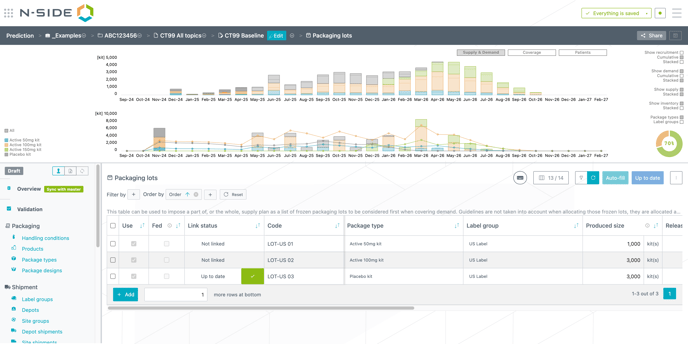
Packaging lots from the Project master data can be imported or updated in the trial scenario. For this to occur, the packaging lot must meet the following conditions:
-
Its package type and label group must have the same code as those defined in the trial.
-
The study associated with the packaging lot in the Project Master must already be linked to the trial in the project scenario. In other words, the packaging lot must be associated to a study of the project scenario that is linked to the trial.
2.6 Import studies in a project scenario
Only published versions of trial scenarios that are synchronized with the project master data can be imported into a project scenario.
2.6.1. How demand is imported
The demand from a trial is imported directly as packaging lots. The upstream needs are then computed based on the recipe defined in the trial.
Former packaging lots associated with the study in the project scenario will be removed and replaced by the newly imported ones.
A packaging lot that is already linked to the Project Master cannot be removed. Instead, it will be updated with its matching lot from the trial. If no matching lot exists in the trial, the import cannot proceed.
2.6.2. Using offsets and multiplicative factors
It is still possible to import trial data using an offset or multiplicative factor to simulate an analogous trial.
However, packaging lots imported in this way should not be exported to the Project Master, as no link to the trial can be established.
2.7 Import results from supply app
When lots are imported from a Supply App result, they are automatically replaced or updated based on their synchronization status with the Project Master.
2.7.1. Import process
-
For lots not linked to the master:
-
These lots are removed from the scenario and replaced by new ones from the Supply App.
-
- For lots linked to the master:
- The system ensures that these lots match the ones from the Supply App. If they match, the import will not replace them, preserving the link with the master.
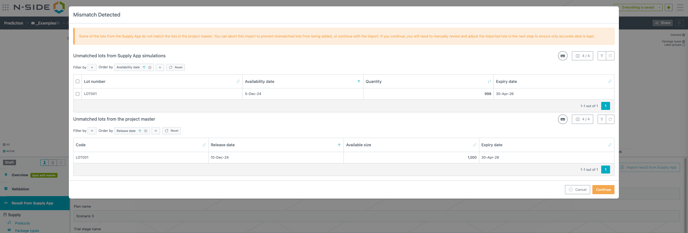
- Handling mismatches:
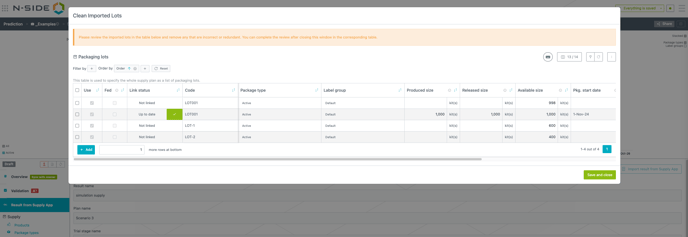
- If a lot linked to the master does not match any lot in the Supply App, or if a lot in the Supply App does not match any lot in the master, both lots will be kept in the scenario. A modal will display the mismatch allowing the trial manager to make an informed decision about how to proceed (see images below).
⚠️
- If a lot in the master does not match any lot in the Supply App, extra caution is required. It is critical to ensure that the Supply App simulations are based on recent and accurate information to avoid potential risks associated with outdated data.
- The Import Results from Supply App action is only available when the trial scenario is already synchronized with the Project Master.
3. Other updates
-
The dispensing units in the trial scenario now allow a decimal number of kits per unit.
-
The duplicate action was removed for portfolio, project and trial folders since it does not copy included scenarios.
-
All users are now able to identify project and trial scenarios which have been set as a baseline even in the case that they do not have the access rights to set or unset baselines.
4. Bug fixes
The following issues are now fixed:
-
In package designs of trial scenarios, the indicator for each kit was not accurate in case a decimal number less than 1 was chosen for the number of products per kit.
-
Resolved an issue with setting baselines on external and internal trial scenarios.