Table of contents
1. New features
1.1. General
1.1.1. Baseline scenario(s)
-
What is a Baseline?
A baseline represents the chosen scenario upon implementation. This feature is available both at trial level and project level.
By defining a project scenario as the baseline, you can easily identify which of the many scenarios under a project (or under a trial) has to be considered as the reference, as opposed to others being what-if analyses or outdated baselines.
Setting one of the scenarios as the baseline scenario is critical in order for other external systems to retrieve results from APIs, in particular to identify the reference supply plan of the project or the trial to be implemented.
Moreover, by defining a project baseline you can specify which project scenario to consider when retrieving project data from a trial scenario (see Project summary report below.)
-
Utilizing Baselines
-
Setting a Baseline: On each scenario card, you'll find a star icon (see image below).
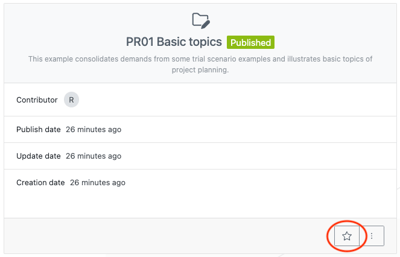
Clicking on the star sets the scenario as the baseline, turning the star dark grey (see image below).
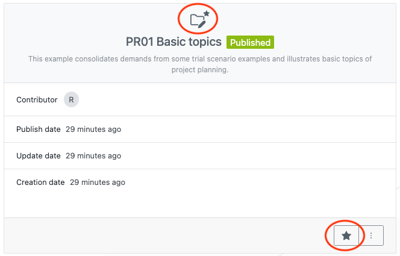
-
Replacing Baseline: Setting a new baseline scenario automatically replaces the former baseline. The star icon on the previous baseline scenario becomes blank.
-
Removing a Baseline: Clicking on the star again removes the scenario, reverting the star icon to a blank state.
-
-
Multiple Baselines
Sometimes the project or the trial plan is split into multiple scenarios in order to handle their complexity in smaller parts. In this uncommon situation, defining multiple baselines might be required.
You can add baselines from the action menu of a scenario card (see image below). This action marks the scenario as a baseline without removing the other existing baseline(s).
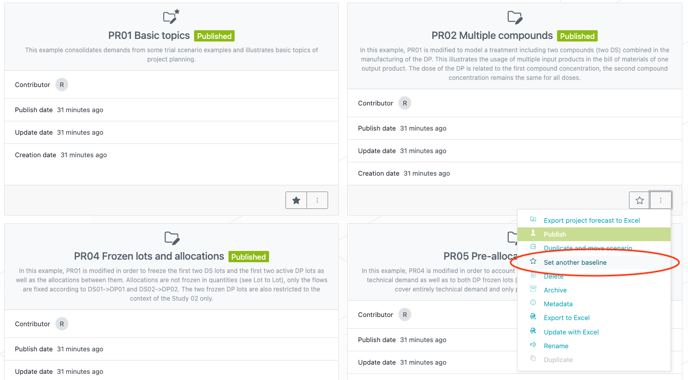
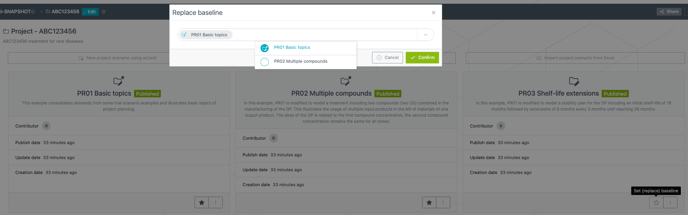
When there are multiple baselines already defined, and only in this case, setting a baseline opens a window where you choose which baseline should be replaced amongst the list of current baselines (see image below). If you do not want to replace an existing baseline but rather want to add an additional one, you should use ‘Set another baseline’ from the action menu, as explained right before.
1.2. Project level
1.2.1. Aggregated packaging plan enhancements in project level Excel report
-
The "Clinical demands" sheet in the project level Excel report presents an aggregated view of the packaging campaigns together with their consumptions (demands) of upstream products (DP) for all studies covered by the project. This table has been enhanced to be organized by packaging release date and to include the required expiry of campaigns to be compared to the actual expiry (see image below):
-
Packaging release date
-
Required expiry, i.e. expected minimum expiry of product(s) as requested by the packaging campaign, as a result of the trial level forecasting.
-
Actual expiry of allocated product(s), as a result of the project supply plan.
-

1.2.2. Cost allocation to study
-
Some definitions
-
Incremental cost
-
cost related to a particular production stage only, not including cost of input materials.
-
-
Integrated cost
-
cost of all stages down to and including the considered production stage, i.e. incremental cost of the stage plus the integrated cost of the input materials coming from upstream stage.
-
-
-
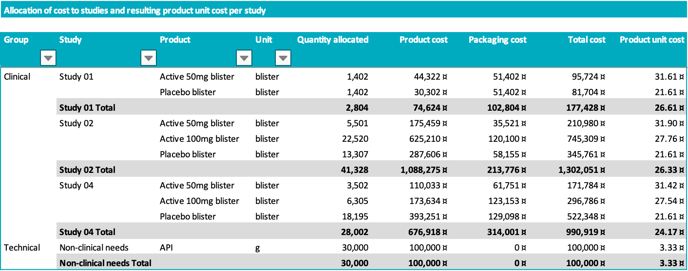
The project level Excel report now contains an additional sheet named "Cost allocation" (see image below) that shows the allocation of manufacturing costs to the studies and estimates the resulting integrated unit cost of products consumed by the study.
-
For each study and for each product consumed by the study (as input of the packaging releases if clinical study or as a direct demand of the product if non-clinical study), the table shows:
-
Quantity allocated : quantity of the product allocated to the study (could be lower than the total demand for that product if not all demands could be fulfilled, i.e. if there are missed demands).
-
Product cost : integrated cost of the product allocated, i.e. costs of the fractions allocated to the study of all upstream lots (see Cost allocation principle).
-
Packaging cost : incremental cost of the packaging stage as defined in the imported trial scenario (for clinical study only).
-
Total cost : Product cost + Packaging cost (end-to-end manufacturing cost of the study).
-
Product unit cost : Product cost / Quantity allocated = integrated unit cost of product
-
This information is helpful for trial managers in order to have an estimation of the unit cost of upstream products (DP or PP) they are consuming for their study.
-
Note that this product unit cost depends on the project level supply plan and more precisely on the way lots with possible different costs are allocated to the studies (see Cost allocation principle).
-
-
-
Cost allocation principle
-
The manufacturing cost of each lot in the production chain is allocated to a specific study in proportion of the quantity allocated to that study.
-
Costs related to the fractions of the lots that are not allocated to any study (sampling, losses) are not included in the product costs allocated to the studies. They are all aggregated into a global unallocated costs (see Summary table in project report).
-
The integrated product cost of a product consumed by the study therefore includes the cost of the fractions of all upstream lots that are allocated to the study. In other words, each study ‘pays’ for the fractions of the lots in the upstream chain that it consumes.
-
As a result of this principle, it is possible that the product unit cost of a given product is not the same for all studies consuming that product. This is the case in the example above where costs of active (50mg and 100mg) blisters are slightly different between consuming studies. This is observed if the cost per unit of lots of a same product are not always the same. For example, if there is a process scale-up from phase II to phase III studies, with a decrease of production cost per unit, typically phase III studies will see a cheaper product than phase II studies. Since study pays its consumption of each specific lot, in such case of changing per unit cost of lots, a study consuming more of the expensive lots (small scale) will see a higher product unit cost than a study consuming more of the cheaper lots (higher scale).
-
-
This table is made available at project level Excel report, including all studies covered by the project. An excerpt of the same report for one specific study is also available through the project summary report that can be extracted for a given study (see Project summary report).
1.2.3. Product allocation report
-
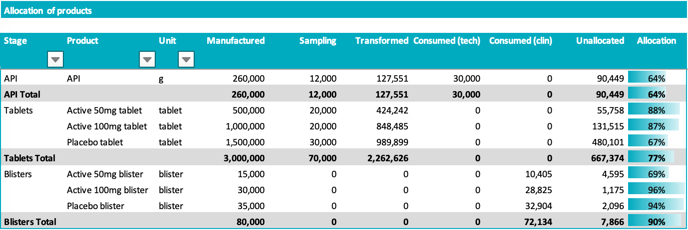
The project level Excel report now contains an additional sheet named "Product allocation" (see image below) that summarizes the allocations of the total quantity manufactured of each product into:
-
Sampling
-
Transformed, i.e. as input of a next stage production (excluding packaging)
-
Consumed (tech), i.e. for technical demands
-
Consumed (clin), i.e. as input of a packaging campaign
-
Unallocated : not used
-
-
The allocation rate is finally defined as
-
(Transformed + Consumed tech + Consumed clin) / (Manufactured - Sampling)
-
1.2.4. Project summary report
You now have the ability to download project data from a trial scenario. With this feature, it is now possible to access some project data associated with a trial scenario.
How it works
-
Prediction App users
-
Publish the trial scenario and import its demands in relevant project.
-
Set the project as a baseline and publish it.
-
An action Download project summary is available on the trial scenario (see image below).
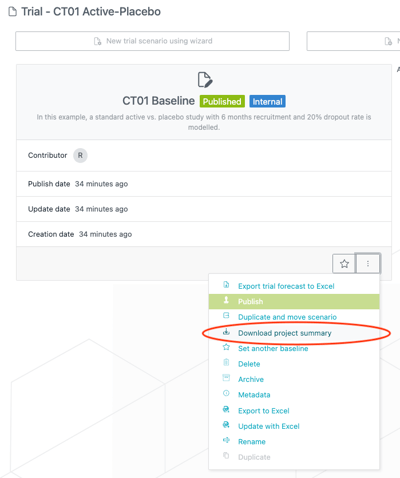
This action downloads an Excel report containing project data associated with the trial data. More precisely, the report will contain data associated to the trial from published baseline project.
-
In the uncommon case of a trial scenario imported (split into) multiple project scenarios, the project summary report will contain information related to each of the involved projects.
-
-
Supply App users
-
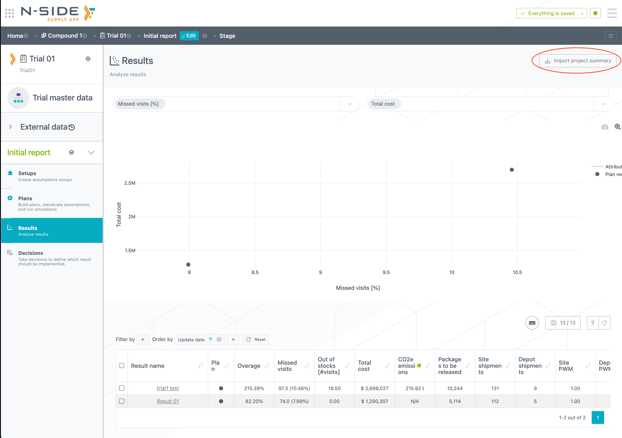
Navigate to the list of results of a trial. An "Import project summary" button is available at the top right corner (see image below).
-
The action will download an Excel report containing project data associated to the trial. This trial must have been first imported in Prediction App and “used” in a published baseline project.
-
1.3. Trial level
1.3.1. Synchronized packaging releases (campaigns)
-
You can now synchronize release dates of packaging releases for all (or a subset of) package types and label groups, in order to model packaging campaigns that are released at the same date for multiple package types / label groups (e.g. active and placebo kits being packaged and released together)
-
As shown in the image below, a new optional "Date sync" parameter has been added to the "Guidelines" table. This parameter can be used in combination with the "Release frequency" parameter in order to fix the sequence of release dates for all package types and label groups covered by the guideline

-
"Date sync", if entered, will correspond to the date of the first release of the sequence. Then subsequent release dates will be generated according to the "Release frequency" parameter. In the example above, the following sequence of release dates is generated:
-
1-Jan-24
-
29-Jun-24 ( = 1-Jan-24 + 180 days)
-
26-Dec-24 ( = 1-Jan-24 + 360 days)
-
…
-
-
If some lots are frozen (i.e. defined in the "Lots" table) with a release date after "Date sync", then only the dates of the sequence occurring after the last release date of frozen lots will be considered for possible new lots.
1.3.2. Do not dispense (DND)
-
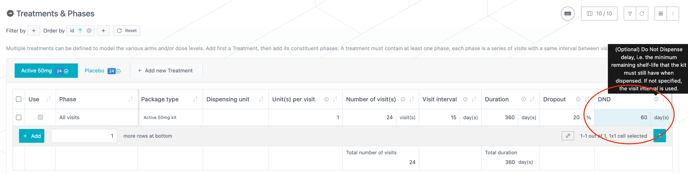
Previously, the "Same day" checkbox was available in the definition of a treatment phase. It was used to indicate whether the treatment was dispensed the day of the visit (same day) or all along the interval until next visit, with an effect on the required validity of kit dispensed. Kits had to be valid until the day of the visit (DND = 0 ) or until next visit (DND = visit interval) depending on the state of this checkbox. It was therefore not possible to define any value of DND.
-
The "Same day" checkbox has now been replaced by an optional "DND" parameter (see image below), allowing you to define any value for the minimum number of days of validity below which kit cannot be dispensed (Do not dispense). When empty (default value), it is assumed that DND = visit interval
2. Various enhancements
-
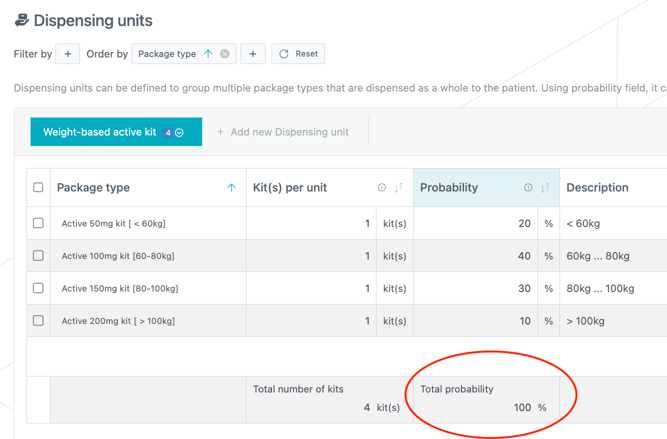
The "Dispensing units" table now shows the total of entered probabilities (see image below).
-
At project level, it is now required to define explicitly the expiry date of a frozen lot when it is marked as ‘Fed’ and there is no stability plan defined for its the product. Indeed, in this case, the system is not able to determine its expiry from (unknown) upstream allocations.
3. Bug fixes
The following issues are now fixed:
- The hatched background in the Cockpit was no longer displayed when it was not synchronized with data changes.
- The red highlighting of the "Stage" tab in the Cockpit was no longer displayed when there were missed demands.
-
Unchecking the “Use” flag on a specific treatment phase did not disable it in the computation.
-
Missed demands were not always properly detected and highlighted in the Cockpit.
-
In case of a production stage without a stability plan (e.g. primary packaged - PP - product stage between DP and IMP), the evaluation of an expiry of a lot with a stability plan (DP), when allocated to a final demand (IMP campaign), was considering the date of the intermediate lot (PP) instead of the date of the demand to determine the most favorable shelf-life available, leading to underestimating (in some circonstances) the expiry.
-
This is now solved. The date of the final demand (i.e. the date of packaging campaign start) determines which shelf-live extension can be used, in all circumstances.
-