Table of contents
1. New "Lots & Allocations" section
4. Visualize Lot to lot and Lot to study allocations in Excel
1. New "Lots & Allocations" section
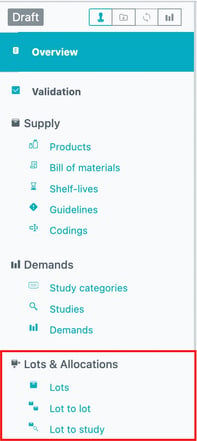
A new "Lots & Allocations" section (see image on the right) has been created to gather all information related to frozen lots and frozen allocations.
It contains:
-
the "Lots" table (previously part of the Supply section)
-
a new "Lot to lot" table
-
a new "Lot to study" table
2. Lot to lot allocations
2.1. Define lot to lot allocations in a specific table
Previously, the "Parent lot(s)" field in the "Lots" table allowed you to link two lots together but did not allow you to fix quantities that should be allocated. Moreover, once defined, parent lots were treated as the only possible parents. If they were, for any reason, not sufficient or not allowed to cover the need of the child lot, no other allocation was considered by the system, leading to missed demand.
Parent lot(s), as previously defined in the "Lots" table, are replaced by the new "Lot to lot" table. In this table, you can now define allocations between lots with or without specifying the allocated quantity.
The "Lot to lot" table (see image below) handles allocations between lots. Once lots have been frozen, i.e. once they have been defined in the "Lots" table, they become available in the "Lot to lot" table under "Parent lot" and "Child lot" fields.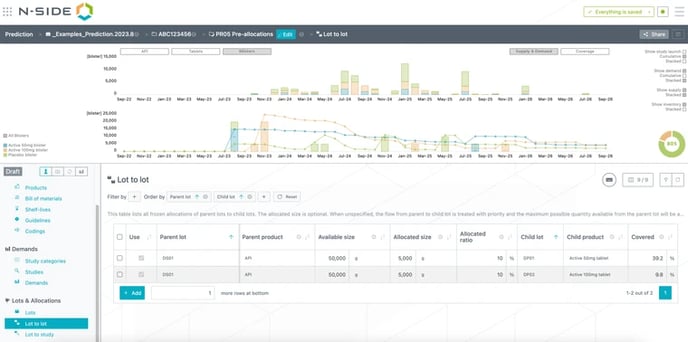
"Parent lot", "Child lot" are mandatory entries while "Allocated size" is optional. All others fields are automatically computed by the system.
💡 Definitions
The "Allocated ratio" is the fraction of the available size of the parent lot that is used through this allocation (Allocated size/Available size).
The "Covered" field is a percentage representing the fraction of the quantity of the parent product needed by the child lot that the parent lot covers through this allocation.
The list of lots available for selecting the parent lot or child lot is considering the existence of a "Bill of materials" linking the two products involved. For example, once you select a drug substance (DS) lot as parent, only lots of drug product (DP) manufactured from this DS are available in the "Child lot" field.
📝 Notes
-
Any allocation containing at least one inactive lot - i.e. having the “Use” checkbox unselected - is not taken into consideration.
-
Allocation are not supposed to involve a child lot marked as “Fed” (since it is assumed to have already received and consumed its needed input material). Such allocation will be ignored in the computation and will trigger an error.
-
More generally, warning and error messages have been added to help users understand when their allocated quantities cannot be taken into consideration. For example, when an allocated quantity is higher than the needed quantity or if there is no bill of material entries defined between parent and child lots.
2.2 Understand the allocations prioritization
Lot to lot allocations are considered by the system as priorities in the way to allocate lots between them, they are not considered as strict constraints.
When allocating lots, the system proceeds according to the following priorities:
-
Try to first fulfill all allocations where the quantity is specified and up to the specified quantity, if possible. If for any reason (timing, expiry, quantity not matching need, need already fulfilled by another allocation, etc … ) the allocation is not possible/relevant or only partially possible, the system will perform only the possible allocation. If the allocation could be only partially fulfilled, the remaining quantity from the specified quantity to be allocated, remains available for possible other allocations.
-
Try to fulfill allocations where quantity is not specified and up to the quantity needed by the child lot, if possible. An allocation without quantity is used to guide the system to prioritize the flow between the parent and the child lots while letting the system compute the appropriate amount to match the need of the child lot.
-
Generate new allocations where needed
When some allocations cannot be performed for any reason, the user will get a warning and be informed about the difference between the expected allocation and the actual one.
2.3 “Zero allocation”
In previous versions, parent lots, once defined, were considered as the only possible parents. In this new version, defining parent lot(s) for a child lot does not necessarily prevent from other parent(s) to be allocated, especially if this is required to avoid missed demand and after having given priority to the specified parent(s).
To explicitly avoid other parent(s) to be considered, a “zero allocation” can be entered, i.e., an allocation with a specified quantity equals to 0). However, this should be rarely required since the priorities should, in most cases, achieve the expected result.
Transfer of existing Parent lots to Lot to lot allocations
Such “zero allocations” have nevertheless been used in the process of migrating data from previous versions, where parent lot(s) were involved, to this new version, . These “zero allocations“ were added to make sure previous behaviour was strictly replicated.
For example, suppose 3 frozen DS lots: DS001, DS002, DS003 that are all possible parent of a frozen DP lot DP001. If lot DS002 was defined as the only parent of DP001 in previous versions, then the following lot to lot allocations have been created in the new version:
-
One allocation with unspecified quantity and with DS002 as parent lot and DP001 as child lot.
-
Two zero allocations with DS001 and DS003 as parent lot and DP001 as child lot, in order to make sure these two lots could not be allocated to DP001 in case the priority allocation DS002 - DP001 was not fully supplying the required quantity for DP001.
3. Lot to study allocations
3.1 Define lot to study allocations in a specific table
Previously, the parent lot(s) field in Demands table allowed you to link a lot to a specific demand but did not allow you to fix the quantities that should be allocated to this demand. Moreover, once defined, parent lots were treated as the only possible parents. If they were, for any reason, not sufficient or not allowed to cover the demand, no other allocation was considered by the system, leading to missed demand. Also, when re-importing clinical demands from a trial scenario, these allocations were deleted and had to be redefined by the user.
Parent lot(s), as previously defined in the "Demands" table, are replaced by the new "Lot to study" table. In this table, you can now define allocations from lots to studies with or without specifying the allocated quantity.
Since these allocations are no longer stored in the "Demands" table and, because they are targeting a study instead of a specific demand (packaging campaign), when re-importing clinical demands from a trial scenario, these allocations are not deleted and remains valid.
The "Lot to study" table (see image below) handles allocations of lots to studies. Once lots have been frozen, i.e. once they have been defined in "Lots" table, they become available in the "Lot to study" table under the "Lot" field.

Lot and Study are mandatory entries while allocated size is optional.
💡 Definition
The "Allocated ratio" is the fraction of the available size of the lot that is used through this allocation (Allocated size/Available size).
The list of studies available as part of the Study field is limited to the subset of studies having at least one demand in the product of the selected Lot.
3.2 Understand the allocations prioritization
Lot to study allocations are considered by the system as priorities in the way to allocate lots to studies, they are not considered as strict constraints.
When allocating lots, the system proceeds according to the same priority principles as described above for Lot to lot allocations (see 2.2.). However, since allocations are not defined toward a specific demand of the study (i.e. toward a specific IMP lot) but rather to the whole study, demands of the allocated study will be considered in their chronological order.
3.3 “Zero allocation”
In previous version, parent lots, once defined, were considered as the only possible parents. In the new version, defining parent lot(s) for a study does not necessarily prevent from other parent(s) to be allocated, after having given priority to the specified parent(s).
To explicitly avoid other parent(s) to be considered for a given study, a “zero allocation” can be entered (i.e. an allocation with a specified quantity equals to 0). However, this should rarely be required since the priorities should in most cases achieve the expected result.
Transfer of current Parent lots to Lot to study allocations
In the process of migrating data from previous versions to this new version, "Lot to study" allocations have been created to replicate, as close as possible, the previous behaviour related to parent lot(s) (in the "Demands" table).
When a parent lot was specified for a demand in previous versions, an allocation from that lot to the study is created in the new version with no quantity defined.
4. Visualize Lot to lot and Lot to study allocations in Excel
In the "Allocation list" sheet of the Excel report, you can now visualize the allocated quantity that was requested from a certain lot to either another lot or to a study, as well as the quantity that was actually allocated. If the actual allocated quantity is different (lower) than the requested one, the latter is highlighted in red as shown below (in this example, the total of requested allocations from DS01 was greater than its available size).
