Table of contents
1. Seamlessly import a Supply App result directly from the Prediction App
2. Model time dependent supply guidelines at project scenario level
3. Define study categories at project scenario level
1. Seamlessly import a Supply App result directly from the Prediction App
⚠️ This update is only available in case you have access to both Supply and Prediction Apps.
All Trial managers and Project managers can now import Supply App results directly from the Prediction app, based on the trial name. An access to the Supply App and the result id is not necessary anymore.
By clicking the "Import result from Supply App" button (see image below), a new window opens.
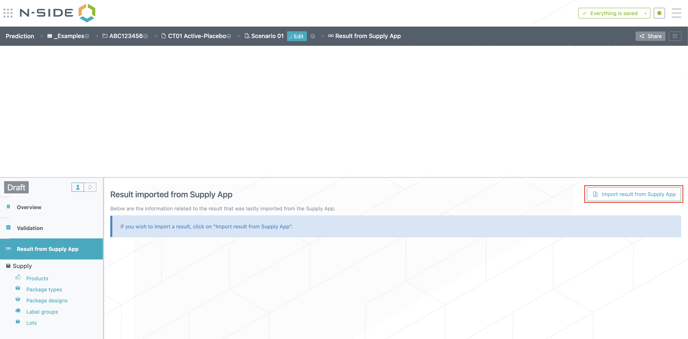
You can import any results from the Supply App as long as these results have been shared with the "Prediction app sharing user" in the Supply App .
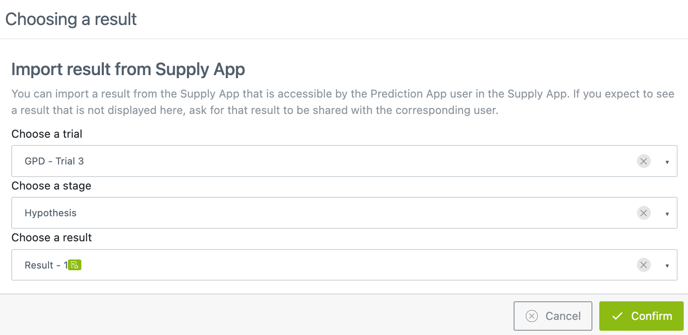
📝 Note
A green “decision icon” appears next to the result name to identify whether the result is related to the last decision published in the Supply App.
2. Model time dependent guidelines at project scenario level
Most manufacturing parameters (e.g., lot size, lead times) of project scenarios were fixed over the prediction horizon because they were defined at product level.
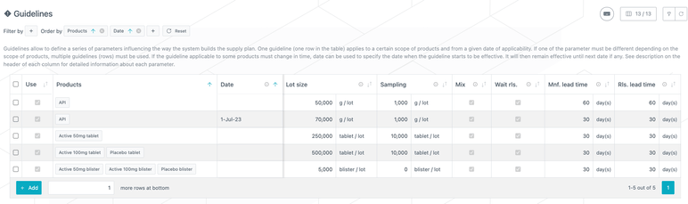
Now, these parameters can evolve over the prediction horizon as they are now defined at "Guidelines" level and linked to one or several products and optionally attached to a date of applicability. As a consequence, you can now model project scenarios in which some manufacturing parameters change with time, due for example to a process scale-up (change of resource) or an improvement in the yield.
2.1. Where are those Guidelines defined?
All parameters except Code and Unit are moved from the "Products" table to the new "Guidelines" table (see image below) and can now evolve over time.
2.2. How can these Guidelines be used?
-
One guideline over the whole horizon: by default the guideline is created with an empty Date, meaning it can be used from the beginning of the manufacturing horizon.
-
Frozen manufacturing of a product until a certain date: using only one guideline for a product (or a set of product) and defining a Date for it implies that the manufacturing of the corresponding product is frozen until that date.
-
Evolution of the manufacturing guideline over the horizon: several guidelines can be defined for the same product. In this case, a guideline starts to be used from the Date defined in it. This is illustrated on the image above, where two guidelines are defined for API, with an increase of lot size and a decrease of lead times from July 2023 on.
In addition, two types of losses are now available: input and output losses. The input loss, which was already available before, is defined in the bill of materials and is relative to a loss of input product. The output loss, which is a new concept in this release, has been added in order to model a loss of output product and is defined as part of the guideline parameters in order to make it possible to change it in time, for example to model process yield enhancement.
2.3. How will the existing data be transitioned?
-
Information defined at Products level is moved to a guideline for the corresponding product.
-
Guidelines with similar parameters for several products from the same stage are merged together.
-
Date is filled in with the Frozen until value previously defined at Products level, if any.
📖 User documentation
See slides 66-67 of the tutorial for more information on how to use this feature.
3. Define study categories at project scenario level
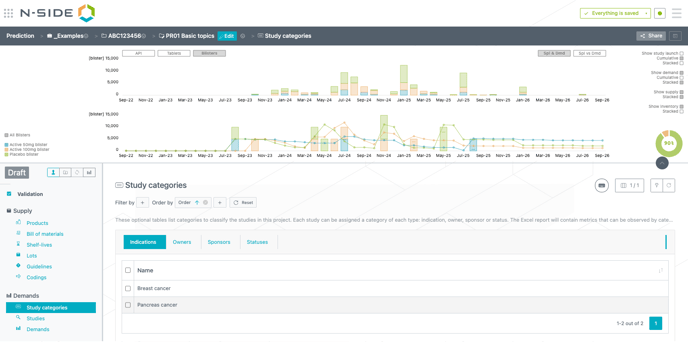
A new "Study categories" section is added where you can define values for the following categories: Indications, Owners, Sponsors, Statuses (see image below).
These categories can then be assigned to studies (clinical or not) in the "Studies" table (see image below).
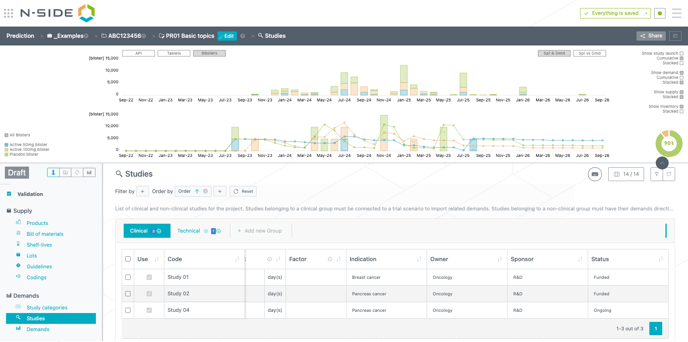
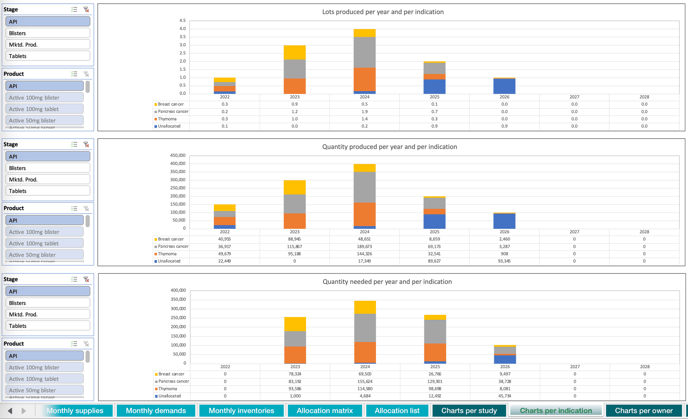
These categories and their association to studies are optional. They are used mainly to provide additional reporting in the form of additional graphs displaying the number of lots produced, the quantity produced as well as the quantity needed per year and per study category (see image below).
📝 Note
The needed quantity is the sum of direct demands (coming from the "Demands“ table) and indirect demands (coming from the need of downstream manufacturing).
📖 User documentation
See slides 69-70 of the tutorial for more information on how to use this feature.
4. Other updates
-
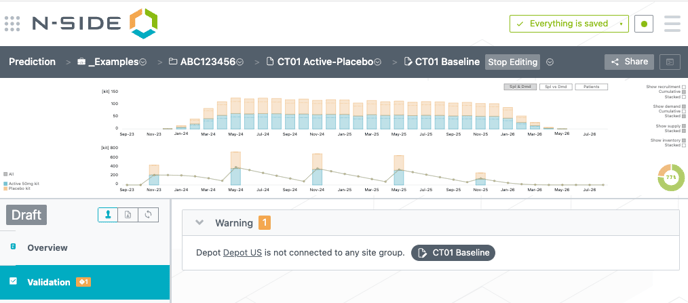
A warning message (see image below) now informs you when a depot has been created but is not linked to any site group. In fact, not linking a depot to any site group implies that its shipment lead-time is not taken into consideration and therefore it has no impact on the result.
-
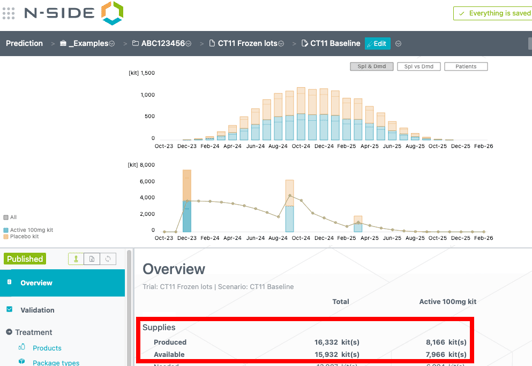
The overview of trial scenarios now displays the Produced quantities besides the Available quantity (see image below).
-
Because lot codes must be unique in the Prediction App, in case some identically named lots are imported from the Supply App (same codes or no codes defined), an incremental suffix is now added at the end of the Code. For example if there are two "Lot1" imported from the Supply App, their code will be "Lot1-1 " and "Lot1-2" in the Prediction App.
-
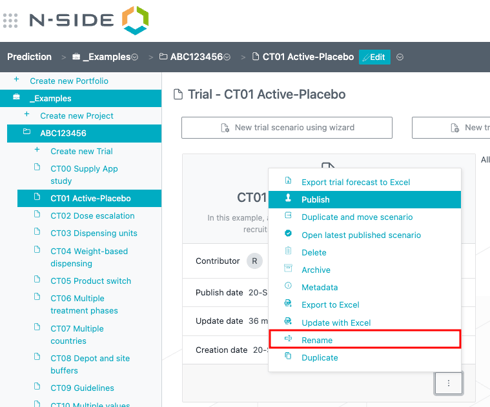
It is now easier to rename elements thanks to a new action available in the contextual menu (see image below).
-
Auto-fill windows available from the "Auto-fill" action of Lots in both Scenarios and Projects now display the products in the order defined in the "Products“ table.
- Limitation of maximum 200 lots per product in project level planning has been replaced by a limitation of 1000 lots in total in the scope of a scenario (for all products combined, including frozen lots).
- Computation time for project level planning has been significantly improved, up to a factor 5 on most complex cases.
5. Bug fixes
The following issues are now fixed:
-
Copy paste did not work properly in the following tables:
-
the "New trial scenario using wizard" window.
-
the "Import lots" window from the "Auto-fill" action in the "Lots" section.
-
the "Actual recruitment" section
-
the "Import demand" window from the "Import" action in the "Studies" section
-
-
Duplicating a scenario and moving it was not taking the renaming into account.
The updated name is now well kept for the newly created scenario. -
In case you did not have access to certain actions (such as publishing a project scenario), you could still click on the button and were receiving an error message. With this bug fix, you cannot click on the button anymore.